Showcase
ZettelFlow doesn't just store your notes. It gives you somewhere to think before an idea is a note, a way to grow one idea at a time, a query you build by clicking, and a living graph of the whole thing. This page is the tour. Everything on it works offline, and all of it works with AI switched off.
The images are illustrations of the interface, drawn to stay true as it evolves. Labels and layout match the plugin; the notes in them are examples.
Think — before it has to be knowledge
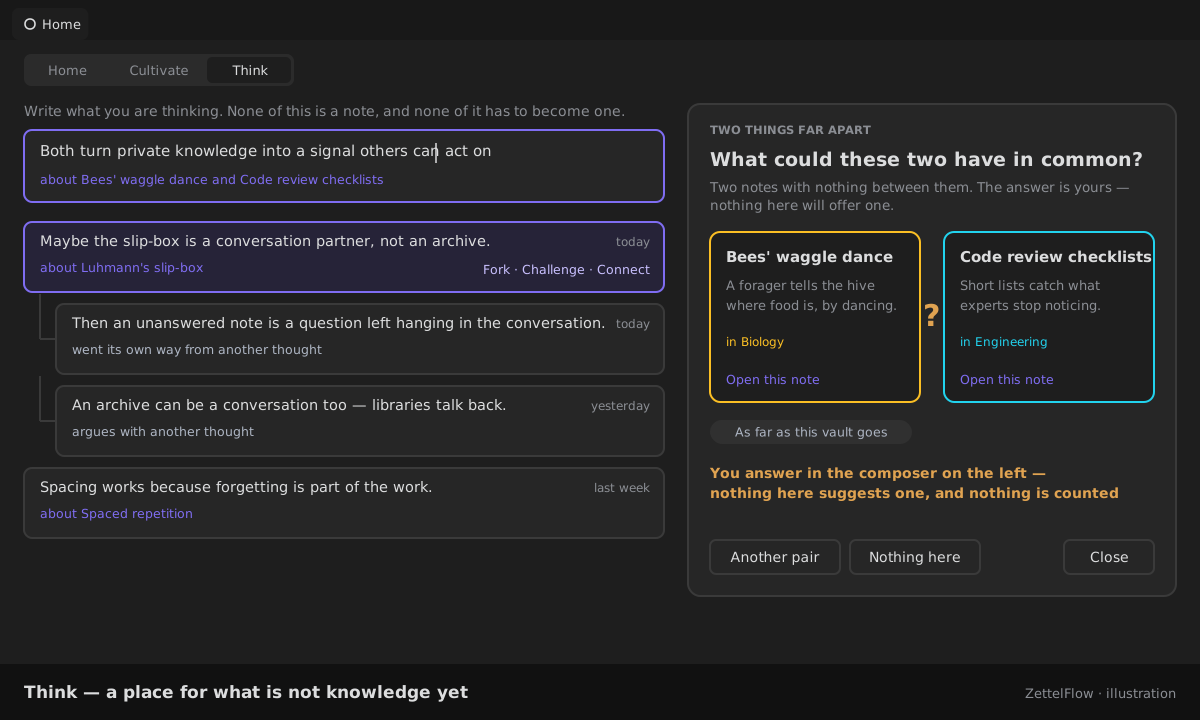
Think (a mode of Home) is a place for what isn't knowledge yet. Write what you are thinking; none of it is a note and none of it has to become one. Fork a thought to let a variant go its own way, challenge it with something that argues back, connect two of them, or set one aside — nothing reminds you. A thought can be about a note, and that note's history remembers it.
When you want a push, Two things far apart puts two of your notes with nothing in common side by side and asks what they could share. It never offers an answer: you write it in the composer, as a thought about both.
Home — the place you land
Home greets you for the moment of day with one plain fact about your week, lets you write straight into Think, and shows where you left off, what came back today — answered in place, one quiet stack — one idea to tend, and a small glimpse of your vault that opens Explore. No counters, no streaks, no dashboard of tiles.
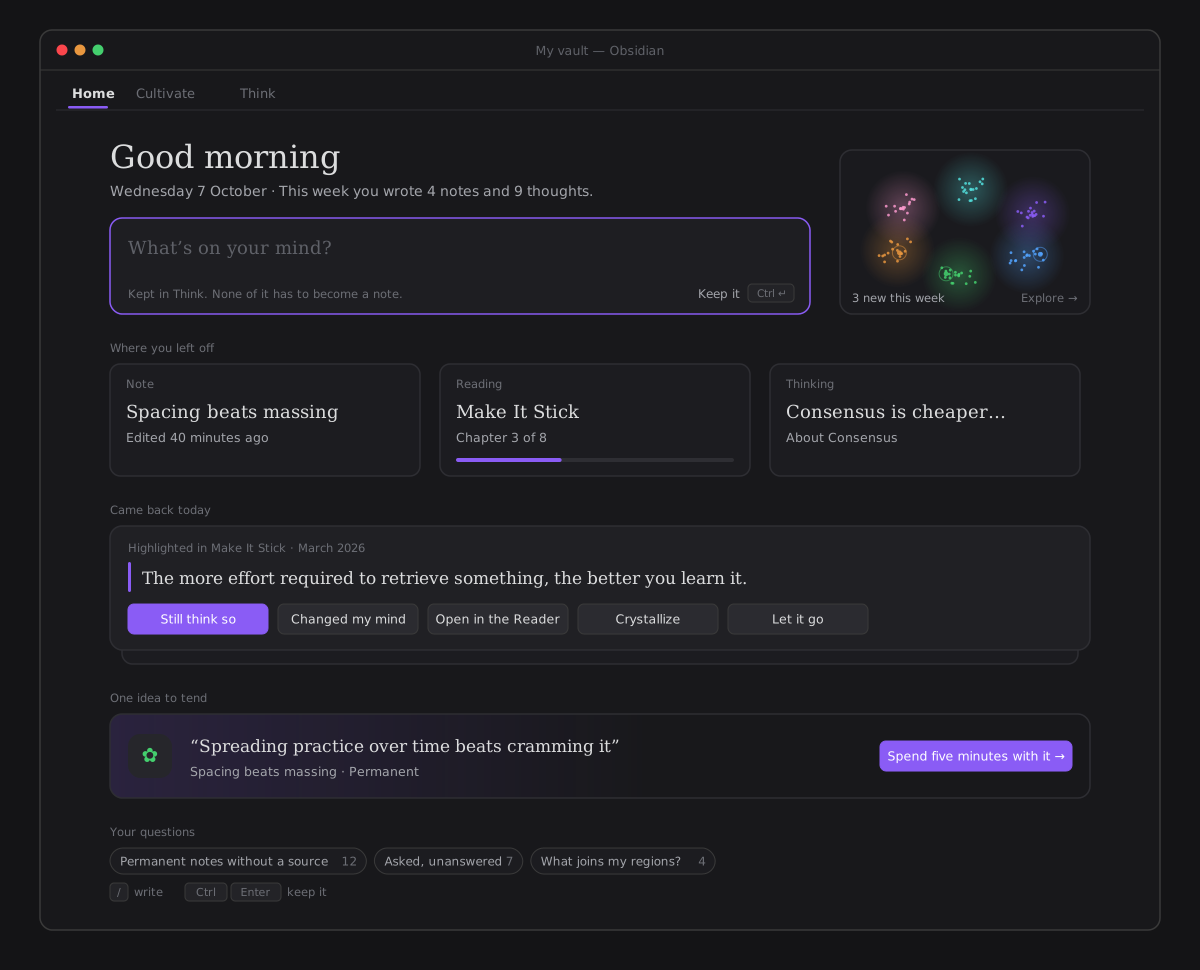
→ Details: ZettelFlow Home.
→ Details: the thinking space and two things far apart.
Cultivate — grow one idea, one move at a time
Cultivate picks one idea and offers five moves — connect, challenge, question, advance, add a source. The moves that would show you an answer ask for your guess first: before you look, what is the strongest argument against this idea? Only then does ZettelFlow show what your own notes say. The notes by stage strip is the filter: click a stage to cultivate from it.
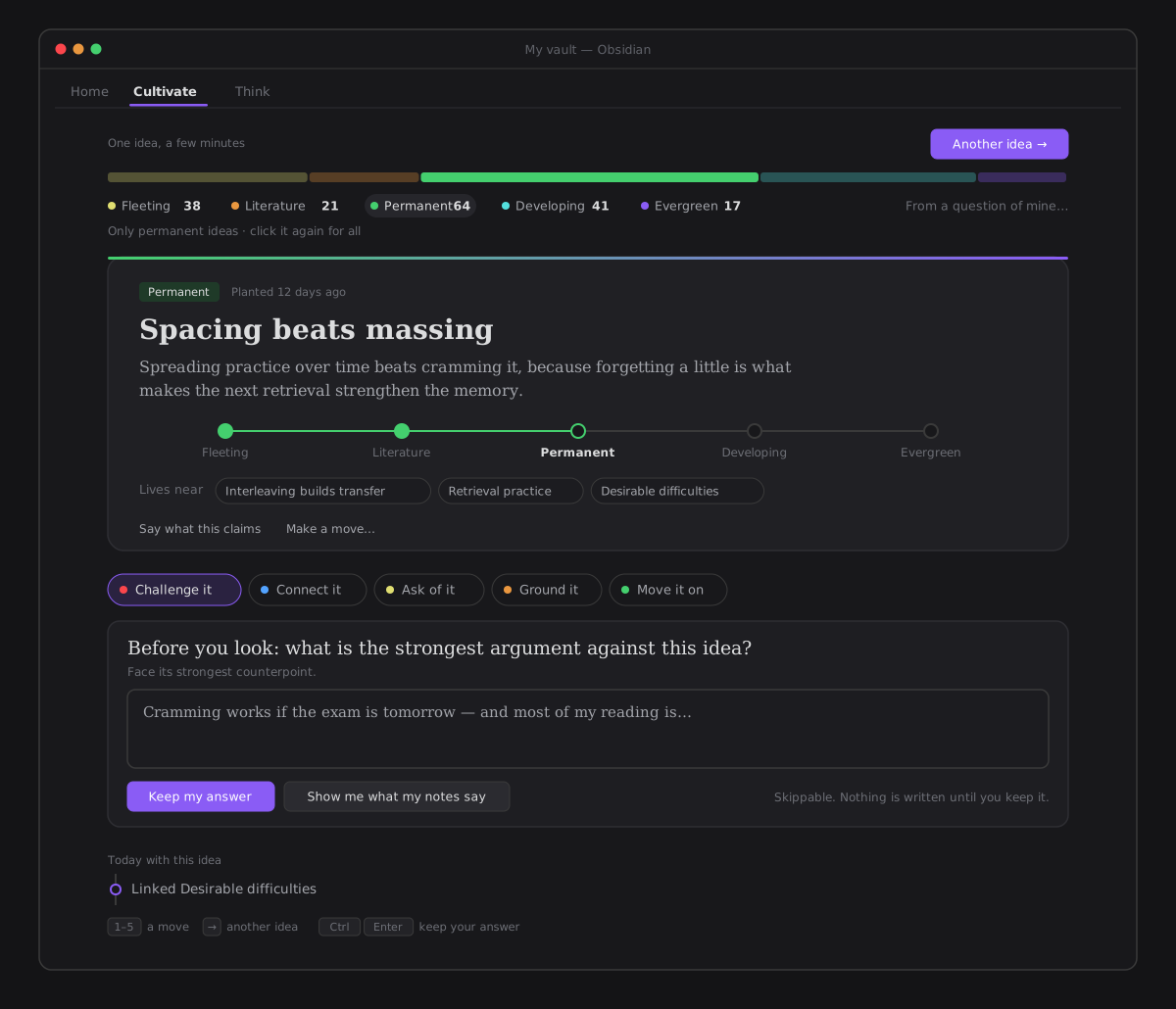
→ Details: Cultivate.
Explore — ask, and the graph answers
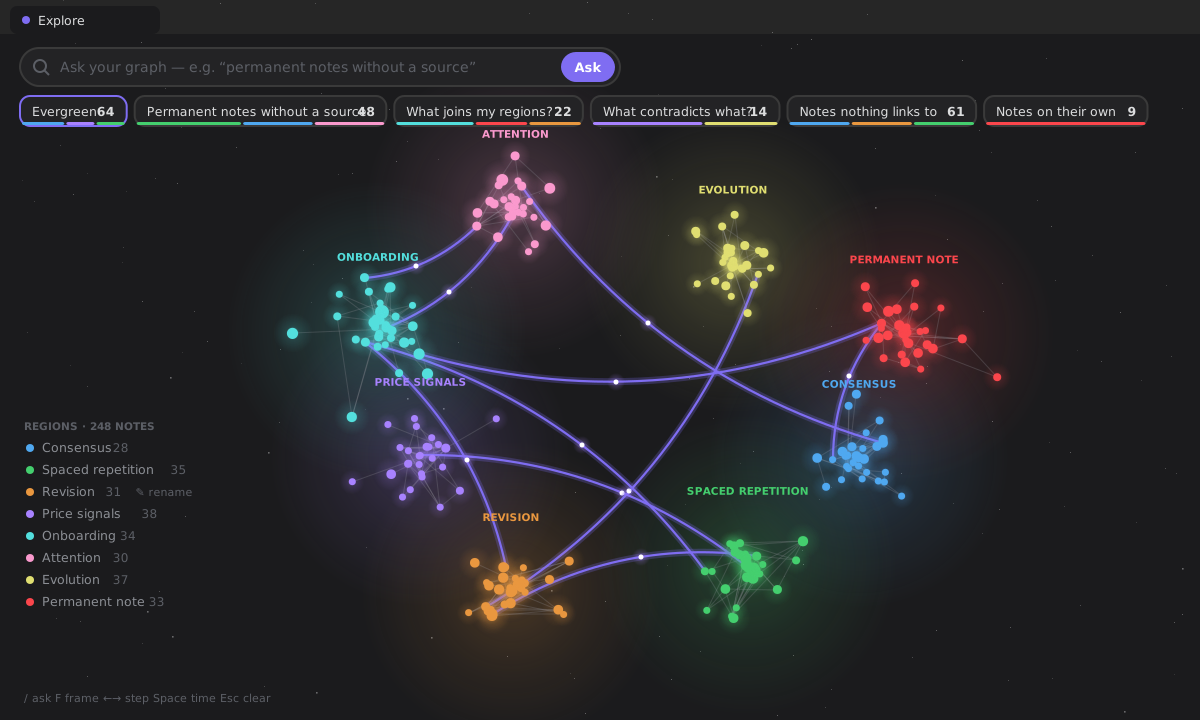
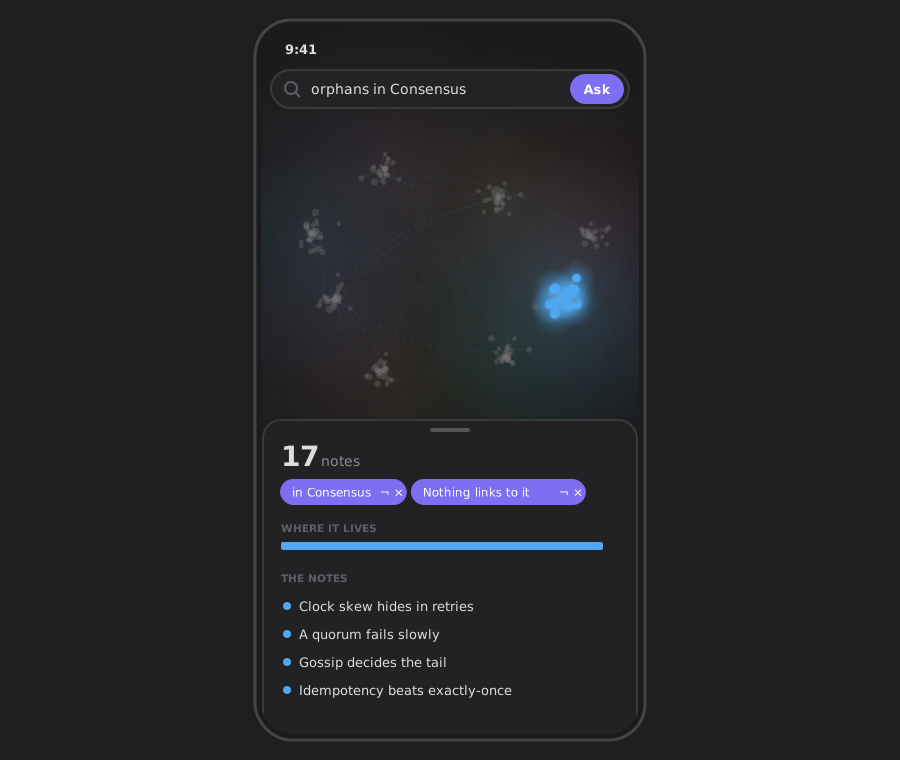
Explore is your whole vault drawn as a graph, with a question bar on top. Ask in your own words — permanent notes without a source, what joins my regions? — or pick one of the questions it offers, each showing how many notes it would light and where they live. The answer glows, the rest of the vault dims, the camera frames it, and a card says how the answer was found and where it lives. From there: step through it with the arrows, narrow it with a click, copy it as links, read it, or make a map of content.
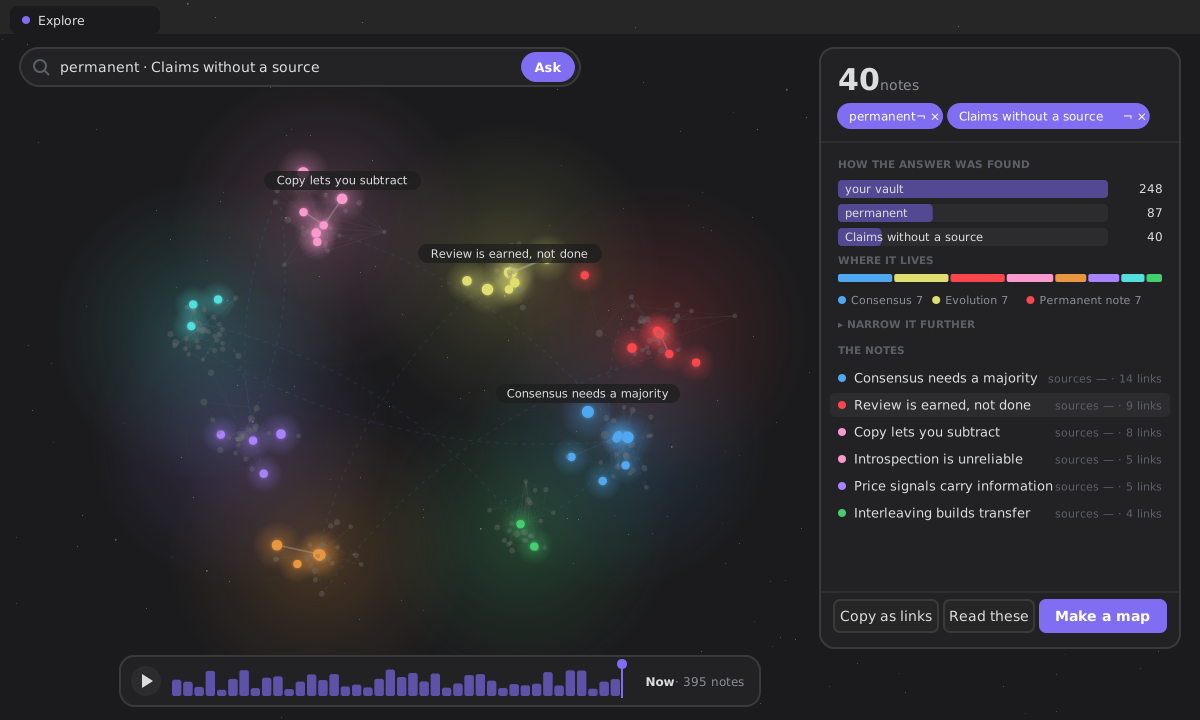
→ Details: Explore your graph.
Regions, bridges and time — the shape of your thinking
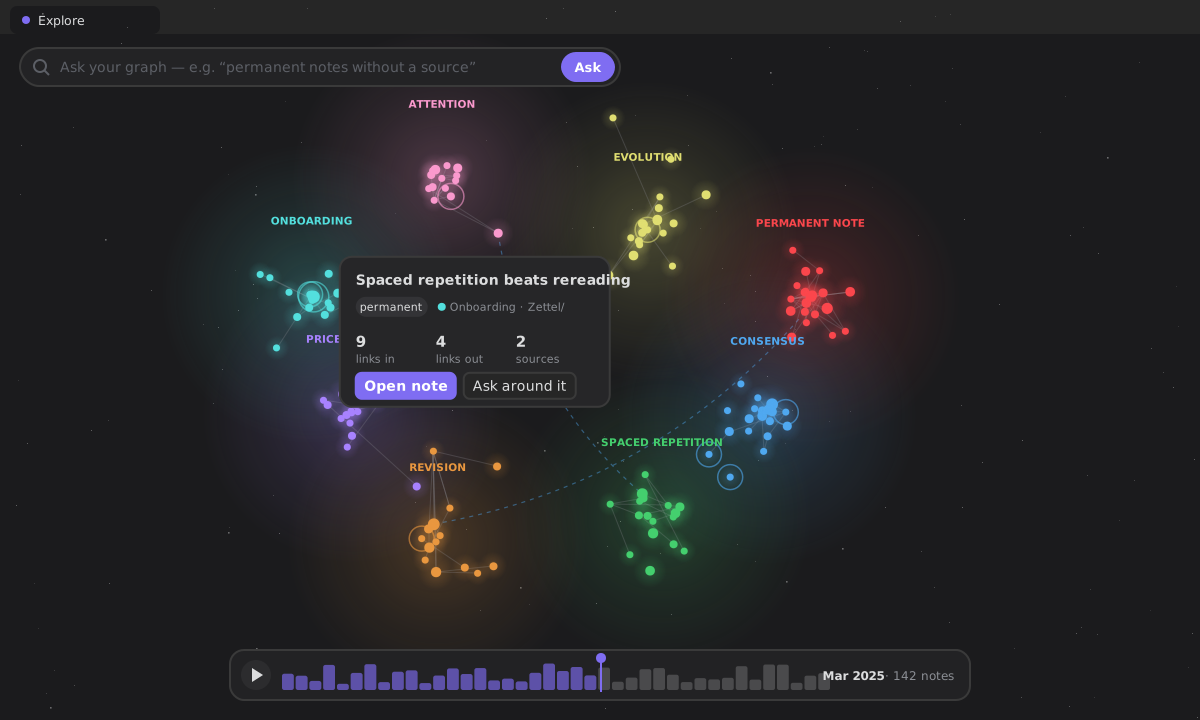
Your notes gather into regions, drawn as nebulae in your theme's own colours and named after their best connected note — rename any of them, the name is yours. Ask what joins my regions? and the bridges between them light up, with light travelling along them. A strip of months under the graph plays your vault's growth: drag it back and the graph is what you knew then. It draws in five calls whatever the size of your vault, lays itself out in a worker, and follows a light theme as happily as a dark one.
On a phone it is the same graph as a flat sheet, with the answer rising from the bottom.
→ Details: The graph.
Cinematic tour — sit back and watch
Take a tour from Explore's ⋯ menu and the camera flies itself through your vault: the most connected notes first, then the newest, a few seconds each. Any touch ends it.
Share your universe — export the graph
Export image (Explore's ⋯ menu) frames your whole graph and captures it, labels and all, as a PNG. A preview shows exactly what you will get, you choose the file name, and it is saved to your vault through the Vault API. No server, no upload.
Before / after — how an idea grew
From a note's history, Share this idea paints a before → after card: the first and the current state, claims gained, links, decisions and days — and, when you have revisited it, the claim as it was and as it is now. It is built only from what was already recorded.
This note — the companion beside every note
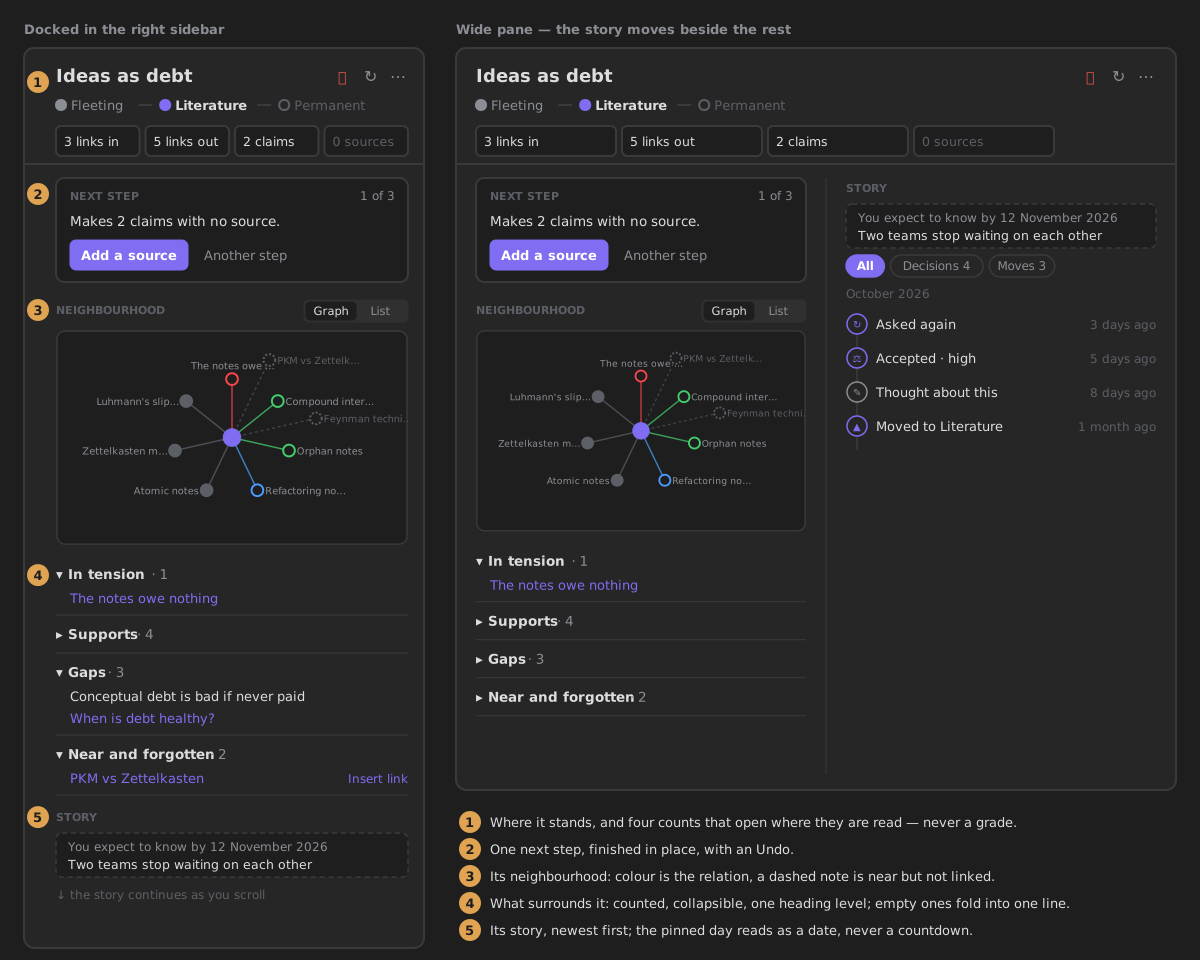
This note docks in the right sidebar and follows the note you are reading: where it stands on its lifecycle, four plain counts, the one next step you can finish right there (add a source, connect, mark an example, move it on — each with an Undo), its neighbourhood as a small graph, what argues with it and what it is missing, and its story — every decision, move and thought, month by month. Pin it to one note while you work in another. Health › Tend hands you notes that need attention, already open on their fix.
→ Details: This note and Tend.
The Reader — read your notes like a book
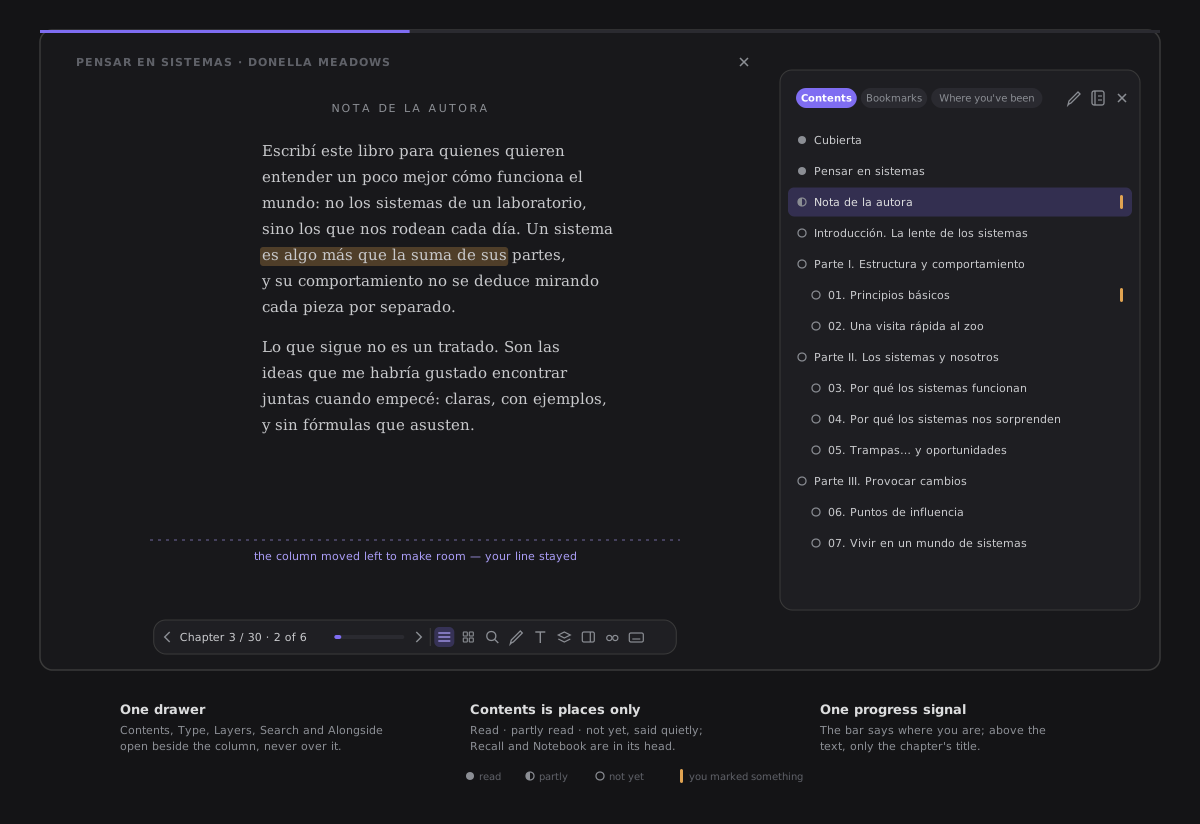
Right-click a note and choose Read from here. The Reader takes the window and walks a path through the note and its neighbours, one chapter at a time, each tagged with its role — thesis, support, counterpoint. Pick the way through it (around this note, the argument, the story of an idea, the essentials, its region), peek at a link without leaving, take a detour and come back. No MOC, no setup, and nothing is written to the notes you read. Esc gives your workspace back.
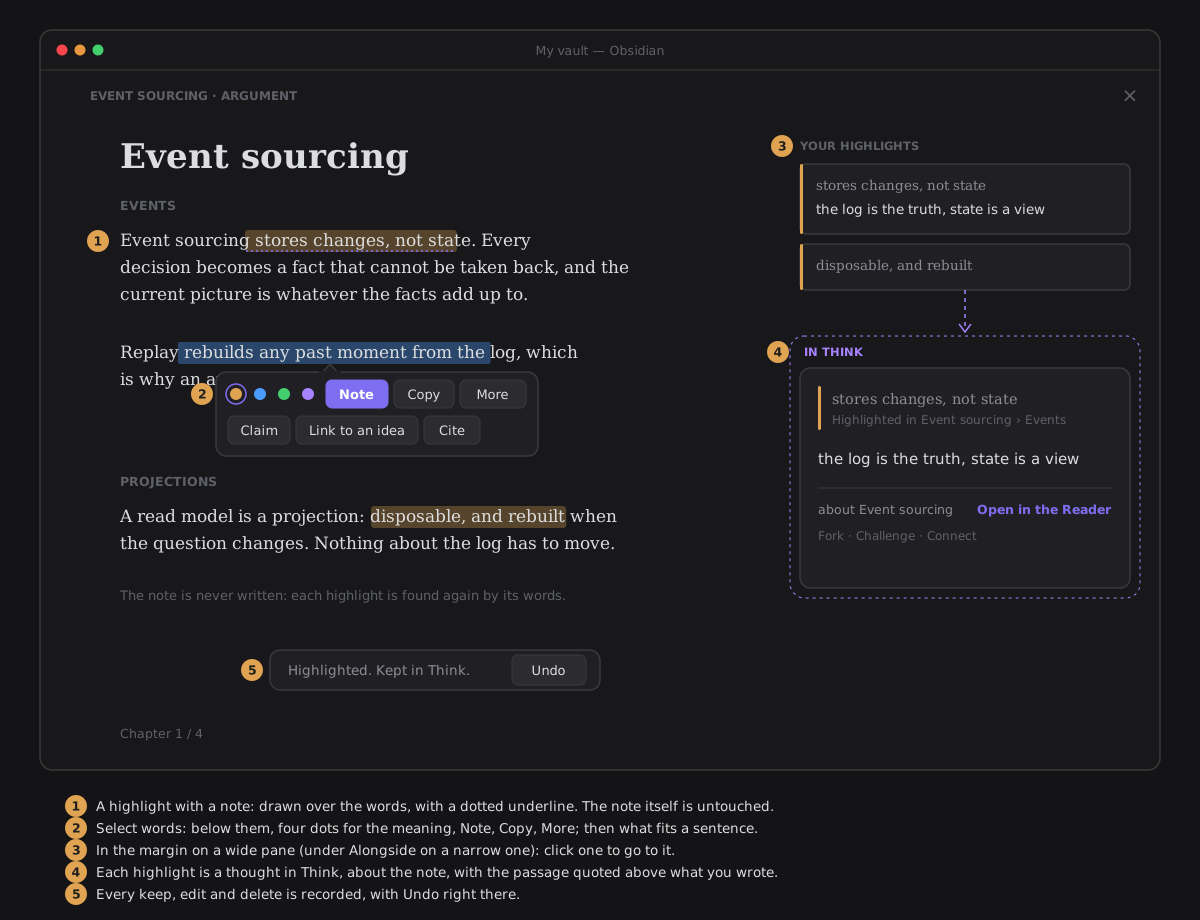
Select a sentence, as on a Kindle, to highlight it — with a note in the margin if you like. Each highlight is a thought in Think, about the note, with the passage quoted; the note is never touched. At the end of the path, save it by name, export it as one document with your highlights as an appendix, or cultivate its thesis.
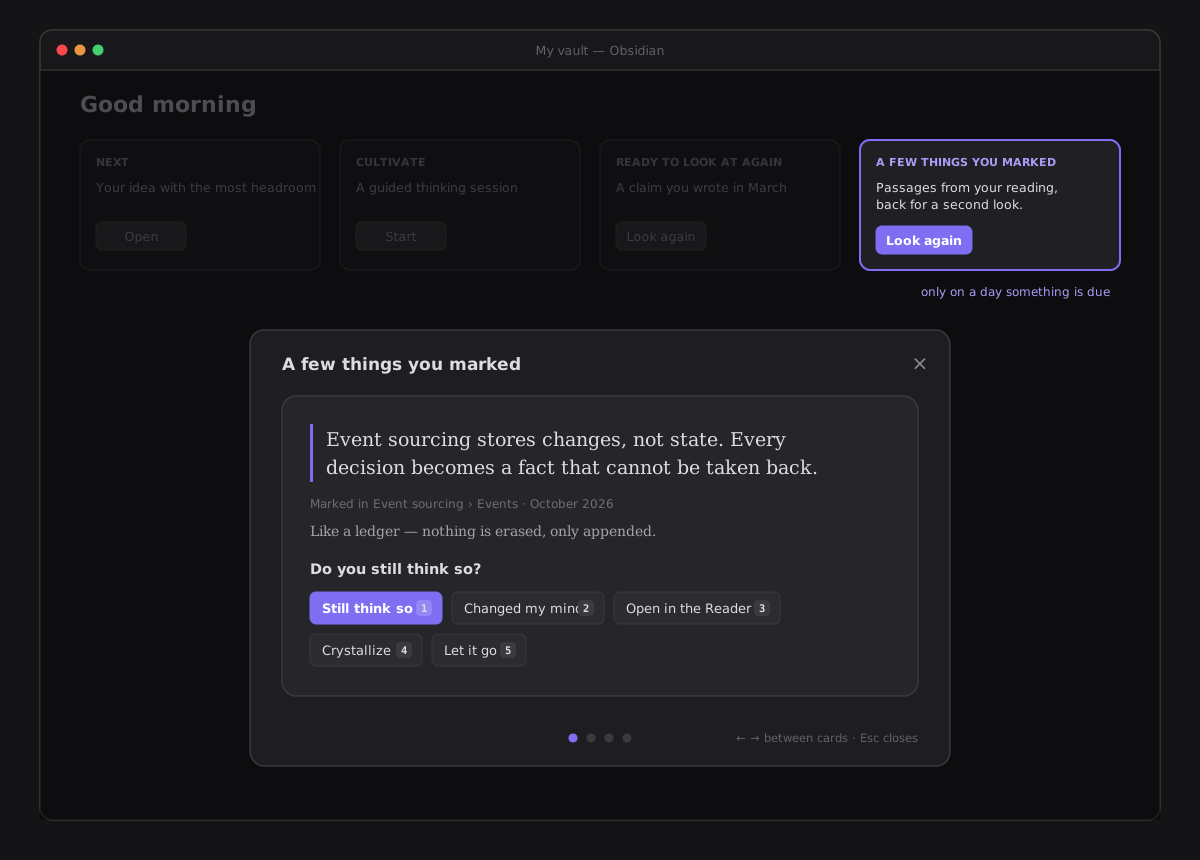
A few days later, what you marked comes back — on Home, in Came back today, only on a day something is due, and a few cards set in the Reader's type, each asking one thing: do you still think so? Keep it, write what you think now (the note's story shows the pair, before and now), make it a note that cites the passage, or let it go. Fixed intervals, no counts, no streaks.
→ Details: A few things you marked.
→ Details: The Reader.
Your Library — the sources your ideas come from
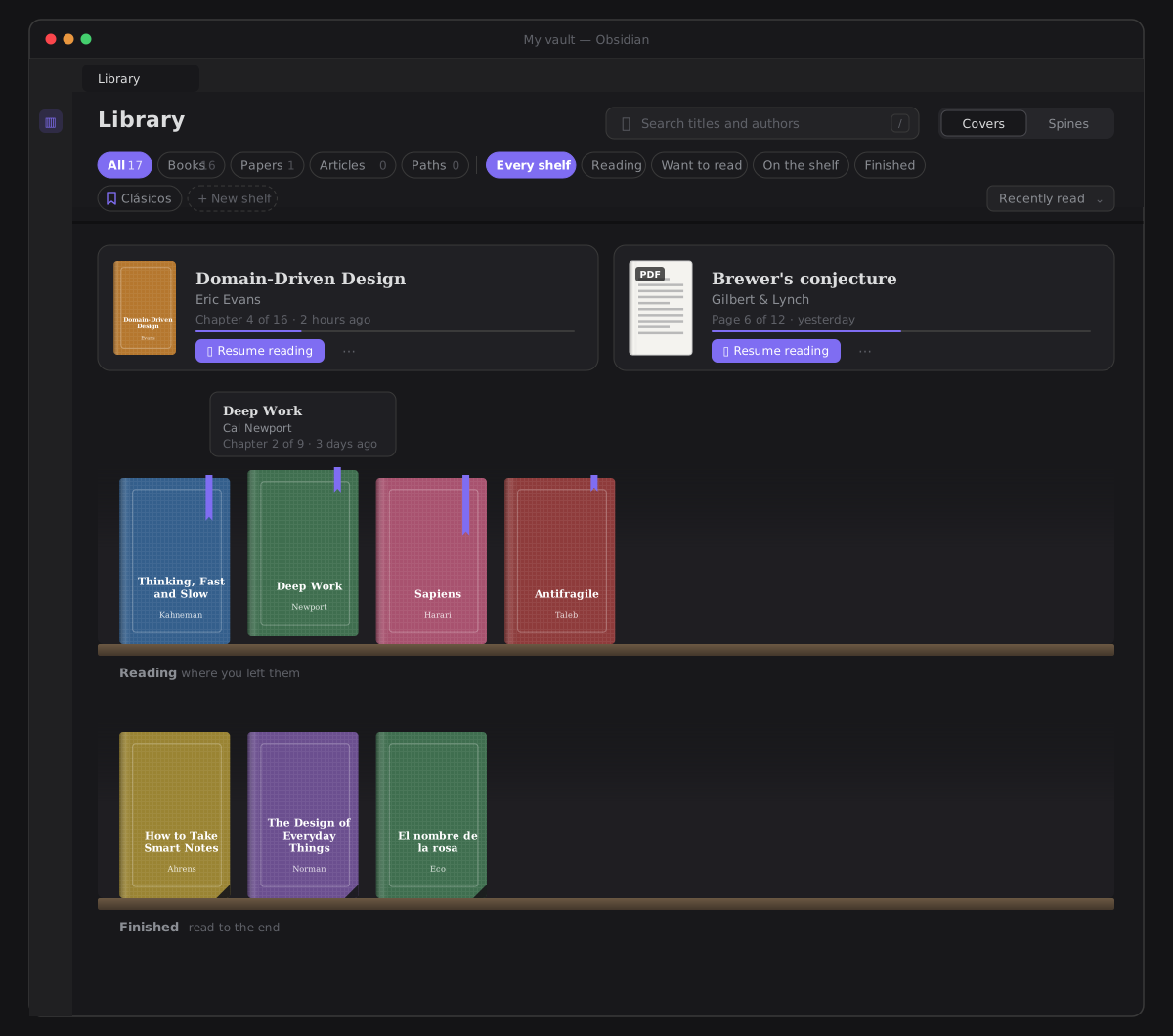
Ribbon menu → Library. The PDFs and EPUBs already in your vault, the articles you clipped and the reading paths you saved stand on shelves, like a library: what you are reading open on the desk, the rest on planks by where they stand for you — Reading, Want to read, On the shelf, Finished — and on shelves of your own you make and drag books onto. A ribbon marks how far you are, a folded corner what you finished; a scanned PDF says it is read only before you open it. Nothing is imported, nothing leaves the vault, and no source file is ever modified.
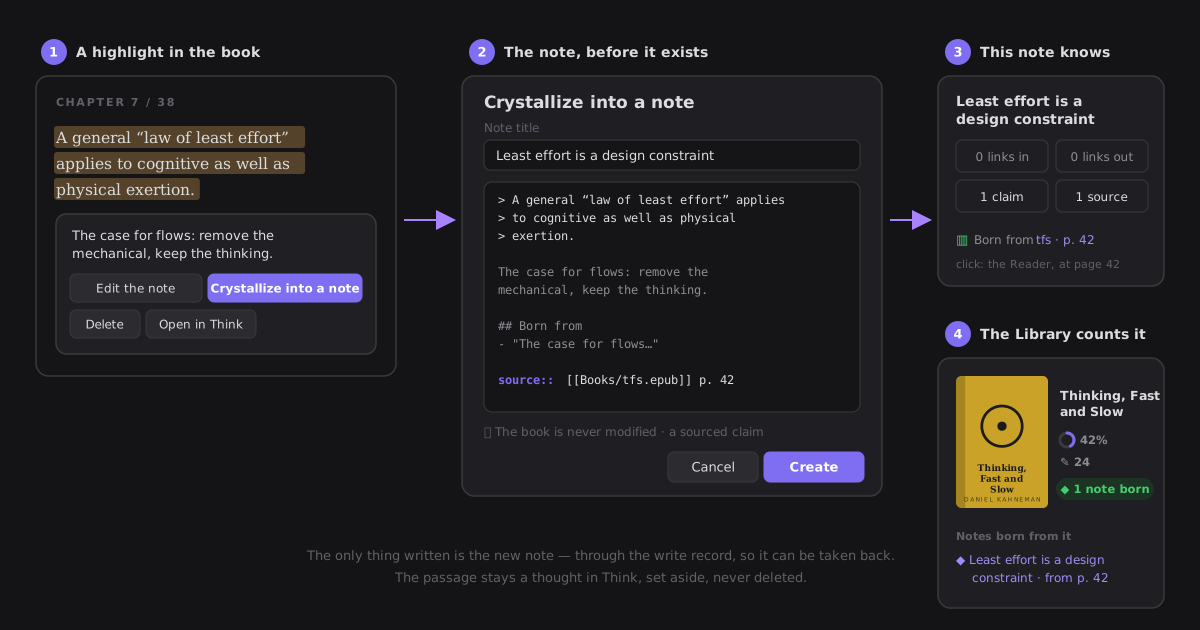
Open a paper and its pages reflow into the Reader's column, in your type — or keep the layout with Page view; open a book and its chapters are rebuilt from the EPUB, safely, with its own contents. Highlight as in a note: each passage is a thought in Think that remembers its page. Then Crystallize into a note: the note quotes the passage, cites [[book.epub]] p. 42, counts as sourced, and This note says where it was born.
→ Details: Your library.
Practice — what you have been doing
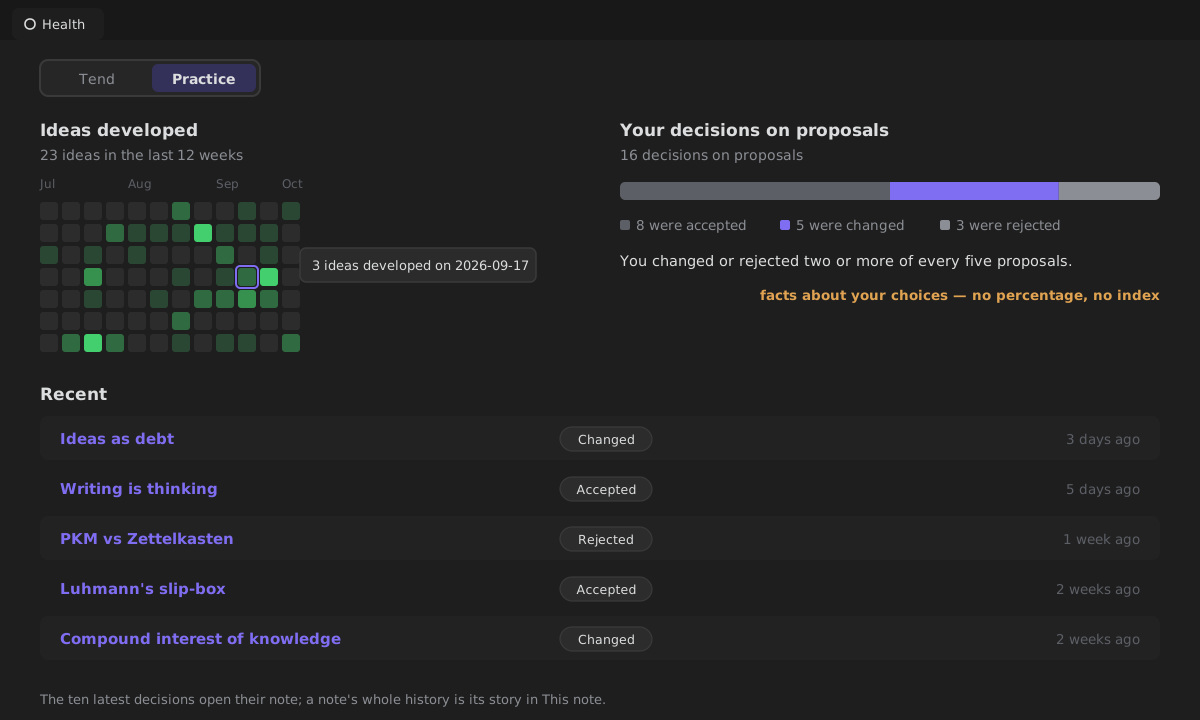
Health › Practice shows twelve weeks of ideas developed, a cell a day; how you answered proposals — accepted, changed or rejected — as one bar and one plain sentence; and your latest decisions, each opening its note. It is facts, never a grade: no percentage, no index, computed locally and never transmitted.
→ Details: Practice and Cognitive agency.
Dashboards for your vault
Point an Obsidian Base at a folder and compose stat, chart, table, heatmap, calendar and task panels over the same filtered notes — a local Grafana, with no dataviewjs.
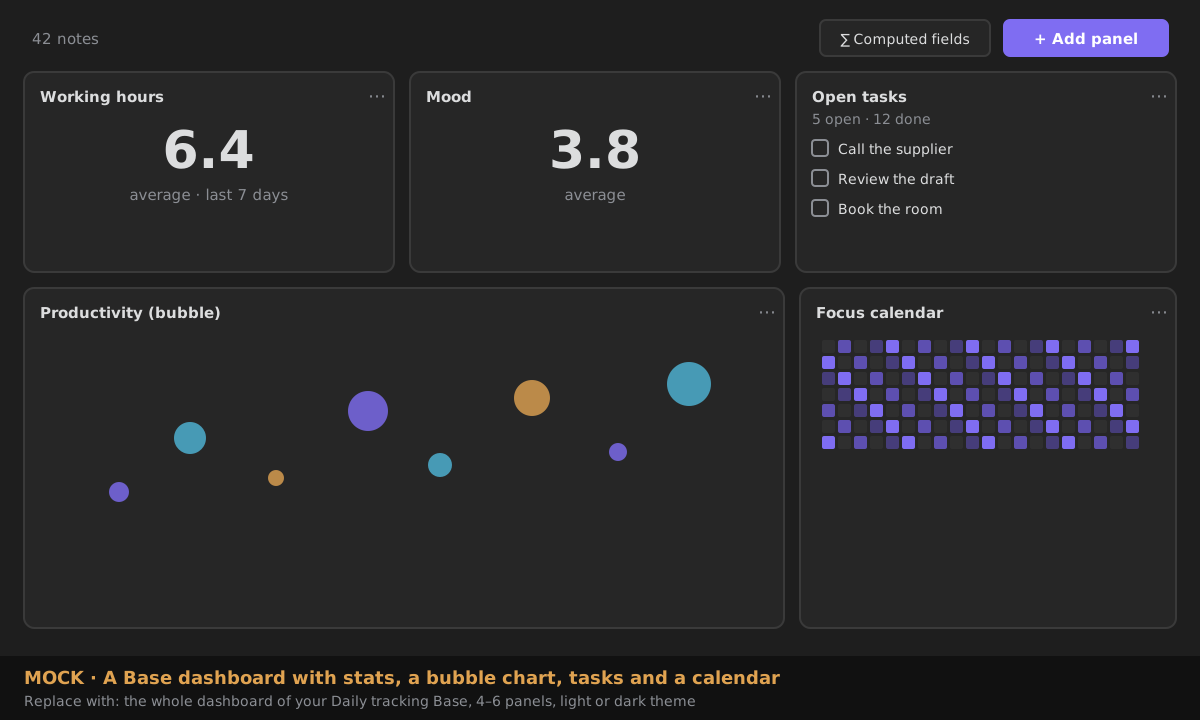
→ Details: Base dashboards.
Works offline, works with AI off
ZettelFlow is built to keep working — and keep your notes yours — with no server and no account:
- No telemetry, no backend, no uploads. The plugin transmits no personal data or vault contents.
- AI is optional and off by default. Think, Cultivate, Explore, the graph, the tour, export, the idea card and health are all fully offline, deterministic, and never need AI. When you do enable AI, only length-bounded note content goes to the single https endpoint you configure — and nothing the model writes reaches a note until you accept it (every completion is a proposal you accept, edit or reject).
- The only network paths are opt-in: the AI provider above, and the read-only
GETs of Community — the systems gallery and Learn's tutorials, from GitHub raw when you open them. Both are off until you choose them.
Full detail: Capabilities & privacy and the manifesto.
Share this canvas as a system
Built a workflow you love? The community gallery is fully static — no backend, no account. Open the canvas, then Community → Contribute → Share this canvas as a system: Prepare the system opens a GitHub form already filled in, and once it is merged your system is in everyone's Systems room.
→ Community · Systems gallery.