ZettelFlow Community Resources Guide
Introduction to Community Resources
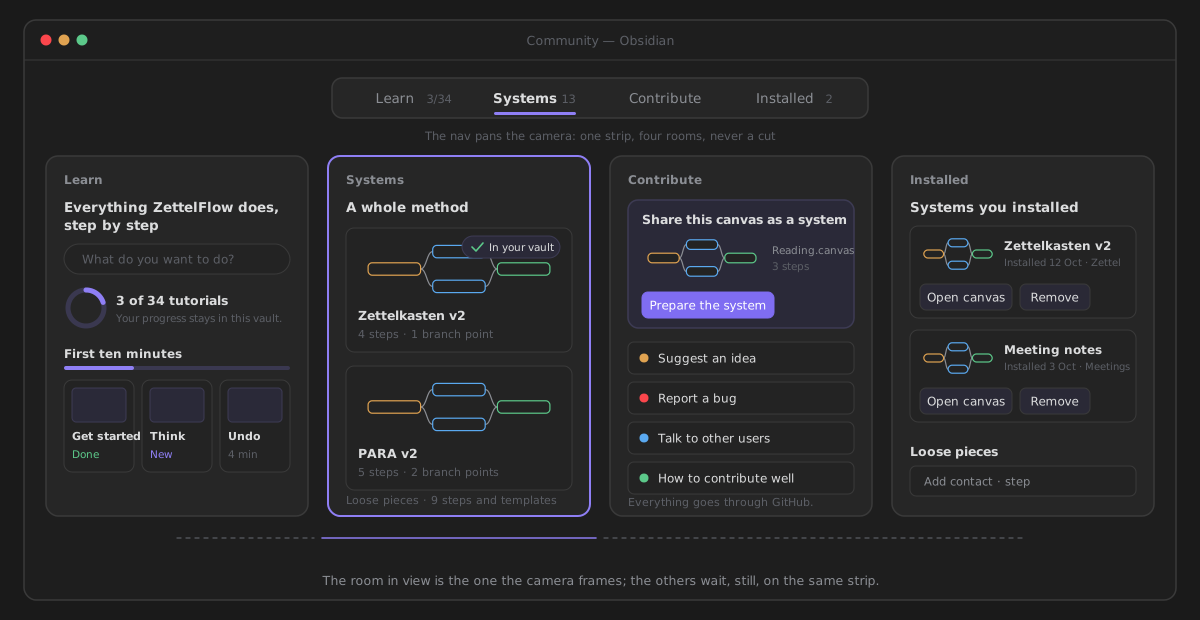
ZettelFlow allows the community to share templates, flows, and actions to help users enhance their note-taking experience. They are reached from Community, one view with four rooms: you find them in its Systems room and look after what you installed in its Installed room.
Types of Community Resources
ZettelFlow offers five main types of community resources:
1. Flows (legacy — superseded by Systems)
Flows were complete workflows installed by copying to the clipboard and pasting onto a canvas. As of the Systems Gallery, this is superseded by one-click Systems (a canvas plus its steps, written in one click — no clipboard). Community's Systems room shows systems and no flows; a flow you already have still pastes onto a canvas, but it is no longer the recommended way to adopt a workflow.
2. Steps
Steps are individual components that can be added to your existing workflows. They represent a single action or decision point in a note creation process.
3. Actions
Actions are specific functions that can be performed within a step, such as adding a date, selecting options, or running scripts.
4. Markdown
Markdown templates provide reusable text content that can be incorporated into your notes.
5. Systems (one-click)
Systems are whole knowledge methodologies shipped as a single .zftemplate bundle — a canvas plus its step notes. Unlike a flow (which you copy to the clipboard and paste onto a canvas), a system installs in one click: say how you will use it and ZettelFlow writes the canvas and every step, then the tab becomes the canvas, ready to run. Systems compose the cognitive capabilities — on creation a note is related, cross-checked, link-suggested and maturity-scored against your own graph — so you start from a real workflow, not a blank canvas.
Shipped systems:
- Academic research — two entry points on one canvas: a literature note mined for claims, matched to candidate sources, cross-checked for contradictions and scored on creation; and a permanent note that lands already related, link-suggested and scored.
- Zettelkasten v2 — three independent note types on one canvas (fleeting, literature, permanent), each its own entry point, where the permanent note carries the on-creation pattern (find related · find contradictions · suggest links · calculate maturity). This supersedes the older "Zettelkasten Inbox" flow, which remains available for back-compat.
- PARA v2 — Tiago Forte's PARA as four entry points (Project, Area, Resource, Archive); each lands a note in its PARA folder, tags it by category and connects it with find related. This supersedes the older "PARA classify system" flow, which remains available for back-compat.
- GTD — Getting Things Done as three entry points (Inbox capture, Next action, Project), moving a thought from capture through clarify to a context-tagged next action.
- Reading — turn reading into knowledge: a Reading source entry point captures highlights and mines them for claims and candidate sources; a Reading note entry point distills an insight and connects it.
- Writing — from idea to finished draft: Draft (thesis + related source notes), Section (one point + suggested connections) and Review (surfaces contradictions to resolve) entry points.
- Software architecture KB — a decision log: an ADR entry point records context/decision/consequences and checks new decisions against existing ones for contradictions; a Component entry point captures a component and its dependencies.
To install a system: open Community → Systems, click a card to open it in place, walk it under Try it: walk the flow, answer How will you use it? and press Install. See Community for the whole path, and the Systems Gallery for the catalog of shipped systems and a guide to authoring your own.
How to Access Community Resources
- Open Obsidian and make sure ZettelFlow is installed.
- Press the ZettelFlow ribbon button and choose Community (or run Browse systems from the command palette).
- Open the Systems room. Steps and markdown templates are folded at the bottom, under Loose pieces.
- Click a piece to open its own install dialog.
Keeping a step you copied
The step and action editors can copy what they hold for reuse. While one is copied, Community → Installed shows Add the template from the clipboard above its Loose pieces: press it and the step or action becomes an installed piece, with Edit and Remove like any other.