This note¶
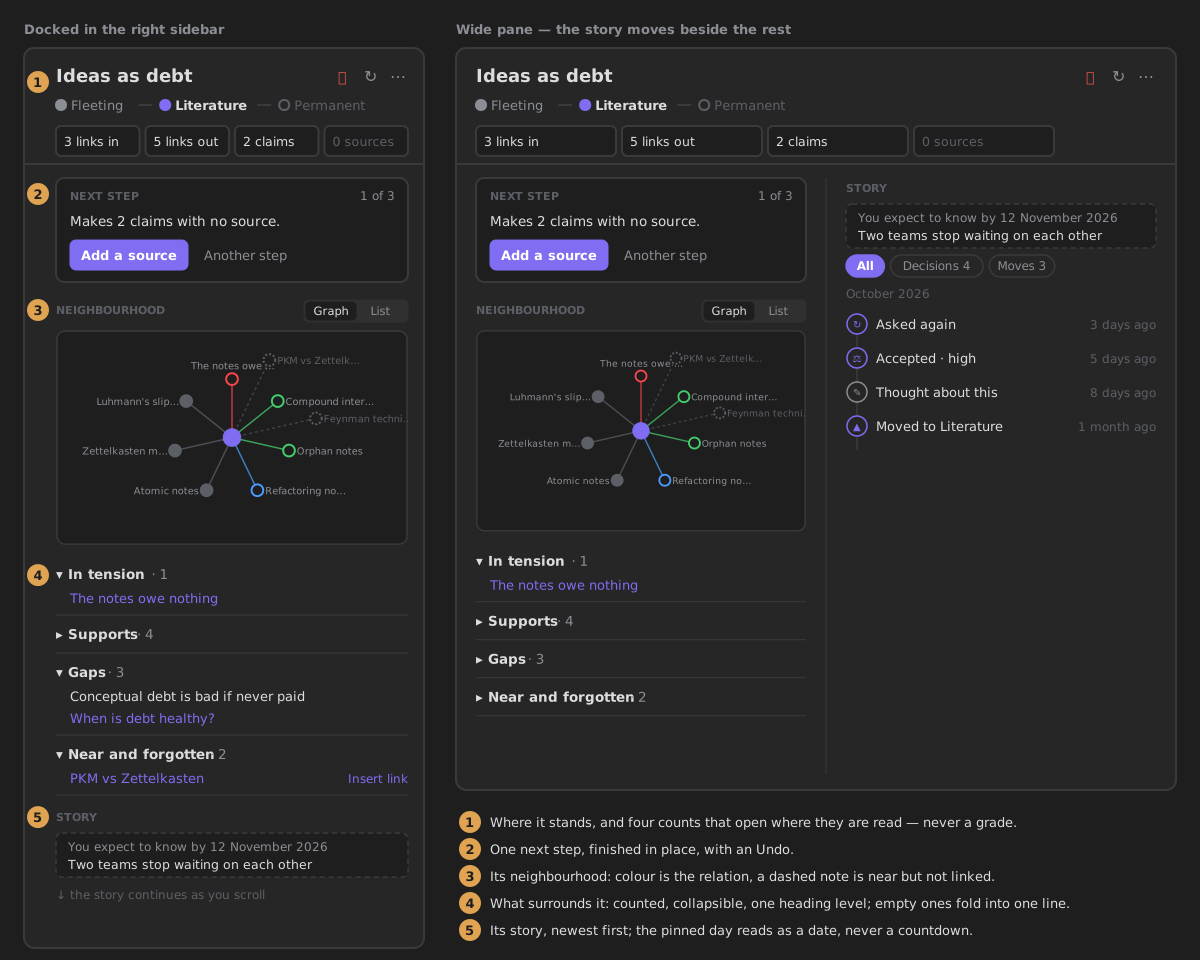
This note is the note you are reading, seen from the right sidebar: where it stands, what surrounds it, and how it got here. It docks beside the editor and follows the active note, the way Backlinks and Outline do, so the answer to "what about this note?" is always one glance away.
Opening it¶
- Ribbon menu — the ZettelFlow ribbon button › This note. It opens in the right sidebar.
- Command palette — "Show this note in the sidebar" (
open-note-companion). - Every command that opened the old Timeline mode still works and lands here: Show evolution timeline, Show notes history, Show evidence map and Resurface related notes. Their ids did not change, so existing hotkeys keep working.
- From Health › Tend — a row opens its note and This note, landed on what the row said was missing: the next-step card on Add a source or Connect, Near and forgotten for a note nobody links, Gaps for an open question.
There is only ever one. Opening it again reveals the one you have, wherever you put it. If you drag it into the main area it stays there.
Following, and pinning¶
The companion follows the active note. Open a canvas, an image or a PDF and it says it has no note to show, offering the last note it showed.
📌 Pin keeps it on one note while you open others. Click the pin again, or Follow the active note in the banner, to go back to following. A pin survives a restart; a renamed note keeps its pin; deleting the pinned note unpins it. Anything that opens This note on a named note — a Tend row, a deep link — moves a pin to that note rather than ignoring it: you asked for that note by name.
It redraws only when something it shows has moved — the note, the pin, the knowledge model, or the decisions and moves its story reads. A save elsewhere in the vault does not take a half-typed source or an open section from you; ↻ Refresh always redraws. An inline answer (Linked X · Undo) belongs to the note it was made on, leaves when you switch notes, and goes after thirty seconds even if nothing else redraws.
↻ Refresh is the only refresh in the view. It also refreshes itself shortly after the vault changes.
A note that is left out¶
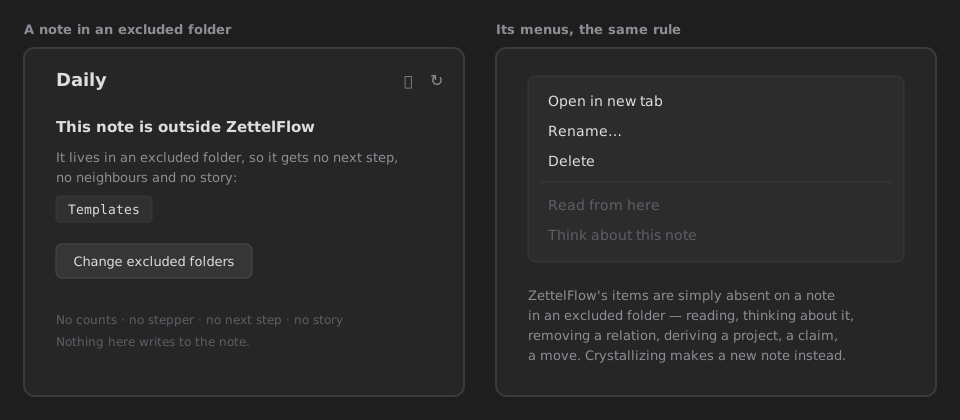
A note one of your rules leaves out (Settings › Your knowledge › What is left out), or one under ZettelFlow's own folders, is outside ZettelFlow. It never becomes an idea, so there is nothing to say about it, and nothing ZettelFlow should write into it. This note says so in one calm card: This note is outside ZettelFlow, Left out by and the rule's own sentence (are in Templates and its subfolders, have the tag #draft), Kept out also by for any other rule that would, and Change what is left out, which opens the settings on that section. It shows no counts, stepper, next step, neighbourhood or story. A pinned note stays pinned, so you can let it go with the pin.
The rule is the same everywhere, and it is the index's own (one predicate, never a second list): Read from here, Think about this note, Remove relation, Derive a project (on a folder), Add a claim and Move are simply not offered on an excluded note or folder. Crystallizing a thread about one makes a new note instead of writing back into it. If a note leaves scope while the companion is open, a click on one of its buttons writes nothing and redraws it as outside.
The head¶
- The title, with the full path on hover. It stays in view while the rest scrolls.
- The lifecycle stepper — fleeting → literature → permanent, extended to developing and evergreen once a note has reached them. The current step carries the accent. A note that never stated a state reads No state yet, not fleeting. The stepper is read-only: moving a note on is a decision, and it has its own place.
- Four counts — links in, links out, claims, and distinct sources. They are facts, never a grade: there is no score, no band and no percentage, and a zero is drawn faint, never in a warning colour (cognitive agency, constitution §XII). Each count opens where it is read: links in and links out open the Neighbourhood's list on that group; claims and sources open the Gaps section, where the claims without a source are listed. A link counts when it is to another note: never to the note itself, to a note that does not exist yet, or to an attachment — the same rule the neighbourhood uses, so the two always agree.
Where it came from¶
A note that cites a PDF or an EPUB of your Library — a passage you crystallized, or a source:: you wrote — says so under its counts: Born from the book · the page. Click it and the Reader opens the book there.
Next step¶
Under the head, one card says the note's next step and lets you finish it where you are.
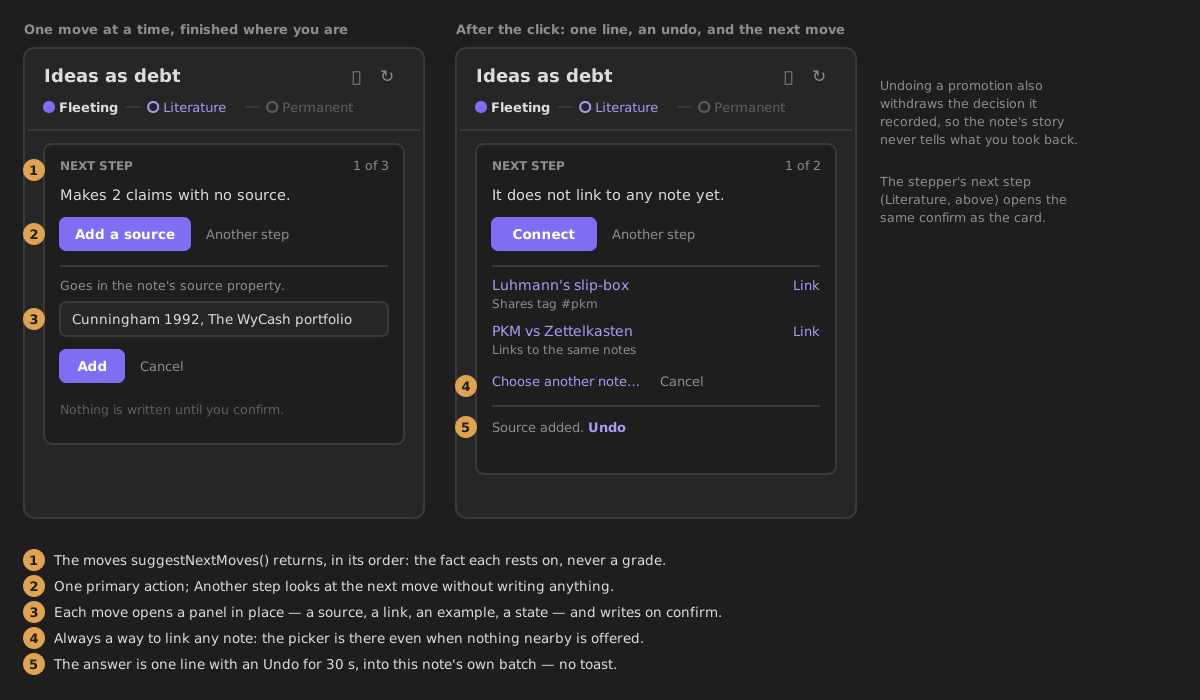
The moves come from suggestNextMoves(), in its order, unchanged: add a source, connect, mark an example, move it on. The card shows one at a time — 1 of 3, with Another step to look at the next — and says the fact the move rests on (Makes 2 claims with no source), never how good the note is. When nothing is pending it says so once: Nothing is pending — what remains is to think with it.
The primary action opens a small panel, and nothing is written until you confirm:
| Move | What you do | What is written, and where |
|---|---|---|
| Add a source | type a citation, a URL or a [[note]] | appended to the note's source property — or sources, if that is the key it uses. Existing entries are kept, including links to notes that do not exist yet. |
| Connect | pick one of up to four nearby notes, or Choose another note… | [[that note]] appended to the note's body |
| Mark an example | pick one of its links — Links out or Links in | example: [[that note]] in its properties. If example: already holds plain text, that value is left untouched and an inline example:: [[that note]] goes in the body instead. |
| Move it on | confirm Move to Literature | the lifecycle state property, set to the state Cultivate would propose; recorded in the note's story as your decision |
The stepper's proposed step opens the same confirm. From permanent the card does not propose a move (the note is developed enough); from developing it proposes evergreen, which the stepper only draws once a note is there — so that one is offered by the card alone.
Every write goes into the companion's note — the pinned one, if it is pinned — in a batch of its own, through the write record. The card answers on one line, Linked to B. Undo, for thirty seconds; there is no toast. Undoing a promotion also withdraws the decision it recorded, so the story never tells something you took back. If the step is still open after the write (a source that points to a note that does not exist yet does not count), the card says so; otherwise it moves on to the next open move.
A hand-over can land here: openNoteCompanion(app, { path, focus: "next", move: "connect" }) opens the card on that move with its panel open — or on the first move, if the note no longer has that one.
Neighbourhood¶
Under the next step, the note's neighbourhood: the notes it links to and the notes that link to it, drawn as a small graph with the note in the centre.
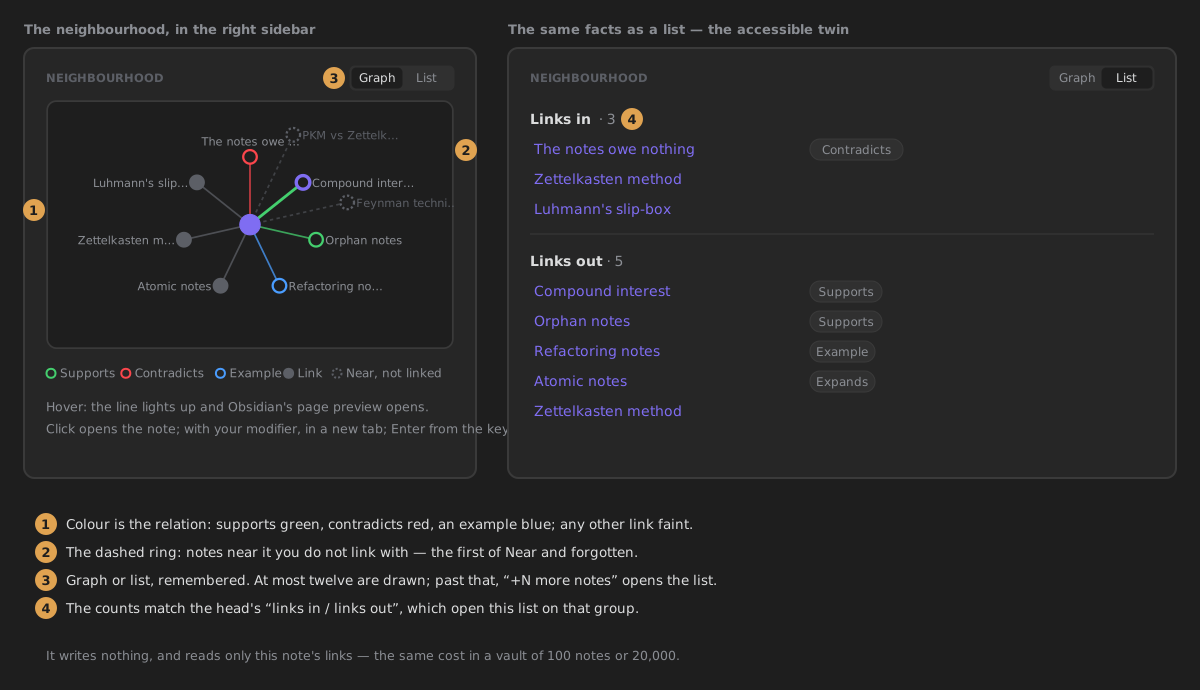
- Colour is the relation. A note that supports it is drawn in the theme's green, one that contradicts it in its red, an example in its blue. A plain link — and every other relation type (expands, inspired by, question, implements) — is drawn faint, and named in the list.
- Order is meaning. Neighbours go round clockwise from twelve o'clock: contradicts, supports, example, other relations, plain links; within each, notes linked both ways first, then by title.
- The dashed ring holds up to three notes that are near it but not linked — the first of Near and forgotten, so the graph and the section never disagree.
- Hubs. At most twelve neighbours are drawn; past that, +N more notes opens the list, which holds them all.
- Hover shows Obsidian's page preview and lights the node's line; click opens the note (with your modifier, in a new tab); every node is reachable with the keyboard, opens with Enter, and is named for a screen reader (Rival, Contradicts, links to this note).
Graph | List switches to the same facts as two lists — Links in · N and Links out · N — with a chip naming any relation that is not a plain link. The counts are exactly the head's. Your choice is remembered (it is a setting, so it survives closing the pane and restarting).
The neighbourhood writes nothing. It reads only the note's own links, so it costs what the note's links cost — about a fifth of a millisecond for an 80-link hub — whatever the size of the vault (the analysis.neighbourhood.* performance budgets). Notes outside the knowledge scope are not in the model, so they never appear here.
What surrounds it¶
One list of sections, each with a title and a count, collapsible, in a fixed order:
| Section | What it lists | Computed by |
|---|---|---|
| In tension | notes that contradict it | the evidence map |
| Supports | notes that support it, and the sourced evidence — one row per claim, every source it cites (claim · source · source) | the evidence map |
| Gaps | its unsourced claims and open questions | the evidence map |
| Near and forgotten | nearby notes you have not revisited and do not link with, with the reason | connection resurfacing |
Sections with nothing in them are not drawn as empty boxes: they are said once, on one quiet line (No supports · nothing near and forgotten). What you expand or collapse stays that way while the view is open, across notes.
Insert link on a Near and forgotten row writes [[that note]] into this note — the companion's note, even when it is pinned and you are editing another one — through the write record, and answers inline: Linked X. Undo for thirty seconds. There is no toast.
These sections show whether or not snapshots are recorded: neither stores claim texts, so the history's opt-in does not reach them.
Story¶
Below the sections — or at the top of the right column, when the pane is wide — is how the note got here, told as one rail, newest first. It reads the companion's note, so a pinned companion tells the pinned note's story.
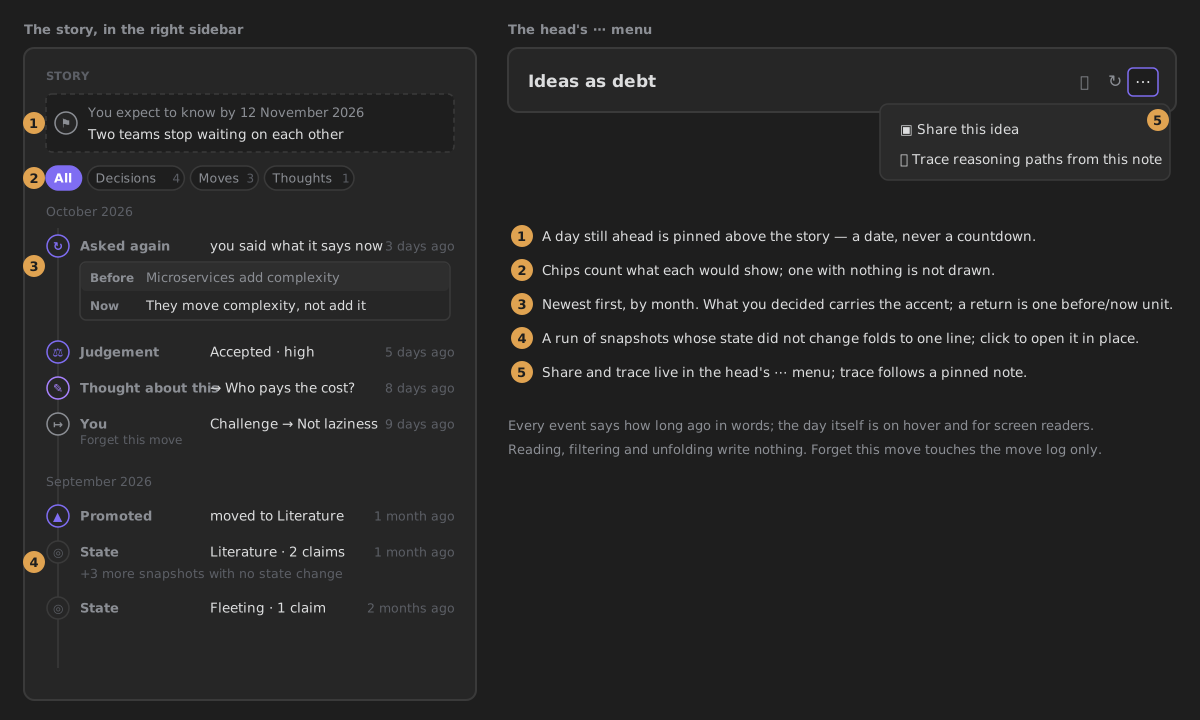
- Months. Events sit under a heading for their month (October 2026 / octubre de 2026), newest month first. A month with nothing in it has no heading.
- One icon per kind. Snapshot, judgement, move, thought, return, promotion and a passed horizon each have their own icon. What you decided — a judgement, a return, a promotion — carries the accent; a thought the theme's purple; a snapshot is faint. Nothing else changes colour.
- When. Every event says how long ago in words (today, yesterday, 3 days ago, 2 months ago), with the day itself on hover and for screen readers.
- Chips. All · Decisions · Moves · Thoughts, each with how many it would show. A chip with nothing to show is not drawn, and with no chip but All there is no chip row. The filter goes back to All when the companion moves to another note.
- Unchanged snapshots fold. A run of snapshots in the same month whose state did not change shows its newest one and +N more snapshots with no state change; click it to see them in place. A snapshot shows its state and how many claims it had; the claim texts are inside it, on demand.
- Before and now. A claim you were asked about again is one bordered unit: Before (what it said) and Now (what it says), plus the verdict. A Before that was not kept is simply absent; a withdrawal has no Now.
- The day you expect to know by. A wager's day, while it is today or later, is pinned above the rail as one quiet card with the date — no countdown, no colour that warms as it approaches, under every filter (#572). Once the day has passed it sits in the rail at its date.
- Highlights. A passage you highlighted in the Reader is a thought about the note, so it is in the story under Thoughts, labelled Highlight, with the passage quoted under your note.
- Empty and not kept. A note with no story yet explains how one starts — the first time you decide something about it, make a move on it, or write a thought about it. With snapshot recording off, one line at the top says the sentences themselves are not being kept; moves, thoughts, verdicts and promotions still show.
- Forget this move stays on each move. It removes the move from the move log and changes nothing else — never the note.
The story writes nothing: reading, filtering and unfolding touch no file. The grouping, folding, filtering and pinning are one pure function, projectStory(events, { now, filter, expanded }), in the State layer.
The ⋯ menu¶
The head's ⋯ offers what you can do with this note:
- Share this idea — the before→after idea card, offered once the story has at least one event.
- Trace reasoning paths from this note — the reasoning paths from the companion's note. A pinned companion traces the pinned note, not whichever editor has the cursor (the palette command still traces the active note).
Narrow and wide¶
The layout follows the width of its own pane, not the window. Docked at sidebar width it is one column. From about 37.5rem of pane width — a wide sidebar, or the view dragged into the main area — the story moves into a second column and starts at its top, beside the sections.
For contributors: opening it from code¶
openNoteCompanion(app, { path?, focus?, move? }) (architecture/components/core/noteCompanion/openNoteCompanion.ts) is the only opener. It reveals the existing view or creates one with ensureSideLeaf(…, "right").
| Field | Meaning |
|---|---|
path | show this note (a pinned companion moves its pin to it) |
focus | one-shot landing: "next" opens the next-step card (on move, if given); "nearby" and "gaps" expand, scroll to and highlight that section (the quiet line when it is empty); "links-in" and "links-out" switch the neighbourhood to its list and scroll to that group |
move | the next move to preselect with focus: "next" |
focus and move are used once on arrival and never persisted; only { path, pinned } of a pinned companion survive a restart. The view is a host for blocks (noteCompanion/blocks/): head, next step, neighbourhood, sections and story, each rendering from one CompanionModel built per refresh from the State-layer projections noteVitals, lifecycleStepper, companionSections and noteNeighbourhood; the graph's geometry is the pure layoutNeighbourhood. A block adds to the head's ⋯ menu through menuItems(), read when the menu opens.
Rules the real app enforces¶
The jest DOM has no layout, popout windows or Page-preview internals, so these are held by tests that read the code (realApp.structural.test.ts) and by a stricter fake DOM:
- SVG classes go as an array to
createSvg: Obsidian addsclsas oneclassListtoken. - A hover preview's target needs
isShown(): graph nodes get their own, so each node anchors its own popover. - Scrolling goes through
ctx.scrollTo(el), which scrolls the view's own container to just under the sticky head.scrollIntoViewis never used: it also scrolls Obsidian's panes. - Writes take turns (
companionWrites.ts): insert link, the next-step moves and their undos run one at a time, andFileService.appendTois atomic (vault.process). While one is in flight the view isaria-busyand the other write buttons wait. - A view first shown late renders then: Obsidian calls
onResize()when a hidden sidebar tab or a collapsed sidebar is shown, and a render skipped while hidden is caught up there.
What moved here¶
This view replaces the Timeline mode of the Health surface (#640, epic #639). A workspace that still holds a Health leaf on that mode opens Health on its first mode and This note in the right sidebar. The Contradicts and Not revisited panels that the mode used to mount, each with its own heading and refresh button, are now the sections above. The daily spark button went with them.