Settings, section by section
Open Settings → ZettelFlow. The tab tells you who it is and what is on before it asks you anything. After that it reads as eight sections, organised by what you are doing rather than by when each feature was written. Every row is still found by Obsidian's own settings search.
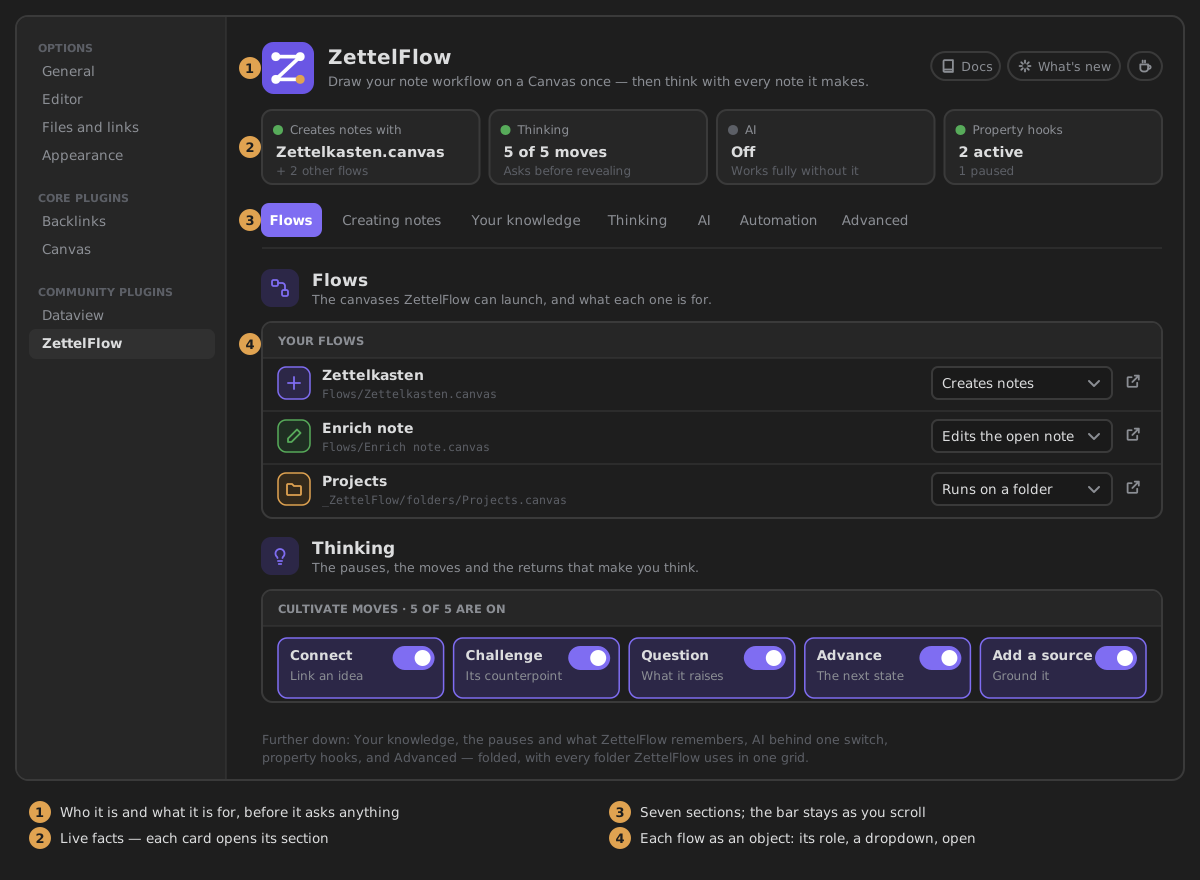
The top of the tab
- The header — the ZettelFlow mark and what it does in one line, followed by three small links: the documentation, what is new in the version you run, and how to support the project.
- At a glance — four cards that say what is on right now. Each one opens its section:
- Creates notes with — the canvas your ribbon creates notes with, plus how many other flows have a role. It is orange when nothing creates notes yet.
- Thinking — how many of the five Cultivate moves are on, and whether a move asks for your reading before it reveals its own.
- AI — Off, or On with the model you configured and its endpoint's host.
- Property hooks — how many run and how many are paused.
The cards are derived from your settings, never stored, so they cannot drift from them. - The section bar — one button per section. It stays at the top while you scroll, and marks the section you are reading. It keeps to one line: when the names do not fit, the sections you are not in show only their icon (their name is the tooltip).
A fresh vault: three ways in
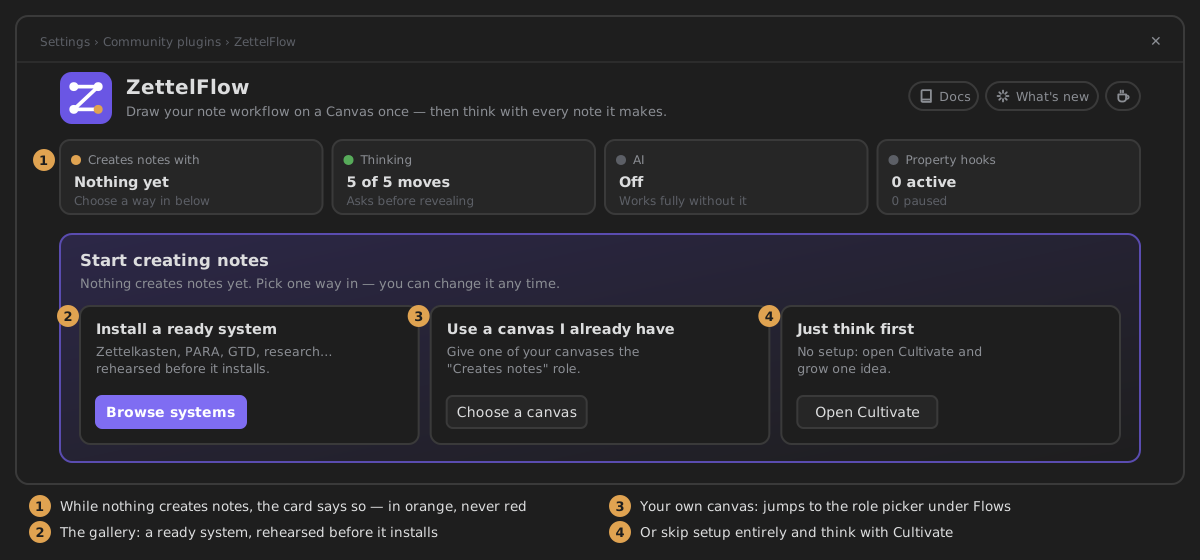
While no canvas creates notes, a Start creating notes card sits under the at-a-glance cards. Pick one way in, and change it any time:
- Install a ready system — Zettelkasten, PARA, GTD, research… from the systems gallery, rehearsed before anything is written.
- Use a canvas I already have — jumps to Give a role to another canvas under Flows, so one of your canvases can take the Creates notes role.
- Just think first — no setup at all: Cultivate opens and you grow one idea.
The card goes away by itself once a canvas creates notes.
Flows
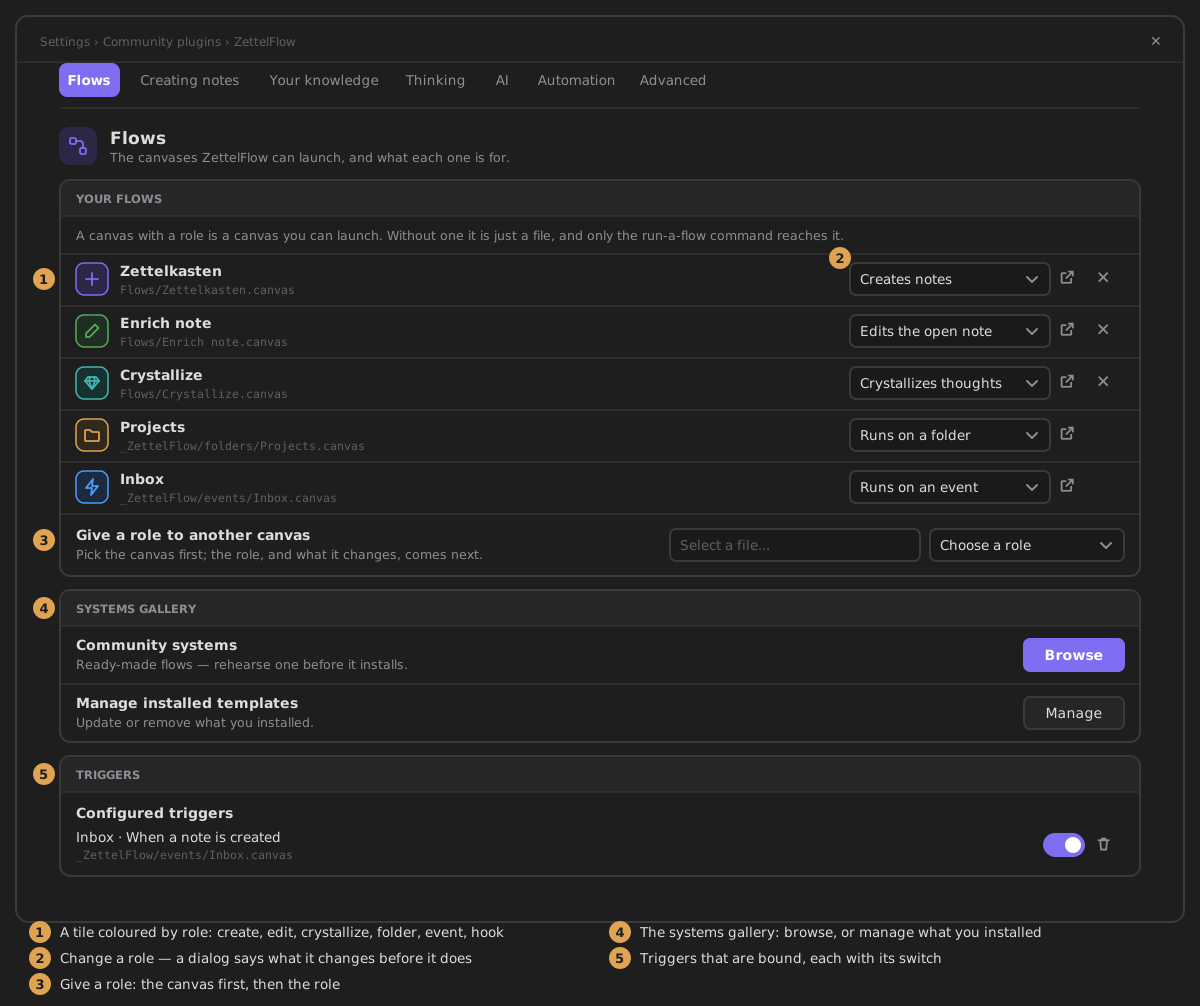
The canvases ZettelFlow can launch, and what each one is for. A canvas with a role is a canvas you can launch. Without one it is just a file. See your flows and their roles.
- Your flows — each canvas that has a role, as one row:
- a tile coloured by its role: create uses the accent, edit green, folder orange, event blue, hook purple;
- the canvas name and its path;
- a dropdown to change the role. A confirmation says what will change before anything does;
- Open, and for an exclusive role (Creates notes, Edits the open note), a way to drop the role.
- Give a role to another canvas — pick the canvas first; the role, and what it changes, come next.
- Systems gallery — Browse the community systems, or Manage the ones you installed.
- Triggers — the triggers bound to your event flows, each with its own switch. The folder event flows live in is set under Advanced, with the other folders.
Creating notes
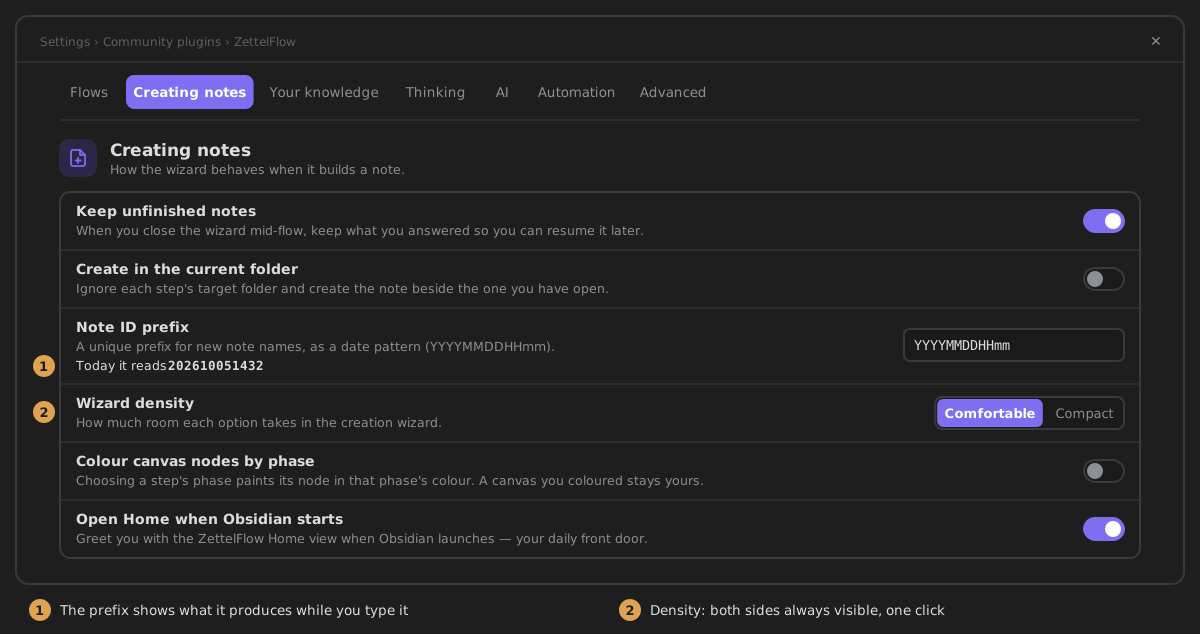
How the wizard behaves when it builds a note.
| Setting | What it does | Default |
|---|---|---|
| Keep unfinished notes | Close the wizard mid-flow and resume later. Stored locally with your plugin settings. | On |
| Create in the current folder | Ignore each step's target folder and create the note beside the one you have open. | Off |
| Note ID prefix | A unique prefix for new note names, as a date pattern. It previews as you type: Today it reads 202610051432. An empty pattern means no prefix. | Empty |
| Wizard density | Comfortable or Compact: how much room each option takes. | Comfortable |
| Colour canvas nodes by phase | Choosing a step's phase paints its node in that phase's colour. A canvas you coloured stays yours. | Off |
| Open Home when Obsidian starts | Greets you with ZettelFlow Home. | On for new installs |
Your knowledge
What counts as knowledge, and how ZettelFlow reads it.
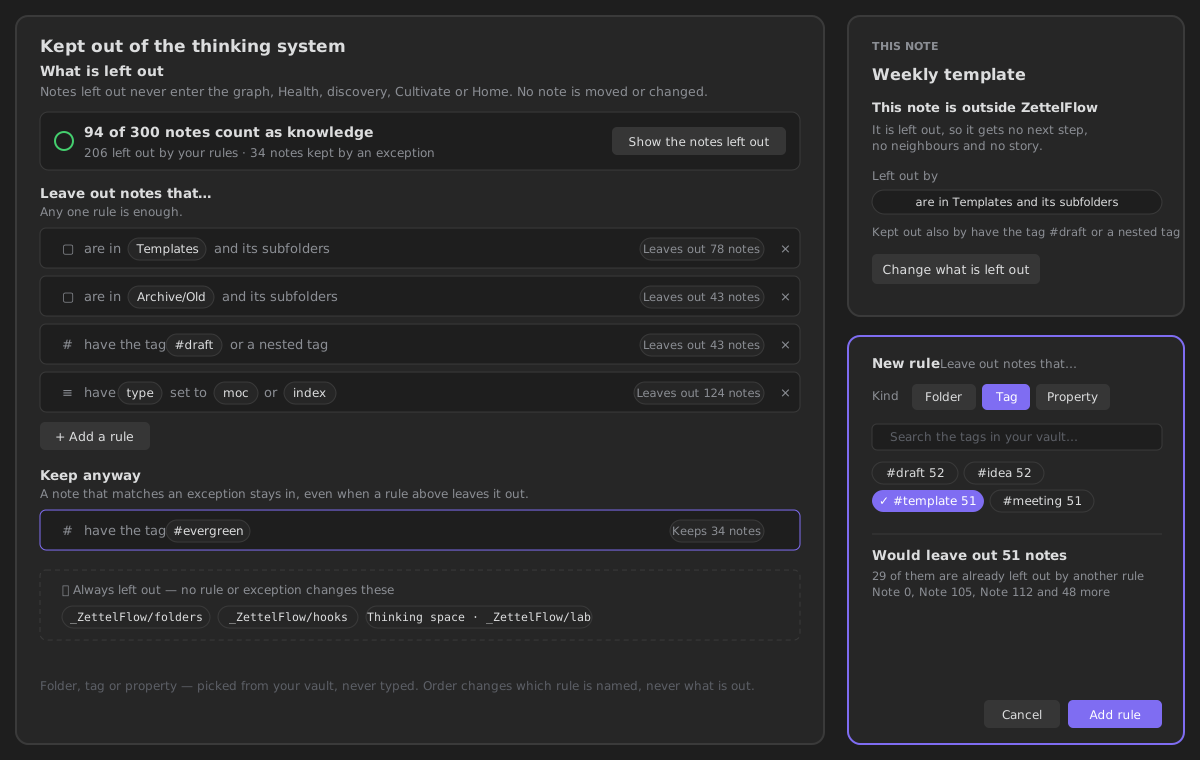
- Kept out of the thinking system — What is left out — how many notes count as knowledge, then rules read as sentences (Leave out notes that… are in Templates, have the tag #draft, have type set to moc), each with what it leaves out; Keep anyway exceptions; and ZettelFlow's own folders, locked. A rule is built from the vault's own folders, tags and property values — nothing is typed — and says what it would leave out before you add it. Show the notes left out lists them. On a phone the editor is a sheet. Still found by searching Excluded folders. More in knowledge scope.
 - Lifecycle properties — the frontmatter keys for a note's state, its created date and its last reviewed date, side by side. The defaults are
 state, created and last-reviewed. They are plain properties, so there is no lock-in. - Typed links — Parse inline relations also reads key:: [[note]] fields in note bodies. It is on by default on desktop and off on mobile.
Thinking
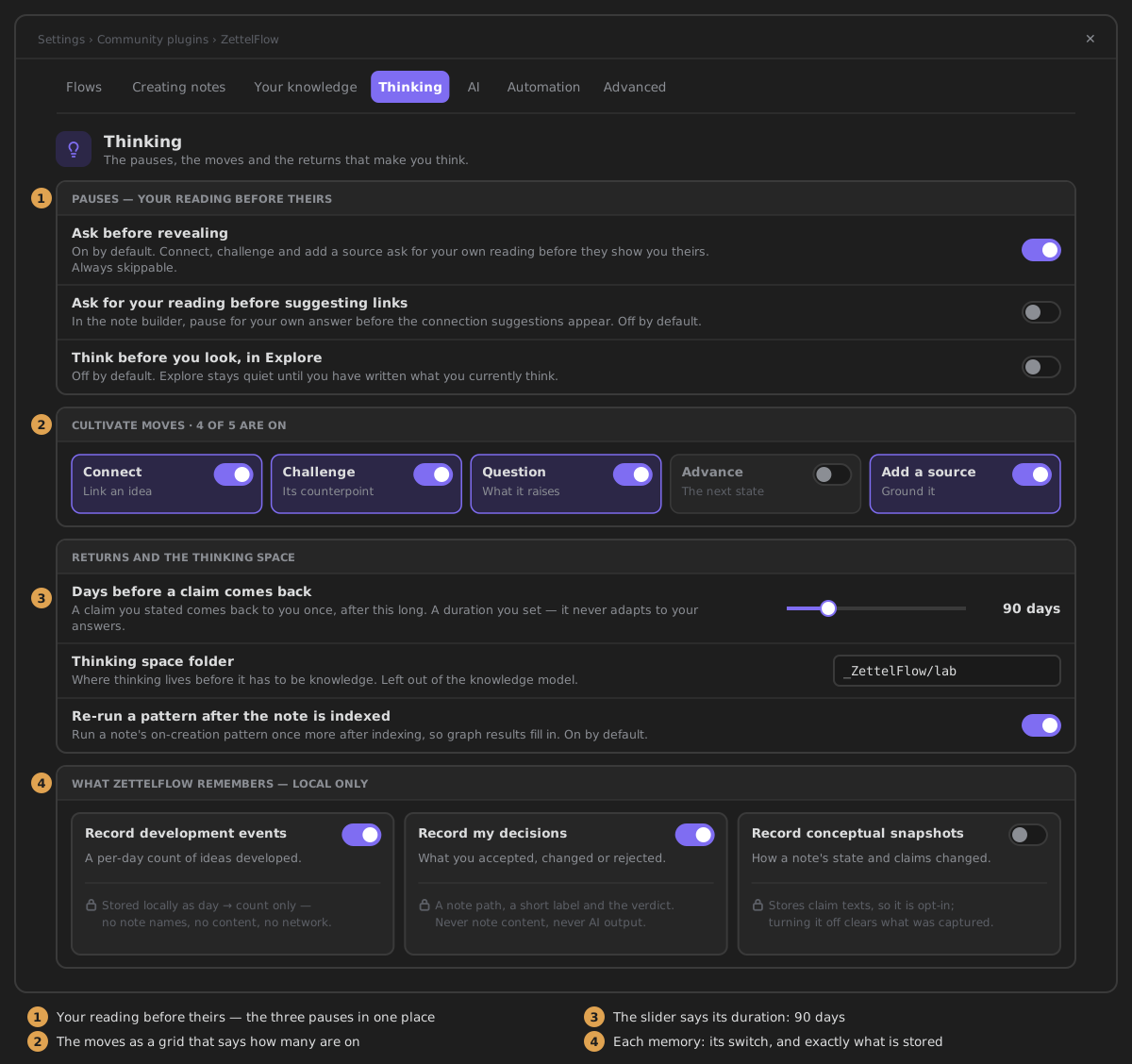
The pauses, the moves and the returns that make you think.
- Pauses — your reading before theirs. Three switches in one place:
- Ask before revealing (on): Connect, Challenge and Add a source ask for your own reading before they show you theirs.
- Ask for your reading before suggesting links (off): the same pause in the note builder.
- Think before you look, in Explore (off): Explore stays quiet until you have written what you currently think.
- Cultivate moves. Five tiles (Connect, Challenge, Question, Advance, Add a source), each with its switch. The card heading says how many are on.
- Returns and the thinking space:
- Days before a claim comes back — a claim you stated comes back once, after this long. The slider says its value (7–365 days, default 90). It is a duration you set, never a repetition algorithm.
- Thinking space folder — where Think keeps your thoughts, outside the knowledge model. The default is
_ZettelFlow/lab. - Re-run a pattern after the note is indexed (on) — so graph results fill in on the first pass.
- What ZettelFlow remembers — local only. Three tiles, each with its switch and a lock line that says exactly what is stored:
| Tile | Stores | Default |
|---|---|---|
| Record development events | A count per day, and nothing else: no note names, no content. It feeds Practice. | On |
| Record my decisions | A note path, a short label and your verdict. Never note content, never AI output. | On |
| Record conceptual snapshots | A note's lifecycle state and claim texts over time. Because it stores note content it is opt-in, and turning it off clears what was captured. | Off |
Nothing in this card ever leaves your vault.
Reading
How a book opens from the Library and how the Reader moves from one chapter to the next. ZettelFlow is filmed in one continuous shot: both choices are camera moves, never a cut.
| Row | What it does | Default |
|---|---|---|
| Opening a book | Camera shot: the shelf zooms into the book, the cover opens on the page you were on, and that page becomes the Reader. Closing plays it backwards. Instant: the same places, no movement. | Camera shot |
| Changing chapter | Leaf turns on the spine; Keeps flowing, where the chapter carries on up and the next one rises behind it; or Sheet slides off the stack. | Leaf turns |
| Pause at chapter ends | What survived?: at the end of a chapter you marked and read for two minutes, the book turns onto a blank leaf — your marks, what they touched, one question. The same switch as the Reader's Type panel and the leaf's own Don't pause at chapter ends. | On |
| Library shows books as | How the Library stands its books: Covers, or Spines turned out on the shelves, as thick as each book is long. The same value as the Covers | Spines switch in the Library's bar; an open Library turns its books when it changes. | Covers |
| Book notes folder | Where a book's note is created, the first time you say something about the book in its Details. A folder field with suggestions and a reset; saving it creates no folder, and changing it moves no note — a book's note is found by its link to the book. Advanced › Folders ZettelFlow uses shows it, with a way back here. | Library |
| Articles folder | The notes in this folder whose source is a web address — as Web Clipper saves them — are on the shelf as articles. Leave it empty to turn articles off. An open Library redraws its shelf when it changes. | Clippings |
With your system's reduced motion on, both are instant whatever you pick.
Under them, Look up and translate (#766):
| Row | What it does | Default |
|---|---|---|
| Dictionaries folder | The folder your StarDict dictionaries are in — a folder field with suggestions, committed when you leave it, press Enter or pick one, with a reset. Look up reads it on the device, with no network; nothing is ever written or downloaded there, and the plugin never creates it. Advanced › Folders ZettelFlow uses shows it, with a way back here. | Dictionaries |
| Found here | Each dictionary in the folder by its own name, with its languages (Spanish, Spanish → English). One that declares none shows From and To fields, set once and kept in the plugin's settings — never in the dictionary. An incomplete one says why (Missing its .idx) and is not used. | — |
| Translate into | The language Translate uses on desktop and Android, through your AI provider. | Obsidian's language |
AI
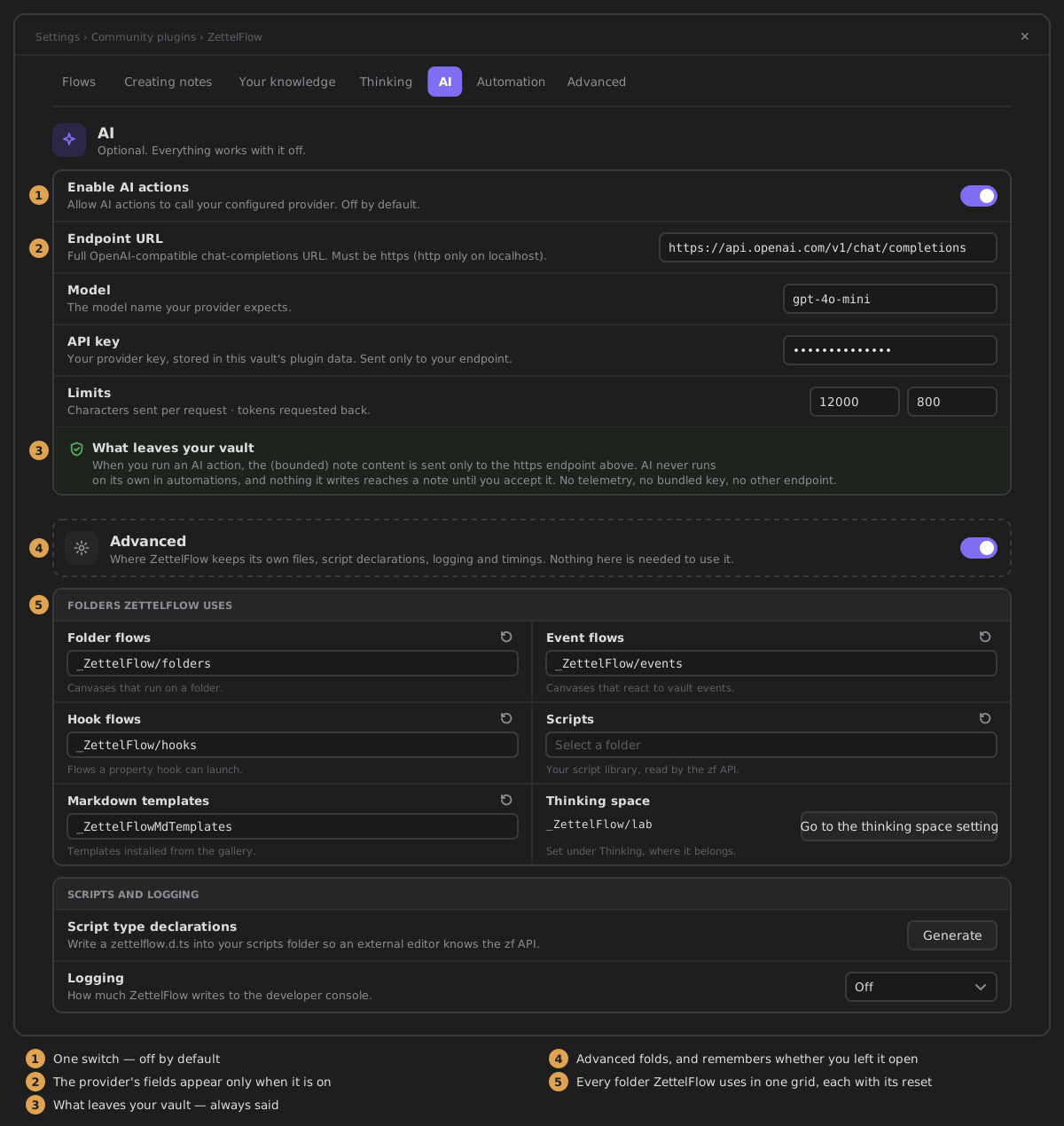
Optional. Everything works with it off.
- Enable AI actions is one switch, off by default.
- Once it is on, the provider's fields appear:
- Endpoint URL — any OpenAI-compatible chat-completions URL. It must be https; http is allowed only on localhost.
- Model.
- API key — stored in this vault's plugin data and sent only to your endpoint.
- Limits — characters sent per request (12000) and tokens requested back (800).
- Whatever the switch says, a callout states what leaves your vault: only the bounded note content of an action you run, only to your endpoint. AI never runs on its own in automations, and nothing it writes reaches a note until you accept it.
Step by step: AI provider setup.
Automation
Scripts that run when a property changes.
The Property hooks card has its actions on the right: the native properties pane, Property types, and Add hook. Add hook is the primary action. Each hook reads as one line: - what the hook is for, with when status changes under it; - the property's type; - a Paused badge when the hook is off; - Obsidian's own switch, and Edit.
See the worked examples.
Advanced
Where ZettelFlow keeps its own files, script declarations, logging and timings. Nothing here is needed to use it. The section starts folded behind the switch on its own head, because nobody should meet a log level on their first day. It remembers whether you left it open.
- Folders ZettelFlow uses — one grid, one cell per folder. Each cell has a folder search and a reset to its default:
- Folder flows (
_ZettelFlow/folders); - Event flows (
_ZettelFlow/events); - Hook flows (
_ZettelFlow/hooks); - Scripts;
- Markdown templates (
_ZettelFlowMdTemplates).
- Folder flows (
The three flow folders refuse a folder that is the same as, or inside, another one: a canvas cannot be two things at once. A path is checked and saved when you leave the field, press Enter or pick a suggestion, never on a keystroke on the way there. The Thinking space, Dictionaries and Book notes cells show their folder as read-only text (cut short with the whole path on hover), and each arrow takes you to the one place it is edited — the field itself under Thinking or Reading, ready to type. - Script type declarations — writes zettelflow.d.ts into your scripts folder, so an external editor knows the zf API. - Logging — Off, Errors only, Warnings, Information, Debugging or Everything. - Timings from this vault — a small table of what ran, how long it took and over how many notes. It is read each time the tab is drawn. - Frame meter — for developers, and for an iPad, where nothing else can time a gesture. While it is on, a page drag, a chapter turn, a shelf drag and the opening and closing shots are timed frame by frame. Each gesture gets one line: its runs, its slowest frames, how long it took to start moving, and whether it stayed within budget. The line also shows the screen refresh it measured. It is off by default and lasts this session only: nothing is saved, nothing is exported, and it is never on Health. See the motion audit.
The tab ends on one line: the version, the documentation, where to report a problem, and how to support the project.
For contributors
- One native tab, built from declarations. The tab is Obsidian 1.13's declarative settings (
getSettingDefinitions): groups with headings, classes andvisiblepredicates, plusrenderrows for the shell and the tiles. That is why Obsidian's settings search finds every row, and why a custom window would cost review score and be one more thing to learn. - No search box of our own. Obsidian searches settings natively, and every row exposes its name and description to it. A second search would be a worse copy of the platform's.
- No launchers and no documentation index. The surfaces open from the menu button and the command palette; the docs are this site. A settings panel that launches and documents is a menu and an index wearing a panel's clothes, and it cost nine rows (#439). The one exception is the start card, shown only while nothing creates notes.
- The renderer is the real one. Re-renders run each row's old cleanup, then
clear(), thenrenderagain, and finish withsetChildrenInPlace(groups). The sticky bar therefore stays inside its own row (display: contents), the hooks' React root is kept acrossupdate(), and the row styles are written against.setting-group.test/support/settingsRenderer.tsmimics that order, so it stays tested (#659). - Settings live in a window of their own (Obsidian 1.14). Ask the element for its animation frame (
el.win.requestAnimationFrame): the main window's never fires while it is hidden behind settings, which froze the section bar's marker (test/architecture/popoutFrames.test.ts). And never name a fieldnavElon a settings tab — that is the tab's own entry in Obsidian's sidebar.
README vocabulary for this page: Settings you can read.