The Reader¶
Follow ideas, not files. The Reader turns a handful of related notes into something you read from start to finish, the way you read a book. It takes the whole window, gives you one chapter at a time, and steps out of the way while you read.
Open it¶
The Reader also reads your PDFs and EPUBs — a paper's pages reflowed into the same column, a book's chapters rebuilt in your type, with the same highlights — from the Library.
- Right-click any note → Read from here. That is the whole setup. You don't need a map of content or a list of relations: the note you right-click is where the reading starts.
- This note → ⋯ → Read around this note, from the note you are on.
- Right-click several notes → Read these, or right-click a folder → Read this folder.
- Explore → Read these, beside Copy as links, reads what your question selected.
- Command palette → "Read from the active note", which you can bind to a hotkey.
None of these is offered on a note or folder in an excluded folder: it is outside ZettelFlow (see This note), and Read these leaves such notes out.
The sidebars fold away and the Reader takes the window. When you leave, with Esc, the × or the command Reader: exit, the page fades out, the reader's tab closes, and your workspace comes back exactly as it was: the sidebars that were open open again, and you return to the tab you were in, where you left it. Closing the tab any other way gives everything back too, and so does a reader left open across a restart.
A book opened from the Library is read in the Library's own tab, so leaving it does not close anything: the tab becomes the Library again, with its filter, sort and scroll as they were.
A book you open for the first time starts on its text, where the book itself says the text begins, not on its cover or its credits — the way a Kindle opens a new book. A book you have read before opens where you left it. See Reading an EPUB.
Choosing what to read¶
When there is more than one good way through a note, Read from here asks how do you want to read it? Each way shows its shape, what it promises and the chapters it would read, so you choose on what you will actually read.
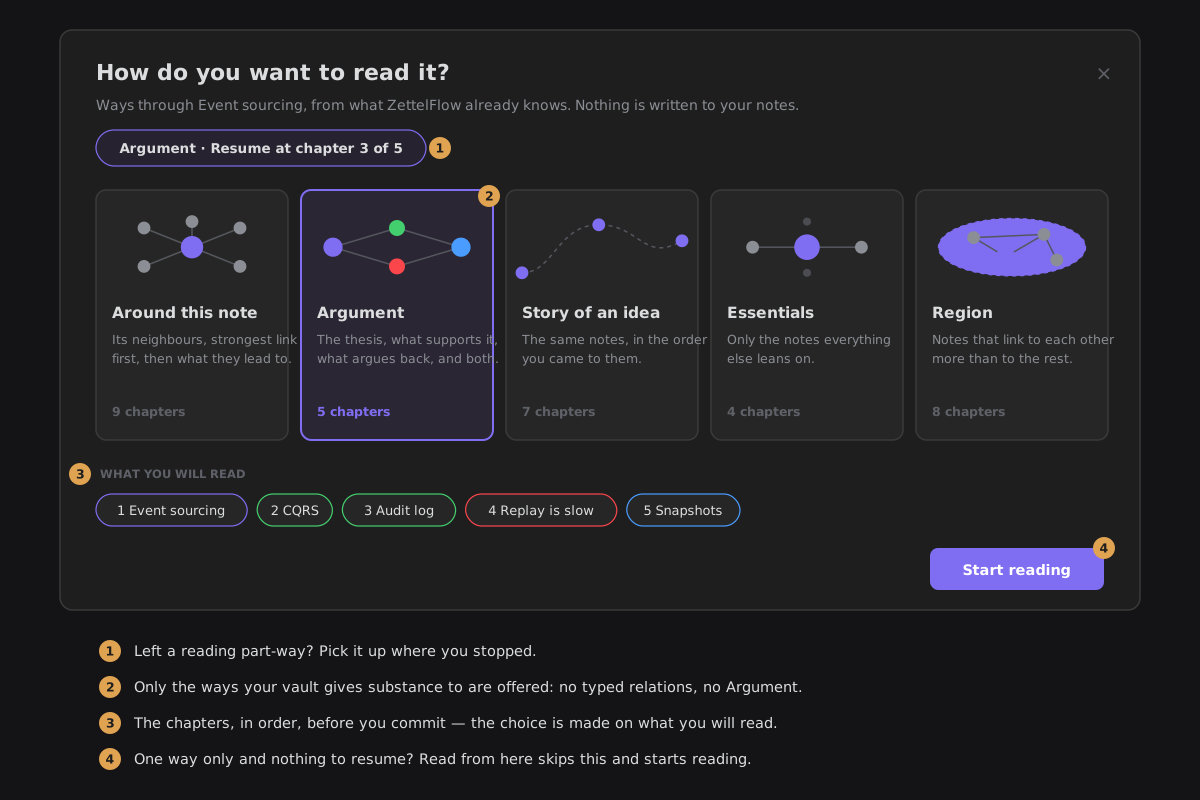
| Way | Reads | Offered when |
|---|---|---|
| Around this note | the note, its neighbours strongest link first (counterpoints, supports, examples, other typed relations, plain links), then the notes two steps away that most of them touch, then notes near it you never linked | always — it is the default |
| Argument | the thesis, what supports it, what argues back, then the notes that speak to both sides | the note has typed supports / contradicts relations |
| Story of an idea | the same notes as Around, in the order you first worked on them (decisions, moves, creation date) | at least three chapters, on at least two different dates |
| Essentials | only the hubs around the note: the notes linked three times or more, most linked first, at most seven | it leaves something out |
| Region | the note's region of your graph: notes that link to each other more than to the rest, its hub first | the region has three notes or more, not all already its neighbours |
Every way reads at most twelve chapters, and only notes your vault actually has. A way that would read exactly the same chapters as one already offered is not offered twice. When only one way applies and there is nothing to resume, the chooser is skipped and the reading starts.
Read these and Read this folder read the notes you picked (up to sixty) in the order their links suggest: each next chapter is the note most linked to the ones already read.
Resume¶
Leave a reading part-way and the Reader remembers the chapter. Next time, the chooser offers Resume at chapter n; a picked set or a folder reopens where you left that same set. Reaching the last chapter, or going back to the first, forgets the place. The Reader keeps the forty most recent places, in the plugin's settings — a picked set is kept as a fingerprint, not a list of your notes.
Chapters and roles¶
Every reading starts with the note you started from (a picked set starts with its first note). A note joined both ways comes before one joined one way, and a typed relation before a plain link. No unresolved links, attachments or self-links are read.
Each chapter carries its role relative to the note you started from, read off your typed relations:
| Role | When |
|---|---|
| Thesis | the note you started from, when something supports it or argues with it |
| Support | a note joined to it by supports |
| Counterpoint | a note joined to it by contradicts |
| Synthesis | in an Argument, a note that speaks to both sides |
| Context | anything else |
Reading¶
| Key | Does |
|---|---|
| →, Page down | next chapter — in Page or Spread, the next page, then the next chapter |
| ←, Page up | previous chapter — in Page or Spread, the previous page, then the previous chapter's last page |
| Space / Shift+Space | a screen down (up) the chapter, and the next (previous) chapter once you reach its end — in pages, a page on (back) |
| ↓ / ↑ | scroll the chapter a little (nothing in pages: there is no scroll) |
| Home / End | first / last chapter |
| F | deep reading: the page and nothing else, in and out (see Deep reading) |
| H / Shift+H | highlight the selected words / highlight them and write a note |
| Tab, then ← → ↑ ↓ | with the selection popover open: move into it, then between its buttons (the popover) |
| B | bookmark the place you are reading, or take away the bookmark on this screen (a book or a paper) |
| Alt+← | back to where your last jump left from (a book or a paper) |
| Ctrl/⌘ + / − / 0 | in a PDF's Page view: zoom in, zoom out, back to Fit width (Page view); elsewhere they stay Obsidian's |
| Ctrl/⌘+Z | take back the last change this reading made (see Everything can be undone); with the ink palette open, the last ink first |
| ? | the keyboard shortcuts, on the page (also a button in the bar) |
| Esc | one thing at a time, nearest first: close the shortcuts, fold the popover's More, close the highlight popover, a peek, step back from a detour, close a panel, stop re-anchoring, leave deep reading, then leave the Reader |
The keys work whenever the Reader is the active tab, wherever the focus is: they are registered the way Obsidian's own views register theirs, so they never fight a hotkey of yours. Ctrl, Cmd and Alt combinations are Obsidian's, with three deliberate exceptions scoped to the Reader: Ctrl/⌘+F searches the book, Ctrl/⌘ +/−/0 zoom a paper's page, and Ctrl/⌘+Z takes back the reading's last change. A key typed into a margin note or a name is never taken: there Ctrl/⌘+Z is the field's own undo.
Three commands do the same from the palette, and you can bind them to hotkeys of your own. They appear only while a reading is the active tab, and none has a default hotkey:
| Command | Does |
|---|---|
| Reader: next chapter | the next chapter (the end card after the last) |
| Reader: previous chapter | the previous chapter |
| Reader: exit | leave the Reader and get the workspace back |
The bar at the bottom appears when you move the mouse and fades after two seconds, and the pointer fades with it. On a touch screen a tap in the middle of the page shows it, and the next one hides it. It holds:
- where you are — Chapter 11 / 30 in a book, Page 3 / 12 in a paper, Section 2 / 5 in an article — and, in Page or Spread, which screen of the chapter is on show (Chapter 11 / 30 · 2 of 44), so a turn that stays in the chapter is seen to happen; your progress through the path; and about how many minutes are left in this chapter (at 220 words a minute, counted down as you scroll);
- Contents, the chapters with their roles (in a book or a paper, with its Bookmarks and Where you've been beside them);
- Search in the book;
- Type;
- Alongside, the panel-on-the-right icon: your own notes near the paragraph you are reading, through six lenses (see Alongside);
- Deep reading, the page and nothing else (F);
- Keyboard shortcuts.
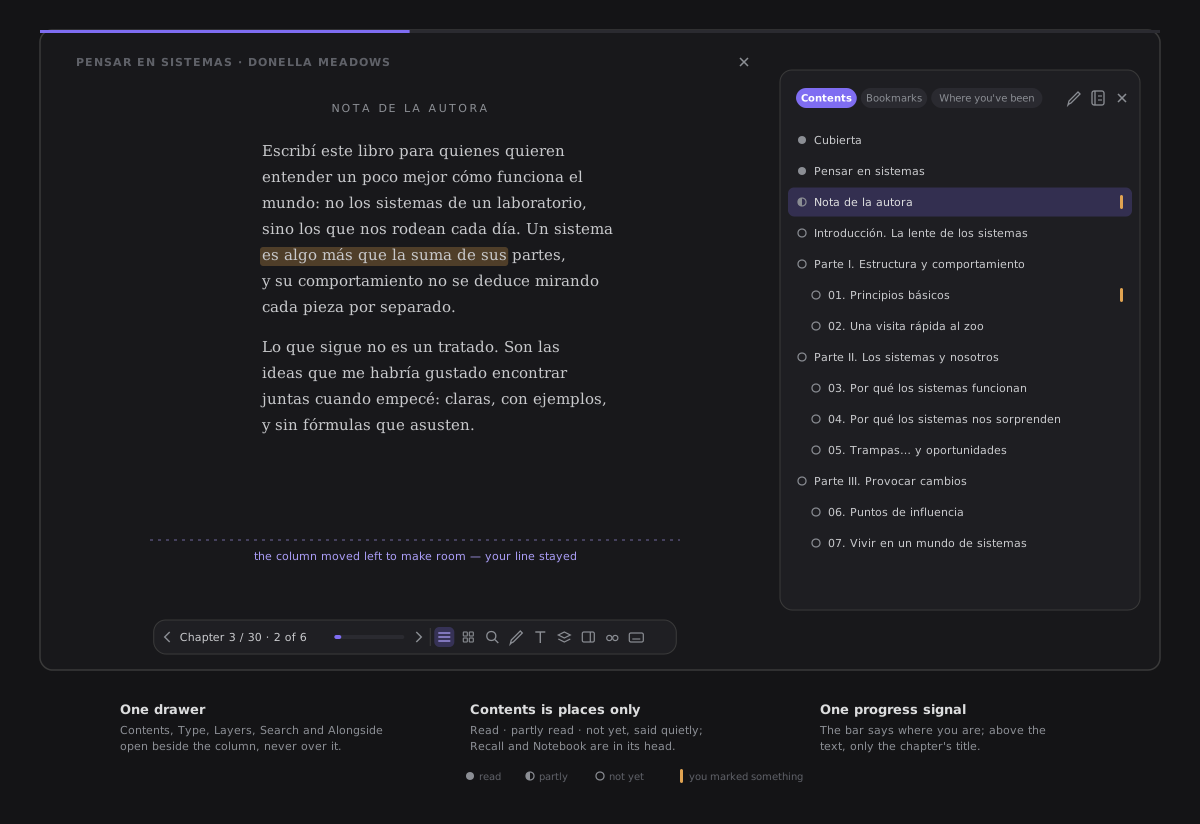
One drawer. Contents, Type, Layers, Search and Alongside all open in the same place: a drawer beside the column, on the right. The column makes room for it with the line you were reading kept where it was, and the bar and the dots move with the column, so they stay under the text and never under the drawer. On a narrow desktop pane the drawer lies over the page's edge; on an iPad in portrait it is the bottom sheet. Asking for another panel while one is open swaps what the drawer holds — a short fade in place, the drawer itself never moves — and asking for the open one again closes it. While the drawer is open, the margin's list of your highlights steps back: the drawer has that side.
A panel closes from the panel. Every panel carries its own × at the end of its head (Close contents, Close type, Close Alongside, …). It closes the drawer in the same move as Esc, and the Reader stays open. While the claim sheet is open, the first press closes the sheet, as Esc does. The bar's button of the open panel shows as pressed, so the way back is always where you opened it.
Contents is places, with the book's shape. The list holds the book's places and nothing else, drawn the way the book is built:
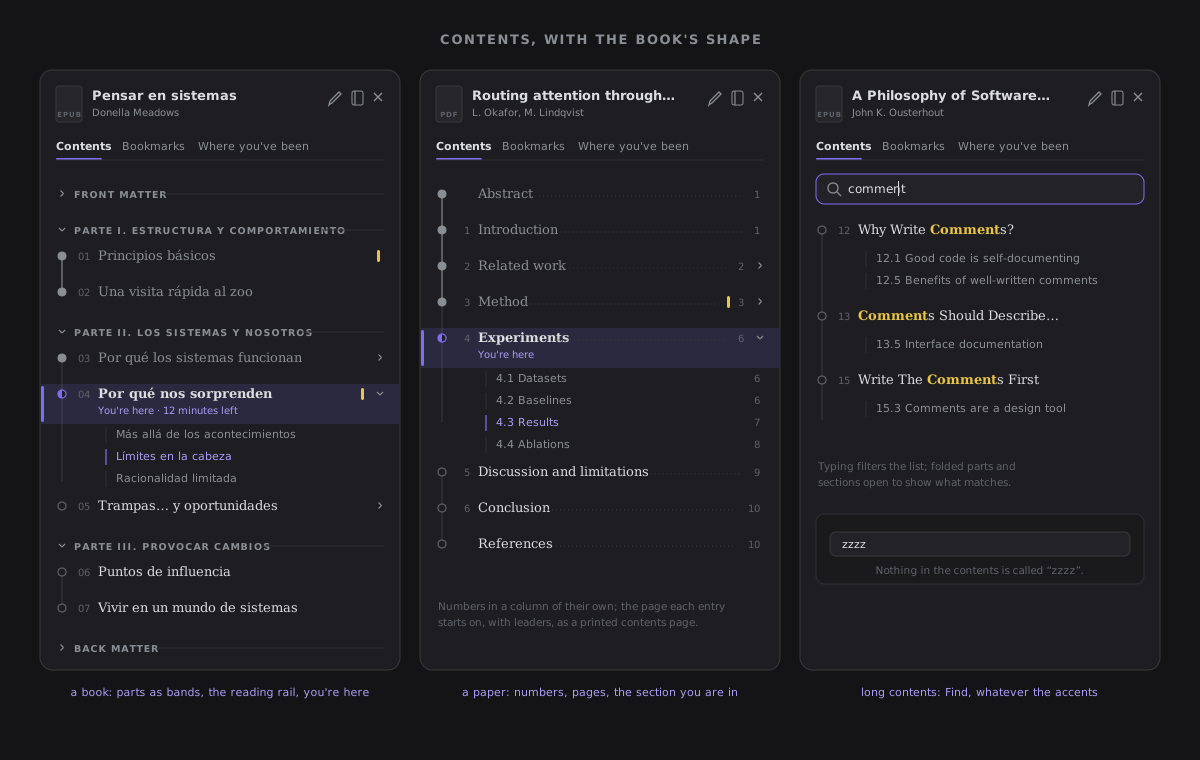
- The book in the head. Its cover (the one the Library drew this session, or a plain tile), its title and its author. Recall this chapter (the pencil), the book's Notebook and the × sit at the end of the head; the tabs — Contents · Bookmarks · Where you've been — are on a line of their own, the chosen one underlined. There is no progress bar here: the Reader's bar already says how far you are.
- Parts are bands. A part of the book is a small uppercase band with a hairline over its chapters; it stays at the top of the list while its chapters pass, and a click folds it. What comes before the first part is folded under Front matter, what comes after the last under Back matter — unless you are in it. In a PDF or a paper, the outline's top level is its parts only when it runs three levels deep. Folding is remembered while the book stays open.
- The reading rail. Every chapter has a node on one vertical line: filled for read, half for the chapter you are in or one you opened this sitting, hollow for not yet; the line is solid where you have read. Never a number, never a percentage. A small mark sits beside a chapter where you marked something — the same mark for one highlight or twelve.
- Numbers, titles, pages. A title's own number (7, 3.2, A.1) stands in a column of its own, the title after it in the Reader's font. In a PDF or a paper each entry ends with the page it starts on, a dotted leader running to it, as a printed contents page.
- Sections under their chapter. A chapter's sub-entries hang under it, smaller; they are folded behind a caret, except under the chapter you are in, where the one you are reading — the last heading at or above the reading line, or the last one starting on your page — is lit. The caret never leaves the page; a click on a row or a section jumps there.
- You're here. The chapter you are in is tinted, with an accent edge and You're here under its title — with the minutes left in it, when the bar would say them. On a part's own title page the part's band says it. The list opens scrolled to it.
- Find in contents. Contents of 24 entries or more (counting sections) has a field above the list. Typing keeps the chapters and sections whose titles hold the words — whatever the case and the accents — marks the match, and opens what it needs to show them; nothing found says so in one line. Clearing it puts the folding back. ↑ and ↓ move between rows and bands; Enter goes.
One progress signal. Where you are is said once, in the bar. Above the text there is no count: the line there names the chapter, and says nothing when the chapter opens with its own heading or has no name. A reading of twelve chapters or fewer has its dots under the page, one per chapter; a longer one — a book of thirty chapters, a paper of sixty pages — has the bar's line instead.
The × at the top right is the Reader's own exit (Close the reader, said on hover). It always sits over the column: while Alongside lies beside the page, the top line ends where the column ends, so the × above the panel is the panel's, never the Reader's.
The book at a glance¶
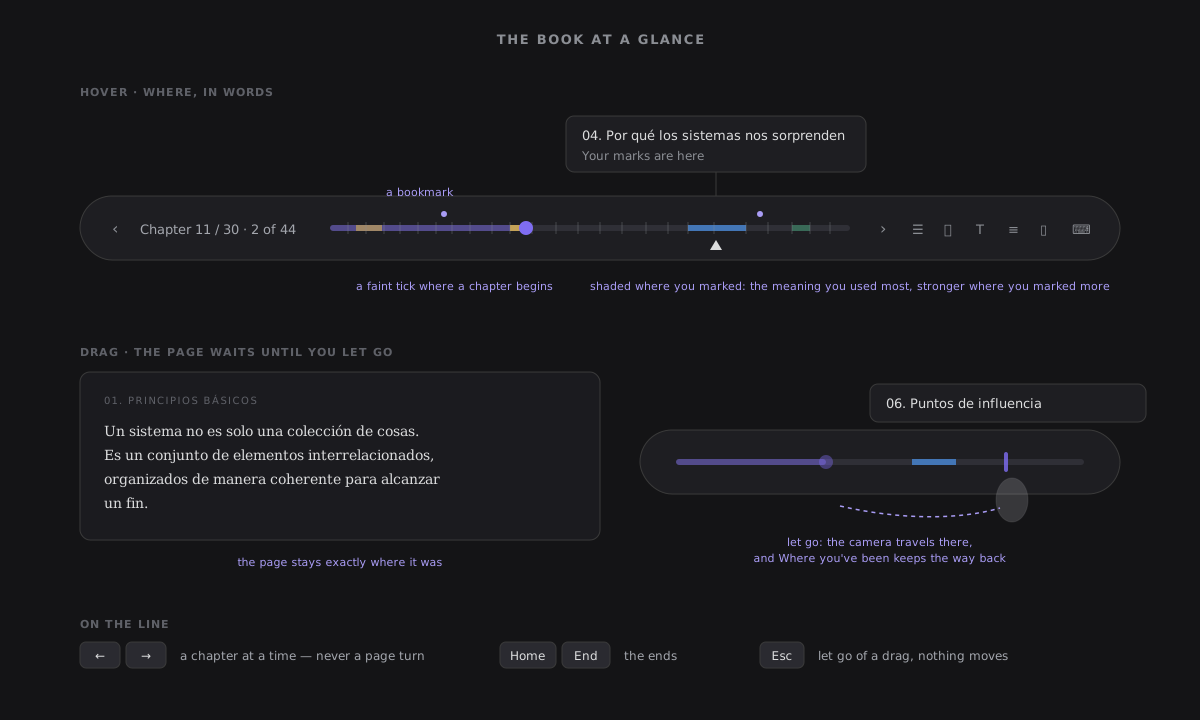
In a book, a paper or an article the bar's line is the whole book, not the chapter. It shows, quietly and never as a number:
- where each chapter begins — a faint tick, and none in a paper, which is counted in pages;
- where you marked something, shaded in the colour of the meaning you used most there, and stronger where you marked more — only the layers you are showing;
- your bookmarks, a small dot each, and where you are.
Hover it and it says which chapter is under the pointer, and whether you marked something there (Your marks are here). Drag along it and the name follows your finger while the page stays put; let go — or click — and the camera travels there, the way a Contents jump does, with its way back in Where you've been. Let go in the chapter you are in, or press Esc, and nothing moves. With the line focused, ← → step a chapter and Home End go to the ends; they never turn the page. A reading of notes keeps its progress line.
A hairline across the very top fills as you scroll through the chapter. At the end of it, the way on lights up: Next · its name · how long it is.
Deep reading¶
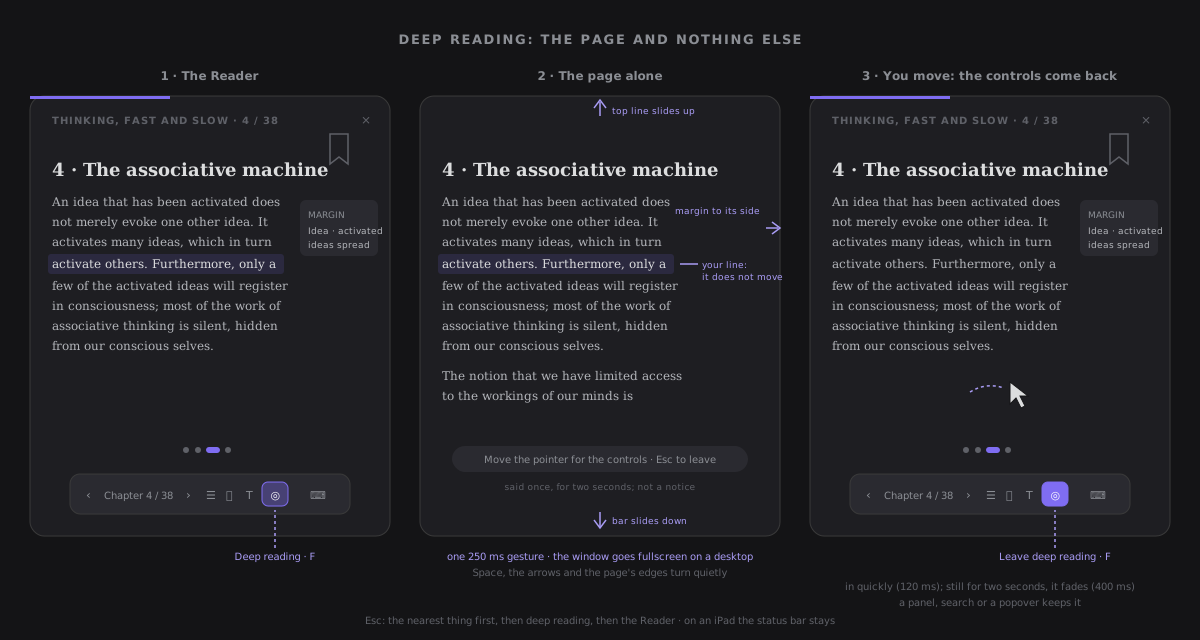
Deep reading is the page and nothing else. Press F, or the Deep reading button in the bar (where Fullscreen used to be), and the top line slides up off the screen, the bar slides down, the margin of highlights slides to its side, and the chapter dots, the hairline, the back pill and the bookmark ribbon fade. The pointer hides. On a desktop the window also goes fullscreen. The line you were reading does not move, not even while the window grows around it.
- Said once. For two seconds a line on the page says Move the pointer for the controls · Esc to leave, or Tap the middle for the controls on a touch screen. It is not a notice.
- Everything comes back when you move. Move the pointer (more than a jitter), tap the middle of the page, or press any key that does not read (H, B, 1–4, ?, Ctrl/⌘+F), and the controls slide back in, quickly. They fade again after two seconds of stillness, and they stay while a panel, search or a popover is open.
- Reading keys stay quiet. Space, Shift+Space, the arrows, Page up/down, Home, End and a tap on the page's edges turn without bringing anything back.
- Nothing is lost. Selecting and highlighting, footnotes, search, the panels, the end card and the way back (the pill through the controls, or Alt+←) all work as they do outside it.
- Leaving. Esc closes the nearest thing first, as always, then leaves deep reading, and only then the Reader. F or Leave deep reading (the same button) leave at once. The window is given back as it was: if it was fullscreen before, it stays fullscreen; if deep reading made it so, it is put back.
- Beside focus mode. Focus mode (in Type) is about the text, deep reading about the screen. Either works with or without the other, and deep reading never changes it.
- Not remembered. Every book opens in the ordinary Reader.
- Reduce Motion is honoured: the controls appear and go at once, and your line still stays.
On a desktop the window's fullscreen never takes Esc from the Reader: the Reader answers it first, so the order above holds. If the window leaves fullscreen some other way (F11, the system), the page stays in deep reading and is not put back into fullscreen when you leave.
On a desktop, Obsidian's own ribbon, tab bar and status bar slide away with the Reader's controls, and come back as you leave.
On an iPad the app cannot make the window fullscreen, so deep reading covers Obsidian's own toolbar instead (the Reader already does while you read) and takes the Reader's controls away too. The iPadOS status bar, with the clock and the battery, stays: a plugin cannot hide it.
One continuous shot¶
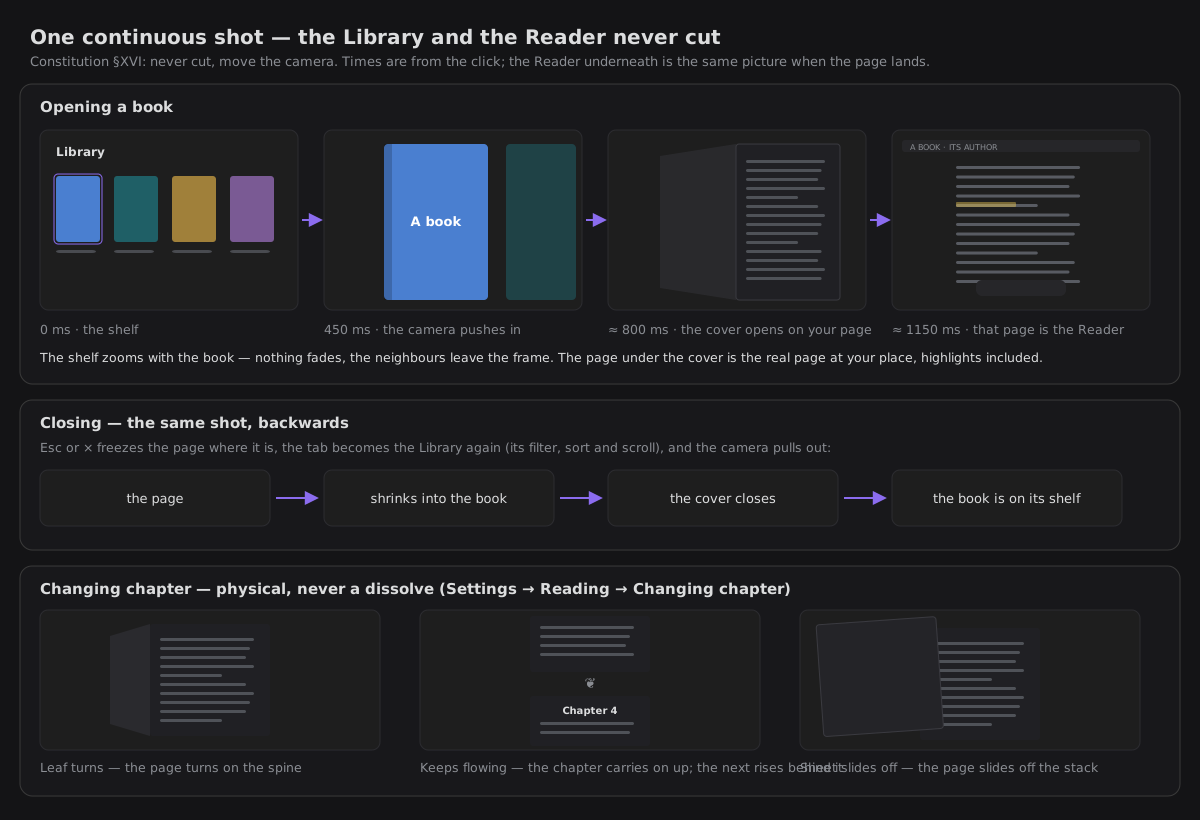
Opening a book from the Library never cuts to another view: the camera moves. The shelf zooms with the book you clicked, the cover opens on its hinge on the page you were on (your highlights already in their places), and that page lands exactly where the Reader's column is: it is the Reader, with everything it has. Leaving plays the same shot backwards, until the book is on its shelf again. Any key or click jumps a shot to its end, and with reduced motion, or Settings → Reading → Opening a book → Instant, the same places are reached at once. This is constitution §XVI at work.
Every door carries its origin. Wherever you open the Reader from something you can see, what you clicked lifts and travels to the reading line as the Reader arrives under it. That covers Home's Reading card, a highlight's or an ink note's Open in the Reader in Think, a Review card, Open source passage when making a note, a way or a saved path in the reading chooser, Read these in Explore and the Library's Read a path across your notes. A modal you open it from closes as the flight leaves it, never before. A door with nothing on screen to come from, such as a menu item or a command, opens with the Reader's own entrance and invents no origin. Nothing flies when the Reader is already open, under reduced motion, or with Opening a book set to Instant.
A reader that feels good¶
- The measure of a book. About 68 characters to a line, with ragged edges evened out, long words hyphenated and generous leading, in your theme's font or a serif.
- Pages that turn, physically. Changing chapter never dissolves one into the next. The page you were on is laid on top like paper and leaves the way you choose in Settings → Reading → Changing chapter: a leaf turns on the spine, the text keeps flowing up into the next chapter (a small ❦ marks the seam), or the sheet slides off the stack. Going back plays it the other way. Arrows, keys, the contents and search jumps all turn the same page.
- A marker, not a stamp. A new highlight is swept across the words like a marker pen.
- Time left, at your pace. The bar says how long is left in the chapter and in the book, counted at your reading speed, learned from the chapters you read to the end and kept on this device only. It shows only while the bar does: move the pointer or press a key. Type → Time left turns it off.
- Focus mode (in Type): every paragraph but the one at your reading line steps back, so your eye stays where you are. It is remembered for next time.
- Calm when you read. Opening, the page rises out of the workspace; leaving, it sinks back.
- Details that explain themselves. A highlight you keep drifts into its card in the margin. Popovers grow from where you selected, and a chapter ends with a quiet ornament as you arrive. Day, sepia and night cross-fade instead of snapping, and the book you are reading breathes once when you come back to the Library. Each one moves only what the screen can move for free (transform and opacity), and none of them counts at you.
- A slow chapter says so, quietly. A chapter is almost always on the page before you could notice it being drawn, and then nothing is shown. Only a slow one, a long chapter on a slow device, shows three faint lines breathing, like a pen about to write, where the page will be. They fade in after 150 ms, and they appear on time even while the chapter is still being drawn. You never see an empty page.
- Less motion, if you asked for it. With your system's reduce motion setting on, every one of these is instant: nothing slides, sweeps or fades.
Chapters are drawn by Obsidian's own Markdown renderer, so callouts, embeds, math and your theme look as they do everywhere else.
On iPad¶
The Reader is built to be read with a finger, a pen or a hardware keyboard. On a mouse or a trackpad nothing below changes: a click never turns a page.
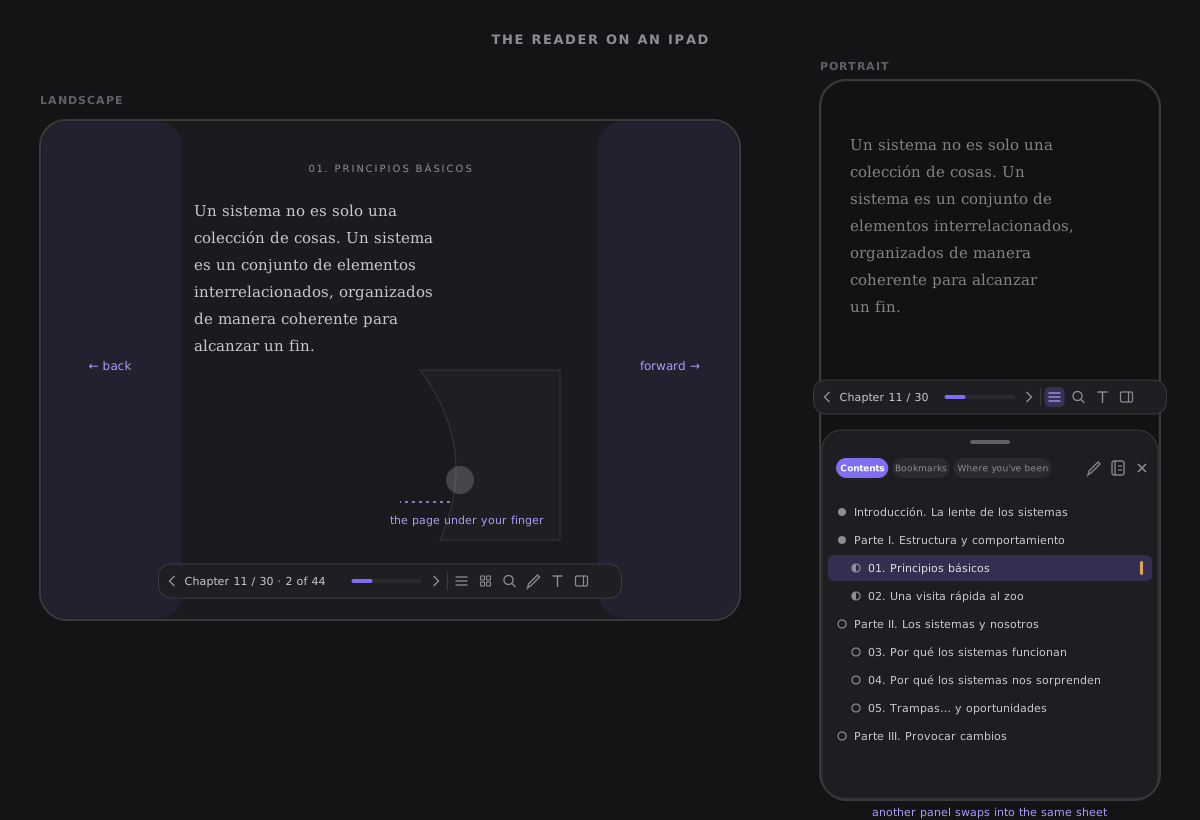
- Tap the edges. A tap in the outer fifth of the page turns a screen, the right edge forward (as Space) and the left edge back. A tap in the middle shows the bar, and the next one hides it. A tap on a link, a footnote, a highlight or a button is that thing, never a turn — and so is any tap while words are selected.
- Swipe a chapter. A sideways swipe holds the chapter's own turn — the leaf, the flowing text or the sheet you chose in Settings → Reading — under your finger. Let go past a third of the page, or with a flick, and it turns at the speed you let go; short of that it springs back. On the first or last chapter the page follows a third of your finger and comes back. A vertical drag scrolls, and a gesture is decided once: a diagonal drag never both scrolls and turns.
- The very edge is not ours. A swipe that starts within a finger's width of the screen's edge is left to iPadOS and to Obsidian, which opens its sidebars from there.
- Back with two fingers. Two fingers swept right anywhere on the page go back one step along where you've been, as the back pill and Alt+← do. (The screen's left edge would be the obvious place, but it is Obsidian's.)
- Pinch to the overview. Two fingers drawn together on a flowing page shrink it into its card in the overview; in Page view and a designed book, past the smallest zoom. Two fingers are decided once — drawn together, a pinch; swept sideways, back; lifted at once, ink's undo — so one never does another's work. The overview opens at the sheet's full height in portrait: a page of cards.
- Selecting beside the system's menu. A long press selects words as usual and iPadOS shows its own callout (Copy, Look Up, Translate). Once the selection has settled, the four meanings appear below it, clear of that callout, and without a second Copy.
- Panels are a bottom sheet in portrait. Contents, Type and Alongside rise from the bottom edge at half height over the dimmed page. Drag the handle up to nearly full height or down to close it, tap the page above it, or tap its ×. The bar stays above the sheet, so the button that opened it closes it too, and the top line steps out under the dim, so the Reader's × never sits over the sheet's head. In landscape they open as the usual card.
- The whole screen is the page. While a book is open, Obsidian's own toolbar slides away, and it slides back as you leave, exactly as it was. The top line, the back pill, the dots, the bar and the sheet stay inside the safe area — in both orientations and in a Split View window — and rotating keeps the line you were reading in view.
- No dead control. The app cannot make the window fullscreen on an iPad, so there is no Fullscreen; Deep reading is there instead and works (see below). The shortcuts sheet names ⌘ and ⌥ on Apple devices.
- A big book opens, or says why not. A whole book is held in memory while you read it. On an iPad or a phone, a PDF over 100 MB or an EPUB over 50 MB is not opened — not even read: the page says it is too large to open on this device, with the way back to the library, and nothing is written. Those limits are deliberately cautious until a device has measured them.
- Reduce Motion is honoured: taps and sheets are instant, and a swipe still follows your finger, because moving something with your finger is not an animation.
What is proven so far. All of the above is tested, and was walked in Obsidian with its mobile layout emulated at iPad sizes with touch. The walk on a real iPad — the one that settles iPadOS's own callout and Look Up, the Pencil, a hardware keyboard and the memory limits — is recorded on issue #750; until it is, those rows are assumed, not claimed.
What a plugin cannot do on iPad. Hide the status bar; keep reading aloud in the background. These are the app's, not a plugin's. The Pencil's native gestures are the same — a web view never hears them:
| On iPad | In the Reader | Instead |
|---|---|---|
| Pencil double-tap to switch tools | ✗ native only | the palette's pen and eraser |
| Pencil squeeze (Pencil Pro) for a palette | ✗ native only | the pencil in the reader bar |
| PencilKit's ink | ✗ native only | the Reader's own ink, drawn from the points |
| Apple's tool picker | ✗ native only | the palette: pen, highlighter, lasso, eraser, four inks, undo |
| Scribble's scratch-out and the lasso tool | ✗ native only | the palette's eraser, and the Reader's own lasso, from the points |
| Undo from the Pencil | ✗ native only | a two-finger tap on the page |
| Speech in the background, or with the screen locked | ✗ a web view's limit | Listen pauses at its sentence; play goes on from there |
Ink is drawn from what WebKit reports (about 120–240 Hz, with no predicted points): good ink, honestly not PencilKit ink.
Still to prove on a device: the pinch to the overview. Obsidian's iPad app never zooms the page itself, so two fingers on the Reader reach it as two pointers — the same path Page view's zoom, the two-finger back and ink's two-finger undo already use. Whether a real iPad's WKWebView keeps it so for the pinch is recorded on issue #776 (rows P13–P16: the pinch reaches the Reader, does not fight back or ink's undo, and the card cap holds); until it is, the pinch is ◐ to prove on a device, and the bar's button is the door.
Still to prove on a device: Pencil hover. An M2-or-later iPad senses an Apple Pencil 2 or a Pencil Pro while it is still above the glass, and native apps show where it will land. Whether Obsidian's web view passes that on to a plugin is not documented, so the Reader does not promise it:
| On iPad | In the Reader | Evidence |
|---|---|---|
| A nib shadow under the hovering Pencil (M2+ iPad, Pencil 2 or Pro) | ◐ to prove on a device | not yet measured on an iPad — #749 |
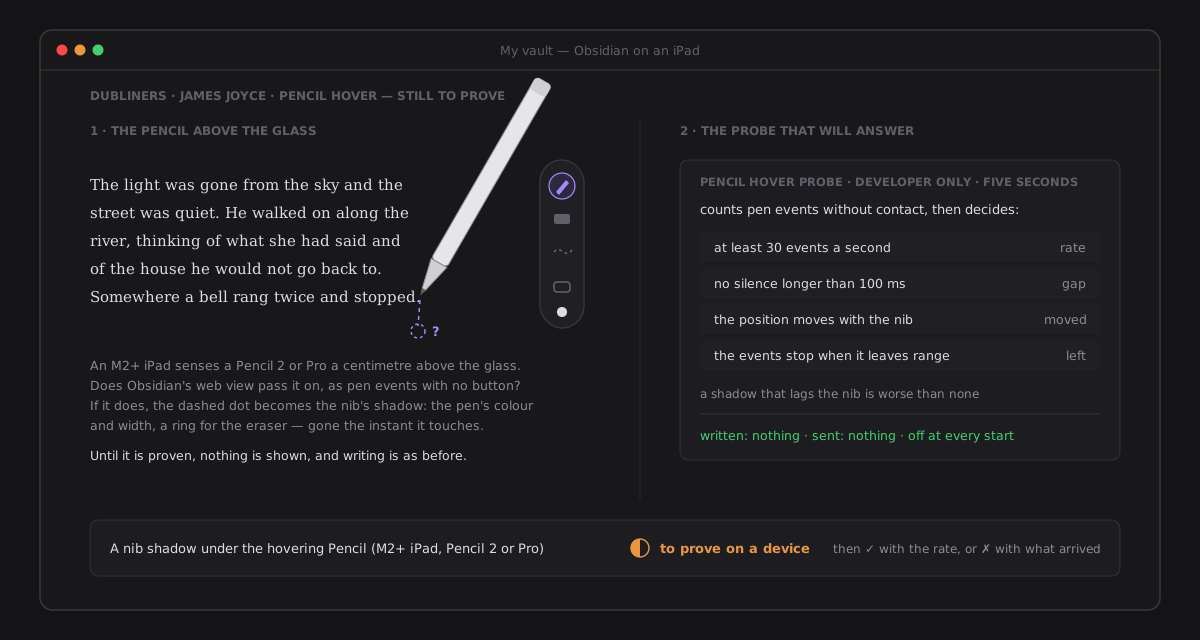
The question is measured, not guessed. A five-second developer probe counts the pen events the Reader receives without contact (pointerType: "pen", no button pressed) and decides by named thresholds: at least 30 events a second, no gap over 100 ms, the position moving, and the events stopping when the Pencil leaves range — a shadow that lags the nib is worse than none. In the desktop app, fed trusted pen events, it read 120 events, position and tilt moving and the leave seen, and the vault's files were unchanged. That proves the instrument, not the iPad: a desktop pen is not WKWebView. The probe is not in the plugin; it is kept as a patch on the issue for the device run. Until an iPad answers, there is no shadow, and writing is exactly as above. When it answers, the row becomes ✓ (and the shadow is built) or ✗, with the device, the versions and the rate.
Links, detours and context¶
Getting lost is the main way reading fails in a linked vault: you follow a link, then another, and the thread is gone. So a link in the Reader is a peek, not a jump.
In a book or a paper it is the same idea. A footnote opens over the page, at its mark, and any jump (a cross-reference, Contents, a search, Go to note, a bookmark, a passage opened from Think) leaves a ← Back to … pill, Alt+← and a row in Where you've been to return to the line you left — see Bookmarks and where you've been and Your Library.
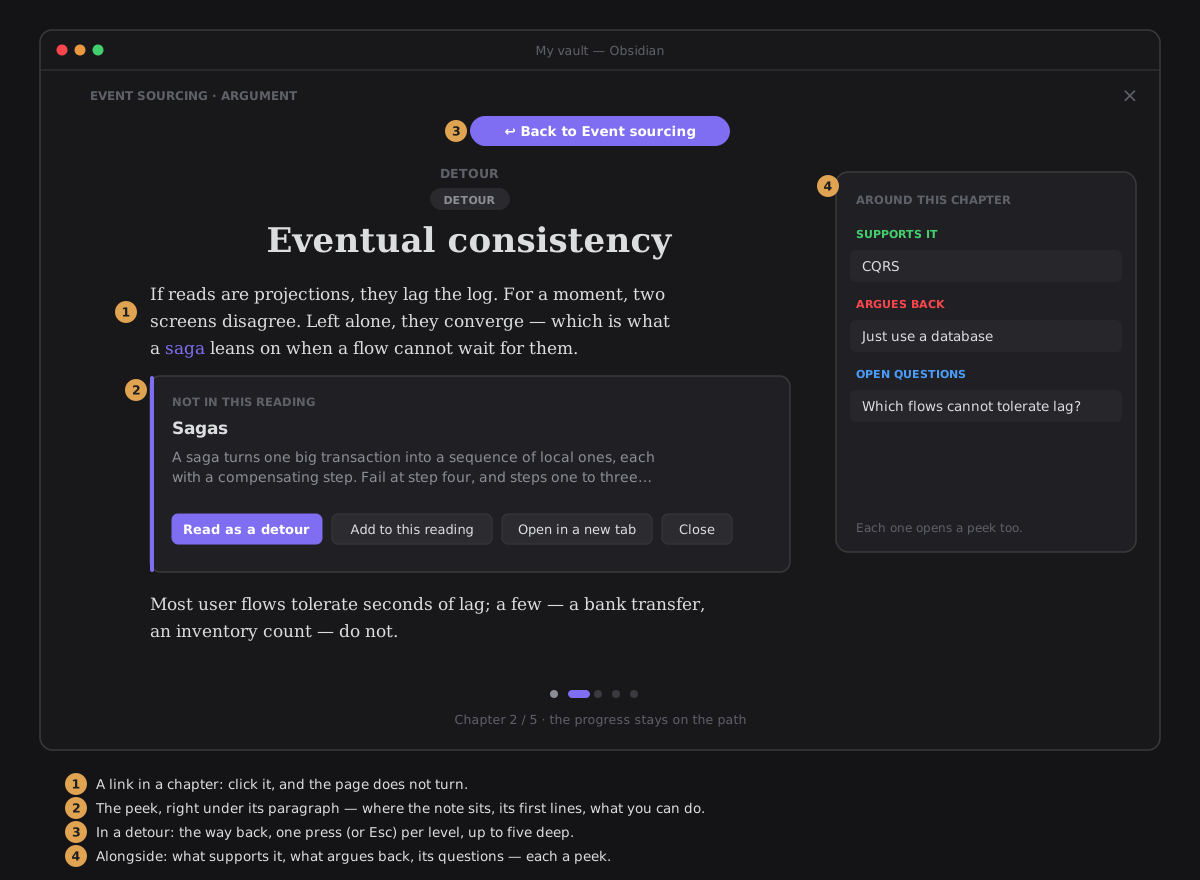
Click a link and a card opens right under the paragraph that holds it. It says where the note sits (Chapter 3 of this reading, or Not in this reading), shows the note's first lines, and offers:
| Action | Does |
|---|---|
| Read as a detour | reads the note now, then brings you back. A pill at the top says ↩ Back to …; one press, or Esc, steps back one level. Detours can nest five deep. |
| Jump to the chapter | when the note is already a chapter of this reading |
| Add to this reading | puts the note right after the chapter you are on, for this reading only |
| Open in a new tab | as Obsidian would |
- While you are in a detour the counter says Detour and the progress stays on the path. The arrow keys move along the path, leaving the detour behind.
- Mod-click a link to open it in a tab without a peek, and Ctrl/Cmd-hover it for Obsidian's own page preview.
- A link to a note that does not exist yet only says so: following it would create the note, and the Reader writes nothing.
The Contents panel lists the chapters with their roles, ticks the ones you have read and marks where you are. What supports the chapter, what argues back and its open questions are in Alongside, read from the same model as This note. Each of those is a peek too.
Alongside — your vault beside the page¶
The book on the left, your notes on the right. Alongside is the Reader's context panel — the same button in the bar, in the same place — for a book, a paper or a reading of notes. It shows your highlights on this page first, as it always did, and under them what of yours is near the passage you are reading, each card saying in one line why it is there.
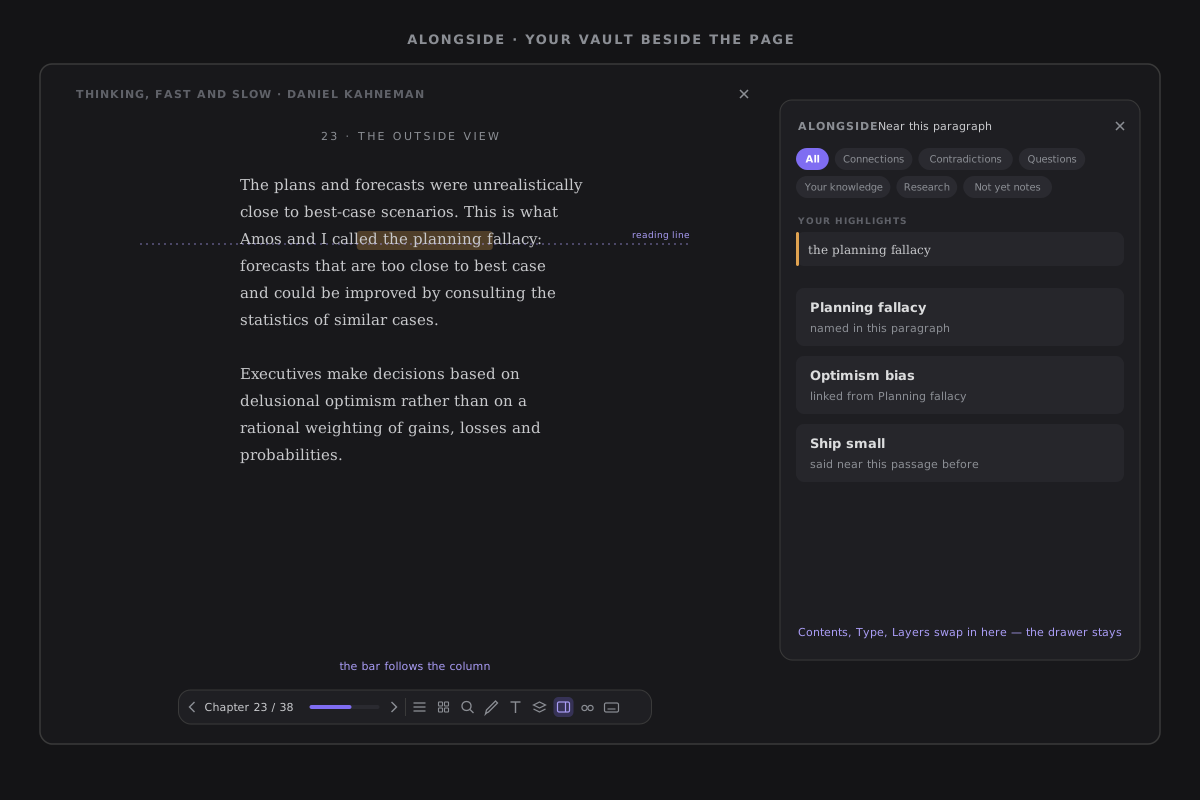
Near what. The paragraph at the reading line, a third of the way down the column, or, while words are selected, the selection. In a PDF's Page view it is the page. The heading says which: Near this paragraph, Near your selection, Near this page. Alongside follows your reading when the scrolling settles (150 ms after you stop), never on every frame.
What counts as near, decided by your vault, the same way every time, with no AI:
- a note whose title or alias is named in the passage, as whole words, with case and accents folded (Planning Bias names a note aliased planning bias). A title made only of common words (The end, People) or a single word shorter than five letters (Time) never matches;
- a note born from this book (its
sourcecites it, see Every note goes back to its paragraph): from this chapter first (Born from p. 143), then from the rest of the book; - a note one of your highlights or margin notes in this chapter links or names;
- in a reading of notes, the chapter's own note: what links to it and from it.
Only notes in your knowledge scope count — the one filter every reader honours — so an excluded folder never appears.
Six lenses over one list. Chips across the top, each fed by something the vault already knows:
| Lens | Shows |
|---|---|
| All | each card once, tagged with its first lens below |
| Connections | the near notes, their neighbours (supports, expands, inspired-by, example, implements, plain links), and unlinked notes that share context with them |
| Contradictions | the contradicts relations you have typed on a near note: each offers Look at both and Not related |
| Questions | the open questions of a near note, and your Question highlights in this book |
| Your knowledge | the notes named here, and your highlights from other books that link or name them |
| Research | the claims of a near note and their sources; an unsourced claim says so |
| Not yet notes | thoughts in Think, not yet notes, that mention a near note |
Cards are ordered by why they are there — named here, born from here, linked, sharing context, marked — then by title; five show, then Show more. The chips carry no number and an empty lens is still offered: chosen, it says Nothing of yours touches this passage through this lens. Alongside never counts at you. With nothing near at all it says Nothing of yours is near this paragraph yet. Mark it, link it, or keep reading., with your highlights still above it. While the vault is being indexed it says Reading your vault…, in words, never a spinner.
A click reads it. A card opens as a peek, and the page does not move; on a desktop, hovering it shows Obsidian's page preview. Beside a book a peek offers Open in a new tab: the book is read in its own pages, so a note met beside it is never a detour inside it. Look at both opens the note right under the paragraph, so the two are read together.
Not related says that this note does not bear on this chapter of this book: it leaves Alongside here and does not come back, while other chapters and other books still show it. It is one verdict in the judgement record (rejected), and nothing is written to any note; Undo stays in the card's place for five seconds.
It moves like a margin. Opening, it slides in from the column's edge while the column makes room, and the paragraph under your eye stays where it is; closing is the same move backwards. On a narrow pane it lies over the page's edge, and on an iPad in portrait it rises as the sheet. Close Alongside, the × in its head, closes it in that same move — as Esc or its button in the bar do — and never the Reader. Choosing a lens slides the chip's fill to it, and the cards that stay keep their place while the others fade out or rise in. Reading on, a card still near never moves; new ones arrive in their place. While the pointer is in the panel nothing moves under it. Not related slides the card aside and the ones below close the gap. Under reduced motion every change is instant.
Remembered on this device. Whether Alongside is open and the lens you chose are kept on this device, beside your reading pace — never synced, never in the vault.
Fast on a big vault. Finding what is near a paragraph is budgeted at 10,000 notes (reader.alongside.near.10k, see performance budgets): the names it matches against are indexed once per change of the vault, so a settle costs milliseconds.
Moves answered by your vault¶
Alongside shows what of yours is near a paragraph. Two moves take a stance on the passage you selected: Contradict asks which of your notes stand against it, Connect asks which of your ideas it belongs with. Both are answered by your own vault, with no AI, and both work with AI turned off.
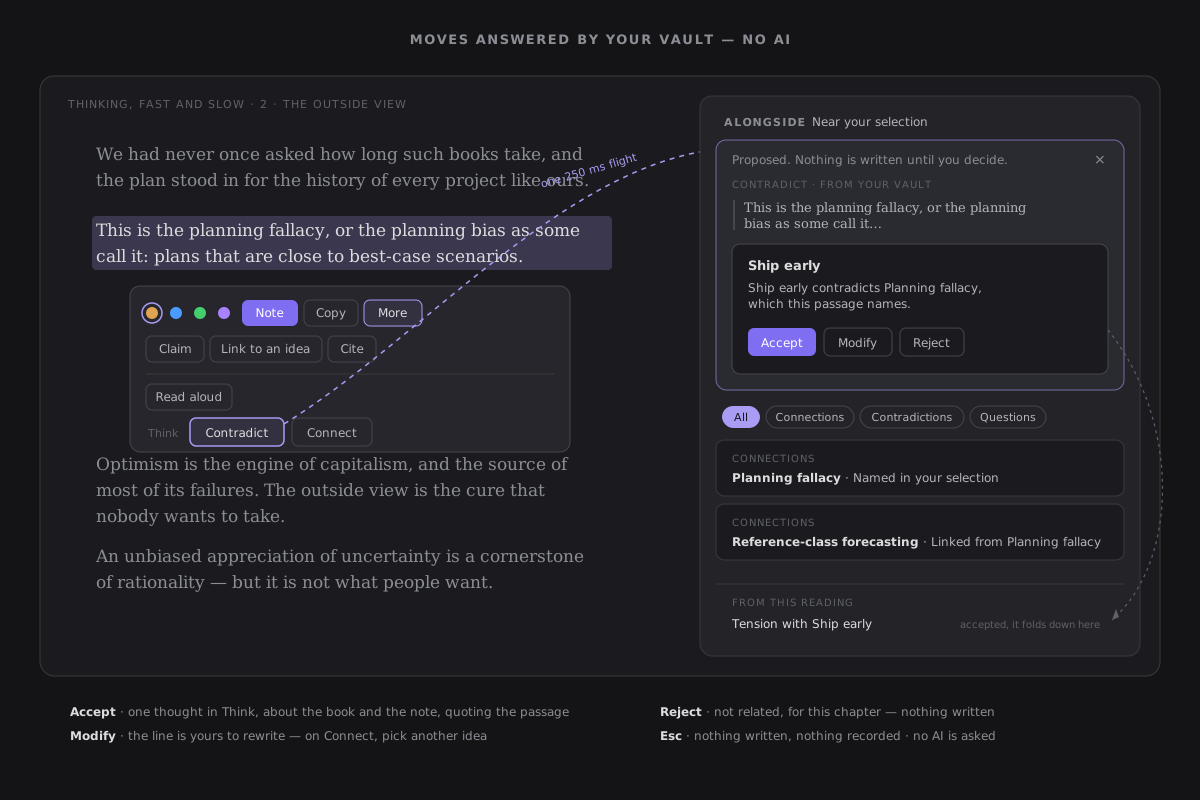
The Think group. Select words in a book or a paper, or click one of your highlights, and press More in the popover: the last group, Think, holds Contradict and Connect. A passage you marked yesterday can be worked on today. A reading of notes has no Think group: Cultivate's moves own notes.
What each looks for, decided by your vault, the same way every time:
- Contradict — the notes you have already typed as
contradictsa note near the passage: your tensions, carried over to it. Each says why: Ship early contradicts Planning fallacy, which this passage names. - Connect — the near notes themselves, then the notes that support or expand them, then unlinked notes that share context with them (discovery's own score). Each says why: Named in this passage, Supports Planning fallacy, Shares context with Planning fallacy.
At most three, in a fixed order. Left out: a note you said is not related to this chapter, a note already in a tension with this passage, and a note that already cites it. Only notes in your knowledge scope count.
The answer is a proposal. It arrives at the top of Alongside — which opens if it was closed — under Proposed. Nothing is written until you decide., with the move and where the answer came from (Contradict · from your vault), the passage, and the candidates. Each candidate is the Reader's proposal card, with its own Accept, Modify and Reject. When nothing is found, the answer says so — Nothing in your vault stands against this passage yet. or Nothing in your vault is close to this passage yet. — and offers nothing to accept; Dismiss takes it away. A tension needs a thinking space: without one, the answer says how to choose it.
What each verdict writes, and what is recorded:
| Verdict | Written | Recorded |
|---|---|---|
| Contradict, accepted or modified | one thought in Think: its text is the line as you left it; it is about the book and also about the note, and quotes the passage with its source. On a highlight, it is threaded under it as a challenge, and the highlight gets a small tension tick on the page | the verdict, and the move counterexample (perturb) |
| Connect, accepted, or another idea picked | one property: the idea's source list gains the passage — the note is now sourced, and the passage is one of its sources. One recorded write in the write record, taken back as one batch | the verdict, and the move analogy (explore) |
| Reject | nothing | Not related for this note and this chapter — the same verdict as Alongside's, so the note leaves Alongside too |
| Dismiss (Esc, or the card's ×) | nothing | nothing — a dismissal is not a judgement |
Modify. On a contradiction the line becomes editable where it is, and Accept reads Keep my version. On a connection, Modify opens a search over your ideas — the near ones first, before you type; ↑ ↓ and Enter pick, Esc goes back — so you are not stuck with the three offered.
The tension is a thought, never a relation. A passage is not a note, and a tension is thinking, not yet knowledge: it is kept in Think, and once you crystallize it, the note it becomes can hold a typed relation. It carries its passage, but it is your answer to a proposal, not a highlight: it is never drawn on the page, counted on the shelf or brought back for review as one. Think shows it with a Contradict ribbon.
The book is never written. A verdict records the note, a subject naming the move and the book, and the origin derived — never the text (judgement record).
The card outlives the selection. Accept works after you have selected something else or turned the page: the card holds its passage. Undecided cards are for this session only: closing Alongside or the Reader drops them, and records nothing. From this reading, at the bottom of Alongside, lists what you accepted while reading — Tension with Ship early, Connected to Planning fallacy — and a click reads the note in a peek.
It moves like the rest of the Reader. The answer flies out of the button you pressed into its place at the top of Alongside, in one 250 ms flight. If Alongside was closed, it slides in carrying the answer already in its place, as one gesture. An accepted candidate travels down into From this reading; a rejected one slides 16 px aside and fades, and the others close the gap by moving. Modify changes nothing in the layout. A key or a click during a flight ends it. If the vault ever takes longer than 150 ms, the card says Looking in your vault…, in words, never a spinner. Under reduced motion everything is instant.
Moves by your AI provider¶
Some questions about a passage your vault cannot answer, because they are about the book's argument. Six moves put one of them to your AI provider, about one passage, when you click — and the answer comes back as a proposal beside the page, never as a chat and never as a summary.
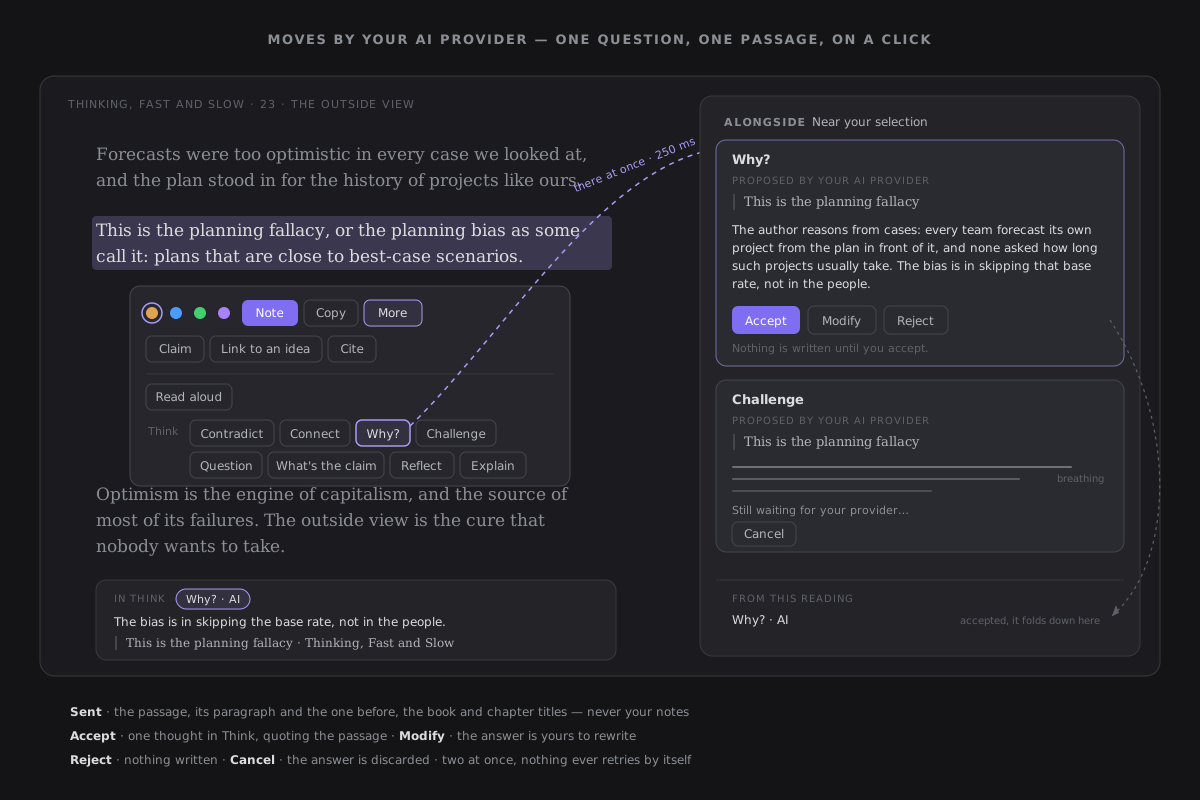
Where they are. In the same Think group as Contradict and Connect, after them, at the end of the popover's More — on a selection or on one of your highlights, in a book or a paper. They are there only while AI is turned on in Settings › AI:
| AI in Settings › AI | The Think group |
|---|---|
| Turned off (the default) | Contradict and Connect only — the Reader is exactly as it was |
| On, not set up | the six are offered; a click shows Your AI provider isn't set up yet and Open AI settings, and sends nothing |
| On and set up | a click sends one request |
The six, each one question with a short, bounded answer:
| Move | It asks | It returns | Logged as |
|---|---|---|---|
| Why? | the author's reasoning for the passage | one short paragraph | reframe (transform) |
| Challenge | the assumption the passage rests on | one assumption, and why it might not hold | challenge (perturb) |
| Question | the question worth investigating | one question | branch (explore) |
| What's the claim | what is being claimed | one sentence, and its kind (causal, general, normative, descriptive or predictive) | compress (transform) |
| Reflect | what follows if it is true | one consequence, ending as a question to you | branch (explore) |
| Explain | what the selected words mean here | one short paragraph, in context | reframe (transform) |
The verbs are the eleven of the move log: there is no twelfth.
What is sent — and nothing more. The move's task, the selected words, the paragraph they sit in and the one before it, the book's title and the chapter's title. Nothing from your vault: no notes, no highlights, no thoughts — knowing your vault is the job of Contradict and Connect, which use no AI. The content is capped by Settings › AI's input limit and marked as data, not instruction; the provider is also sent the same short system guard as every AI action. The answer is cleaned (template tokens neutralised, headings and lists taken off) and cut to the move's length before you see it.
The prompts, word for word. Each request is the move's task, then one line asking for the answer's language and length, then the passage:
<the move's task>
Answer in <your Obsidian language>, in at most N sentences, with no preamble.

<note-content>
Book: …
Chapter: …
Previous paragraph: …
Paragraph: …
Selected: …
</note-content>
The tasks are fixed in the code, in English; the answer is asked for in your Obsidian language, named in English so every model reads it (Spanish). N is 4 for Why?, Reflect and Explain, 2 for Challenge, and 1 for Question and What's the claim.
- Why? — “Explain, in one short paragraph, the author's reasoning for the selected words, using only the passage given. Do not summarise the book.”
- Challenge — “Name the one assumption the selected words rest on, and say why it might not hold. Use only the passage given.”
- Question — “Ask the one question about the selected words that is most worth investigating. Reply with the question only.”
- What's the claim — “State exactly what the selected words claim, in one sentence, and the kind of claim it is. Reply in two lines: "Claim:
" and "Kind: - Reflect — “Say what follows if the selected words are true: one consequence, in a few sentences, ending with a question to the reader.”
- Explain — “Explain what the selected words mean here, in this passage and its context, in one short paragraph. Do not give a dictionary definition.”
There is no follow-up box: a move is one turn.
The card. It is there the moment you click — at the top of Alongside, which opens if it was closed — with the move's name, Proposed by your AI provider, and the passage. Where the answer will be, three faint lines breathe, like a pen about to write; there is no spinner. You keep reading: the page scrolls and turns as normal, and the card waits in the margin. After 8 seconds a quiet line says Still waiting for your provider…. Then the answer fades in where the lines were, and nothing above it moves. If you closed Alongside meanwhile, the card is kept, and a small dot on Alongside's button says the answer is there; opening Alongside clears it. There is no notice.
What each verdict writes, and what is recorded:
| Verdict | Written | Recorded |
|---|---|---|
| Accept, or Modify then Keep my version | one thought in Think: your text, about the book, quoting the passage with its source, marked as made by the move with AI. On a highlight, it is threaded under it — Challenge as a challenge, the other five as forks | the verdict with origin ai and a subject naming the move (reader-ai:why), never the text; and the move under its verb |
| Reject | nothing | the verdict rejected |
| Dismiss, Cancel while it waits, or closing the Reader | nothing | nothing — and whatever comes back later is dropped |
Think shows the thought with a chip, Why? · AI, and From this reading at the bottom of Alongside lists it the same way. Like a vault move's answer, it carries its passage but is not a highlight: it is never drawn on the page.
One request per click, and nothing on its own. Clicking the same move on the same passage while it waits does nothing. At most two requests wait at once, across the Reader; a third card opens at once and says Waiting for the one before it… until a slot frees. Cancel discards the answer — your provider cannot be interrupted, so the request finishes, and nothing is shown or recorded. After your provider's 30-second time-out the card says Your AI provider didn't answer.; an error shows its status (The provider answered 429); each offers Try again, which is a new request. Nothing ever retries by itself, nothing is batched, and no AI move ever runs in an automation. On a paid model each click is one request, bounded by the output cap in Settings › AI.
It moves like the rest of the Reader. The card flies out of the button you pressed into Alongside in one 250 ms flight; the ink breathes on opacity alone (0.35 ↔ 0.7 over 1.2 s); the answer's fade is 120 ms; Accept folds the card into From this reading, Modify edits in place, Reject slides it aside. Under reduced motion the lines stand still, half-faint, and everything is instant.
Make it a claim, or link it to an idea¶
Two things a careful reader does all the time, each one gesture from the selection, each your own act — not a proposal, so there is nothing to accept: a claim, one sentence you would defend, sourced to its exact page; and a link, so an idea you already hold gains this passage as a source.
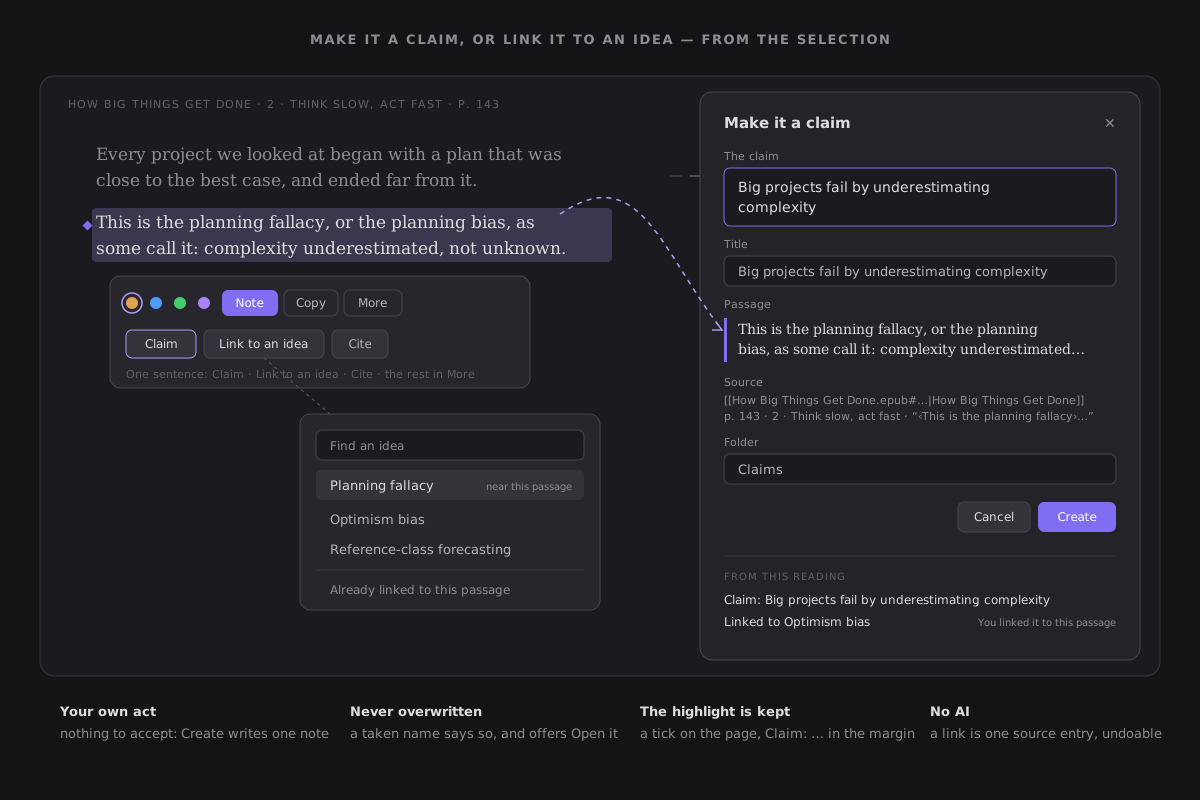
Where they are. Select a sentence in a book or a paper: the popover's second row reads Claim, Link to an idea, Cite. Select a word or two and Link to an idea is in that row, Claim in More; select a paragraph and Claim closes the row. On one of your highlights both are first in its More. A reading of notes has neither: a passage of a note has no page to be sourced to. Claim is also beside an accepted What's the claim — on its row in From this reading, and on its card in Think, which opens the Reader on the passage with the sheet already open. There is no command.
Make it a claim. Claim opens a sheet beside the page, in Alongside's place — never a centred window — sliding in the way Alongside does while the selected words travel from the page into its quote, as one gesture. It holds:
- the claim — One sentence you would defend, the words of the claim form. It starts as the words you selected, or as the sentence of the What's the claim you accepted: both are already yours. Blank, there is no Create.
- the title — the claim, until you write one of your own;
- the passage, quoted;
- the source, exactly as it will be written (every note goes back to its paragraph);
- the folder — the vault's root unless you choose one; the next claim starts where the last went;
- Create (Ctrl/Cmd-Enter), and Cancel (Esc).
Nothing is written before Create. The note it creates is new — create-only, never an append:
---
claim: "Big projects fail by underestimating complexity"
source:
  - "[[Books/How Big Things Get Done.epub#OEBPS/ch02.xhtml|How Big Things Get Done]] p. 143 · 2 · Think slow, act fast · “…cases. ‹This is the planning fallacy›, or the planning…”"
---

> This is the planning fallacy, or the planning bias, as some call it.
You never write that YAML: the sheet does. The claim parser reads it at once, so the claim is under Research in Alongside, in the evidence map and in claim returns — sourced to the book. A taken name is never overwritten: Create says A note with this name already exists, offers Open it, and writes nothing. The sheet folds into its row under From this reading — Claim: Big projects fail by underestimating complexity — and a click reads the note in a peek.
Taken back where it is listed. Each row you made yourself in From this reading — Claim: …, Linked to … — has Undo: the claim note goes to Obsidian's trash (and the highlight stops pointing at it), a link's source entry is removed, each as one batch of the write record. If the note changed since, it says Could not take it back — the note changed since. and leaves it.
The highlight is kept. A claim is not a crystallization: made from one of your highlights, the highlight stays a highlight — it is not set aside — takes a small claim tick on the page, and its row in the margin says Claim: …. Crystallize into a note is still there, for a whole note from the passage.
Link to an idea. The popover becomes a search box over your notes, growing from the button. Before you type, it lists what Alongside finds near this passage; then it searches every note in your knowledge scope, by title or alias. ↑ ↓ and Enter pick, Esc goes back. Choosing one makes the link with the very write an accepted Connect makes: the idea's source list gains this passage — one property write, in the write record, the rest of the note byte-identical. It is your choice, so there is no proposal and no verdict to record. The idea's name flies to From this reading — Linked to Optimism bias — and Alongside's Connections shows the idea with You linked it to this passage.
- Already linked. An idea that already cites this passage says Already linked to this passage, and nothing is written.
- Nothing in scope. No notes yet. Make it a claim to create the first.
- No match. No note by that name., with Make it a claim, which opens the sheet with what you typed as the claim.
One claim path, not two. What's the claim asks your AI provider what a passage claims, and keeps the answer as a thought only if you accept it. Make it a claim is the one door from a passage to a claim note: an accepted What's the claim only prefills it. There is no AI in either gesture — neither calls your provider — and no move is logged for them: they are what you did, not a proposal you judged. Make it a claim records one verdict, a human accepting the claim (subject reader-claim, no text), the way crystallizing does.
The book is never written. The claim writes one new note; the link writes one property of an idea. The EPUB or the PDF is never touched.
It moves like the rest of the Reader. The sheet slides in at the base beat (250 ms) while the words fly into its quote; if Alongside was closed, it slides in carrying the sheet. Create folds the sheet into its row in From this reading, and the claim tick fades in over 120 ms. Cancel slides the sheet back out the way it came, and the words fly back to the page; if Alongside opened for the sheet, it goes with it. The picker grows from its button (0.96 → 1 and a fade, 120 ms) and closes the way it came. In portrait on an iPad the sheet is the panel's bottom sheet. A key or a click during a move ends it; under reduced motion everything is instant.
Look up and translate¶
A word you do not know should not send you out of the book. Look up reads it in dictionaries you keep in your vault — offline, on the device — and Translate puts a passage into your language, by the system on iPad and by your own AI provider elsewhere. Select one to three words and both open the popover's second row; for anything longer, Translate is in its More.
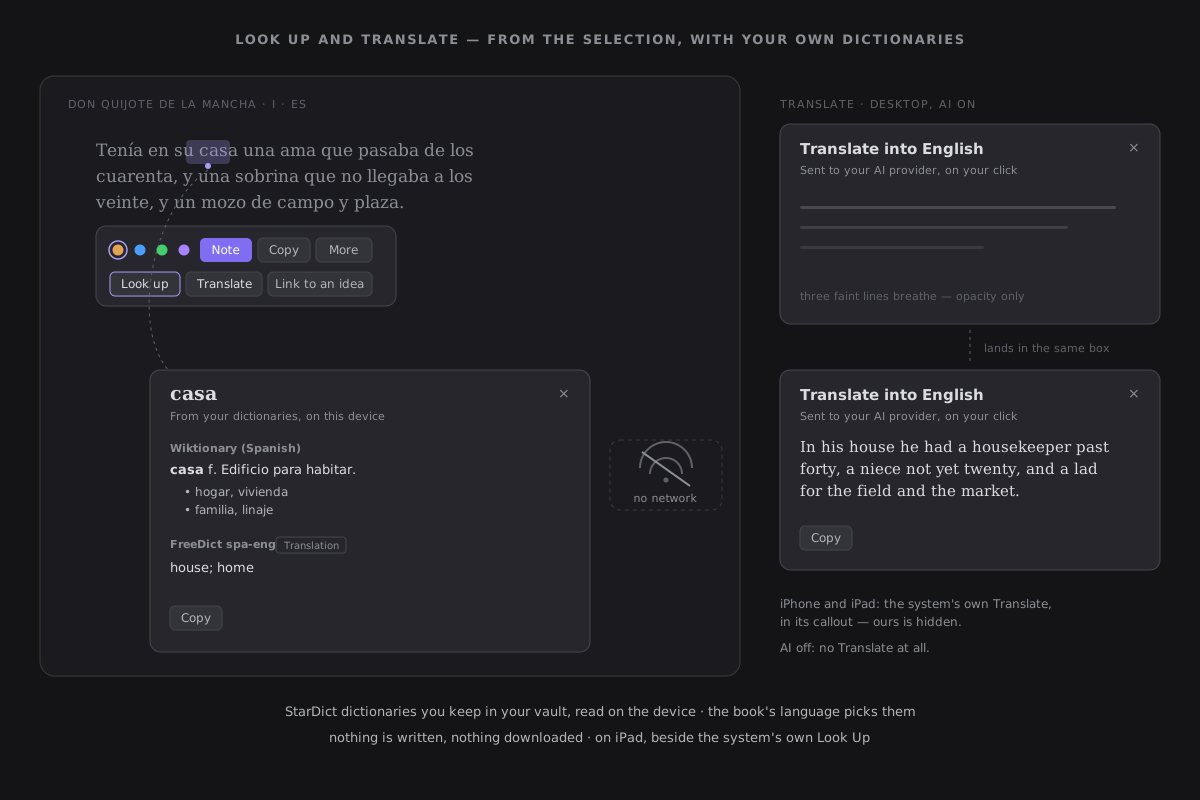
Look up is offered for a selection of one to three words. It reads the StarDict dictionaries — the open format of KOReader and GoldenDict — in the folder chosen in Settings → Reading › Dictionaries folder (Dictionaries by default; the plugin never creates it). The dictionaries for the book's language answer, one after another, each under its own name: monolingual first, then bilingual into Obsidian's language — the word's translation, offline, as Kindle's translation dictionaries give — then any other bilingual. The word is matched ignoring case, then against the dictionary's synonyms (in many builds, the inflected forms: corrió finds correr). There is no guessing beyond that: no stemming, no fuzzy match.
- No network, ever. A look-up makes no request of any kind, with AI on or off, online or not.
- Read when asked. A dictionary is read on the first look-up that needs it — never when the plugin loads or a book opens — through the vault's own binary read, and kept for the session. That first one may take a moment: past 150 ms the card says Opening Wiktionary (Spanish)…, as text — and, once said, it stays a moment rather than flash — and the entry fades in where it was. Every later look-up answers at once.
- Shown, never kept. Text and phonetic entries are shown as text; HTML, XDXF and Pango entries keep their emphasis and their lists, and lose everything else (scripts, styles, outside links, pictures, sounds) — rebuilt element by element, never as HTML. Copy puts the answer on your clipboard; you can paste it into a highlight's Note. Nothing is written: not the book, not the dictionary, not Think.
- Honest when it cannot. No dictionaries yet: add StarDict dictionaries to your dictionaries folder — with Open settings and Where to find free dictionaries. No dictionary for Spanish in your dictionaries folder when none is for the book's language. No entry for "x" in …, naming each dictionary it asked. On an iPad, This dictionary is too large to open on this device, and the others still answer.
How to install one, where free ones are, and how to set the languages of a dictionary that declares none: Dictionaries for look up.
Translate a passage, up to Settings › AI's input limit:
| Where you read | Translate |
|---|---|
| iPhone and iPad | the system's own, in its callout (offline once you have downloaded the iOS languages) — ours is hidden |
| Desktop and Android, AI off (the default) | hidden |
| Desktop and Android, AI on, not set up | a click says Your AI provider isn't set up yet, with Open AI settings, and sends nothing |
| Desktop and Android, AI on and set up | a click sends one request to your provider |
It translates into Obsidian's language, or the one chosen in Settings → Reading › Translate into; when that is the book's own language, the card asks which, and keeps the answer in the same setting. It sends the passage and the target language, and nothing else — no notes, no highlights, no book title — capped by the input limit and marked as data, not instruction. This is the whole task, word for word, with the language named in English:
Translate the passage into <the target language>: a faithful translation, with no commentary, no notes and no preamble. Reply with the translation only.
Translate the passage into <the target language>: a faithful translation, with no commentary, no notes and no preamble. Reply with the translation only.

<note-content>
Passage: <the passage you selected>
</note-content>
One request per click, never on selecting; the same passage clicked again while it waits sends nothing more; a timeout or an error says so with Try again, and nothing retries by itself. It waits in the same queue as the AI moves. The translation is shown and copied, never kept.
It moves like the rest of the Reader. The card grows from the selected word — 0.96 → 1 and a fade, 120 ms, from the word's own point — and Esc, a click outside or a turn of the page takes it back the same way; the line you were reading never moves. While a translation is on its way, three faint lines breathe where it will be, and it fades in in their place. Under reduced motion the card appears and goes at once, and the lines are still.
Cite a passage¶
A quote you cannot trace back is a quote you cannot use. Cite turns a passage, a highlight or a whole book into the citation you need, ready to paste. It is offered in three places: the selection's popover — in its second row for a sentence or a paragraph, in More for a word; a highlight's More; and Cite this book in the book's detail in the Library.
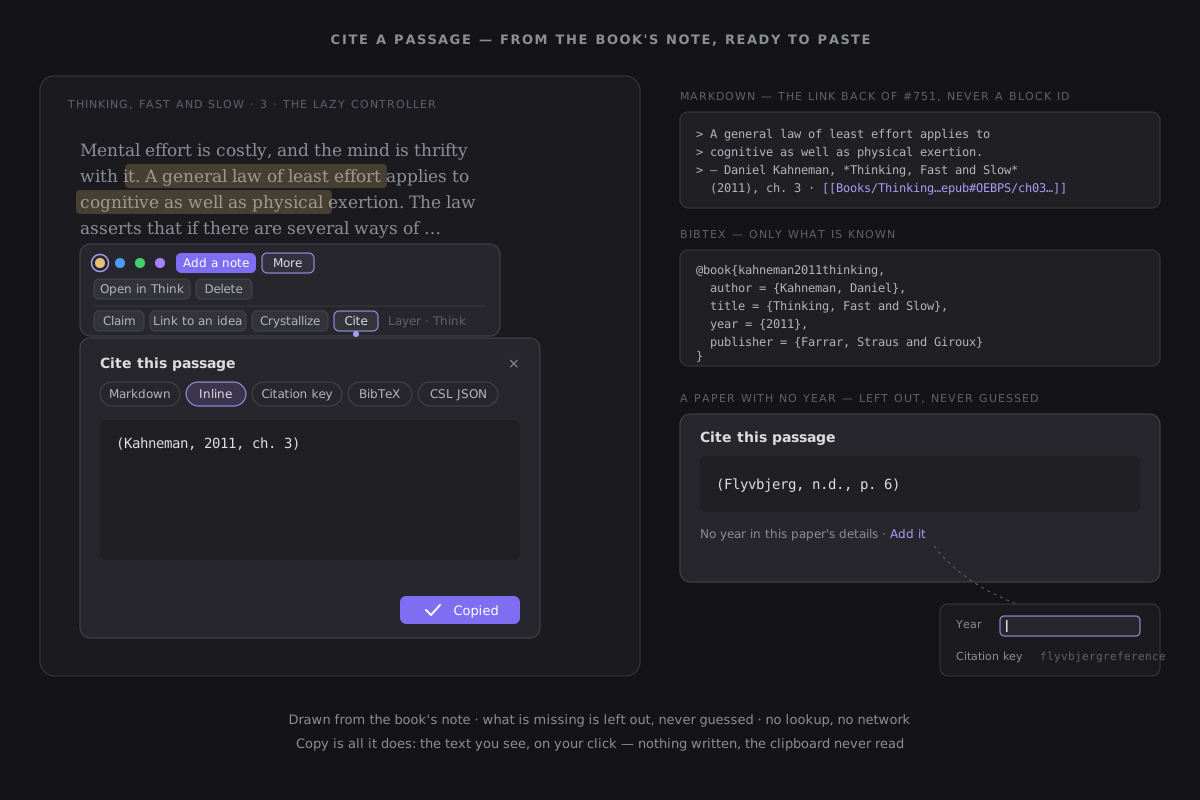
There are five forms, one at a time, chosen by a chip. The panel opens on the form you chose last.
| Form | Reads |
|---|---|
| Markdown | the passage as a quote, then > — Daniel Kahneman, *Thinking, Fast and Slow* (2011), p. 42 · [[Books/Thinking, Fast and Slow.epub#OEBPS/ch03.xhtml\|Thinking, Fast and Slow]] |
| Inline | (Kahneman, 2011, p. 42); two authors are joined by &, three or more are et al. |
| Citation key | [@kahneman2011thinking, p. 42], Pandoc's form |
| BibTeX | @book for a book, @article for a paper, @online for an article, with url and urldate |
| CSL JSON | an item of type book, article or webpage, for Zotero and Pandoc, with page when a page is cited |
The Markdown link back is the one a note's source gets when it is made from a passage: the book file, with the chapter in its subpath. It is never a block id. An article links to its note.
Where it comes from. A citation is drawn from what your vault holds, and from nothing else:
- for a book or a paper, its book's note, found by its link to the book wherever it is kept;
- for an article, its own frontmatter: the author, the year it was published, its
sourceaddress, and the day it was saved (created); - for the place, the passage's page (
p. 42), or its chapter in a book without pages (ch. 3).
What is not there is left out, never guessed. No lookup by ISBN or DOI is made, and no network. As citation styles do, n.d. stands for a missing year and the title stands where the author is missing: (Reference class forecasting, n.d., p. 6). One quiet line says what a form lacks: No year in this paper's details · Add it. Add it opens the book's detail in the Library at that field. An article's details live in its own properties, so its line names what is missing and offers nothing more. p., ch., n.d. and et al. are written the English way whatever language the plugin speaks, as the styles expect.
Authors are read as written. Write them Family, Given or Given Family, one per entry (Details takes them separated by ;), or joined by and / &. A name of one word is a family name. Write van Rossum, Guido to keep a particle with the family name. A PDF with an ISBN in its details is cited as a book.
The citation key is the book note's citekey when it has one. Otherwise one is proposed: the first author's family name, the year, and the first word of the title that is not a, an, the, of, on, in, and, for or to, all in lowercase ASCII (kahneman2011thinking). The Citation key field in a book's Details shows the proposed key until you set your own.
Copy is all it does. It puts exactly the text the panel shows on your clipboard, only when you press it, and says Copied with a check, in place, for a moment. There is no notice. Cite writes nothing: not the book's note, not a note, not the book. The clipboard is never read.
It moves like the rest of the Reader. The panel grows from where you asked: 0.96 → 1 and a fade, 120 ms, from the popover or the highlight. The page does not move. It is not a modal: Esc, a click outside or a turn of the page put it away, and it shrinks back the same way. Changing the form crossfades the text alone. The panel keeps its place and its width, so the chips never jump. Under reduced motion it appears, changes and goes at once.
Listen¶
Some reading is better heard: a long chapter on a walk round the room, a paper read with tired eyes, a pencil in hand with nothing to hold the page. Listen reads the book aloud in your device's own voices, and the page follows the voice.
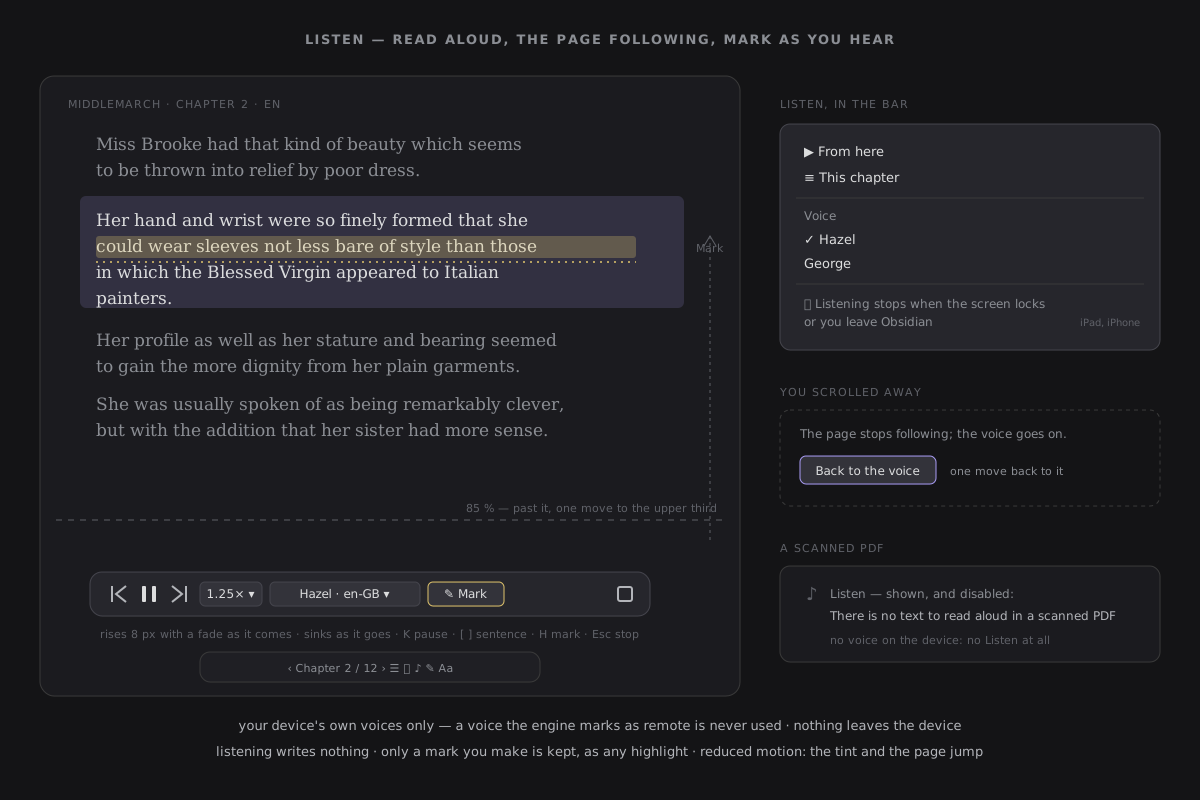
- Where it starts. Listen in the Reader's bar offers From here — the paragraph at the top of the page, or the one you last tapped — and This chapter, from its start. The selection's popover offers Read aloud for just the selected words — in its second row for a paragraph, in More otherwise.
- Sentence by sentence. From here goes on through the following chapters, turning each one by your chapter motion, and the voice goes on as the turn lands; This chapter stops at its end; Read aloud stops after the selection. What survived? never pauses while you listen.
- The page follows. The paragraph being read is softly tinted — a crossfade of the tint alone; the words never move or change weight. The column scrolls only when that paragraph nears the bottom of the view (past 85 %), and then by one smooth move that brings it to the upper third — never a scroll per sentence. In Page and Spread, the page being read is kept on screen. Scroll away yourself and the page stops following; Back to the voice in the listening bar brings it back in one move.
- The listening bar rises at the foot of the column while the voice reads: previous and next sentence, pause and play, the speed (0.75× to 2×), the voice, Mark and stop. Your voice and speed are kept on this device (voices differ from one device to another), never synced. Leaving the Reader stops listening.
- Mark as you hear. Mark, or H with nothing selected, keeps the sentence being read as a highlight — with the meaning you used last and the layer new marks go to, drawn with the marker's sweep. The voice does not stop. Ink with a pen works while you listen.
- Keys, only while listening: K pause or play, [ and ] the previous or next sentence, H mark, Esc stop (after anything open over the page). The shortcuts sheet names them.
- Writes nothing. Listening a chapter through leaves nothing behind: no note, no thought, no entry in Recent. Only a mark you make is kept, as any highlight is.
Your device's voices only. The voices are the operating system's, through the Web Speech API, and only those the engine marks as speaking on the device are offered — a voice it marks as remote (localService: false) is never used, not even as a fallback, so no text leaves the device and listening works the same with the network off. The book's language picks the voice: its book's note's language, else the book's own (an EPUB's dc:language, a chapter's lang), else an article's lang, else Obsidian's own language.
Only the reading language's voices are at hand. A device lists a great many voices — an iPad has the same handful of names once per language, so the whole list ran to dozens of repeated names. The Listen menu and the bar's voice list offer only the voices of the language being read, the one that reads unless you choose marked (default) and listed first. A voice you chose from another language stays at hand, its language named (Eddy · French (France)). Other languages… opens a search over every voice of the device, each with its language named in Obsidian's language — type a name or a language (french, español, accents aside) or a tag (en-GB). Choosing the (default) voice forgets your choice, so the voice goes back to following each book's language. Where the API is missing, or the device has no voice of its own, Listen is not offered at all. Some engines list their natural voices as remote (macOS may, for Siri's); those are left out, honestly, rather than used.
A scanned PDF has no text to read: Listen is shown disabled, and says There is no text to read aloud in a scanned PDF. A designed book (a comic) and a paper in Page view have no Listen; switch the paper to its Reading view to hear it.
On iPad and iPhone, listening stops when the screen locks or you leave Obsidian. This is a web view's limit, not a setting: iPadOS stops a web page's speech in the background. The Listen menu says so on those devices. Coming back, listening is paused at the sentence it reached, and play goes on from there. On a desktop the voice goes on while Obsidian is behind another window.
It moves like the rest of the Reader. The tint crossfades in 120 ms; the bar rises 8 px with a fade in 250 ms and sinks as it goes; the follow is one smooth scroll. Under reduced motion the tint and the column jump and the bar simply appears; nothing glides.
Snapshot a figure or a table¶
In a paper the argument is often a figure or a table, and a figure cannot be highlighted: it is not text. Snapshot keeps it the way a highlight keeps words — with where it came from.
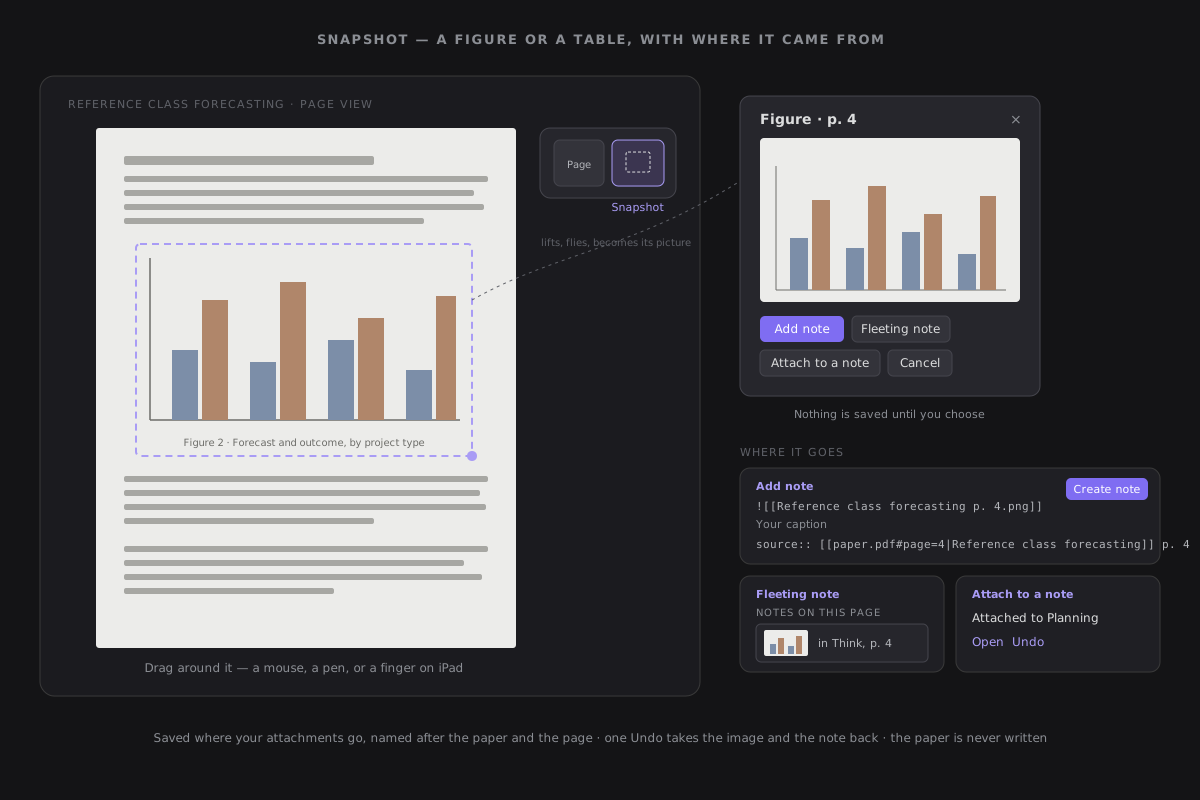
- Where it is. Snapshot in the bar, beside Page view, whenever a paper is shown as printed — Page view, and every page of a scan. Press it and the next drag on a page is a capture: a mouse, a pen, or a finger on an iPad. In the mode a finger drags a rectangle instead of scrolling or turning, and no words are selected. Esc or Snapshot again leaves it without capturing, and one capture leaves it by itself. Snapshot and the ink palette never share the page: opening one closes the other.
- A picture in a book. In an EPUB — and on a paper's page drawn as its picture in the Reading view — click the picture and the popover offers Snapshot this image: the picture as the book holds it, its own bytes and format, never re-encoded.
- Sharp, never a screenshot. A dragged region is drawn again by the PDF engine at twice the size it has on screen, up to 4,096 px on its long side (and 16 million pixels in all, which an iPad's memory allows). A rectangle smaller than about 20 px on a side captures nothing and says Drag around a figure or a table. Nothing in the image is read as text.
- The card. The capture flies to a card in the margin — Figure · p. 4, or Image · chapter 3 — with the picture and where it goes:
- Add note — a preview of a new note: the image embedded, a line for your caption, and
source:: [[the paper#page=4|its title]] p. 4. Create note writes it, create-only, at a free path in Obsidian's Default location for new notes, and the Library counts it as a note born from the paper. - Fleeting note — a thought in Think about the source, carrying the image and its page, listed at once under Notes on this page, as its picture.
- Attach to a note — Obsidian's own picker; the image and its
source::line are added at the end of the note you pick, and the line says Attached to «Note» with Open and Undo. - Cancel (or Esc) — the card goes, and nothing was written.
- Add note — a preview of a new note: the image embedded, a line for your caption, and
- Nothing is saved until you choose. Choosing saves the image as an attachment — where your Settings → Files and links → Default location for new attachments puts it, named after the source and the place (
Reference class forecasting p. 4.png), at a free path — and what refers to it, as one recorded batch: one Undo, on the card or in Home → Recent, takes both back. The book is never written, and a capture is never put on the clipboard.
The snapshot flies to where it goes¶
While you drag, only the rectangle is drawn: nothing on the page moves and nothing is dimmed. On release the region lifts off the page (scale 1 → 1.02) and travels to its card (cover, 400 ms, the shared curve), becoming the card's picture — the same picture all the way, never a second one fading in. A choice sends it on: the note's preview grows out of the card (0.96 → 1 and a fade); a fleeting note's picture flies into its row under Notes on this page; an attached one goes off towards the margin's edge, and the status line takes the card's place. Cancel lets the card sink 8 px and fade (base, 250 ms). Any key or touch during a flight lands it at once, and under reduced motion the card is simply there, and simply goes.
Bookmarks and where you've been¶
Two small tools every reading app has, made so that following a reference is never a risk to your place. In a book or a paper (an EPUB or a PDF); a note reading keeps its place in the notes themselves.
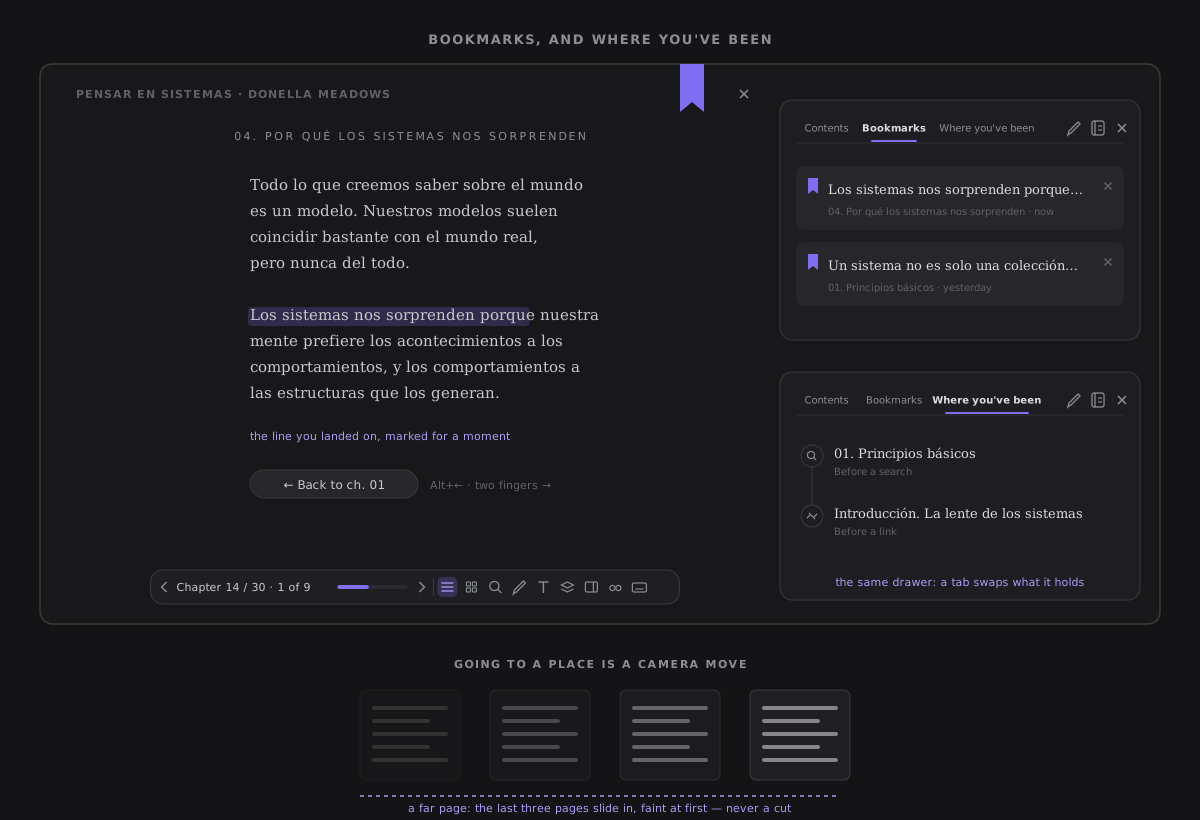
- The ribbon. At the pane's top-right corner, just inside the Reader's × — at the side in every view, never in the middle of the top band over a narrow column. Tap it — or press B — and it drops in: the place you are reading is kept, the chapter and the first line on screen. It shows filled on any screen that holds a bookmark; tap it there and it lifts out again. An empty ribbon steps back with the bar while you read; a filled one stays, as a ribbon in a book does.
- A place, not a thought. A bookmark writes nothing to Think, nothing to a note and never touches the book's file. It is kept in the plugin's data beside where the book resumes, for this vault, so it syncs only when your plugin settings do. Replacing the book's file with a new copy keeps its bookmarks, as it keeps its place.
- Found by its words. A bookmark keeps where it is in the text, and the words there — the way a highlight is found again — so a change of font, size, layout or device lands on the same line. In a PDF's Page view a bookmark is its page.
- Contents · Bookmarks · Where you've been. The Contents panel has three tabs; the overview is a panel of its own. Bookmarks lists the book's bookmarks in reading order, under the parts they are in: each a card of the first words of the line, then the chapter or page and when it was made (now, 2 days ago); tap one to go there, or remove it in place with its × (on hover, or always on a touch screen). Neither tab counts anything.
- Where you've been. Before any jump the Reader remembers where you were, and why you left: a link in the book (Before a link), a Contents entry, a search (once per search, in any chapter), Go to note in a footnote, a bookmark, and a passage opened from Think or This note while the book is open (Before an opened passage). The list is a timeline, newest first: each place on a line of nodes, an icon for what took you away, the place above the reason. Tap one to go back there, and it leaves the trail.
- One trail. The back pill, Alt+← and, on a touch screen, two fingers swept right walk the same trail one step at a time. An ordinary page or chapter turn puts the pill away but keeps the trail. It lives for the reading in progress and is forgotten when you close the book (the last twenty places).
Going to a place is a camera move¶
None of these moves cuts (constitution §XVI). In the chapter you are reading, in Page and Spread the strip travels to the page that holds the place — in proportion to the distance, and a far page by its last three, faint at first, rather than dozens of pages flashing past. In Scroll the column glides there, two screens at most. In another chapter it is the chapter turn you chose in Settings → Reading, towards the place, and the way back is its reverse. On landing, the line is marked for a moment by a quiet wash under the words — you are here — and then nothing. Under reduced motion every move is instant, and the mark shows for a moment without fading.
The overview¶
Every page of a book or a paper at once, as cards — the page overview of a reMarkable, in the Reader. It answers the question a paper reader answers by flicking through: where was that picture, that dense part, the chapter I marked all over? It is never more than one tap away.
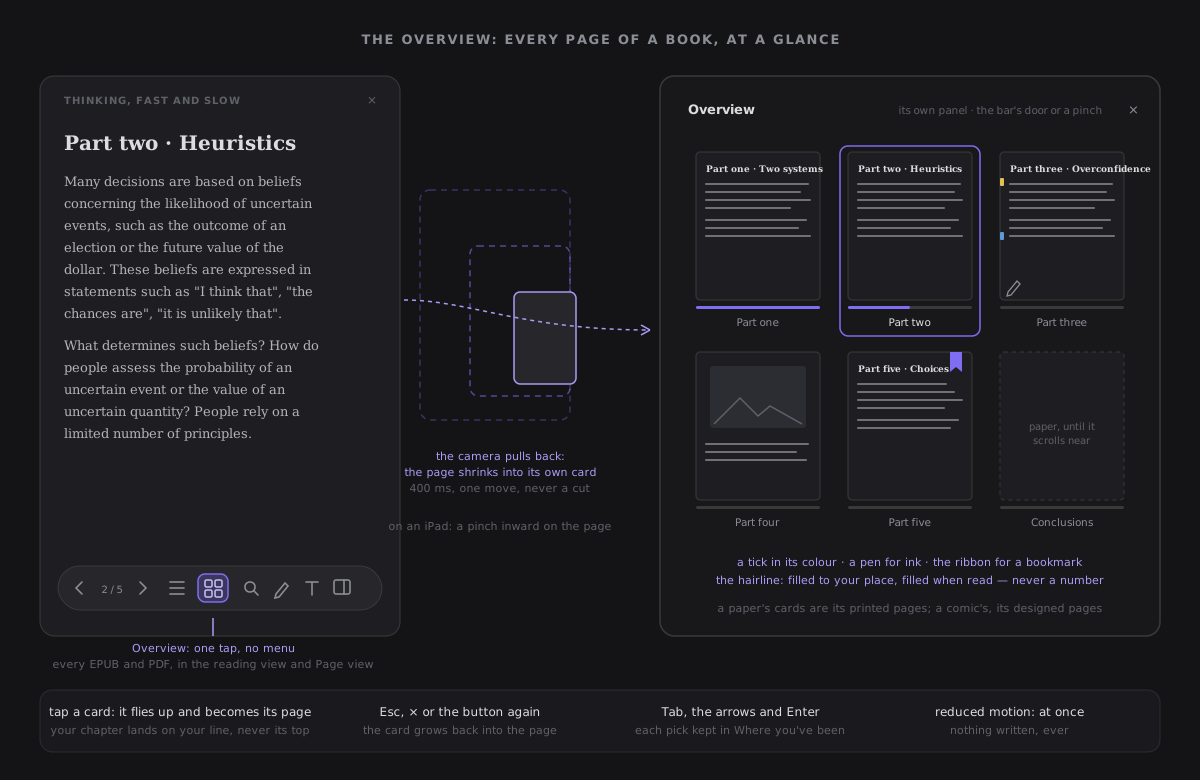
- One tap from the bar. The pages-grid button on the Reader's bar, named Overview, is there for every EPUB and every PDF, in the reading view and in Page view — no menu, no view to change first. It opens the Overview panel — its own head and ×, no tabs — with the card you are on in the middle, marked as current, and the button stays pressed while it is open. The same button again, Esc, a tap outside the panel or the panel's × closes it, on the same page you left. A note reading has no overview: it has neither pages nor a book's chapters.
- One door, not two. The overview is reached from its bar button or a pinch, never from a tab of Contents (#784). Contents is the book's own table of contents, with its names and nesting; the overview is the book as you would see it, with your marks on it. Neither counts anything. A Contents tab remembered as Overview from an earlier version opens on Contents.
- A page, or a chapter. A PDF's pages are page cards — small pictures of the printed page, with the paper's own labels (p. iv), turned as you turned them in Page view — in both views: the overview never switches a paper to Page view or back. A comic's or a picture book's designed pages are page cards too, each drawn as it was made inside its own boundary, so nothing in it runs and nothing is fetched. A flowing book's pages change with your type, your layout and your window, so its unit is the chapter: one card each, named as Contents names it, showing how its page starts — in your face, size and theme, or its opening picture. A book that mixes the two shows each part as itself, in reading order; a right-to-left book reads from the right.
- Your marks, never a number. A highlight is a small tick in its meaning's colour along the card's edge, at its place in the chapter once the card is drawn; an ink note is a pen; a bookmark is the ribbon at the corner. Two highlights at one place are one tick, and a card with no marks shows nothing at all.
- How far you read. A chapter card has a hairline at its foot: filled to your place in the chapter you are in, filled in a chapter you read to its end, empty otherwise — never a percentage. A page is too small a unit for one: its card carries the current marker instead.
- A card goes there. Tap or click a card, or reach it with Tab, the arrow keys and Enter. A page card lands on that page, in the view you are in; a chapter card on the chapter's start — except the chapter you are in, which lands on your place, never back at its top. Each pick leaves a place on where you've been, so you can go back.
- Light on memory. A card is a blank sheet of its shape, with its label, until it scrolls near; only then is it drawn, and a card far away gives its picture back. A 600-page paper, a 300-page comic or a 120-chapter book opens its overview at once.
- It writes nothing. Opening, browsing and picking change only your place and the trail. The chapters you read to their end are kept in the plugin's data beside your place, for the hairline — never in a note, never in the book.
The camera pulls back¶
The overview is filmed in one continuous shot, never a panel that swaps its contents. Opening it, the page you are reading shrinks into its own card while the cards around it settle in from just behind it (400 ms). A card you pick flies from its slot to where its page sits and becomes it — in another chapter the flight is the move, with no chapter turn on top — and the overview steps aside; in the chapter you are in, your line is marked for a moment, you are here. Closing without a pick is the same shot backwards: the card grows back into the page. A card's picture fades in once when it is first drawn (120 ms). Any key, click or touch during a shot jumps it to its end, and a second pick never queues behind the first. Under reduced motion every move is instant, nothing fades, and your place is still continuous.
On an iPad, a pinch inward on a flowing page shrinks the page under your fingers, and let go small enough it lands in its card in the overview; short of that it springs back. In Page view and in a designed book a pinch zooms, as always — the overview opens only past the smallest zoom. A pinch outward on a card pushes back into it. On a desktop a trackpad's pinch is Page view's zoom, so the button is the door there.
Highlights and notes in the margin¶
Reading well means stopping at the sentence that matters. Select some words in a chapter, as you would on a Kindle — with the mouse, the keyboard, or a long-press on a phone — and a small popover opens below the words, so the line you just read stays in sight (above them only when the page has no room below, and then a line clear of them). A drag that ends past the text, in the margin or below the last line, still counts.
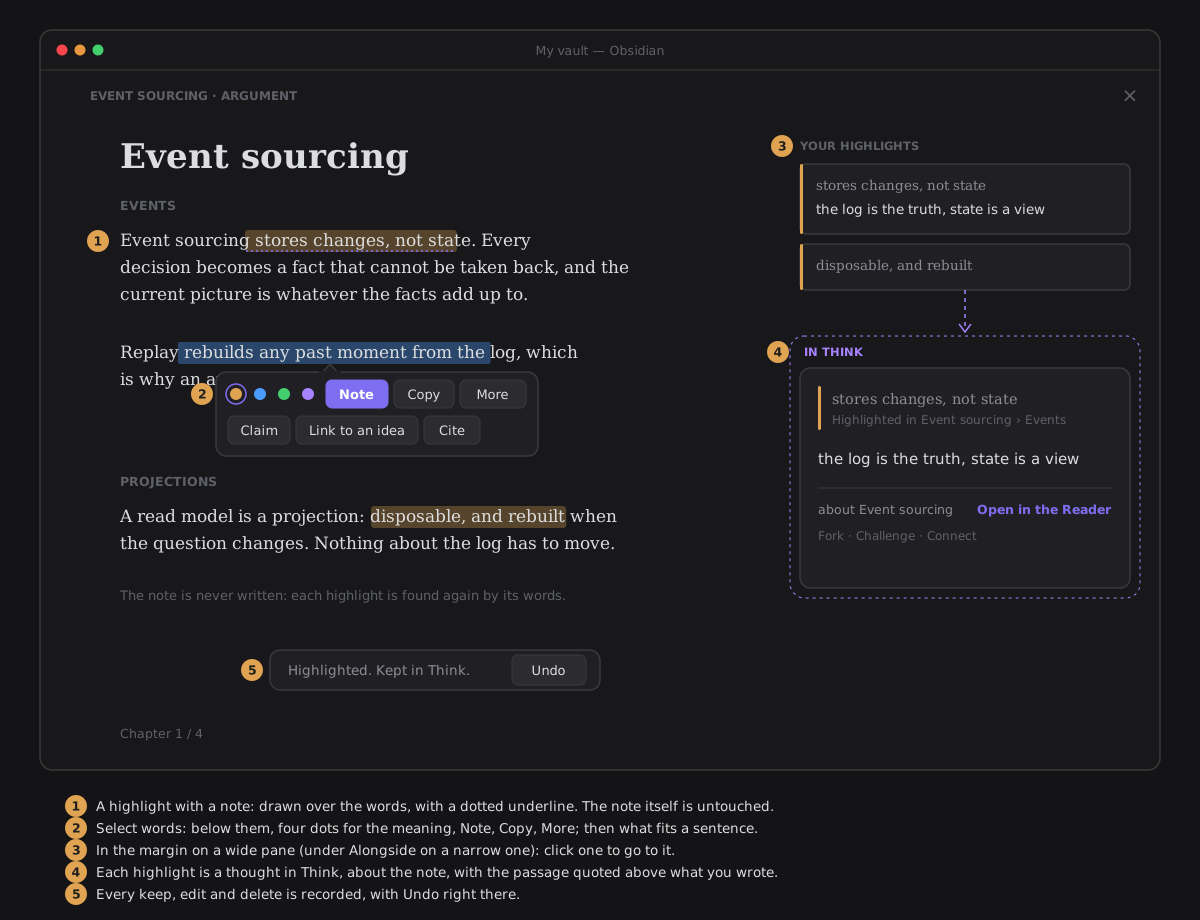
The popover has two rows, and More (#811):
- The first row is always the same: the four meanings as coloured dots — their names on hover — then Note, Copy (with a mouse; a finger has the system's own) and More. A dot keeps the passage with that meaning at once; Note marks it with the meaning you used last and asks for your words. While you write the note, the passage stays marked; cancel and the mark goes.
- The second row is what fits what you selected, decided only by how much you selected, never by what you pressed before — so things stay where your hand learned them: a word or up to three, Look up · Translate · Link to an idea; a sentence (up to forty words), Claim · Link to an idea · Cite; anything longer, Cite · Read aloud · Claim. One that is not available here is left out and nothing takes its place.
- More grows the popover in place, away from the words, with everything else in one fixed order — Claim, Link to an idea, Cite, Look up, Translate, Read aloud — and last the Think group (Contradict, Connect, and your AI's moves while AI is on). Opening it writes nothing and sends nothing. It is offered only when it has something to show.
-
Keys. 1–4, H and Shift+H work as always. Tab moves into the popover and the arrows walk its buttons; Esc folds an open More first, then closes the popover.
-
A highlight says what it is. The popover offers four meanings: Idea, Question, Quote and To discuss, each in a colour of your theme. Click one (or press 1–4) and the passage takes it; H keeps the next one with the meaning you used last. Click a highlight to change its meaning: its popover has the same dots (its own marked), Edit note and More, then Open in Think and Delete; its More holds Claim, Link to an idea, Crystallize into a note, Cite, its layer and the Think group. It goes the moment you look away: a click or a tap outside it, a second tap on the same highlight, Esc (even while another tab has the keys), or a scroll. A note you are writing in it stays put. Open in Think opens Think already filtered to this source, in reading order (Thinking by source). With more than one meaning in a chapter, the margin can show one meaning at a time. A highlight made before meanings existed reads as an idea.
- A highlight is a thought. It lands in Think, about the note you were reading, carrying the passage you picked and the heading it sat under. Your note is the thought's text. Open Think on that note and the passage is there, quoted above what you wrote, with Open in the Reader to come back to the exact place.
- One passage, one highlight — however many goes it takes. Mark a sentence, then the next one, then the end of the paragraph, and it is still one thought in Think, with the whole passage in it (#868). The words you select grow the highlight you kept last in this reading when they continue it — overlapping it, or with nothing but spaces and punctuation between — and you keep them with the same meaning and layer. Only the new words sweep; the line says Added to the same highlight in Think. and its Undo takes back just those words. A note written on them is added to the highlight's note, on a line of its own. Words elsewhere, another meaning, another chapter, or a highlight from an earlier reading each make a highlight of their own. The highlighter pen grows a stroke by the same rule, within four seconds.
- The note is never touched. Nothing is added to it: no marker, no block id, no property. The highlight is found again every time you read, by looking for the same words and the words around them, so it survives edits elsewhere in the note.
- Detached, never lost. If the passage was edited away, the highlight is listed under Detached with its note and a way to open it in Think.
- Re-anchor it. A detached row also offers Re-anchor. A line above the page names the highlight and offers Cancel; turn pages, change chapters, search as you like, then select the passage it belongs to. The selection offers one thing, Anchor here: the same highlight, with its id, note, meaning, layer and claims, takes the new passage and place in one recorded write, and its wash settles there. The line offers Undo, which makes it detached again. Esc or Cancel writes nothing.
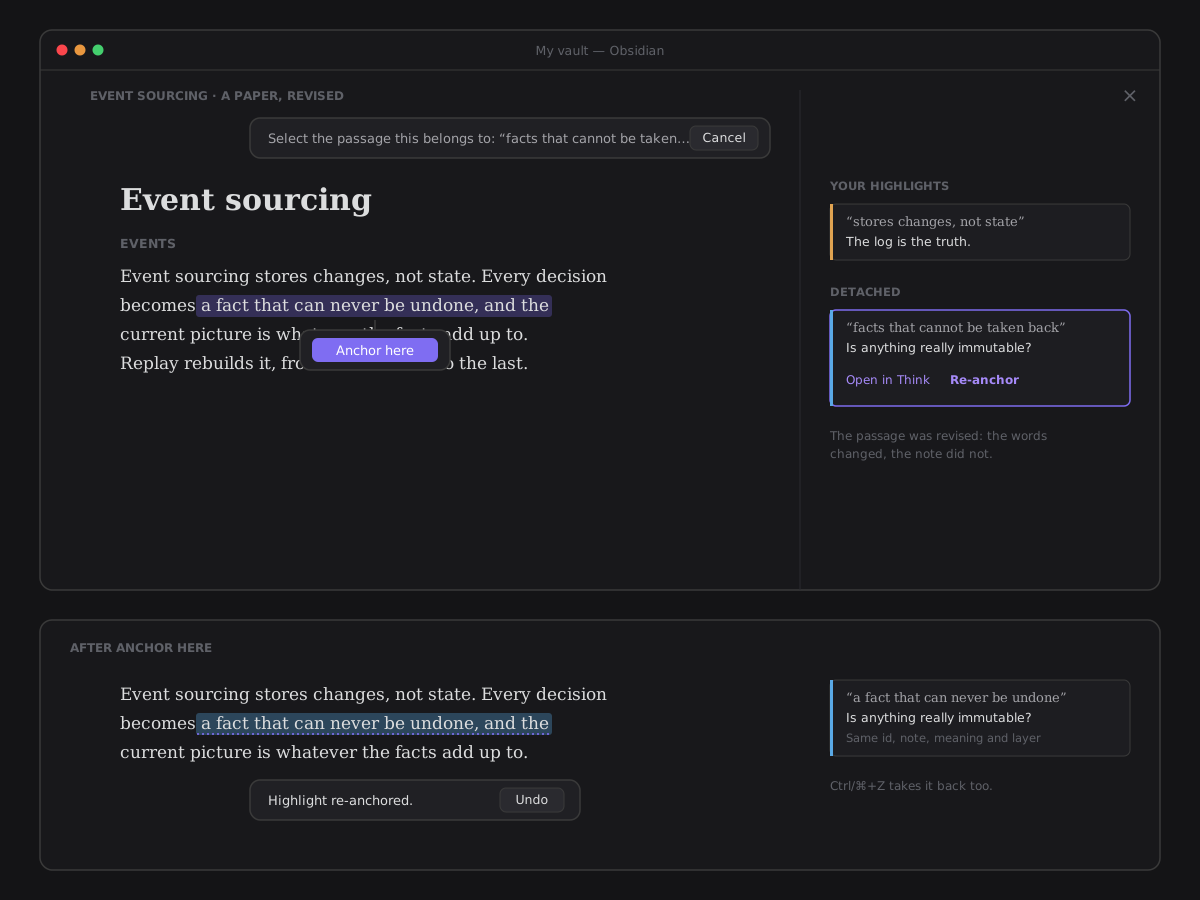 - Click a highlight to see its note, add or edit one, open it in Think or delete it; the rest is in its More. A highlight with a note has a dotted underline. - In the margin. On a wide pane your highlights are listed beside the page, in reading order; click one to go to it. On a narrow pane, and while Alongside is open, the same list is the first thing in Alongside. - Everything can be undone. Highlighting, editing and deleting are recorded writes of a thought, in the write record, and each answer offers Undo in place. A deleted highlight goes to the trash, not away. When the line has gone, Ctrl/⌘+Z still reaches it: each press takes back the reading's newest change not yet taken back (a highlight, its meaning, its note, its layer, a re-anchor, a page note, an ink note, a claim or a link, a snapshot, Recall's or Export's note), exactly as its Undo would, and one press never takes back what a button already did. A thought changed since (in Think, on another device) is left alone, and the line says so. It never reaches further than the reading on screen, nor what a flow, a hook or another view wrote; bookmarks, layers shown and type choices are not vault writes and keep their own way back. With nothing left, a quiet line says Nothing to undo in this reading. - It comes back. A few days later, what you marked returns as a card, with one question: do you still think so? See A few things you marked. - Your story shows it. In This note, a highlight appears in the story as a thought with its passage quoted.
Hand back a marked copy¶
You read someone's PDF to give them feedback: you highlight it and write notes in its margin. The person who sent it needs a PDF back, not your vault. Share a copy with your notes writes one — a new file beside the original, with your marks on it, readable in Acrobat, Preview, a browser or Obsidian itself. The original is only read, never written.
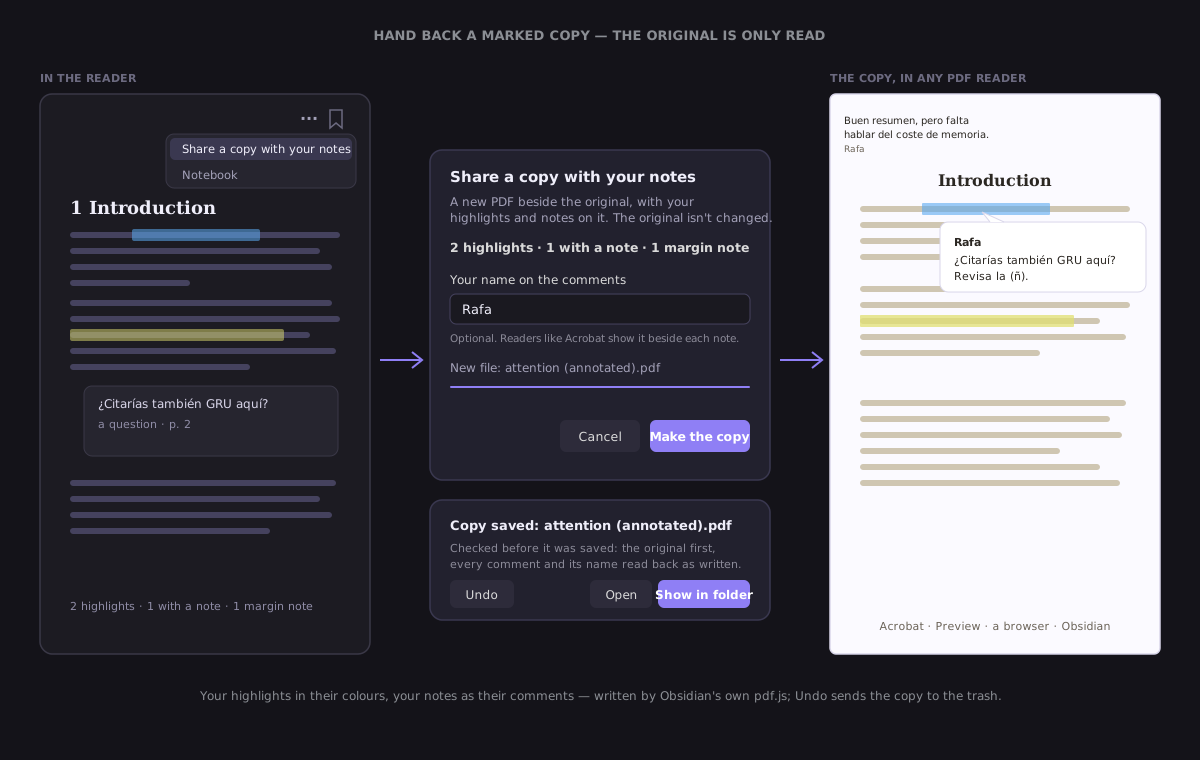
- Where. In the Reader's options — the quiet ⋯ beside the bookmark, and the tab's own More options — for a PDF. In the Library, in the PDF's detail beside Notebook and Cite, and in its Notebook beside Export as a reading note. While nothing in the PDF is marked it is there, disabled, saying so; what it offers is read as you open it.
- What goes on it.
- Each highlight, over its words on the printed page, in its meaning's colour: an idea yellow, a question blue, a quote green, a discussion purple. The colours are fixed, since the copy is read outside your theme.
- The note you wrote on a highlight, as its comment — what Acrobat and Preview show beside it.
- A note you wrote on a page with no passage, as a text note in that page's wider margin (or its top corner, on a page with no room or no words to measure, such as a scan).
- Every layer goes — reading, reflection, research — whatever you are showing.
- Your pen, when Include your pen is on (it is, until you turn it off): what you drew on the printed page, and the ink notes you kept from it, as ink on the copy — in its colours, at the width you drew, where Page view shows it, your turn of the page included. On a PDF the pen draws on the page as printed: take it up in the reading view and the Reader moves to Page view, where you can also select words to highlight them. A PDF marked only with the pen can be handed back too. Ink drawn beside the reflowed text before this has no place on a printed page, so it stays behind and the sheet counts it; the pen's pressure shading is lost, since a PDF's ink has one width. If an ink note cannot be read, the whole pen stays off and the sheet says so.
- Your name on the comments. Type it in the sheet, or leave it empty and nothing is signed. It is remembered for next time, in the sheet itself; there is no setting for it.
- The sheet says what goes before anything is written: 3 highlights · 1 with a note · 1 margin note, and the new file's name —
paper (annotated).pdf, orpaper (annotated) 2.pdfwhen one is there already. Nothing is ever written over another file. - Checked before it is saved. The copy is written by Obsidian's own pdf.js, read back, and saved only if it says what was written: the original's bytes first, each highlight with its comment and your name. If any check fails, nothing is saved and the sheet says so. A protected PDF gets no copy.
- What stays off. Ink drawn beside the reflowed text, an answer the Reader proposed and you accepted, and a highlight whose words can no longer be found on its page — counted, never guessed.
- After. Show in folder on a desktop, ready to attach to an email; Open on a phone or a tablet. Undo sends the copy to the trash, and so does Ctrl/⌘+Z while the Reader is open.
- Only what you mark is read. The share reads just the pages with a mark, in its own document, so the page you are reading never moves; on a 2 MB paper the copy took about half a second.
Layers, and read it clean¶
A book read twice carries two readings on top of each other: what struck you the first time, what you wrote back to it later, the references you chased for a project. Layers keep each pass in its own ink, and read it clean puts every mark away so the page is just the book again — then gives your thinking back, in the order you had it.
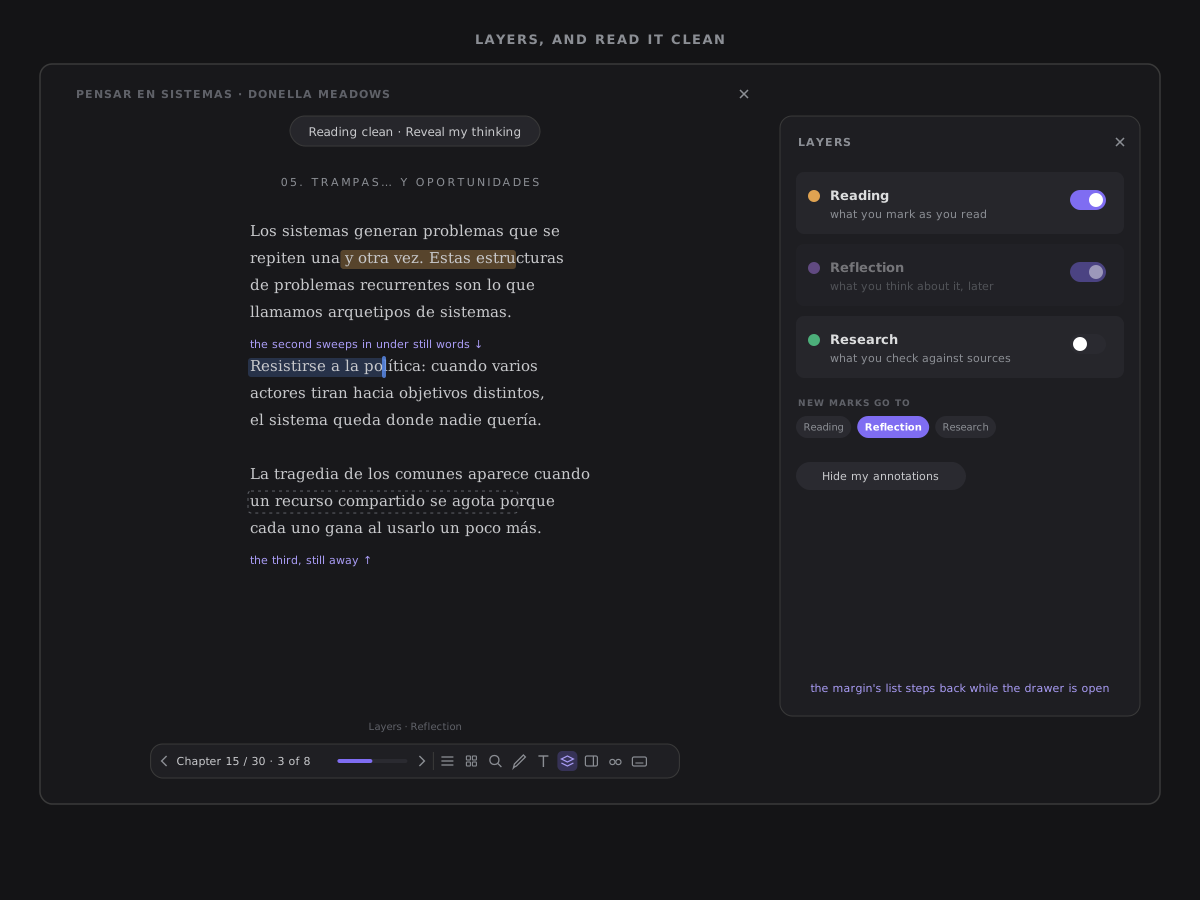
- Three layers. Every mark is on one: Reading (what you mark the first time), Reflection (what you write after) and Research (sources, contradictions, references). A highlight, a margin note, a page note and ink all use the same three. A mark made before layers existed is on Reading, and nothing is rewritten for it.
- The Layers panel. Layers in the Reader's bar, beside Contents and Type, lists the three with a switch to show each, and New marks go to — Reading until you choose another. A layer with nothing in this chapter is dimmed; nothing in the panel counts.
- Remembered per book. Where new marks go and which layers are hidden are kept for each book, paper or article (or the note a reading began from). When new marks go anywhere but Reading, the layer's name sits quietly beside the button — on a narrow pane, a small dot — so a mark never lands where you did not expect. While a layer is hidden the button reads as active.
- Hidden means hidden everywhere. A hidden layer leaves the page, the margin's list, a PDF's notes on a page, Page view's highlights and ink. The margin's meaning chips narrow too: a mark is shown when its layer is shown and its meaning is chosen.
- Change a mark's layer from the menu you get by clicking it, under its meanings: one recorded write you can undo, like changing its meaning.
- Hide my annotations — read it clean — puts every mark of every layer away in one quiet fade, and a pill at the top of the column says Reading clean · Reveal my thinking. A mark you make while reading clean is shown. Clean lasts for the sitting: open the book again and your marks are there.
- Reveal my thinking, from the pill or the panel, brings them back: the marks of the page on screen return one by one, in the order you made them, each where it was, its note sliding in beside it; the rest are simply there.
- Hiding never writes. Hiding, showing and revealing change what is drawn, never what is kept: nothing is written to a thought, a book or the write record.
The ink moves, never the text¶
A mark's tint is lifted for the move: the words keep their place and their colour, and only the ink under them fades — in as each mark returns (250 ms, the next one 350 ms later, or sooner so a whole chapter is back within four seconds), out all at once when you hide (120 ms). Showing or hiding one layer fades just its ink. Any key, click or scroll during a reveal completes it at once, and a reveal never staggers while you are selecting. Under reduced motion every mark simply returns, or leaves, at once.
Ink in the margin¶
With an Apple Pencil in hand, selecting words with a finger and typing is the wrong tool. Tap the pencil in the reader bar (or press P) and the page takes ink: write in the margin beside the paragraph, the way you would on paper or a reMarkable. What you write stays on the page, and only what you choose to keep becomes a note.
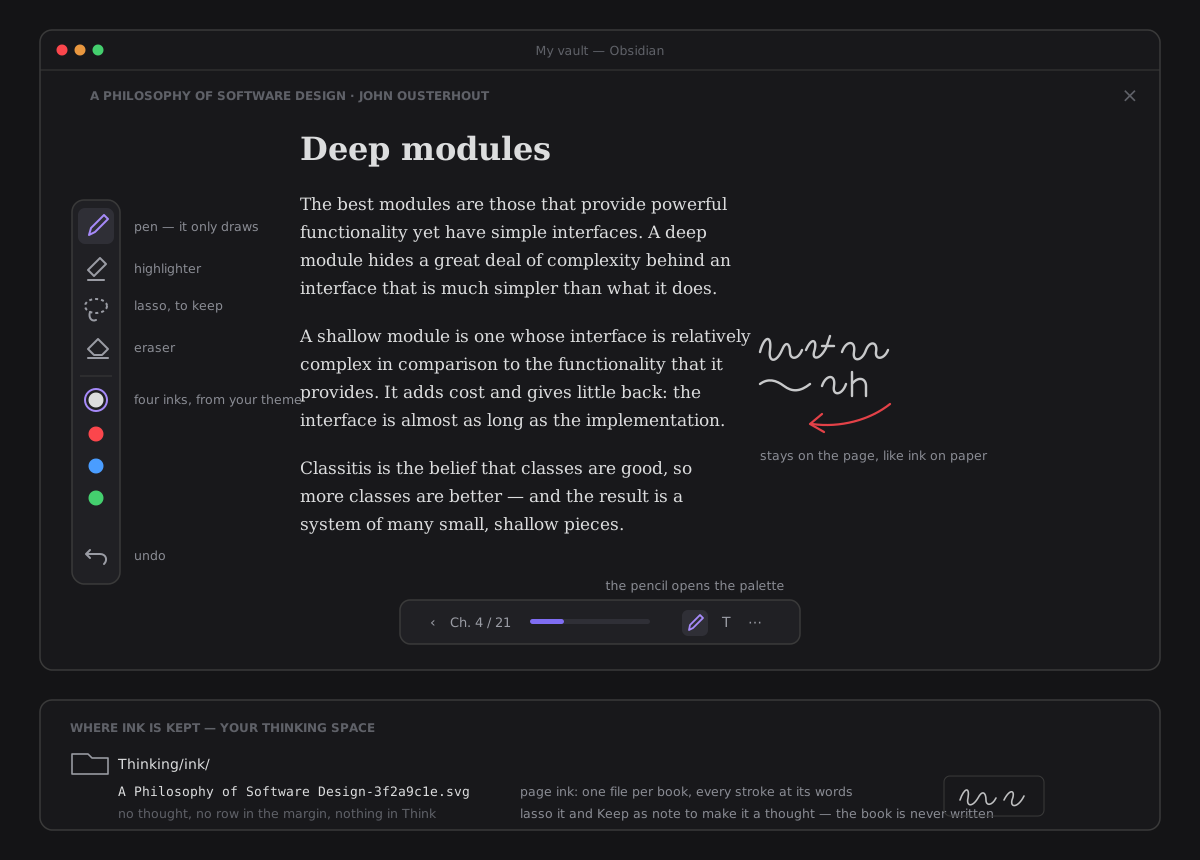
- The palette. A small strip at the edge of the reading column, never over the text: pen, highlighter, lasso, eraser, four inks (pencil, red, blue, green, each your theme's own colour) and undo. A marker glides to the tool in use. On a phone, an iPad in portrait or a paper in Page view — where there is no margin for it — the strip lies just above the reader bar. With Alongside open the column moves over and its margin goes, so the strip lies above the bar too, centred under the column, clear of the panel. Whether it was open is remembered on this device, so an iPad you write on stays ready to write.
- What draws. A pen draws (an Apple Pencil, a Wacom or a Surface pen), and so does a mouse, so you can write a margin arrow at a desk. A finger never draws: it scrolls, turns the page and taps exactly as it does with the palette closed. While the palette is open the mouse writes instead of selecting words; close it to select again.
- Your hand can rest on the glass. While the pen is down, and for a moment after it lifts, a touch does nothing — no scroll, no turn, no tap.
- The line follows the nib. Each movement is drawn in the next frame, the newest piece always ending under the nib, smoothed only behind it. Press harder and the line is thicker; lean the pen and it widens a little, like a pencil on its side. Lift the pen and nothing moves: the stroke you see is the stroke that is kept.
- Undo, three ways. The palette's undo, Ctrl/⌘+Z while the palette is open, or a two-finger tap on the page take back the last stroke drawn or erased, newest first. A stroke undone before it was kept leaves nothing behind. A pinch or a two-finger scroll is never an undo, and a two-finger tap asks nothing: the stroke fading away is the answer.
- The eraser takes whole strokes. Drag it across your ink and every stroke it touches goes — and a highlight it passes over goes too, to the trash as removing one does, with Undo (it says Erased). Over nothing, it says so quietly.
- What you write stays on the page. Like ink on paper, or a document opened on a reMarkable: what the pen writes is the document's own page ink. It is not a note, it is not a thought, and it never appears in the margin's list or in Think. Strokes written together, soon after each other and close together, are kept as one, so a word you write never comes apart when the text re-flows. The page ink is saved when you pause, when you turn the page and when you close the Reader, never while you are writing. Nothing is said: no toast, no line.
- Keeping it is a choice. To turn some of it into knowledge, loop it with the lasso and press Keep as note. Until you do, it is only ink on the page.
The highlighter¶
The pen only draws. A line under a sentence, a circle round a phrase, an arrow between two marks or a scribble are ink, exactly as you drew them: nothing the pen writes is read as a gesture. To highlight, choose the palette's highlighter and draw over the words. The stroke turns into the mark: the ink fades while the marker sweeps across the words from the side you started on.
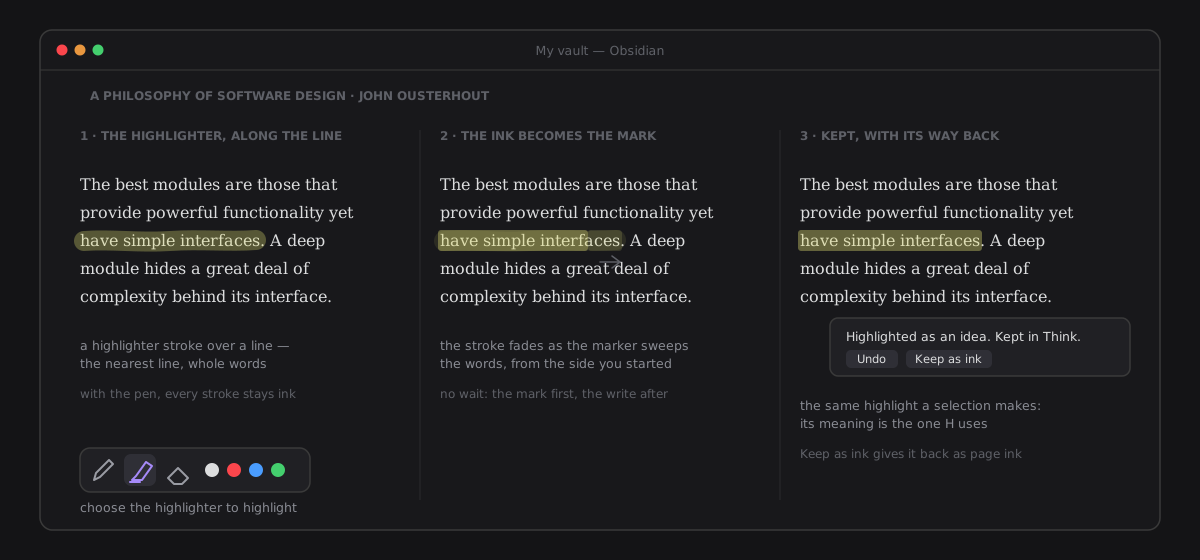
- The words it takes. The single line nearest the stroke, never two, even when you draw a little above or below it; and every word whose middle lies under the stroke, whole. While you draw it is a wide, translucent nib in the highlight's colour, so what you see under the nib is what you get. Over no text it keeps nothing, and says Nothing under the highlighter.
- Its meaning. The one H uses: the meaning you chose last, an Idea the first time. Click the highlight afterwards to change it, as for any highlight.
- Several lines. Draw across the next line within a few seconds and the same highlight grows onto it: a sentence that wraps is one highlight, saved as one update. Only the new words sweep.
- The same highlight. It is exactly the thought a selection makes: the same passage, the same place in the book, the same heading, in Think, in review and in the notebook.
- The way back. A quiet line says Highlighted as an idea. Kept in Think. with Undo and Keep as ink. Undo takes the highlight away, its mark fading. Keep as ink takes it away and gives you back the stroke you drew, as page ink. The palette's undo, Ctrl/⌘+Z and the two-finger tap take it back too: it is your last ink action.
- On a printed page. In Page view the highlighter reads the page's own text, so a PDF with text highlights there too: the mark is drawn as a wash over the printed words, and every highlight of that page is drawn the same way. On a page with no text, a scan, it keeps nothing. A highlight made in Page view is found again in the Reading view, and the other way round.
- Reduced motion. The stroke goes and the mark is there, at once; Undo and Keep as ink are instant too.
Keep what you lasso¶
The lasso is the one gesture, and the door from ink to knowledge. Choose the palette's lasso and draw a loop: what it caught decides what it offers, in this order.
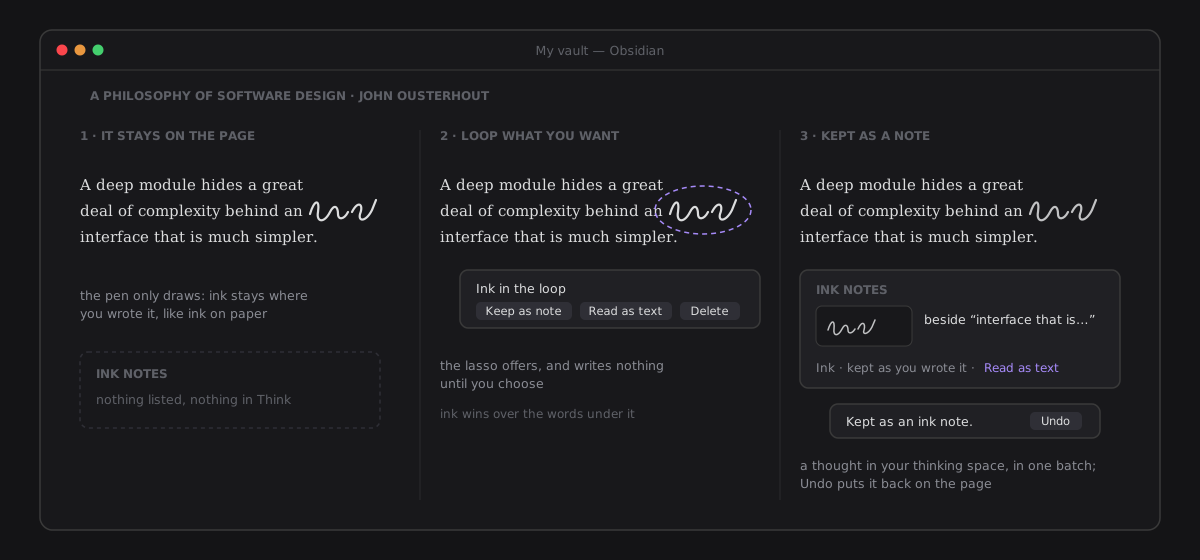
- Page ink → Keep as note, Read as text, Delete. A stroke is caught when its middle is inside the loop. Keep as note makes those strokes one ink note: a thought in your thinking space with its drawing, a row under Ink notes in the margin, a card in Think. The strokes leave the page ink in the same recorded batch, and settle into the kept tone where you drew them. The line says Kept as an ink note., with Undo, which puts them back on the page. Read as text reads them first and keeps them only with a reading you accept (below). Delete fades them from the page, with Undo. Page ink wins over the words under it: loop ink written over a sentence and the ink is what is offered.
- Ink notes → Read as text, Delete ink. Loop ink notes and it offers Read as text (one request per note) and Delete ink for them.
- Words → the selection popover. Loop words with no ink and the same popover a selection opens comes up for exactly those words — the four meanings, Note, Copy, More — so the lasso is selection with the Pencil.
- Nothing → it says so. The lasso caught nothing.
- Nothing until you choose. The loop stays, dashed, while its offer is up, and fades when it goes. The lasso never writes anything by itself (constitution §XII).
- Reduced motion. No fade: the loop and the strokes appear or go, at once.
Read as text¶
Handwriting is kept as you wrote it, and that is right — but to the vault a drawing is invisible: Think's find bar cannot find contradicts "ship early"? scrawled beside a paragraph, and the tension it names never meets the note it names. A web view has no handwriting recognition (Apple's lives in PencilKit, which a plugin cannot reach), so the only reading there is one you ask for, from the AI provider you configured — and what comes back is a proposal, never a write.
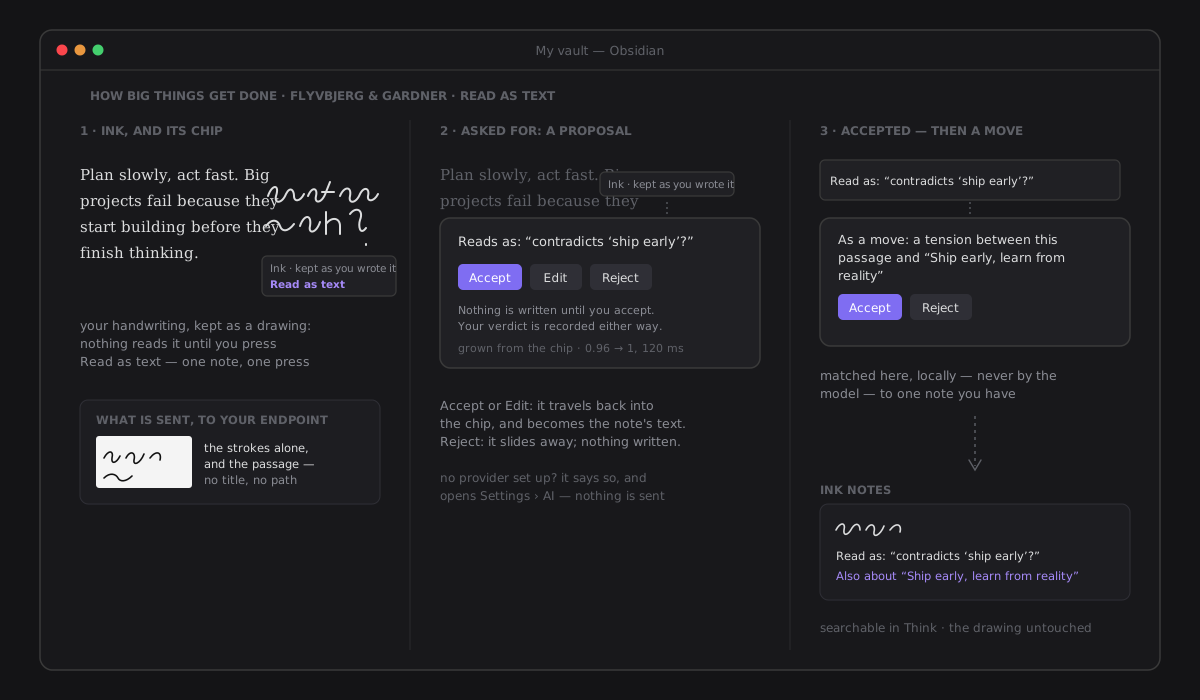
- One press reads one ink note. Under each ink note — in the margin's Ink notes and on its card in Think — a quiet chip says Ink · kept as you wrote it with Read as text. With the lasso, ink notes caught in a loop offer Read as text too: one request per note, each its own proposal. Nothing reads ink by itself — not as you write, not when a book opens, not in an automation, never in bulk.
- Page ink, read before it is kept. Loop page ink and press Read as text: the same request and the same card, for exactly the strokes in the loop. Accept or Edit keeps them as an ink note with that reading as its text, in one recorded batch, and its move follows. Reject or Esc writes nothing: the strokes stay on the page as they were.
- Exactly what is sent, and to whom. An image of that one ink note's strokes alone — drawn from its points, dark on plain light, at most 1024 px on its long side, without the page, your other marks or your theme — and the passage it sits beside (its sentence), capped by your AI input limit and marked as data, not instructions. It goes to the endpoint in Settings › AI, the same one every AI action uses, and nowhere else. Never a note title, a file name, a path or another highlight.
- No provider. With AI off or not set up, Read as text is still there; pressing it says Reading handwriting uses your AI provider and opens Settings › AI. Nothing leaves the device.
- While it reads. The chip says Reading… with Cancel, and the strokes being read breathe, slowly. One request at a time per ink note. Cancel stops waiting: the answer, if it comes, is dropped and nothing is written — but the request may already have reached your provider (a request cannot be called back once it has left).
- The reading is a proposal. A card grows out of the chip: Reads as: "…", with Accept, Edit and Reject. Accept makes the reading the ink note's text; Edit lets you correct it first and keeps your version; either way the card travels back into the chip, which now says Read as: "…". Reject writes nothing; the card slides away and the chip offers Read as text again. Esc closes the card with no verdict. The drawing is never touched — its file is byte-for-byte what you wrote.
- Then a move, only on a reading you confirmed. If the reading is a tension with something it names, and that name matches the title of one of your notes — locally, without AI: the title equals the name or starts with it, the name is at least two words or six letters, and exactly one note matches — a second card proposes As a move: a tension between this passage and "X". Accepting writes what challenge writes by hand in Think: the ink note becomes a thought about both the book and X, recorded as a challenge in the move log, and its margin entry names X. A question is proposed as As a move: keep it as a question, which gives it the meaning Question. Nothing else is ever proposed — no links, no new notes. Rejecting the move keeps the reading.
- Every verdict is recorded. Accept, edit and reject — of the reading and of the move — land in the judgement record as descriptors only: the thought,
ink-readingorink-move:tension/ink-move:question, origin AI, the verdict. No image, no reading and no model output reach the record or the log (constitution §XII). A thought lives in the thinking space, which the knowledge scope leaves out; its verdicts are kept anyway, as the move log keeps its moves. - Searchable once accepted. An accepted reading is the thought's text, so Think's find bar and Obsidian's search find it — the card still shows your handwriting.
- When it fails. An error, a time-out or a cancel says Could not read this ink. Nothing was written. A model that does not take images says Your model did not read the image — choose one that reads images in Settings › AI: many OpenAI-compatible models read images; the message means the one you configured refused this one. Each logs a warning with no content.
- Reduced motion. The card appears and goes at once, and Reading… is still text.
Where ink is kept¶
Page ink: one file per book. What the pen writes is kept in your thinking space (the folder in Settings › Thinking), in its ink/ folder: one file per book, named after it. It is an SVG container with the points inside as data, as an ink note's drawing is, so it syncs wherever your drawings sync. It is never a thought, so Think, the shelf and review never see it. The book itself is never written.
- It stays with its words. Ink is anchored to the words nearest it — the same anchor highlights use — and to which side of them it was written on. Make the type larger and it grows with the text; narrow the column and it keeps its side; change the theme and it takes the theme's colour; let the text re-flow and it follows its words. Ink written in a wide margin moves in to stay on screen when the margin narrows.
- On a printed page (a PDF in Page view, or a designed book's page) ink is kept as a place on that page, so it stays on the same spot through any zoom. Its colours follow the page, not the theme: pencil is dark on white paper and light on a page designed in black.
- Two devices. Each save reads the file again and merges with it first: what another device wrote is kept, and what you erased stays erased. If two devices both write the same book before either has synced, your sync service decides between the two files, and one side's latest strokes can be lost.
- When the words change. Page ink whose words are gone stays in the file and is simply not drawn. A file from a newer version of the plugin is left as it is, never written over, and the palette says This book's ink file could not be read, so new ink here is not kept.
- A book renamed or moved. What you made in it follows it, with the Reader and the Library open or closed, and a moved folder takes every book in it: its ink file is renamed for the new path (or, when the new path already has one, the two are merged, an erase winning, and the old file goes to the trash), every thought about it is about the new path, and its place, bookmarks, layers and resume entries go with it. Only the reference changes, never a thought's words, and never the book. The follow is one recorded batch with no Undo of its own: renaming the book back brings everything back. It is silent, unless some part could not follow; then one notice says so, and that part stays where it was.
- Taking it back. The eraser and Undo take strokes off the page; the file follows at the next pause. The file's first save is in the write record as a file created; later saves are recorded as replacements.
Ink notes: in Think, as a thought, with its drawing beside it. What you keep with the lasso is a thought about the book you were reading — and, with the same name, an SVG file of the drawing. Ink notes you kept before page ink existed are exactly what they were.
- Listed where it cannot be drawn. An ink note whose words have changed is listed in the margin under Ink notes, with a small drawing and Detached — the passage has changed. One written in Page view is listed in the reading view as Written in Page view, and the other way round. A drawing from a newer version of the plugin is listed, never thrown away.
- Shown, never counted. Ink notes appear in the margin, in Think as a card of your handwriting, and in the book notebook — but they are not highlights: not counted on the shelf, never in review.
- Taking it back. Delete ink on its row sends the thought and its drawing to Obsidian's trash together, with Undo. Erasing an ink note's last stroke does the same. A kept ink note is one recorded batch in the write record, undone as one.
- No thinking space? The pencil is still there; the palette says that ink is kept in your thinking space and how to choose its folder, and nothing draws.
Every note goes back to its paragraph¶
A note you make from a passage of a PDF or an EPUB remembers which paragraph it came from, in the note itself, for as long as the note exists — so you can always check a sentence against its source. That is what makes a note citable.
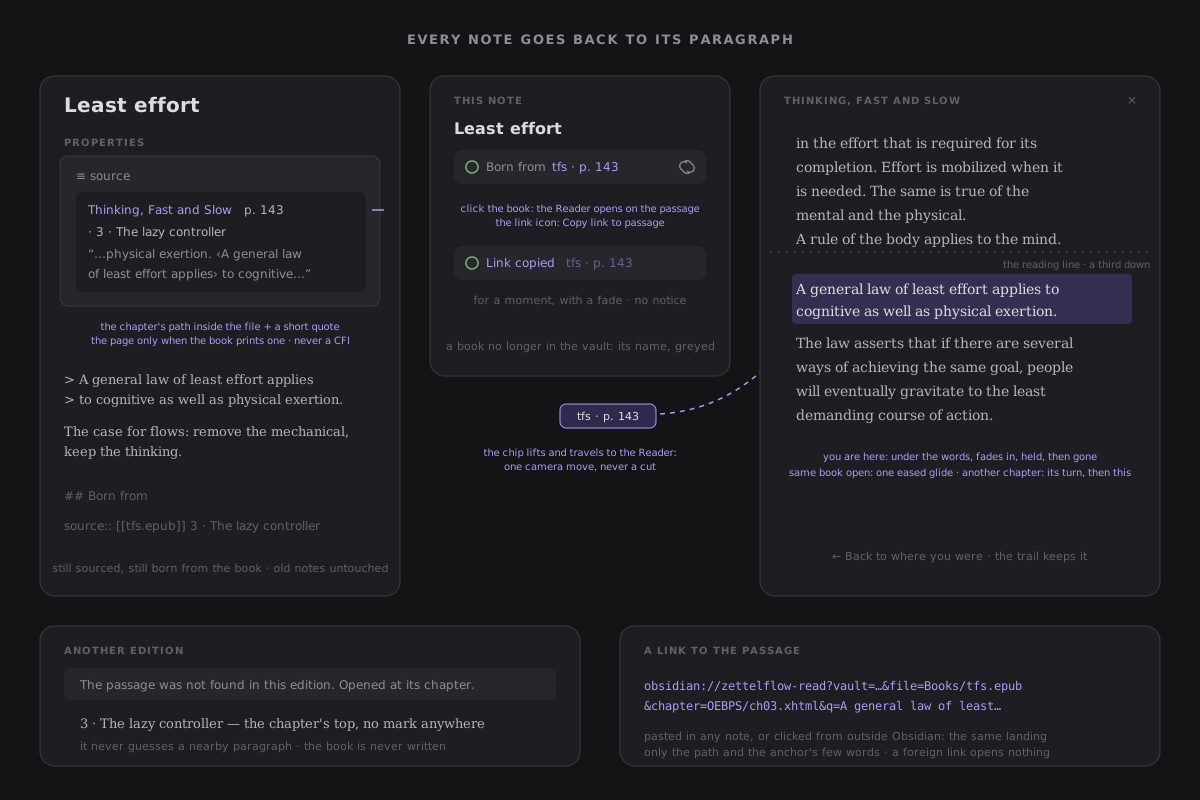
- Written once, when the note is made. Crystallizing a highlight writes a
sourceproperty — a list, so one note can cite several passages — that reads like a citation:
source:
  - "[[Books/Thinking, Fast and Slow.epub#OEBPS/ch03.xhtml|Thinking, Fast and Slow]] p. 143 · 3 · The lazy controller · “…physical exertion. ‹A general law of least effort applies› to cognitive…”"
  - "[[Papers/cap.pdf#page=6|CAP twelve years later]] p. 6 · “‹Partitions are rare› but…”"
From left to right: the book, as a link whose subpath is the chapter's own path inside the file (an EPUB's spine item) or Obsidian's own #page=N for a PDF; the print page, only when the source has one; the chapter as the book names it; and the opening words of the passage between ‹ ›, inside a few words of context. The source:: line the note always had is still written under its text, so the note still counts as sourced and as born from the book. - A quote, not a CFI. An EPUB CFI counts element steps in the book's original XHTML, but the Reader draws a cleaned copy of it: it would be a coordinate the Reader could not check, broken silently by any change to the cleaning. A few words survive both. The opening words are bounded (twelve words, 90 characters, a little context each side), so the property stays readable. - The page is never invented. A PDF gives its page, and its printed label when it has one. An EPUB gives a print page only when the book declares its print pages — an EPUB 3 page list, an EPUB 2 NCX page list, or page-break marks in its text. A book that declares none cites its chapter. - Highlights carry the same place. A highlight remembers the chapter's identity and the page, and crystallizing copies them into the note, so the way back never depends on the highlight still being in Think. - Open source passage. In This note, Born from names the book and the page; click it and the Reader opens on that chapter with the passage at the reading line (a third of the way down), marked for a moment under the words. The preview of the note, before it exists, shows the same source with ↗ Open source passage. It is one camera move: from This note the book's chip lifts and travels into the Reader; when the Reader is already open on the book, the column glides there; when the passage is in another chapter, the chapter turns the way it always does and then settles. A key, the wheel or a touch during the move ends it at once. The place you left is on the trail, so ← Back returns there. - Another edition. When the words are not there (another edition, a re-exported PDF), the Reader opens the chapter at its top and says so once, inline: The passage was not found in this edition. Opened at its chapter. It never guesses a nearby paragraph. A spine that was reordered still lands: the chapter is found by its path, not its number. - Old notes. A note made before this keeps its source:: line, is never rewritten, and now opens at its EPUB chapter too — the chapter the book labels so (3 · The lazy controller), never the third file in the book. - Under reduced motion the landing is instant, and the mark shows for 1.5 s without fading.
Passage links¶
Copy link to passage, the link icon on the Born from row, puts on the clipboard an Obsidian URI that opens the Reader at that passage — pasted in any note, or clicked from outside Obsidian. The row reads Link copied for a moment.
obsidian://zettelflow-read?vault=<vault>&file=<vault path>&chapter=<chapter>&q=<opening words>[&pre=<before>][&suf=<after>][&page=<print page>]
| Field | What it is | Cap |
|---|---|---|
vault | The vault's name (Obsidian routes the link by it) | — |
file | The PDF or EPUB's path in the vault | 1024 characters |
chapter | The chapter's identity: an EPUB spine item's path (OEBPS/ch03.xhtml), or page:<index from 0> for a PDF | 512 |
q | The passage's opening words | 90 |
pre, suf | A few words before and after them | 24 each |
page | The print page, when the source has one | 32 |
The link carries the path and the anchor's few words, nothing more. One that names a file that is not a PDF or an EPUB, or not in the vault, is over a cap, misses file, chapter or q, or has a field not listed here opens nothing and shows nothing (it is logged at debug). This shape is a public surface: later versions keep reading it, and any change to it is additive.
What survived?¶
A chapter ends and the next one begins in the same breath — and the moment when one of your marks could still become a note of your own passes with it. At the end of a chapter worth pausing at, the book gives you a blank leaf instead: what you marked in the chapter, what it touched in your vault, and one question — is one of these worth a note of its own? You answer by writing, or you turn the leaf and keep reading.
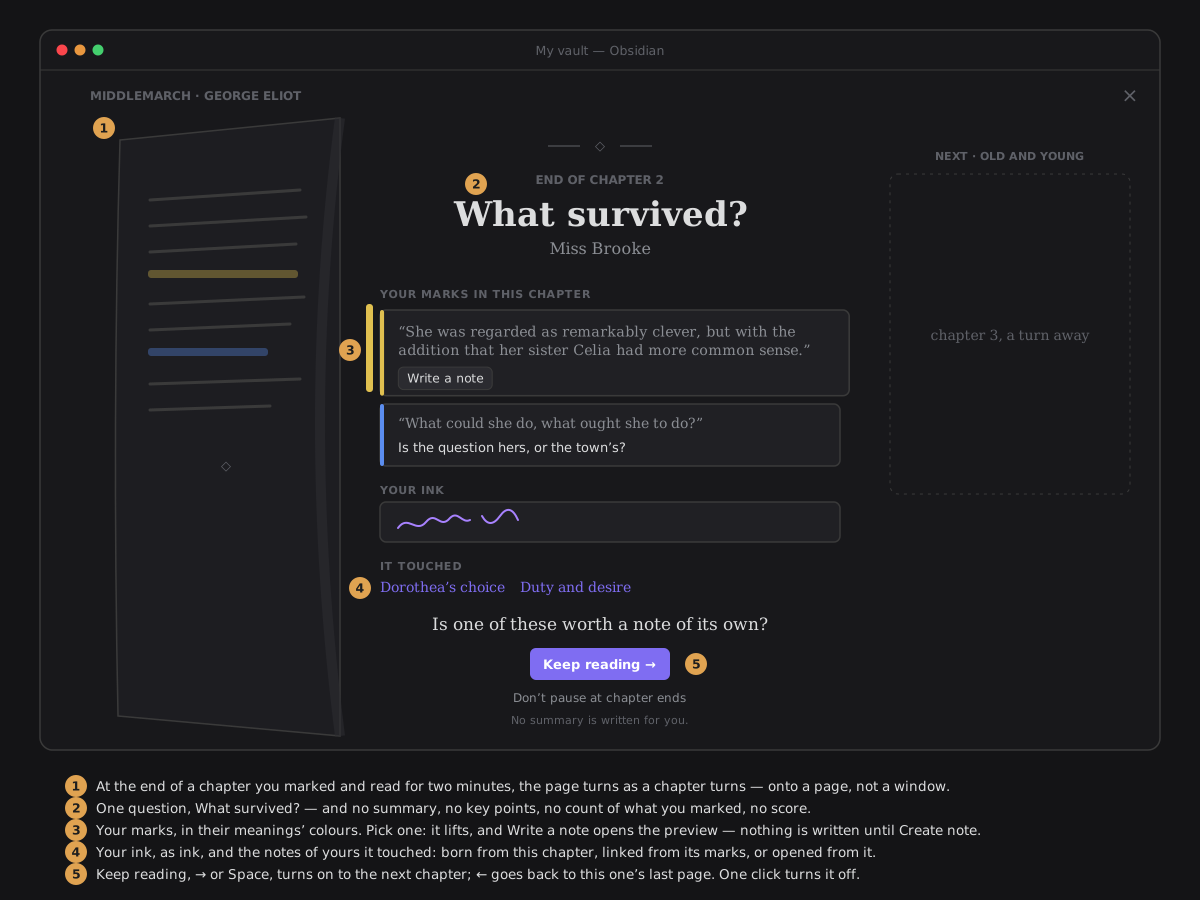
- When it comes. Only when all of these hold:
- you turn forward by reading past the end of a chapter — →, Space or the bar's next at its end, or a swipe on iPad. A Contents jump, a search hit, Home and End, the back pill, a link from a note, a resume or going back never pause;
- it is a real chapter: at least about 1,500 words in an EPUB, so a cover, a title page or a copyright page never qualifies — or, in a PDF, a top-level section of its outline of at least three pages, read in the reading view. A PDF without an outline, a paper read as printed in Page view, a designed book, an article and a path of notes have no chapter ends;
- you read it in this sitting: the Reader was on that chapter for at least two minutes. The clock stops while the Reader is hidden — another app, a locked iPad — and is never kept;
- something of yours is in it: a highlight, a margin note or an ink note, from any sitting. A chapter you marked nothing in never stops you;
- it is not the last chapter — the book's end card has that place;
- you did not skip the last one (below), you are not listening, and the switch is on.
- What it shows, and nothing else. End of chapter 4 — or End of the PDF section's name — the heading What survived? and the chapter's title; Your marks in this chapter, each in its meaning's colour with its words and your note; Your ink, as ink; It touched — the notes of yours you crystallized from this chapter, the ones its marks link to, and the ones you opened from it as a peek; and the question.
- The answers are yours. Pick a mark: it lifts, its ink is drawn beside it, and Write a note opens the crystallize preview for it, growing from that row. Nothing is written until Create note; Cancel brings you back to the leaf. A note it touched opens as a peek, where you are.
- It never writes for you. No summary, no key points, no count of what you marked, no score, no AI text — the foot of the leaf says so: No summary is written for you. The leaf itself writes nothing, and your place in the book stays the chapter you just finished.
- A skip is not asked twice. Turning on from the leaf within four seconds without touching it is a skip: the next chapter end that would pause does not, and the one after it may. Going back to the chapter with ←, or jumping elsewhere, is not a skip. Nothing remembers skips beyond that, nothing counts them, and nothing mentions them.
- One switch, in three places. Pause at chapter ends — on by default — is in the Reader's Type panel, in Settings → Reading, and at the foot of the leaf itself as a quiet Don't pause at chapter ends. All three are one value. Beside it, Recall this chapter puts the chapter away to be written from memory (Recall).
- Keys. → or Space keep reading; ← turns back to the chapter's last page; Esc leaves the Reader as it always does. The shortcuts sheet lists them.
A pause, never a modal¶
The leaf is a page of the book. It arrives by your own chapter motion — Leaf turns, Keeps flowing or Sheet slides off in Settings → Reading — and leaves to the next chapter by the same motion, in the same direction: no overlay, no backdrop, nothing dimmed, nothing over the text. Once the turn has landed its contents settle in the reading column — the ornament, the heading, then your marks one after another, each a fade and a 4 px rise 40 ms apart, the question last; any key or touch completes the settle at once. ← plays the arrival backwards onto the chapter's last page. Under reduced motion the leaf is simply there, and simply gone; it is still a page between two chapters.
Recall¶
Highlighting feels like understanding, and is not: what stays from a chapter is what you can say without it in front of you. Recall this chapter puts the chapter and your marks away, asks for the chapter in your own words, then shows you what you marked — yours first, then the book's, the way Think does think first, then look. Read → think → recall → rewrite.
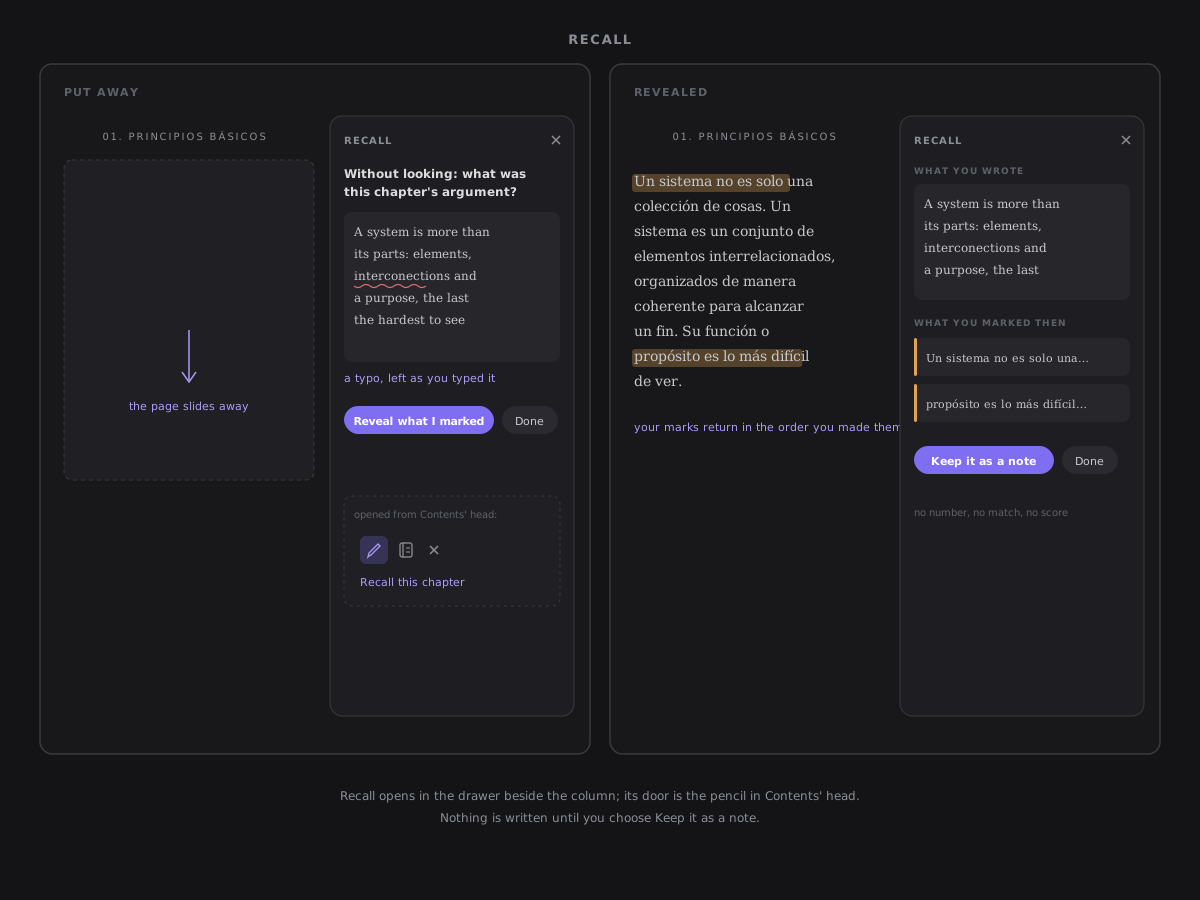
- Where it is. In Contents, the pencil in its head, on the chapter you are in — and at the foot of the What survived? leaf, for the chapter that just ended: the book goes back onto that chapter first, and recall begins once it has landed. It works on an EPUB's chapter, a paper's section (its outline's, or the page you are on when it has none) and an article's section. A designed book, a paper read as printed in Page view and a path of notes have no recall.
- The chapter goes away. The page slides down out of the column as one sheet and leaves the paper with the chapter's title on it; your highlights, margin notes and ink go with it, through the same hide as reading clean. Beside the page — or, in portrait on a tablet, in the sheet from the bottom — the card asks Without looking: what was this chapter's argument? above a box, In your own words….
- Your words, exactly. What you type is kept as you type it: no spellcheck, no autocorrect, no capitals added, nothing completed or suggested. A typo stays a typo.
- Reveal what I marked. The sheet slides back up, then your marks return in the order you made them, as Reveal my thinking brings them back. The card's question gives way to What you wrote — your words where they were, never moved — and under it What you marked then: each mark in its meaning's colour, with its passage and your note. A chapter you marked nothing in says so plainly: You marked nothing in this chapter.
- Not a test. Nothing compares your words with your marks, nothing is highlighted as a match, nothing is counted or scored, and there is no streak. It is a way to see what stayed.
- Keep it as a note. A preview shows exactly what will be written: a title ({the chapter} — in my words, editable), your words as you wrote them, and one line,
source:: [[the book#the chapter|its title]] · the chapter, so the Library counts the note as born from the book. Nothing is written until Create note: one new note, create-only, at a free path in Obsidian's Default location for new notes, recorded — Undo is on the card and in Home → Recent. With a canvas holding the Crystallizes thoughts role, the preview continues in that flow instead, which decides the folder, the template and the properties. Cancel writes nothing. - Done leaves recall and writes nothing. When you had not looked yet, the page comes back the way it went, then your marks. What you wrote and did not keep stays as a draft for that chapter while the Reader is open, and comes back if you recall it again; closing the Reader lets it go. Nothing asks you to keep it. Esc, the card's ×, another panel or turning to another chapter leave recall the same way.
One gesture each way¶
Putting the chapter away is the chapter turn's own sheet sliding down out of the column (cover, 400 ms, the shared curve) while the card's question rises 8 px into place; nothing cuts. The reveal plays the same shot backwards: the sheet slides back up, and only once it has landed do your marks return, one after another, each row of What you marked then arriving with its ink in the page. Any key or touch during either move completes it. Under reduced motion the page goes and comes back at once, and every mark is simply there.
The end of a path¶
Past the last chapter — Next, Space or Finish — the reading does not just close. An end card says what it added up to and what you can do with it.
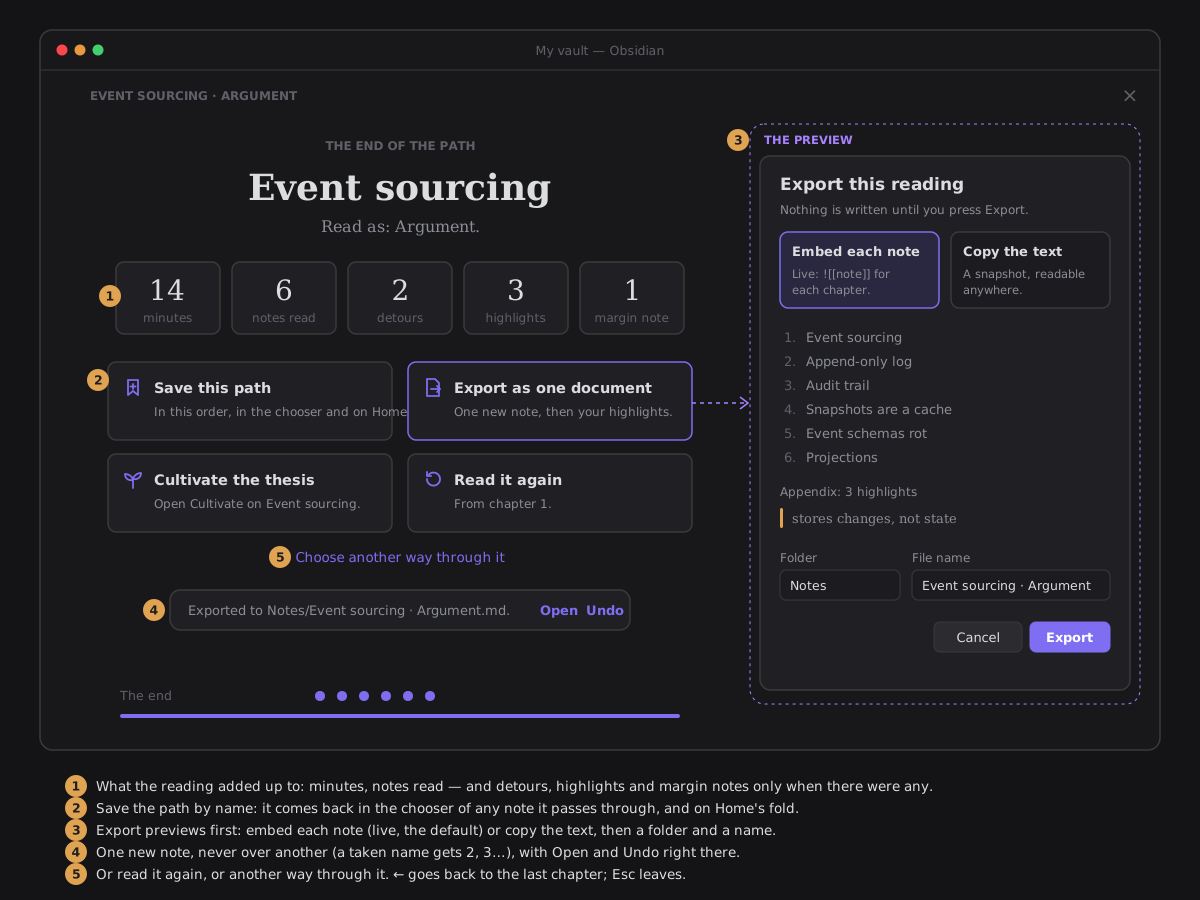
- What it added up to. The minutes it took, the notes you read, and — only when there were any — the detours you took and the highlights and margin notes you made in this reading. No zeros, no score: a reading is not graded.
- Save this path. Name it (it proposes the note and the way you read it) and the path is kept, in this order, in the plugin's data. It comes back as Your saved paths in the chooser of any note it passes through — read it again, rename it in place, or delete it — on Home's Where you left off while you are part-way through it, one click back into the Reader — and on the Library's shelf, with how far you are and what you marked. Saving again under a new name renames it; the same chapters are never kept twice.
- Export as one document. A preview first: the chapters, an appendix of your highlights on them, and how each chapter is carried — Embed each note (the default:
![[note]], live, nothing duplicated) or Copy the text (a snapshot, readable anywhere). Pick the folder (it proposes the folder the reading started in) and the file name, then Export. One new note is created — never over an existing one: a name that is taken gets 2, 3… The card says where it went, with Open and Undo; undo sends it to the trash. - Cultivate the thesis. Gives the workspace back and opens Cultivate on the reading's thesis — or the note it started from.
- Read it again from chapter 1, or — for a way through a note — choose another way through it.
← goes back to the last chapter; Esc leaves the reader.
Pages or scroll¶
Type → Layout has three answers, and they apply to every book and every reading:
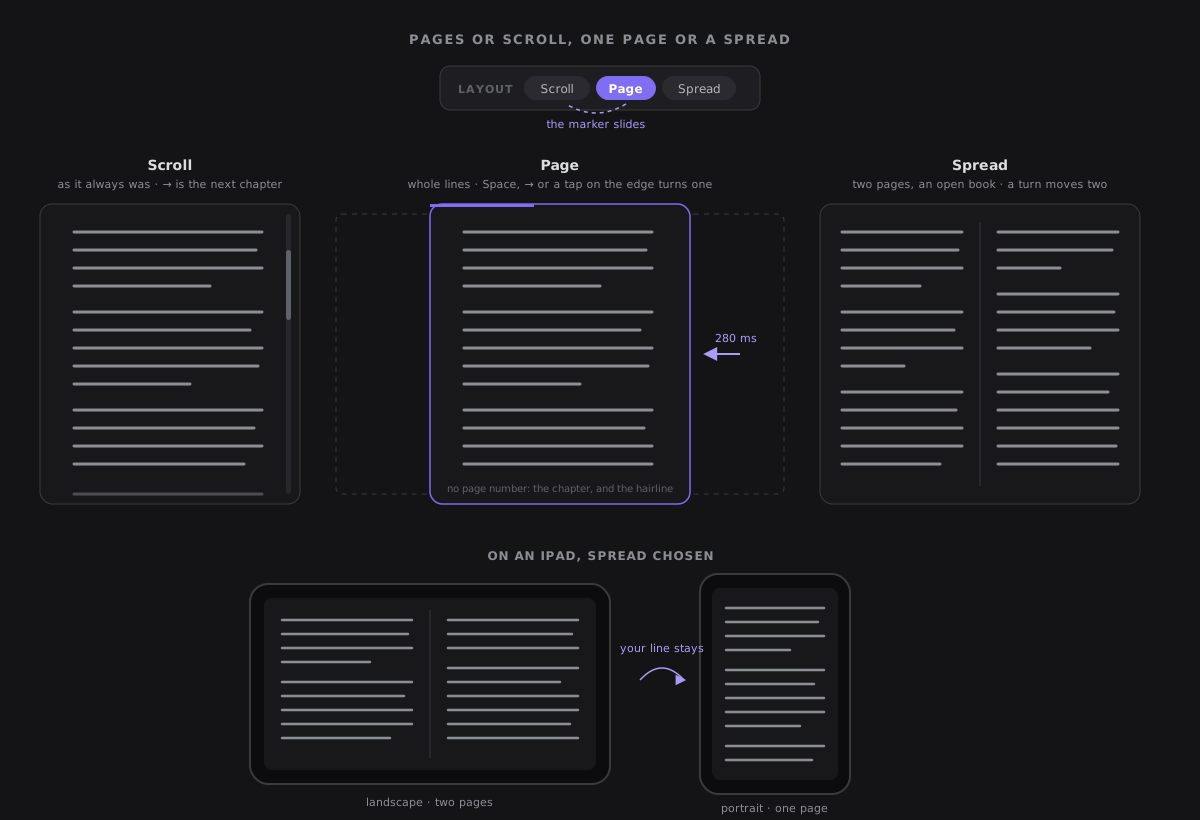
- Scroll is how the Reader always read: one long column, a scrollbar, ← → for the chapters. It stays the default, and nothing about it changed.
- Page lays the chapter out in pages the size of the screen: whole lines only, no scroll. Space, →, Page down, a tap on the right edge or a swipe left turn a page; past the last page you are in the next chapter, with the chapter turn you chose. Back from a chapter's first page lands on the previous chapter's last page.
- Spread shows two pages side by side, like an open book, and a turn moves two. When the reading is too narrow for two comfortable lines (about 45 characters each at your size), it shows one page — without changing your choice. An iPad shows a spread in landscape and one page in portrait.
The page slides on (about a quarter of a second); with a finger it follows you 1:1 and turns past a third of the width or on a flick, or springs back. Holding a key never queues turns. Changing the layout, the font, the size or the window keeps the line you were reading on screen, and the text around it settles into its new shape. Under reduced motion it is all instant.
There are no page numbers: an EPUB has none of its own, and a number would change with your font size. The place is the chapter, and the hairline across the top fills page by page. A search hit, a jump and its way back (Alt+←), a bookmark and a highlight opened from Think all land on the page that holds them — and the strip travels there, never cuts (see Going to a place). A resumed reading opens on its page, inside the opening shot. A selection can run across a page break and be highlighted. Pictures and tables are scaled to fit a page, never cut across two. A cover is one page of its own, its picture fitted and centred — alone across both pages in a spread. In a spread there is no room for the margin: the highlights are in Alongside.
A book written right to left turns the other way: forward is to the left (←, the left edge, a swipe right), and its pages flow from the right. PDF Page view keeps its own pages (#767).
A book of designed pages — a comic, a picture book, a cookbook declared fixed layout (#771) — reads its pages through the same run of pages as a PDF in Page view: Page shows one, Spread two as the book pairs them, turned as one leaf, and Scroll the pages in one run. If you never chose a layout, a designed book reads as a spread in landscape and a page in portrait; once you choose, your choice wins. In a right-to-left book the leaf turns over the other way. Under reduced motion turns and fits are instant, and a pinch still follows your fingers. See Designed pages.
Code in technical books¶
A technical book's code reads as code: in your theme's code colours, whole lines, on its page.
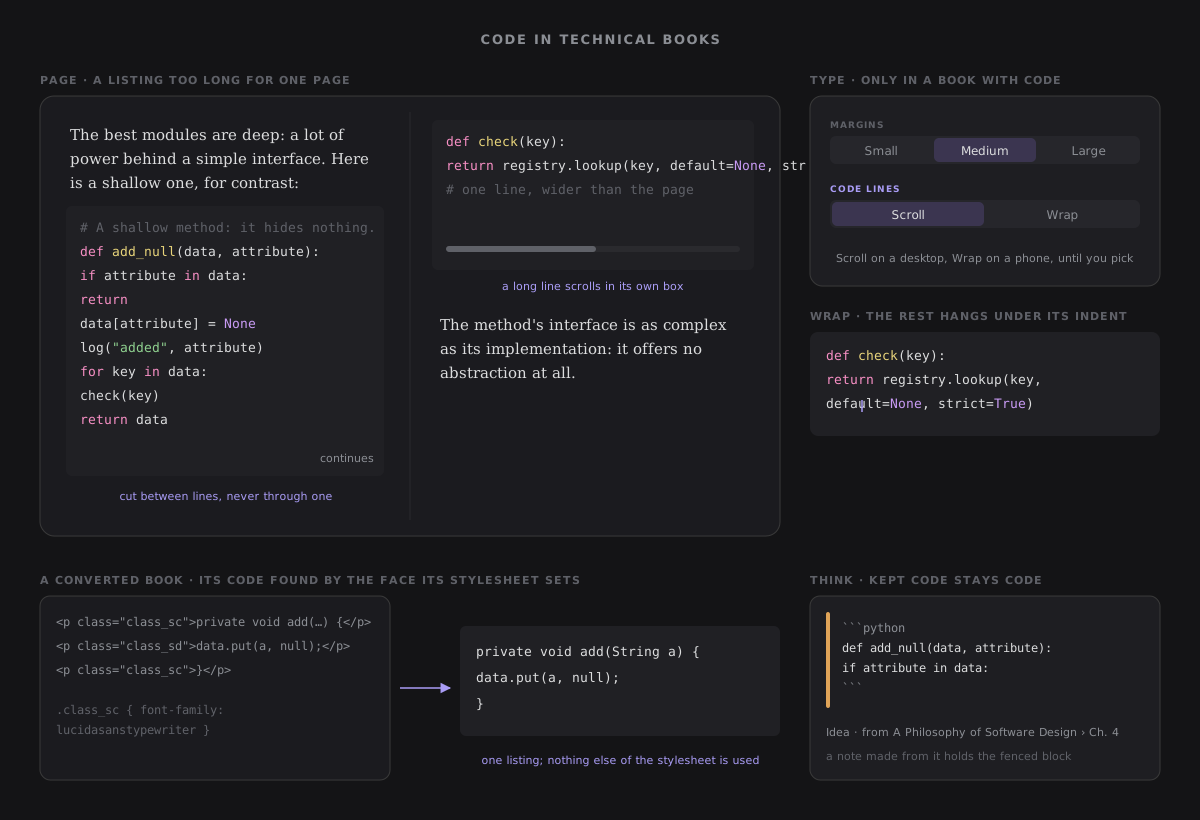
- Coloured by your theme, the same as in your notes. When the book says what language a listing is in (
data-code-language="python",data-lang,class="language-python"…), the Reader colours it with the Prism Obsidian ships, so a keyword in a book is the colour of the same keyword in a note's code block. Only that one fact survives from the book's markup, and only from a closed list of about 45 languages; the book's own colours, classes and styles never reach the page. A listing in a language off the list, or one that names none, is still code: monospace, uncoloured. - Found in a converted book too. Most EPUBs sold today are conversions, and they rarely write
<pre>: a listing is one paragraph per line, set in a typewriter face by the book's stylesheet. The Reader reads that stylesheet for one thing, which classes are set in a monospace face, and makes their consecutive lines one listing, indentation included; inline code in that face becomes inline code. Nothing else of the stylesheet is used. - Whole lines, on their page. In Page and Spread a listing that fits a page is kept whole, on the next page if the rest of this one cannot hold it. A longer one is cut between lines, never through one: each part fills a page and says, quietly, that it continues. Back in Scroll it is one listing again.
- Code lines: Scroll or Wrap (in Type, only for a book with code). Scroll keeps every line whole and lets a long one scroll sideways inside its own listing; Wrap folds it, the rest hanging under its own indent. Until you pick, a desktop or a tablet scrolls and a phone wraps. A drag inside a listing that can scroll moves the listing; at its edge, or beside it, it turns the page.
- Kept code stays code. Highlight lines of a listing and keep them: the thought records that the passage is code and its language, Think shows it in monospace, and a note made from it holds a fenced block (
```python) with its lines and indentation as they were. - A PDF's code too. In a PDF's reading view, lines set in a monospace face become the same listing, uncoloured, since a PDF names no language (what a page keeps).
Two things worth knowing: - An element's lang is never a hint. It names a human language (cs is Czech, not C#), and it stays what the column hyphenates by. - Old highlights in a converted book's code were made when its lines were separate paragraphs. Most are found again by their words, because the Reader reads a run of spaces as one. A few made on a book whose markup ran its lines together, with no space between them, may not be found. Those are listed, never lost.
Under the Reader's own Light, Sepia or Dark look, code takes Obsidian's default code colours from that look's palette. A community theme's own --code-* colours show under Your theme.
Type you can tune¶
The Type panel is one panel, read top to bottom: Layout (above), Look (the reading theme), Font (your theme's own, or a serif), Size, then the finer type — Line spacing, Width, Margins and, in a book with code, Code lines (code in technical books) and Justify — then Focus mode, the time left and Pause at chapter ends (what survived?). Each row has its name, and the marker under your choice slides to the next one you pick. Every change applies at once, so you choose by looking, and the choices are kept for every book, next time too.
The panel lies beside the page, never over it. On a wide pane it docks on the right, where Alongside sits, and the column makes room with the line you were reading kept where it was — so you see what Size, Spacing or Width do to the very page you are reading. On a narrow desktop pane it lies over the page's edge, as Alongside does; on an iPad in portrait it is the bottom sheet.
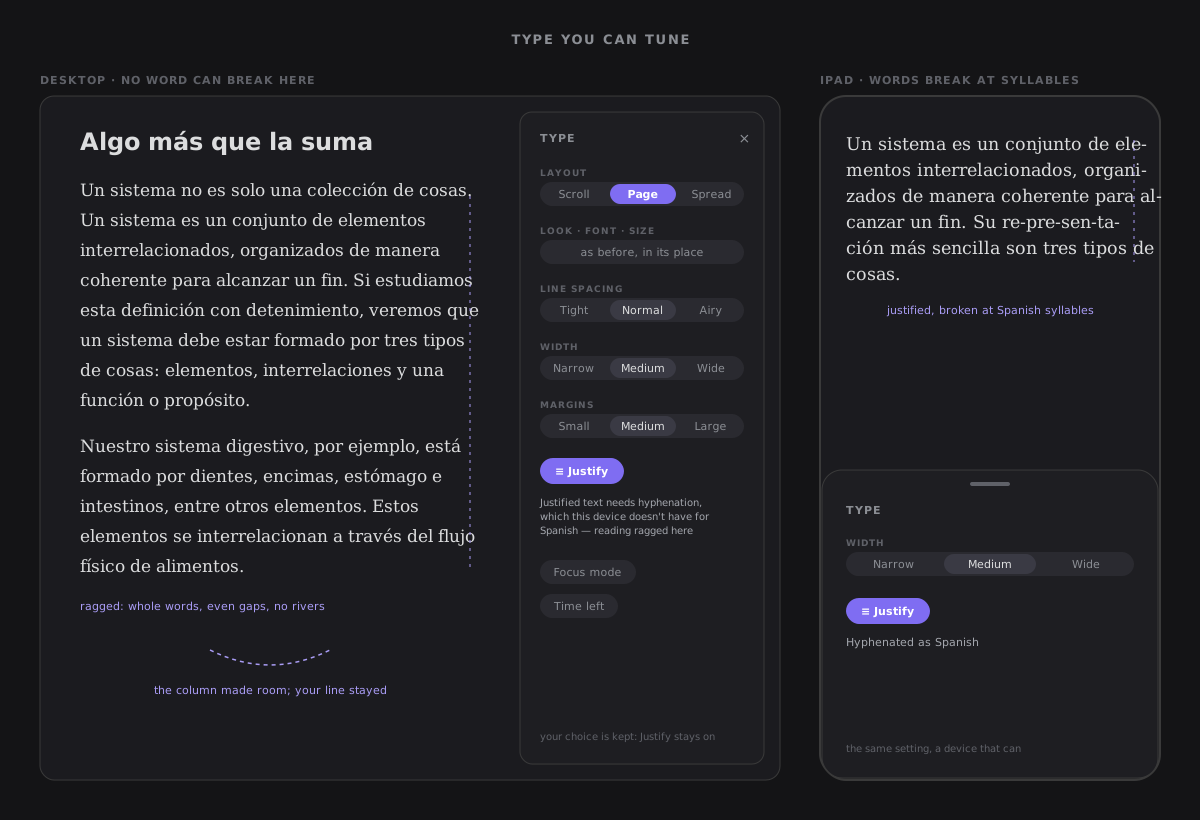
| Row | The three steps | The default |
|---|---|---|
| Line spacing | Tight · Normal · Airy (1.5 · 1.75 · 2) | Normal |
| Width | Narrow · Medium · Wide (about 56 · 68 · 80 characters a line) | Medium |
| Margins | Small · Medium · Large (the room between the text and the edges) | Medium |
| Justify | off · on | off |
- The defaults are the page as it always was. Someone who never opens these rows sees exactly 3.6's page, and preferences saved before them read as they did.
- Width is in characters, so it follows the size. Wide stops at about 80: a longer line is hard to find your way back along. On a narrow screen (a phone, an iPad in portrait) Wide is as wide as the page allows, and stays chosen for when there is room.
- Margins show where the screen is narrow: on an iPad, Large leaves somewhere to hold it without a thumb on a word. In Page and Spread they are also the air between the pages, and Width is the pages' line.
- Justify evens the right edge and breaks long words with hyphens — in the book's own language, and only where words can break. The column declares what you are reading: an EPUB's language (its package, or a chapter's or a passage's own
lang/xml:lang), a PDF's when it declares one. A PDF that declares none, and a note reading, keep Obsidian's language, as before. Under the switch the panel says, quietly, which language the words are hyphenated in (Hyphenated as Spanish), so a wrong guess can be seen. The hyphenation itself is the platform's, and a justified column with no word broken opens wide gaps between its words — so the Reader asks this device, once per language, and where it cannot hyphenate the language it sets the text ragged and says so: Justified text needs hyphenation, which this device doesn't have for Spanish — reading ragged here. Your choice is not changed: the same setting justifies on a device that can. The iPad and macOS app hyphenate; the Windows desktop app ships without hyphenation dictionaries (measured in Obsidian 1.14.4), so there it reads ragged. A device that cannot be asked justifies as before and says nothing. - No line alone. In Page and Spread a paragraph never leaves a single line at the foot of a page or the head of the next.
- Your line stays. A change lays the page out once, puts the line you were reading back where your eyes are, and the lines around it settle in (a 120 ms fade from 0.85). Width, margins and spacing are never animated as such. Under reduced motion it is all instant, and the line is still kept.
- PDF Page view draws the page as printed: these rows shape the reading view only, and the panel says so in one line.
| Theme | Looks like |
|---|---|
| Your theme | the reader uses whatever Obsidian looks like now |
| Light / Dark | your theme's own light or dark palette, for the reading column only |
| Sepia | the light palette warmed with your theme's yellow |
No colour is invented: every look comes from your theme.
What it writes¶
Nothing, to any note you read. Reading is the whole job, and a test holds the line: nothing in the Reader reaches a file writer — except Export, Recall's Create note and Snapshot's choice, and only when you press them: create-only (or an append to the note you picked), through FileService, in a recorded batch you can undo. The things you can keep while reading — a highlight, or an ink note — are thoughts in Think, written through the thought store like every other thought, and a second test holds that line too. An ink note adds one file to its thought: the drawing, an SVG of the same name beside it in the thinking space, written in the same recorded batch. What the pen writes and you have not kept is page ink: one file per book in the thinking space's ink/ folder, never a thought, written through FileService once per pause, turn or close (PageInkStore.ts). An older version of the plugin reads an ink note as a highlight with no note; nothing is lost. A note made from a passage — through the same preview as everywhere, create-only — carries its source list from the start; a crystallize flow's note gets it added once the flow has built the note, as one recorded property write you can undo (its own row in Recent, after the note's). The book itself is never written. The only things it remembers are where you are in a reading (in the workspace layout, and the resume places in the plugin's settings), your type choices and the paths you saved (in the plugin's settings), and the places you bookmarked in a book or a paper (beside its resume place, in the plugin's settings — an older version of the plugin reads past them, so going back to one forgets them). Choosing a way through a note writes nothing either, and neither do peeks, detours or adding a note to a reading — an added note lasts as long as the reading on screen. Alongside writes nothing while you read, scroll or switch lenses; its Not related is one verdict in the judgement record, never a write to a note, and whether it is open and its lens are kept on this device only. A move by your AI provider writes only what you accept: one thought. Make it a claim writes one new note when you press Create — create-only, through the claim's one writer (claimWrites.ts, over FileService), in a recorded batch — and Link to an idea one entry of the idea's source list, through #751's one writer. Layers write only the layer a new mark is made on, beside its meaning (layer:, never for Reading), and the layers you show and where new marks go, per book, in the plugin's settings; hiding and revealing write nothing. What survived? writes nothing: the time spent on a chapter and a skip live in memory only, the switch is one of your type choices, and a note comes only from the preview's Create note. Recall writes nothing while you write, reveal or leave — your words are a draft in memory for as long as the Reader is open — and one new note only on its preview's Create note: create-only, through the Reader's second named writer (readerRecallNote.ts, over FileService), in a recorded batch you can undo. Snapshot writes nothing while you drag or look at its card; a choice writes the image, as an attachment, and the one thing that refers to it — a new note, a fleeting note, or the lines added at the end of the note you picked — through the Reader's third named writer (readerSnapshotSave.ts, over FileService and the thought store), as one recorded batch you can undo. Cite writes nothing at all: its only act is Copy, which puts the citation you see on your clipboard. Re-anchor writes one thing, on Anchor here: the same thought, with its new passage and place. A rename of a book you read moves what is keyed by its path (its ink file, the about of its thoughts, its place, bookmarks, layers and resume entries) as one recorded batch, from the plugin's own rename listener (SourceRenameFollow.ts); a book with nothing of yours writes nothing.
For contributors¶
- The view is
ReaderView(zettelflow-reader), a standaloneItemViewlike This note, andopenReader(app, seed)is its only opener. - Touch (#750) is decided in pure modules the later slices reuse:
readerDevice.ts(what the device is:touchPointer,isApple,canFullscreen,panelShape,DEVICE_LIMITS/tooLarge),readerGestures.ts(the classifier:startGesturelocks a tap, swipe, scroll or press once;edgeZone,isThing,releaseTurn,rubberBand,completionRate,twoFingerBack, andtwoFingers— two fingers decided once as a pinch, back or a tap (#776);EDGE_BACK_SWIPEstays off: the left strip is Obsidian's),readerPlace.ts(placeAt/scrollFor: a block and a share of it, kept through a reshape) andreaderSheet.ts(the sheet's heights and settle).beginChapterScrubinreaderTurn.tsbuilds the clock's own turn paused and moves it by the finger; the chapter shown next adopts it (adoptChapterScrub). - Pages (#753) are CSS multi-column, not a pagination engine: in Page and Spread the chapter's
<article>is one strip of columns the stage's height, moved with the individualtranslateproperty (so it never clashes with thetransformthe entrance uses). The decisions are pure inreaderPages.ts(pageGeometry,spreadFits,pageCount,pageHolding,pageForShare,keyIntent,edgeTurn,forwardSign);readerPager.tsmeasures once per layout insidemeasure("reader.paginate")(shown under Settings › Advanced › Timings from this vault), writes--zf-page-*withsetCssPropsand animates the turn ontranslatealone. A place is aRangeat the first line on screen, so the DOM is never rebuilt.readerSettle.tssettles the text around that line after a change;readerTypePanel.tsdraws the Type panel withsegmentedRow— the one control later rows reuse. Page turns at a chapter's ends go through the view'sgo(±1), where the chapter turn is played. - Speed (#825): the four moments a reader waits through are timed with the same
measureinstrument and listed in Settings › Advanced › Timings from this vault, each with how many times it ran.reader.chapter.openis astopwatchinrenderSourceChapter, abandoned when another open overtakes it and for a paper or a designed page.reader.page.turnwrapsReaderPager.turn()and a completedrelease(),reader.relayoutwraps the reshape insavePrefs, andreader.chapter.turn.startwrapsbuildTurn. Their budgets are in Performance budgets, and a slow chapter's waiting state isarmChapterWaitinreaderWaiting.ts. How smooth the Reader's motion is, frame by frame on a desktop and an iPad, is in the motion audit (#826). - The trail and bookmarks (#761):
ReaderTrailinreaderJumps.ts(one trail:push,pop,listnewest first,takeAt; per reading, at most 20) holds a spot — the chapter and an offset intochapterText(offsetAt/pointAtinreaderMarks.ts), with the share and scroll as fallbacks — and itsTrailReason. Bookmarks are pure inreaderBookmarks.ts(bookmarkAtkeeps the offset and an ~80-characterTextQuote;landingOffsetfinds it again by its words; at most 200 a book) and kept inSourceMeta.bookmarks(withBookmarks;withFactscarries them through a replaced file) byrememberSourceBookmarks. Every move goes through the view'slandOn/landHere: another chapter isshow()with its turn, then a landing at once; this chapter is a travel —ReaderPager.travelTo/reveal(anchor, true)in pages andglideToin a scroll, both ontranslate, planned by the purereaderTravel.ts(pageTravel,scrollTravel,travelDuration). They return how long they take, andreaderHere.tswaits that long before the you are here mark (markHereAt,markHereOn;zf-reader-here, opacity only). The oldreader-highlight--flashbox-shadow ring is gone. - Alongside (#754) is pure in
architecture/knowledge/alongside/(the State barrel exports it):alongsideVocabulary(titles and aliases, folded and indexed by first word, memoised per revision;commonWords.tsholds the never-matches list),nearPassage(named · born from this chapter · born from this book · marked · the chapter's note; one reason each, scope-filtered by the model),alongsideLenses/allOf(the six lenses overnoteNeighbourhood,sharedContext,findContradictionsandbuildEvidenceMap) andwithNamed(Think's thoughts read once). The verdict ischapterVerdict/ruledOutInChapterinjudgement/chapterVerdict.ts(reader-not-related:<book>#<chapter key>), which #756's Reject writes too. The panel isReaderAlongsideinreader/readerAlongside.ts(ALONGSIDE_SETTLE_MS,UNDO_MS, thezettelflow-reader-alongsidelocal-storage key); its cards move withreconcileinreaderFlip.ts— the keyed FLIP list #756, #759 and #762 reuse. The view hands it the passage (blockAtLineinreaderPlace.ts) and keeps the reading line through the column's change (holdReadingLine). - Provenance (#751) has one producer and one reader, both pure in
application/library/provenance.ts:PassagePlace(file,chapterkey,label,page, boundedquote),placeOf(thought),boundQuote,samePlace,sourceEntry(place, title?)/readSourceEntry(value)(the written form),serializePlace/parsePlace(the view state's one-shotat),passageLink/parsePassageLink(the URI),resolveChapter/chapterFromLabel,printPageAtandmergeSourceEntries. The one property writer isaddSourceEntries(file, entries)inarchitecture/plugin/library/sourceWrites.ts(throughFrontmatterService, in areader-sourcebatch).SourceChapter.key/.pageandDrawnChapter.pageMarkscome from the sources;ThoughtLocator.chapter/.pagefrom the highlight. The view lands anatthrough the samelandHereas a bookmark — aSpotwith apassagequote, anchored onfoldMarks(chapterText)and put atREADING_LINE(readerPlace.ts) withReaderPager.reveal(anchor, travel, line)— or showsreader-passage-missing. The protocol handler lives inReaderComponent(readerLink.ts). - The overview (#776) is
readerOverview.ts, which #767'sreaderThumbs.tsgrew into: pureoverviewUnits(a PDF's and a designed book's pages, a flowing book's chapters, each part of a mixed book as itself),cardMarks(one tick per place and colour — at its share of the drawn text, else at the edge — the pen, the ribbon; never a count),cardProgress,cardPixels(capped atCARD_DPR_MAX),releaseFarthestagainstOVERVIEW_LIMITSandnormalizeContentsTab(pagesandoverviewread ascontents: the overview is its ownPanel, #784), and one DOMrenderOverview(paper sheets, anIntersectionObserverfrom the panel's window, adraw → let goseam, a first-draw fade, roving focus). The view draws a card through the run'sdrawThumbin Page view, its own one-at-a-time queue overSourcePages.renderin the reading view,SourcePages.mountfor a designed page andSourceDocument.draw(pruned toPREVIEW_BLOCKS) for a chapter. The shots arepullBack,flyToCardandreturnToPageoverfly(), which now returns itsAnimationso input finishes it. Two fingers aretwoFingers/pinchReleaseinreaderGestures.ts; Page view's run asks the view throughPageRunHost.onPinchOut(scale). The chapters read to their end areSourceMeta.read(withRead,rememberChapterRead). - Deep reading (#764) is the idle bar grown up, not a new state: page only is
reader--deep+reader--idle, the overlay isreader--deepalone, sowake()and theIDLE_MStimer are the ones the bar always had, andidleAllowed()keeps the chrome while a panel, search or a popover is open.readerDeep.tsis pure:isReadingKey(the keys that turn quietly),movedEnough/JITTER_PXandescapeStep(the one Esc order). The window's fullscreen is asked ofdoc.bodyonly wherecanFullscreen(doc)says so, and given back only if deep reading took it; afullscreenchangeto windowed forgets that.reader--deep-entering/reader--deep-leavingcarry the 250 ms gesture; the stage's insets never change underreader--deep. On a desktop,deepCover(inopenReader.ts) slides Obsidian's ribbon, tab bar, sidebar toggles and status bar away (reader-deep-hides-app), then lets the Reader's leaf cover the window (reader-deep-covers-app);holdLinekeeps the first block on screen at the same height through the cover, both ways, and the column travels sideways to its new centre inside the same 250 ms gesture (columnShift+ a FLIP incoverKeepingColumn), so the cover never steps. - On mobile,
coverApp(inopenReader.ts) putszettelkasten-flow__reader-covers-appon the body: the stylesheet slides Obsidian's chrome away and lets the Reader's leaf cover the screen. The stage setsdata-ignore-swipefor the touches it takes, which Obsidian's own drawer swipe respects. - The opener snapshots the sidebars, folds them and opens one reader leaf.
restoreWorkspacegives them back, once. - The snapshot also lives in the view state, so a reader left open across a restart still restores.
- Keys (#667) are registered on the view's
scope(new Scope(app.scope)), which Obsidian's keymap consults for the active leaf whatever has focus. A handler returnsfalsewhen it took the key; Esc is always taken, or Obsidian's global Esc would move the focus to another tab. The three commands live inReaderComponentand usegetActiveViewOfType(ReaderView). ReaderView.exit()addsreader--leaving, waits for the fade (instant under reduced motion) and callsexitReader: restore the sidebars, re-activate the previous leaf, detach.- Obsidian sets
body { user-select: none };reader.scssgivesuser-select: textback to the chapter body, or nothing in it could be selected — the cause of "highlighting does nothing". - The progress numbers are pure (
readerPace.ts); focus mode marks the block at the reading line with anIntersectionObserveron the stage. - The ways come from pure generators in the State layer (
readingPath.ts):aroundThisNote,argumentPath,storyPath,essentialsPath,regionPathandselectionPath, offered together byreadingPathOptions(model, seed, inputs). They are onzf.knowledge.readingPathsandzf.knowledge.readSelection;readFromHerestays. - What the model does not hold — the near-but-unlinked notes (the resurface ranking) and when each note was first worked on (decisions and moves) — is read once, in
readerPaths.ts, and handed in. - The chooser is
ReadingPathModal;readFromandreadSelectionare the doors' shared entry points. The view state carrieskindand, for a picked set, itspaths. - Highlights (#671) are
ReaderHighlights(readerHighlights.ts): selection → popover → a thought written byThoughtStore.write(text, { about, quote })inside a recorded batch. The anchor is a text quote (exact,prefix,suffix, ~32 characters each, plus theheading), matched by the pureanchorQuoteinapplication/thinking/quoteAnchor.tswith whitespace folded.readerMarks.tswraps the matched span in one<mark>per text node.openReader(app, { seed, highlight })lands on one. - The end of a path (#672):
readerEnd.tsrenders the card (it writes nothing; every action is a callback from the view). Saved paths are pure (readerSaved.ts: newest first, at most 30, one entry per set of chapters) insettings.readerSaved, reopened as aselectionwith aname. The document is built by the purebuildReadingDocument(readerDocument.ts);readerExport.tsis the preview and the only reader file a test lets reachFileService. Cultivate takes atargetin its view state.