Your Library
The sources your ideas come from. Ideas rarely start in a note: they start in what you read — a paper, a book, a long article saved as a PDF. The Library puts those sources on one shelf, beside the reading paths you saved across your own notes, and says what came of each one: how far you are, what you marked, and the notes born from it.
Open it
- The ribbon menu → Library. The door that is always there, whatever you have open.
- Right-click a PDF or an EPUB → Read in the reader opens it in the Reader where you left it.
- Right-click a PDF or an EPUB → Show in the library opens the Library on that source's detail.
- Command palette → "Open the library", which you can bind to a hotkey.
The Library opens in the main area, like any tab. It is laid out to work as well in a narrow pane, a sidebar or an iPad: the books get a little smaller, the desk stacks, and the row of chips scrolls sideways instead of wrapping into three lines.
What is on it
Four kinds of things share the Library:
| Kind | What it is | Its cover |
|---|---|---|
| Books | the EPUBs in your vault, and any PDF longer than sixty pages | the book's own cover |
| Papers | the PDFs in your vault up to sixty pages | the PDF's first page |
| Articles | the pages you saved with Obsidian Web Clipper (see Articles from Web Clipper) | drawn, in one of your theme's colours |
| Paths | the reading paths you saved at the end of one | a constellation of its notes |
Nothing is imported. A source is a file that is already in your vault, in any folder: drop a book in and it is on a shelf; delete it and it is gone. Nothing is uploaded and nothing leaves the vault.
The bar that stays
Everything you search, filter and order by sits in one bar at the top, and it stays there however far down the shelves you scroll: translucent over the books, with a fine line under it once something passes beneath.
- The search finds titles, authors, series and shelves, accent-blind (sonke finds Sönke). / puts the cursor in it from anywhere in the Library — never while you are typing elsewhere.
- One row of chips. First the kind — All · Books · Papers · Articles · Paths, each with its count; then the shelf — Every shelf · Reading · Want to read · On the shelf · Finished (a status shelf's chip is there once something stands on it), then your shelves, each with a small bookmark, and + New shelf. Shelf chips carry no counts.
- The order — Recently read (never-opened things last, by title), Most highlighted, Title or Recently added. After a change of chip or order, a result you were scrolled past starts right under the bar; at the top, nothing moves.
- Covers | Spines — how the books stand (see Spines). It is the same value as Settings → Reading → Library shows books as: change it in either place.
The Library remembers the chips and the order across sessions, and the control you pressed keeps the focus while the shelves redraw.
The desk and the shelves
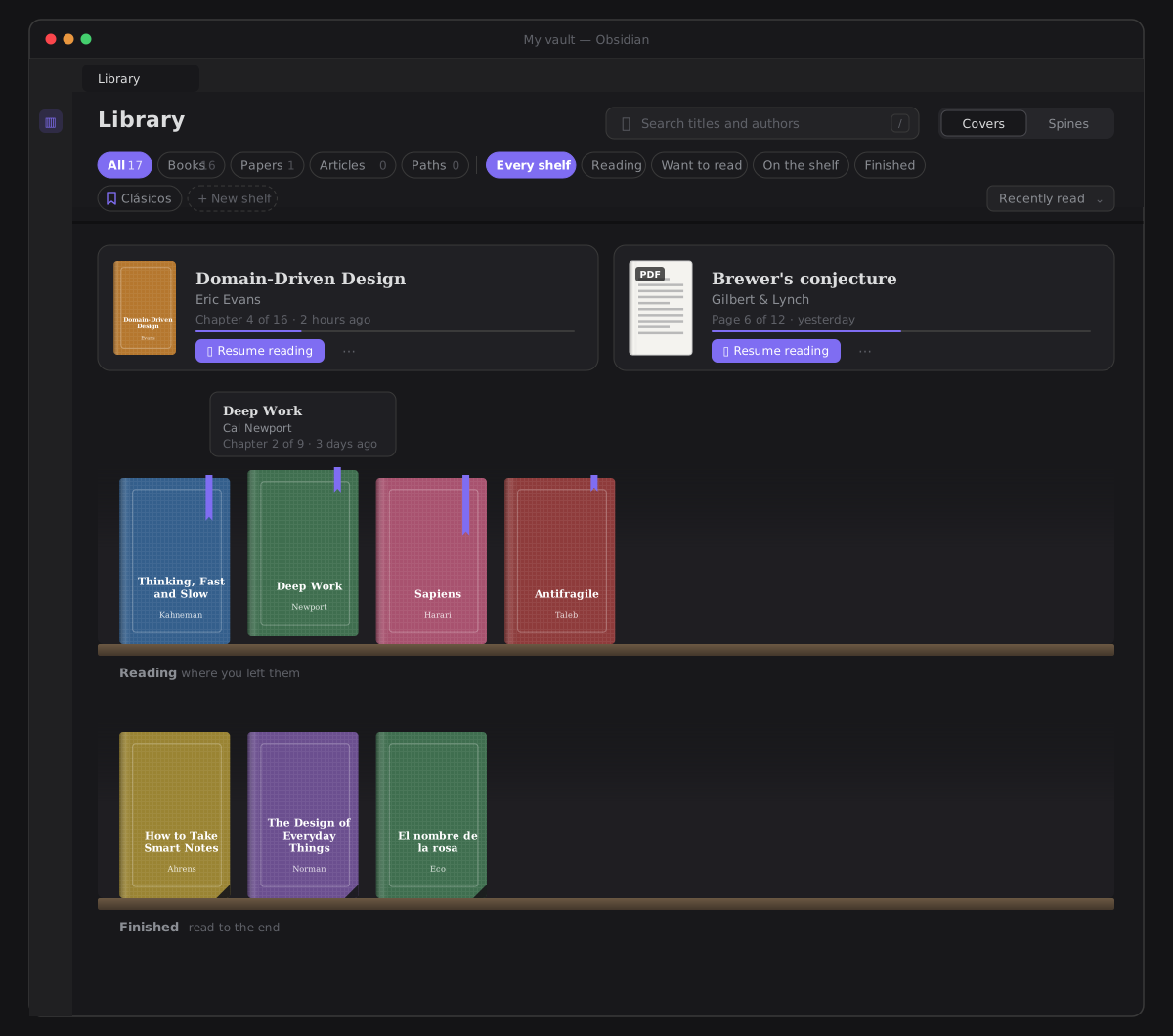
The desk comes first: the books you are reading now, open in front of the shelves — up to two, the one you were in last first. Each is a small card with its cover, title and author, where you are and when (Chapter 4 of 16 · 2 hours ago), a thin thread for how far, never a number — and Resume reading. A book you marked Finished, or put back to Want to read, is not on the desk. The desk is there only while every shelf is shown: pick one shelf and it steps aside. Back from the Reader, the book you were in breathes once.
The shelves follow, each on a plank with its name on the plank's edge, the way a library labels them:
| Shelf | What stands there |
|---|---|
| Reading | where you left them — books you opened and have not finished, beyond the two on the desk; and a book you set to Reading before opening it, with the shortest ribbon |
| Want to read | next on the pile — what you said you want to read |
| On the shelf | not started yet — a book nothing is said of: never opened, no status |
| Finished | read to the end |
| Your shelves | after the four, A→Z — see Your shelves |
A book stands in one place. On the desk, or on its first shelf of yours, or else on the shelf of its status. A shelf with nothing on it is not drawn (a shelf of yours is: it waits for books). A shelf longer than the pane is one row that scrolls sideways, with momentum on a trackpad and a finger, and the Library keeps where you were along each shelf through every redraw and back from the Reader.
Books at a real size. A cover is the size of a book on a shelf, not a poster: about six to a row on a laptop, the shelf's own scroll for the rest. Nothing is written under a cover — the cover is the book. Its title, author and where it stands are said once to a screen reader (Open Deep Work, Cal Newport, Chapter 2 of 9 · 3 days ago) and shown on the card that rises when you point at a book or reach it with Tab. Its state shows on the book itself:
- a ribbon hangs from a book you are reading — longer the further you are, never a percentage;
- a folded corner marks a book you finished, so it still says so on a shelf of yours;
- PDF, small in the corner, marks a paper.
Drawn covers look cloth-bound. Until a cover has been read — and for an article, always — a book is drawn in one of your theme's colours with a hinge down its left edge, a fine weave and a blind-stamped frame, its title in a serif and its author in italic, said once. Covers are read as they come into view, along a shelf too.
⋯ on a book opens its menu: Details, and Move to shelf… (see Your shelves). Under them are the file's own actions, in Obsidian's words (#856): Open in default app, Reveal file in navigation (it is shown and selected in the file explorer) and Show in system explorer. Each appears only where it can work: the last on desktop only, Reveal while the core file explorer is on, and none for a reading path. A right click opens the same menu.
Arrivals. A file that arrives while the Library is open settles onto its shelf — a touch smaller and clear, to itself — and the books beside it make room; nothing moves when the Library is first drawn, and under reduced motion it is simply there.
Spines
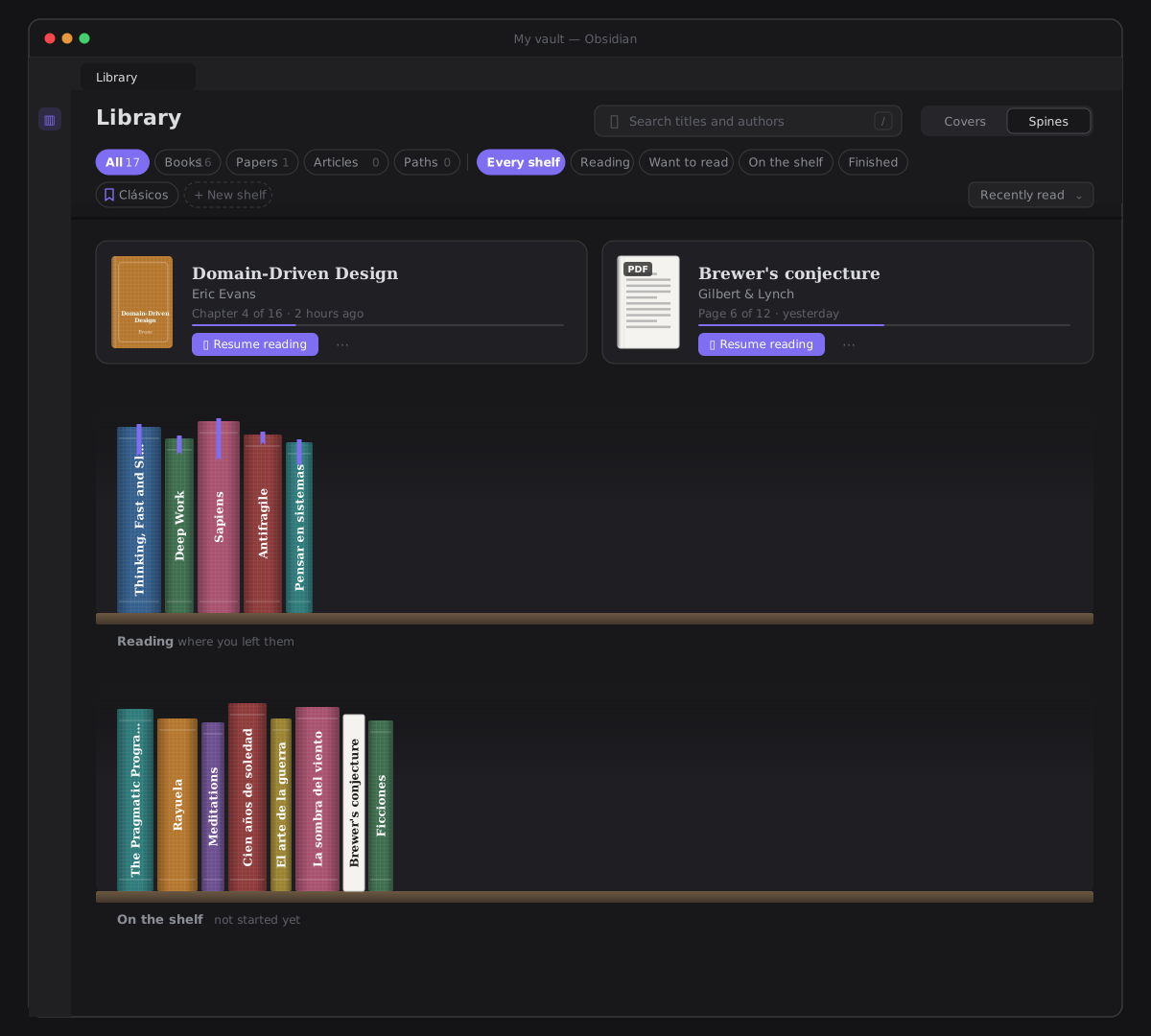
Covers | Spines in the bar turns every book on the shelves spine-out — the desk keeps its cards. A spine is as thick as the book is long (its pages, its chapters, an article's sections, a path's notes — never its file size), and of its own height, a little under a cover's, the same every time; the title runs up it. The ribbon and the folded corner are on spines too. The choice is one value with Settings → Reading → Library shows books as (Covers until you choose).
A scanned PDF says so before you open it
Some PDFs are pictures of pages: a scan has no text, so there is nothing to select and nothing to highlight. When the Library reads a PDF's cover it also looks for text on its first pages, and a PDF without any says Scanned · read only on the card that rises over it, to a screen reader, and in its detail. You can still open it and read it.
Your shelves
Collections are shelves. The names you gave books — Planning, Clásicos — are shelves of your own, beside the Library's four: one idea, not two. Nothing already in a collection is lost: a shelf of yours is read from the same collections property of a book's note (or an article's own frontmatter), and written to it.
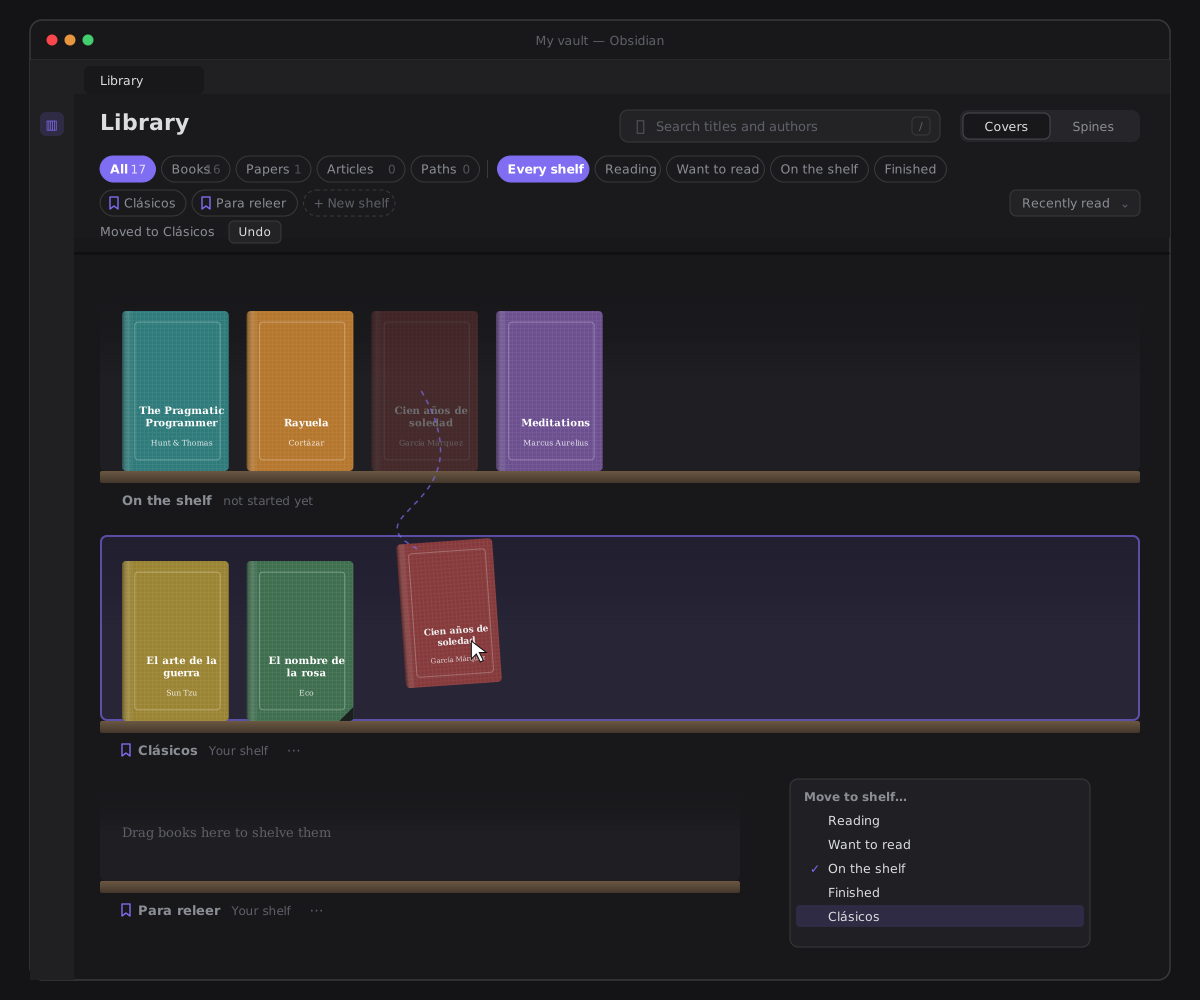
- Make one. + New shelf, at the end of the chips: name it where it will stand and press Enter (Esc lets it go). An empty shelf stands with Drag books here to shelve them on it. A name you already have, an empty one, or one of the Library's own — Reading, Leyendo, in any language the plugin speaks — is refused beside the field, saying why. Making a shelf writes nothing to your vault: the shelves you made are remembered in the plugin's settings (
libraryShelves). - Put a book on it. Drag a book onto a shelf on a desktop: it lifts out of its place, its cover goes with the pointer, and only a shelf that can take it lights up — the rest say not allowed. On an iPad, press and hold a book until it lifts, then drag it: a quick swipe is still the shelf's own scroll. Esc, or letting go anywhere else, puts it back with nothing written. Or, without dragging: ⋯ → Move to shelf…, which lists every shelf it can go to, the one it stands on checked — from the keyboard too. You can drop where every shelf is shown; Move to shelf… works everywhere.
- Filter by it. Its chip in the bar shows every book on it — first shelf or not.
- Rename or delete it from ⋯ on its label: Rename shelf edits the name in place, across every note that has it; Delete shelf takes it off every note — its books stay, on their next shelf. A saved reading path is never put on a shelf.
What a move writes, into the book's note (made in the Book notes folder if the book has none yet) or an article's own properties — collections and status, nothing else:
| You put the book on… | collections | status |
|---|---|---|
| your shelf X | X first, the others kept ([X, …]) | unchanged |
| Reading, Want to read or Finished | removed — it stands where you put it | set to that status (unchanged if it already was) |
| On the shelf — only a book never opened | removed | removed |
| renaming shelf A to B | A becomes B where it was in each list | unchanged |
| deleting shelf A | A removed from each list | unchanged |
Every change — one book, or a shelf renamed across forty notes — is one recorded write: Undo sits on a line in the bar (Moved to Clásicos · Undo) for half a minute, and What ZettelFlow changed lists it too. A write that fails says so on that line and moves nothing. The book is carried to its new shelf by a translate; under reduced motion it is simply there.
The archive
Put away, never lost. A framework manual three versions old, a report read once, an article clipped years ago: the Library keeps a filing cabinet at the end of the stacks for what no longer earns shelf space. What you archive leaves the shelves, the counts in the chips and the search — and waits in a drawer until you take it back.
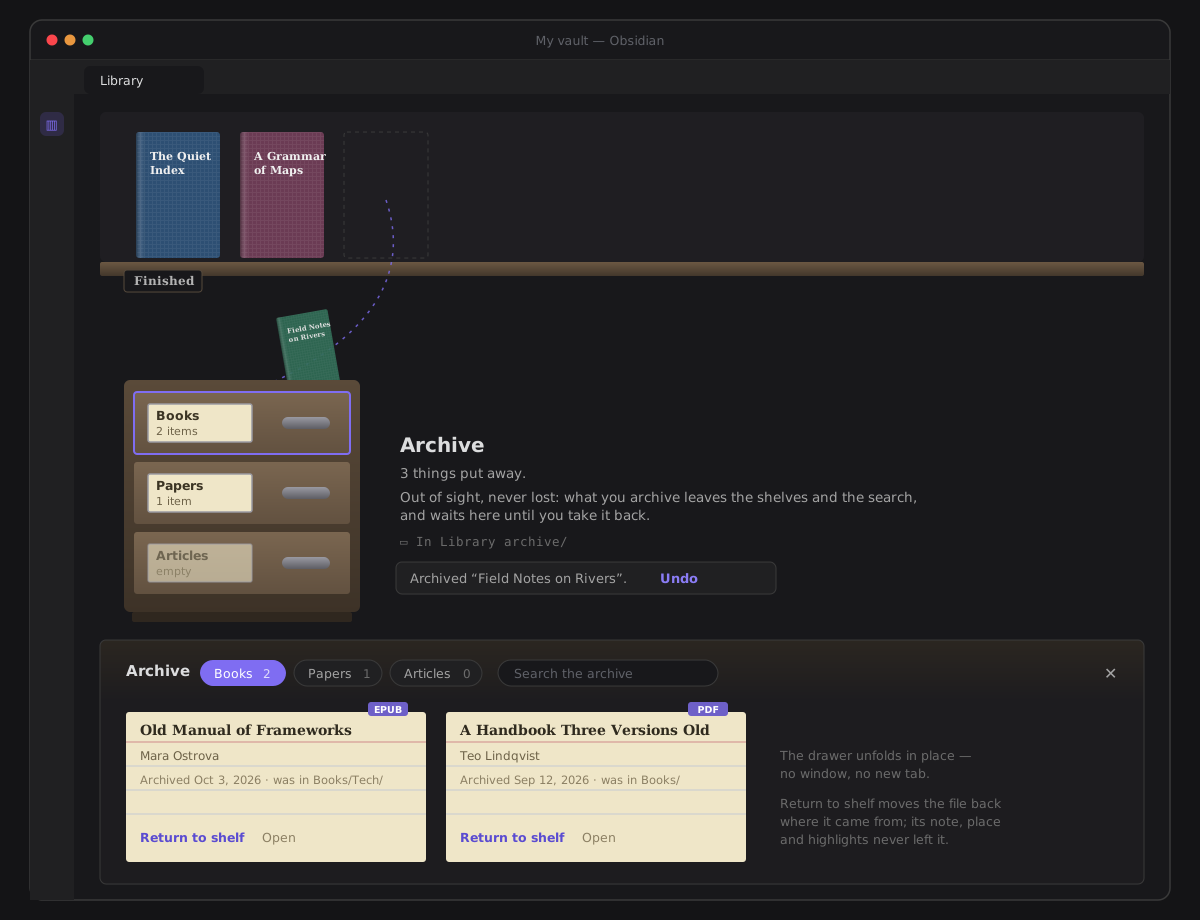
- Archive a book, paper or article three ways, wherever you already are: drag it onto the cabinet (on an iPad, press and hold, then drag — near the bottom edge the shelves scroll down to meet the cabinet), ⋯ → Archive in its menu, or Archive in its detail. While a book is carried the cabinet says it will take it — Drop it in the cabinet to archive it. The book flies into the cabinet (under reduced motion it is simply gone from the shelf), and a line beside the cabinet says Archived “…” with Undo. A saved reading path is never archived.
- Open a drawer. Click Books, Papers or Articles on the cabinet: the drawer unfolds below it, in the same view, into index cards — the title, who wrote it (or the site), the format, the day it was archived and the folder it was in. The drawer has its own search and chips to switch drawers; Close the drawer (or click it again) pushes it back.
- Return to shelf moves the file back where it came from — the vault root if that folder is gone, a free name if its own is taken; an article goes back inside the articles folder, so it is an article on the shelf again. Open reads it in the Reader straight from the archive; it stays archived.
- A search that finds something put away says so under the bar — 1 more in the archive — with Look in the archive, which opens that drawer with your search in it.
What archiving does. It moves the file into the archive folder — one recorded write, taken back by Undo or in What ZettelFlow changed — and never changes it. The book's note stays where it is and keeps pointing at the book: with Automatically update internal links off, Obsidian asks whether to update the links — and whatever you answer, if the note's book link no longer names where the book is, ZettelFlow rewrites that one property in the same write. Your place, bookmarks, layers, highlights and shelves follow the file there and back. Anything you drop into the archive folder by hand is archived too; its card says it does not know where it came from.
The archive folder is set in Settings → Reading → Archive folder — Library archive until you choose. It must be a folder of its own: it cannot be, sit inside, or hold the Book notes, Articles or Dictionaries folder, and those refuse the archive's folder the same way; the field says why while you type and keeps the last valid folder. Empty turns the archive off: no cabinet, no Archive in any menu, and what is in the old folder is an ordinary folder again. Change the folder while things are archived and the row offers, in place, to move them to the new one or leave them — books and papers left behind go back on the shelves; articles stay there as ordinary notes, outside the Library. Where each archived thing came from is kept in the plugin's settings (libraryArchive).
A source in detail
⋯ → Details on a book opens its detail, over the shelves: the cover, the title and author, the file, and one sentence of what came of it — 13% read, 4 hours ago · 3 highlights · 1 note born. Only what is there is said: a book never opened says nothing there, no count of none is written, and a book opened but under one per cent is Started. Below it, what it produced in your vault, and your highlights, by chapter — every passage with your note under it, each one opening the source at that passage. A section with nothing in it is not drawn at all; when neither has anything, one quiet line says Nothing marked or made from it yet. Open it and select a passage. Esc or Close puts the detail away. However far down the shelf you are, the detail and its dim cover the pane where you are, and the shelf waits under them: closing the detail leaves you exactly where you were.
The detail also holds the book's Details — see A book's note.
Cite this book
Cite this book, beside Open in a source's detail, opens the Reader's cite panel for the whole book, with no passage: Markdown, inline, a citation key, BibTeX or CSL JSON, drawn from the book's note (or an article's own properties). It grows from the button. Esc puts it away and the detail stays. If a form lacks something, Add it puts the cursor in that field of the Details below. Cite writes nothing; Copy puts the citation on your clipboard.
What a book produced in your vault
A source's detail answers what did this book do to my thinking? — as lists, never a score. Under What it produced in your vault, each list is shown only when it has something in it:
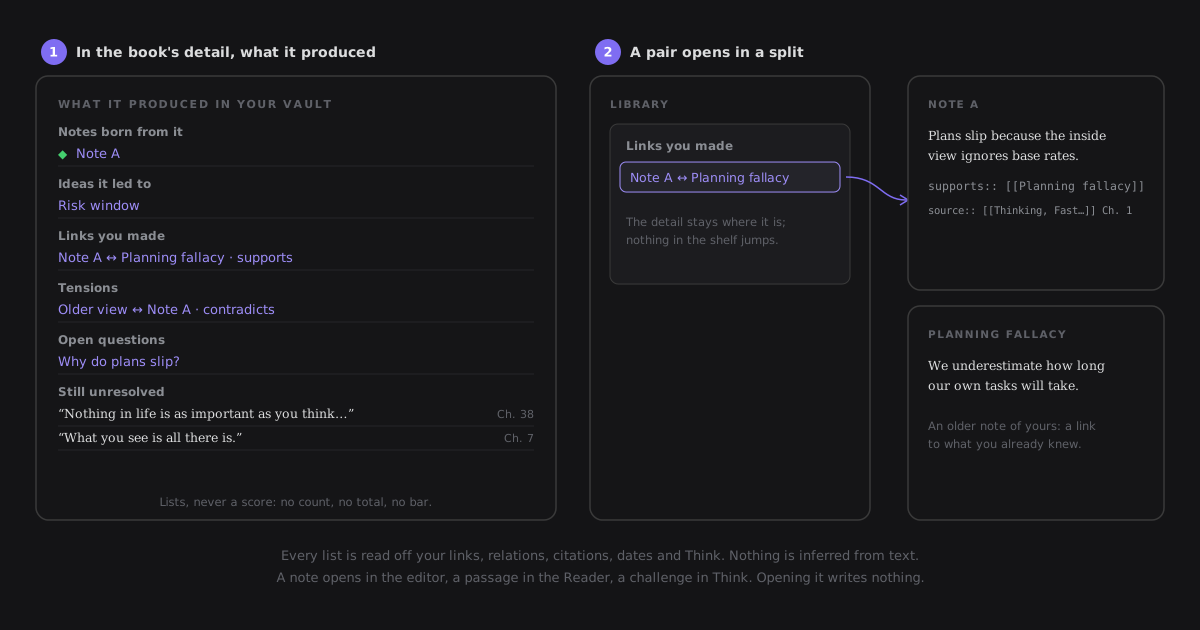
| List | What it is built from |
|---|---|
| Notes born from it | the notes whose source links the book (the list the detail always had) |
| Ideas it led to | notes a note born links to, made after you first read the book — your first highlight, or the first note born, whichever came first — that do not cite it themselves |
| Links you made | the links and typed relations from a note born, or from one of the book's highlights, to a note of yours not born from it: A ↔ B, with the relation's name when it has one |
| Tensions | contradicts with a note born at either end, and the book's highlights you answered with a challenge in Think |
| Open questions | questions a note born asks that nothing answers yet (the vault's open questions, narrowed to this book) |
| Still unresolved | the book's highlights still on your bench in Think: not crystallized into a note and not set aside — a Question highlight among them until you do either |
- Nothing is inferred. Every list is read off what the vault already holds — links, typed relations,
sourcecitations, dates and Think's thoughts. Nothing is classified by its text and nothing is proposed. - No numbers. A list has a heading and its items: no count, no total, no percentage, no bar. Past five items, Show all shows the rest in place.
- The book's note is the book (A book's note): it is in none of the lists, wherever it is kept, and its own links — collections, tags — are not links you made.
- Each item opens what it names. A note opens in the editor (Ctrl/Cmd-hover previews it); a pair opens in a split beside the Library, A above B, while the detail stays where it is; a highlight opens the Reader at its passage; a challenge opens Think on the book.
- The same for a paper and an article. A saved path shows only Still unresolved, about its notes.
- While your vault is still being read the section waits, unseen, and appears when it has something; the rest of the detail works meanwhile. A book nothing came of yet has no section — the detail's one quiet line says so.
- Motion. The first time you open a book's detail, the items rise into place a few milliseconds apart; the next time they are simply there. Under reduced motion everything appears at once.
- It writes nothing. Opening the detail adds nothing to What ZettelFlow changed.
Ideas it led to uses a note's creation date as Obsidian knows it, which a sync or a copy can reset. Computing the lists over a 10,000-note vault takes about 2 ms, so they cost nothing to open.
A book's note
Every book and paper can have a note of its own: an ordinary Markdown note whose properties say what the book is — its title, author, series, publisher, year, language, ISBN, citation key and tags — and what it is to you: a status and its shelves (collections). You never write it by hand: it is edited from the book's detail, and the vault keeps it, so Bases, Dataview and search see your library as data.
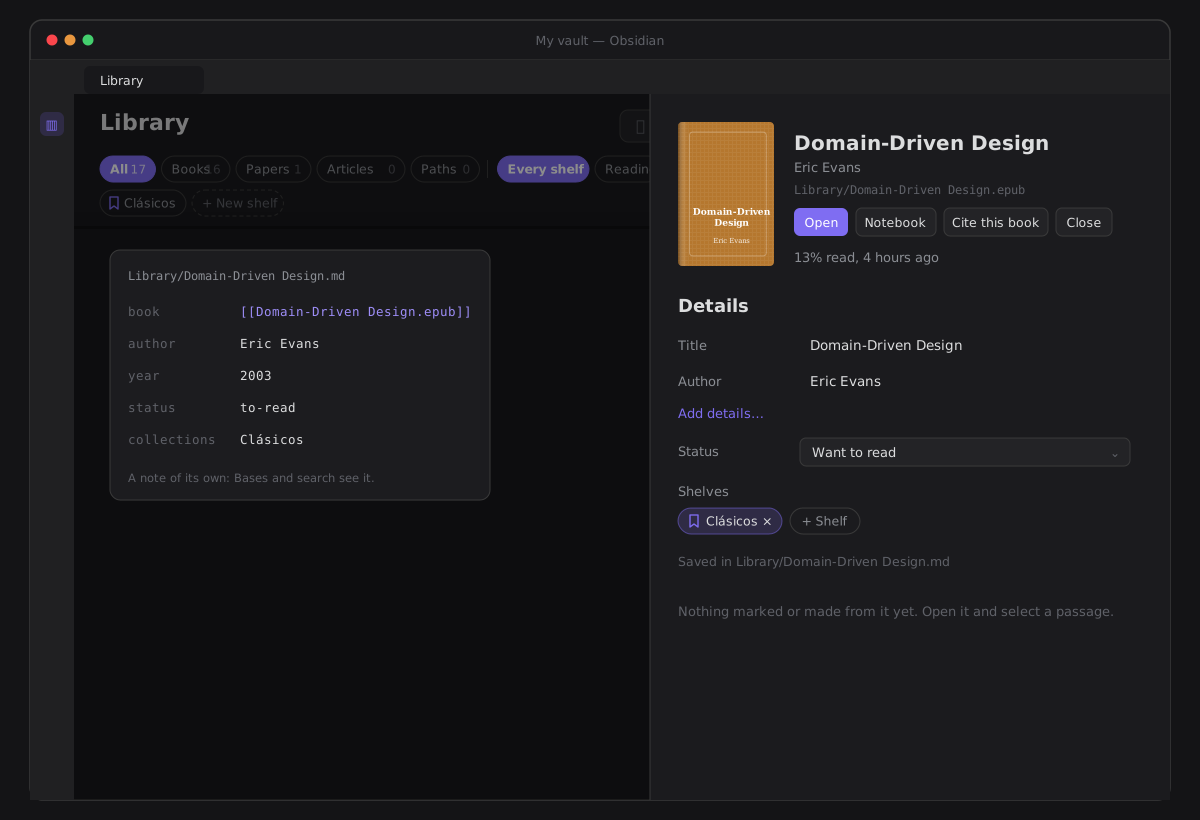
Details, in a source's detail (⋯ → Details), shows the fields as quiet inline fields — already filled with the title and author the file declares. Only the title and the fields that hold something are shown; the rest wait behind Add details…, which brings them all out at once — the others glide down to make room — with the cursor in the first. A field Cite's Add it sends you to is shown, empty or not. Change one and leave the field (or press Enter): it is saved, and a small check beside it fades in and out by itself. No dialog, no notice; if a write fails, your text stays in the field and a line under it says so.
- Status is one of three: Want to read, Reading, Finished — stored as
to-read,reading,finished, whatever language the plugin speaks. While you have set none it is read from your reading and nothing is written: Finished once you reached the end, Reading once you opened it. One you set wins — with one exception, below. - Shelves are your shelves — Planning, Clásicos — and a book can be on several; the first is where it stands. + Shelf suggests the shelves you have, the empty ones too; × takes a book off one. They are kept in
collections, a list of their own, never tags, so they do not mix with the tags you file the book under. - Citation key is the key a citation cites the book by, saved as
citekey(the name Pandoc and Better BibTeX use). Until you set one, the field shows the key a citation proposes, such askahneman2011thinking. A key starts with a letter, a digit or_and has no spaces. - Saved in Library/… says where the note is and opens it. Right after a change, Undo beside it takes the last one back — the whole note, if that change created it.
Want to read, then opened. A book whose note says Want to read and that stands on a status shelf becomes Reading the first time you open it from the Library — its book, Resume reading, or the file menu's Read in the reader: status: reading is written once, recorded, with Undo on the line in the bar; after that the note says Reading and nothing fires again. A book on a shelf of yours keeps the status you set, and a Finished book opened again stays Finished. The Reader itself still writes no note.
Nothing else is written until you change something. Opening, reading, highlighting or finishing a book creates no note. The first change creates one, named after the book, in the Book notes folder — Settings → Reading → Book notes folder, Library until you choose — and fills it with what the file declares (an EPUB's creator, publisher, date, language, ISBN and series; a PDF's title and author), plus your change. The folder is made then, with the first note, if it is missing; a note is never written over a file that is already there (Thinking, Fast and Slow 1.md). Every later change edits only the property you changed. Each write is on the write record, so it can be taken back.
A book's note is found by its link to the book, never by where it is kept. Its book property links the book file — for a paper too:
---
book: "[[Books/Thinking, Fast and Slow.epub]]"
author:
  - "Daniel Kahneman"
publisher: "Farrar, Straus and Giroux"
year: 2011
status: "to-read"
collections:
  - "Planning"
---
Rename or move the book and Obsidian updates the link; move the note and it is still the book's note. Changing the Book notes folder moves nothing: new notes go to the new folder, the ones you have stay where they are and are still found. If two notes link the same book, the first by path is the one the Library shows, and Saved in names it.
Use a note you already have, under Details while a book has no note, picks one of your notes and adds only the book link to it — its text and its other properties stay as they are. (Obsidian rewrites the properties block when any property changes, so the block's own layout may be tidied; the values and the note's body are untouched.)
A book's note is the book, not something that came of it: it never counts among the notes born from the book — not on the card, not in the detail, not in This note — even when it also cites the book in a source property.
Your library, as a Base — every book you want to read, by shelf of yours:
filters:
  and:
    - note.status == "to-read"
views:
  - type: table
    name: Want to read
    groupBy: collections
    order: [file.name, author, year]
Articles from Web Clipper
What you clip joins what you read. A long read saved from the web with Obsidian Web Clipper is an ordinary note in your vault. The Library shelves it as an Article, beside the books, and the Reader reads it like one — its column, your type, highlights with meanings, search, footnotes, time left and bookmarks — with no import and no copy: the clipping stays the note it is.
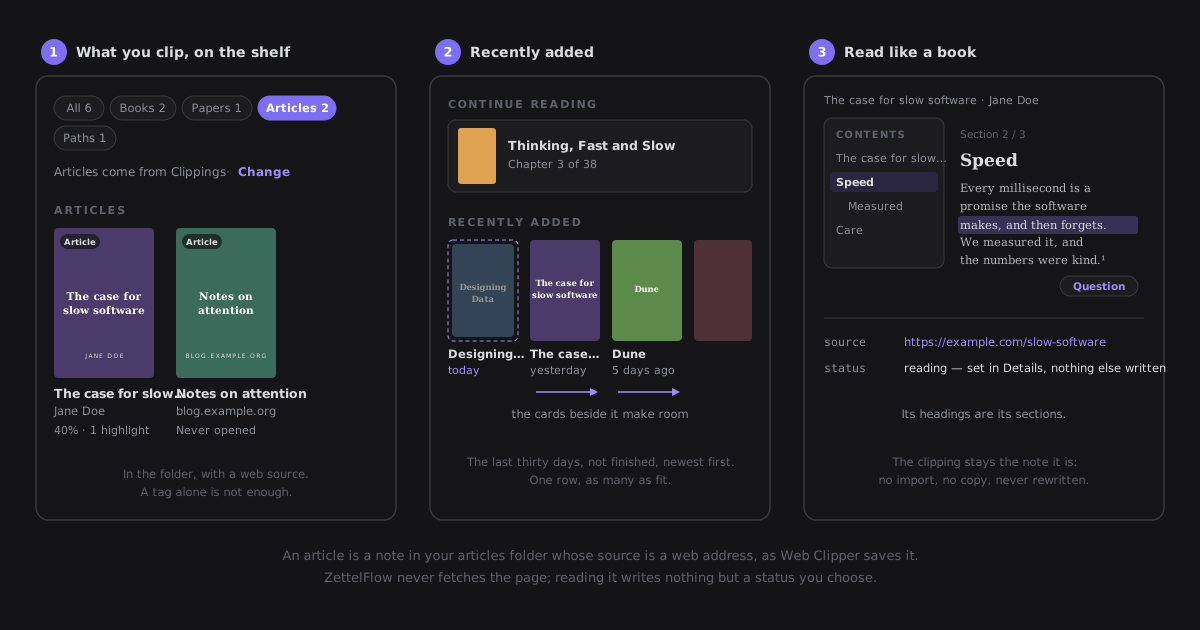
What is an article. A note in the articles folder — or any folder inside it — whose source property is a web address (https://…). That is exactly what Web Clipper's default template writes, into its default folder, Clippings. A clippings tag alone is not enough: a note outside the folder is never an article, whatever it carries, and neither is a note in it whose source is a [[link]] or plain text.
Where articles come from is one setting, in two places: under the Articles chip on the shelf (Articles come from Clippings · Change) and in Settings → Reading → Articles folder. Both edit the same value. Empty it to turn articles off (Articles are off). The Library reads articles from the metadata cache — it never opens a clipping to put it on the shelf.
On the shelves, an article stands like a book: its cover drawn in one of your theme's colours, cloth-bound, with its title and its author — Web Clipper writes a list of links ([[Jane Doe]]), and their names are shown — or, when nobody signed it, the site it came from (example.com).
Reading one. Click it, or Resume reading: the camera pushes into its drawn cover and it opens in the Reader, in the Library's tab, as one continuous shot — closing plays it back onto its place on the shelf. Its sections are its headings at the shallowest level it uses (its H1s, or its H2s when it has no H1), and the text before the first one is a section of its own, named after the article. Contents lists every heading. The corner says Section 2 / 5. The Library remembers where you are, like a book's place, and reaching the last section makes it Finished — read, not written. A footnote is read where it is referenced. A link to the web or to another note is not followed from the page, as in a book.
Notes born from it. A note that cites the clipping — source:: [[Clippings/The case for slow software]] — is born from it, said in its detail's sentence and listed there. Crystallizing a passage writes exactly that, with the section after it.
Its status and shelves are its own properties. An article has no separate book's note: its own frontmatter is its note. Details offers its Status and Shelves only, and writes those keys into the clipping — through the same recorded write, with Undo — and nothing else in it. (Obsidian rewrites the properties block when a property changes, so its layout may be tidied; the values and the body are untouched.)
Reading never writes it. No highlight, no place, nothing reaches the clipping's body or properties — only a status or a shelf you set. Highlights are thoughts in Think, the place is plugin data.
Network. None of ZettelFlow's own: Web Clipper saved the page, and ZettelFlow never fetches a URL. A remote picture inside a clipping is loaded by Obsidian's own Markdown renderer, exactly as it is in the editor.
Reading a PDF
Click a paper or a PDF book on the shelf — or Resume — and it opens in the same Reader as your notes: the same keys (← →, Space, Esc), the same bar, the same themes and type. Its pages are the chapters.
Reading happens in the Library's own tab, as one continuous shot: the camera pushes into the book and its cover opens on the page you were on — no new tab opens. Leave the Reader and the same tab is the Library again, exactly as you left it: the same filter, the same sort, the shelf scrolled where it was. (Opened from anywhere else — a note, Home, Think — the Reader keeps its own tab.)
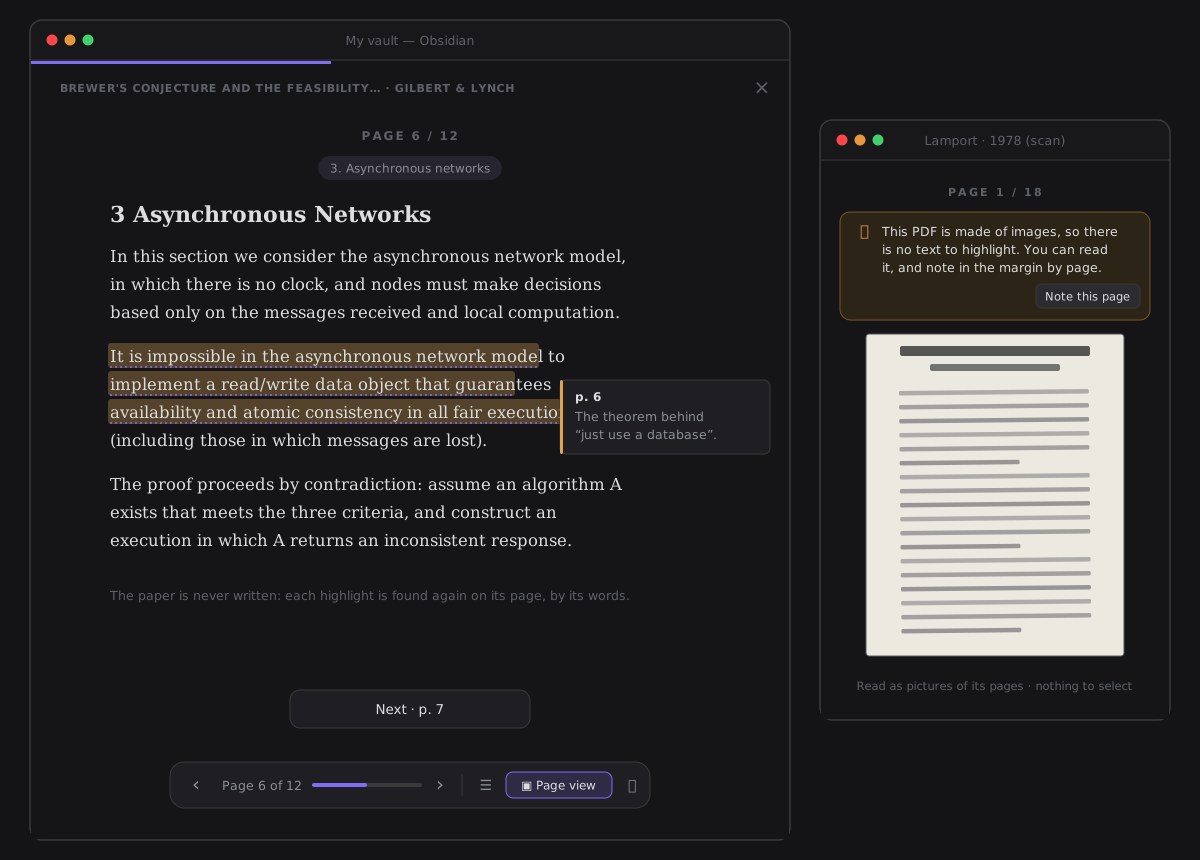
- Reading view (the default) reflows each page into the Reader's own column — your font, your size, your theme. Lines are put back into paragraphs, a heading set larger stays a heading, a word broken across two lines with a hyphen is mended, a lone page number is left out, and a page in two columns is read one column, then the other. A page that is a figure is shown as its picture. Reading view follows the Reader's Layout — Scroll, Page or Spread (pages or scroll), and so does Page view.
- Page view (the bar's Page view, or V) draws the page as it was laid out, for a paper whose figures and tables matter. Select words on it with the mouse or the pen to highlight them — the same four meanings, Note and Copy as in the reading view — and it is where the pen draws on a PDF: on the page as printed, the only place a drawing can be handed back from. It zooms, scrolls, turns and rotates its pages, and its links work — see Page view. A figure or a table is kept with Snapshot, beside Page view in the bar: drag around it, and it becomes a note, a fleeting note or part of a note you have, with its page — see Snapshot a figure or a table.
- The paper's own contents. Contents lists the PDF's outline, each entry with its page; a PDF without one lists its pages. The section you are in is shown above the page.
- Highlights and margin notes, exactly as in a note: select words, Highlight or Highlight and note (or H / Shift+H). Each one is a thought in Think, about the PDF, carrying the passage and its page (
p. 6). It is found again on that page, by its words, every time you open the paper. Think shows where it came from — cap.pdf › p. 6 — and Open in the Reader lands on that page. - Resume. The Library remembers the page you were on; the shelf's Resume, the PDF's own menu and the desk's Resume reading all open it there. Reaching the last page marks it read.
- The end of a paper says what the reading added up to, and offers Think on what you marked (Think, already filtered to this paper and in its order — Thinking by source), See it in the library or Read it again.
What a page keeps
The reading view rebuilds more than paragraphs: the formats a paper is set in come back, read off the page itself. Only the clear cases are taken; when in doubt a block stays a paragraph, as before.
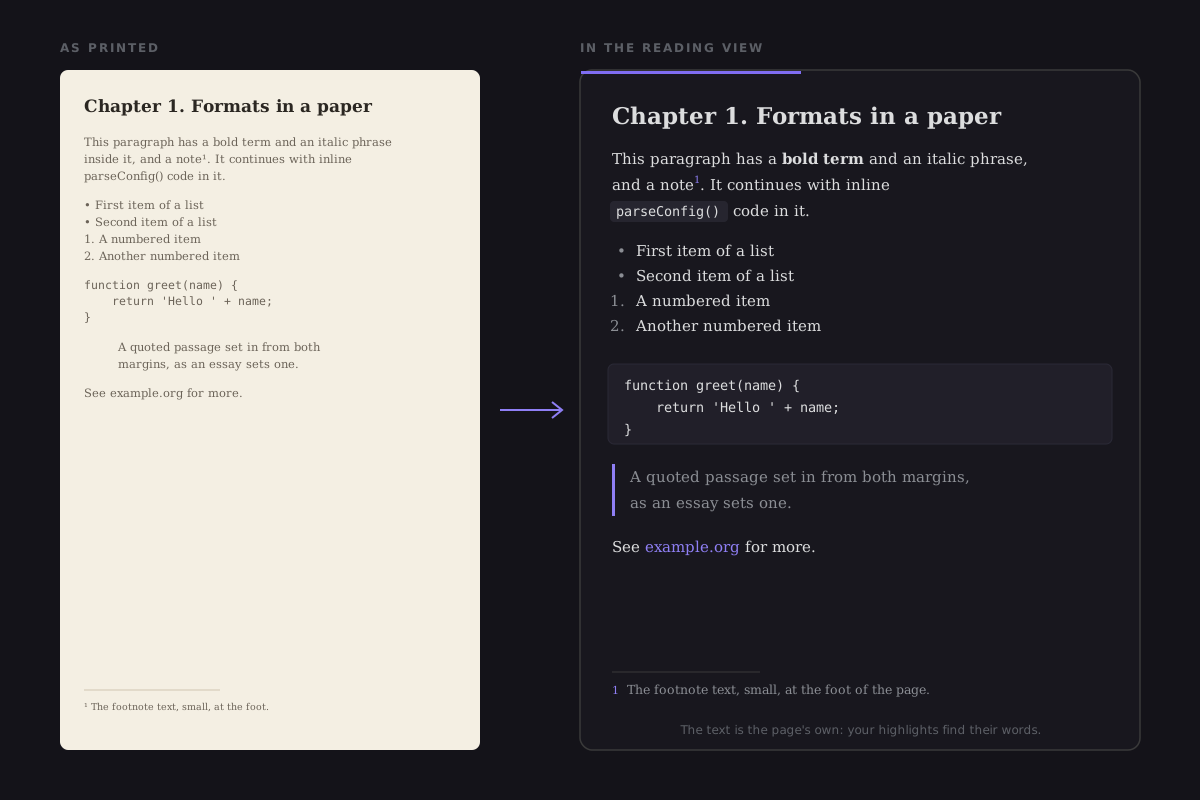
- Code keeps its lines. Lines set in a monospace face read as one listing, with their indentation, in the same box as a book's code (code in technical books): whole on its page, Code lines in the Type panel, and kept to Think as a fenced block. A name in a sentence set in monospace reads as inline code. No language is guessed, so a PDF's code is not coloured. A paper typed entirely in a typewriter face reads as prose.
- Lists keep their items. Each item starts its own line, its marker hanging in the margin as printed — the page's own
•,1.ora), never renumbered — and a line set under an item's words goes on with it. A nested item sits further in. Only a clear list is a list: a bullet, or two numbered (or dashed) lines in a row, in sequence; a lone 1. Introduction stays what it was. - Bold and italic come back where they stand out: a defined term, a book's title, an emphasis. They are read off the name of the font each word is set in (Times-Bold, MinionPro-It, the faces LaTeX uses), so a PDF that names its fonts plainly shows nothing. A heading, or a paragraph set wholly in one face, is left as it is — that is its font, not an emphasis.
- Footnotes and quotes. A small mark raised after a word reads as a footnote marker, and the small text at the foot of the page that starts with that mark reads as its footnote — still where it was printed, set apart from the text. Click the marker and the footnote opens over the page, as a book's does (links, detours and context). A footer that starts with a page number is not a footnote: its mark must be raised somewhere on the page. Two lines or more set in from both margins, at one place, read as a block quote.
- Hand it back with your notes. A PDF's Notebook offers Share a copy with your notes, beside Export as a reading note: a new PDF beside the original with your highlights and notes on it (hand back a marked copy).
- Links you can follow. The words under a link are a link, the same words Page view links. A citation or a see section 3 goes to its page, with the way back on the trail; a link out of the paper shows its address with Copy link, and is never opened.
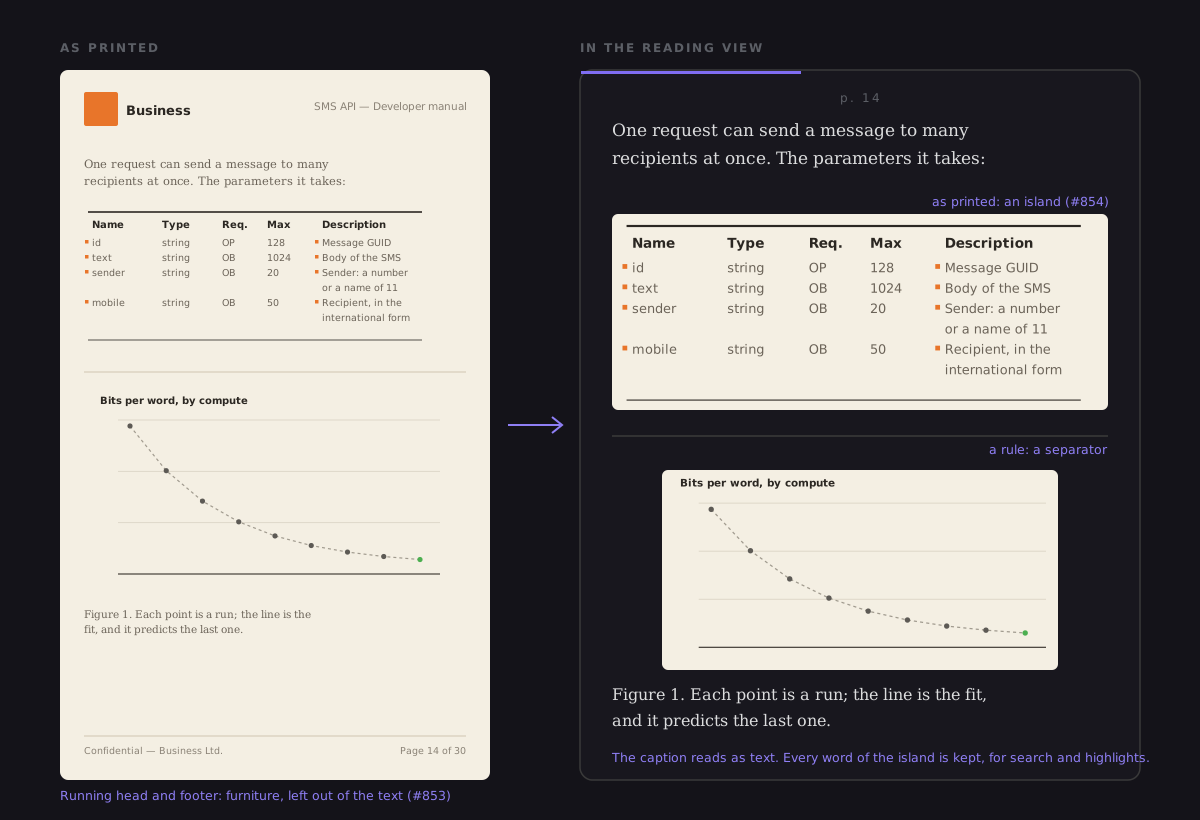
- Tables and figures as printed (#854). What is not running text is not rebuilt: it is shown as the page prints it, cropped from the page, in its place in the reading — the way the state of the art reads a paper. A table is found by its shape: three rows or more of three cells or more that start on the same columns, a wrapped cell's further lines with their row, one column short (an id, a type); a ruled table takes its rules, and the header set under its top rule. A figure is a picture of 8 % of the page or more, or that much of drawn shapes (a plot is vector paths): its gridlines, its title and its axis labels come with it, and its caption stays text. A logo is never one. The crop stops short of a line of text that runs past its sides, so no word is cut in two. Every word of an island is still the page's — kept under it, out of sight — so search, highlights and Page view find it. It holds its place at its final shape, so nothing moves when its picture arrives, and is drawn once it nears the screen; a page turned back to draws it from what was kept. Its tables are no longer read as two columns, so the text after one reads after it.
- A rule is a separator. A long line the page draws between two blocks of text is drawn as the theme's own separator — not the box a manual draws round its code, which the listing already has, and not a footer's line.
- No running heads or footers (#853). A line printed at the top or foot of the page, page after page — Acme SMS API - Developer guide, Confidential … Page 14 of 30 — is the page's furniture, not its text, and is left out, as a lone page number always was. It must come back at the same height on three of the pages read when the paper first opens (its first three, and three further in), its numbers taken as any number; a title at the top of one page is kept, and a line in the middle of a page never is. Page view still shows it, as printed, and its word index leaves out exactly what the reading view does. What was found is kept with the paper, so it is read once.
- What it leaves out, said (#852). A reflowed page that had pictures or a ruled table on it says so in one quiet line under its label — Leaves out 2 pictures, its tables and the page's layout — with Page view beside it, which opens on the same page. Only what is true of that page is said: an icon is not a picture, a frame drawn around a screenshot is the screenshot's, and a page of prose says nothing. It is read off the page's own operators, the list pdf.js already makes for its fonts, and the next page's is read before you turn to it.
The page's text never changes. A format only cuts the page into blocks and marks words inside them — every character stays where it was. A highlight made before a paper read its formats is found where it was, in both views, and Page view indexes exactly the text the reading view draws. The one exception is inside a listing, whose lines are lines: each starts on its own, with its indentation.
Page view
Page view is the paper as printed, made into a place you can read it — at a desk, and with a pinch on an iPad (#767):
-
The view it opens in. A paper you have never turned Page view on or off for opens in the view it reads best in: a form, a poster or a page of figures — where most of what its first pages hold are short fragments, or there is little text at all — opens as printed; prose opens reflowed. The Reader decides from the text of the first three pages, once per copy of the file (a new copy is sampled again), and keeps it beside the paper's place — the PDF itself is never written. Opening a copy it has read already reads none of those pages again (#851). A designed document opens as printed too (#852): one with the same picture in the same place on most of its first pages (a letterhead, a vendor's logo), or a page that is mostly one picture (a cover). A ruled table alone does not make a document designed — papers have them too. The view you choose wins from then on: turn Page view on or off (V, or its button) and the paper opens that way next time. A tab you left open opens as you left it.
-
Zoom. It opens at Fit width. Ctrl/⌘ + wheel, a trackpad pinch, a two-finger pinch on touch, Ctrl/⌘ + and Ctrl/⌘ − zoom from 50 % to 400 %; Ctrl/⌘ 0, the level in the bar and a double tap go back to Fit width (a double tap at Fit width goes to twice it). The page grows around the point under the pointer or between the fingers, and follows them 1:1; past 400 % it resists and springs back. While you zoom nothing is drawn again; when you stop, the pages on screen are drawn sharp and only the blur clears. In Page view these keys are the paper's, and Obsidian's own app zoom gives way (walked on Obsidian 1.14.4); anywhere else they stay Obsidian's.
- Fit page shows the whole page. Fit width, Fit page and the bar's level are camera moves, never cuts. At Fit width a landscape page in a portrait paper is fitted on its own.
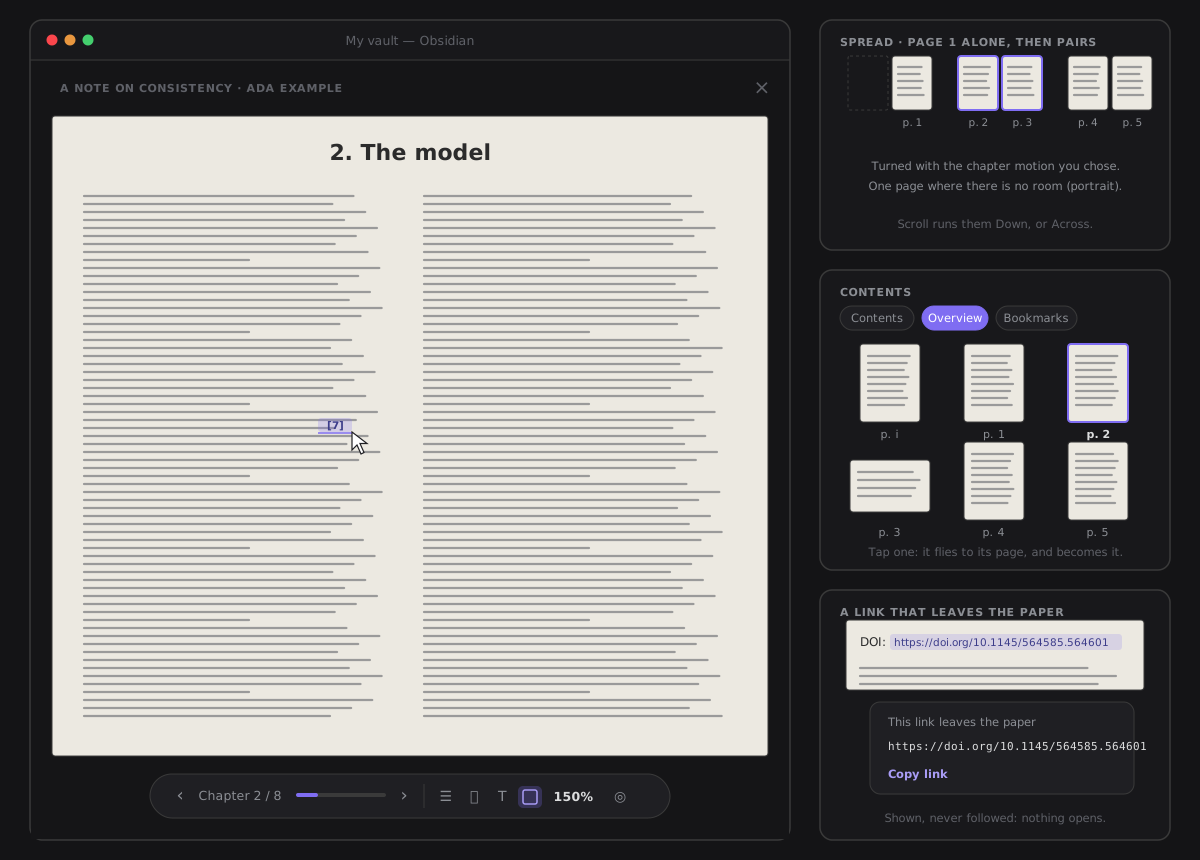
- The same Layout as the text (Type → Layout): Scroll is one continuous run of pages — Down, or Across in a horizontal strip, where a plain wheel scrolls sideways; Page is one page at a time, turned with the chapter motion you chose; Spread is two pages side by side, page 1 alone on the right as a printed book opens, and one page where the reading is not clearly wider than it is tall (an iPad in portrait).
- Rotate page (in Type) turns the page most on screen a quarter, into its new place, and draws it upright.
- The overview, one tap on the bar's pages-grid button — in Page view and in the reading view alike — and a tab of Contents: every page as a small picture, the current one marked, each with the paper's own label (p. iv). Pictures are drawn as they scroll into view. Tapping one flies it to its page, which it becomes, in the view you are in; the place you left is kept in Where you've been. See the overview.
- Links. A link to a place in the paper — a reference, a citation, its own contents — shows as a link under the pointer and jumps there, with the back pill and Alt+←. A link that leaves the paper (a web address, a DOI) is never followed: clicking it shows its address with Copy link.
- Only what is near is drawn. However long the paper, at most seven pages are drawn at once and pages far away are let go, so a 600-page PDF scrolls without the app holding 600 pictures. A page not drawn yet is a blank sheet with its number, and its picture fades in. A fling draws nothing until it slows, so it keeps its frames.
- Drawn ahead of you (#851). Once the pages on screen are drawn, and no thumbnail is waiting, the next two pages in the direction you are reading are drawn too — down the paper, or back up it — so a page of photographs is already there when you reach it. A page's first drawing is mostly decoding its pictures, which no lower resolution makes cheaper; drawing it early does. Nothing ahead is drawn while you zoom or fling, and no more pages are held than before: the two kept either side of the window are the ones drawn ahead.
- Kept with the paper. The zoom (or the fit), Down or Across and the turned pages are kept beside its place, in plugin data. The PDF is never written.
The Type panel's Page view group holds Fit width · Fit page, the zoom (−, the level, +), Down · Across (in Scroll), Rotate page and Crop margins; in Reading view none of it is shown. Under reduced motion every move is instant and nothing fades; a pinch still follows the fingers.
Crop margins
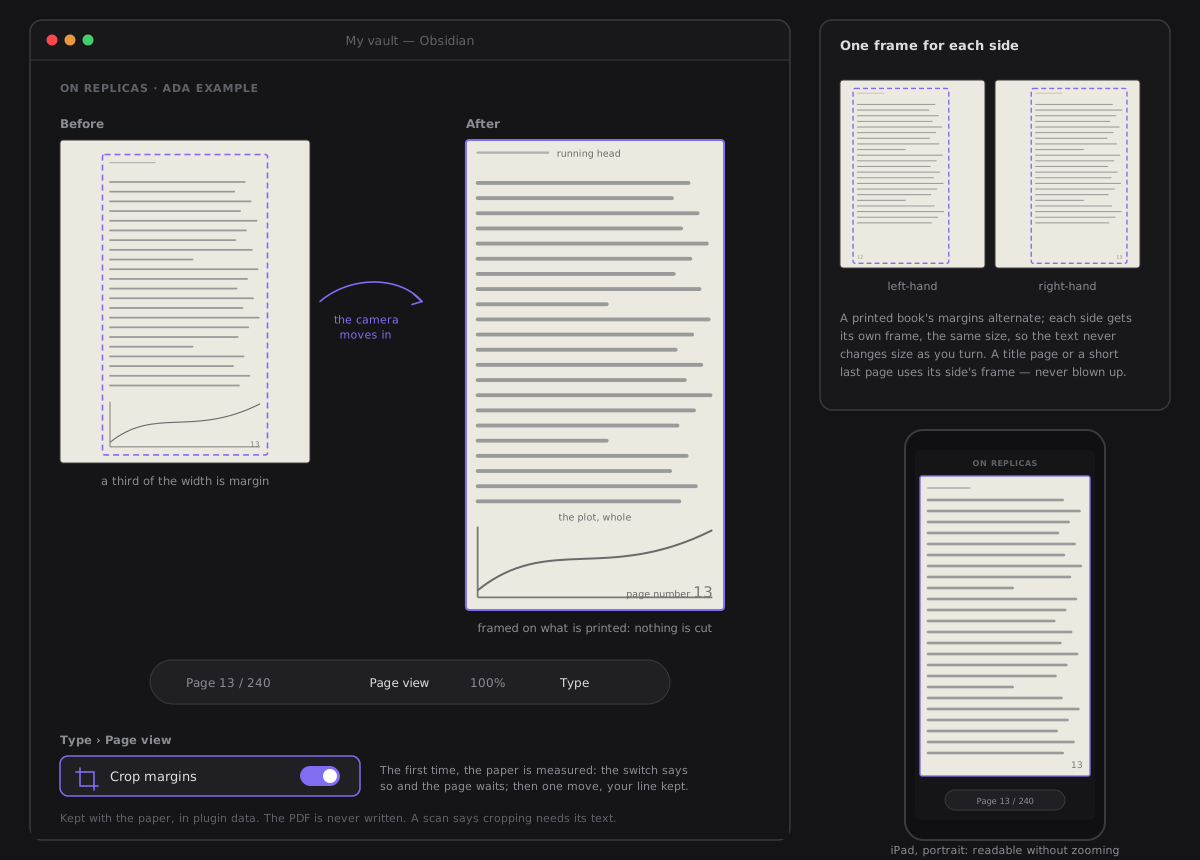
A printed page is mostly margin, and at Fit width that margin is drawn at full size, so the text is smaller than it has to be — on an iPad in portrait, too small to read without zooming. Type → Page view → Crop margins frames each page on what is printed on it, and Fit width fits that (#769):
- Nothing printed is cut. The frame holds the page's text, its pictures and its drawn shapes (a plot is lines, not a picture): the running head, the page number, a footnote, a note in the margin and every figure stay. A small, even border is left around them. A page whose drawing the Reader cannot read for sure is shown whole rather than guessed at.
- The same size from page to page. A paper gets one frame for its right-hand pages and one for its left-hand pages, taken across its pages, so a printed book's alternating margins are followed and the text never changes size as you turn. A title page or a short last page uses its side's frame, never blown up. A page with more on it than its side's frame (a wide table) keeps all of it, and is shown a little smaller than its neighbours — never cut wins over the same size.
- Measured once. The first time it is turned on for a paper, the Reader reads up to 24 of its pages (every page of a short paper): the switch says Measuring the margins… and the page does not move. Then the camera moves in, once — the page grows from its sheet into its frame, the line you were reading staying under your eyes. Turning it off is the same move backwards. Under reduced motion the page is simply shown cropped (or whole), the line kept.
- Everything else still works: Scroll, Page and Spread, the zoom, Rotate page (the frame turns with the page), links (they stay on their words), the overview (its pictures show the cropped page) and every jump, which lands on the same line as without crop.
- A scan is not cropped. It has no text to frame a page on; the switch says Cropping needs a page's text, and this PDF has none. A page that is a picture in an otherwise printed paper is shown whole.
- Kept with the paper. The switch and the frames are kept beside its place, in plugin data, with the file's size and date: a new copy of the PDF is measured again. The PDF is never written. If the margins cannot be measured, the switch turns back off and says so once.
A scan
A scanned PDF has no text, so every page is shown as its picture, and a quiet banner says so before you try: This PDF is made of images, so there is no text to highlight. You can read it, and note in the margin by page. Note this page writes a note in the margin of the page you are on — a thought in Think with the page and no passage — listed under Notes on this page.
A scan is read in Page view, its only view, so it zooms, scrolls, turns, rotates and has its overview like any paper. A scanned PDF that another tool has already made searchable (OCR'd) carries a text layer, and the Reader reads it as text today: Reading view, search and highlights work on it. A scan without one stays pictures, with notes by page.
Where you left off, to the line
The Library keeps the chapter or page you were on and how far into it you were. Resume opens there, not at the chapter's top, which matters in an EPUB whose chapters are long. It is kept a moment after you stop scrolling, and it lands on the same share of the chapter even if you changed the type size. A deep link to a highlight lands on the highlight instead.
Reading an EPUB
A book opens in the same Reader. Its chapters are the book's spine, named from the book's own contents — the EPUB 3 nav, or the toc.ncx of an older book — and Contents shows those contents, nested as the book nests them.
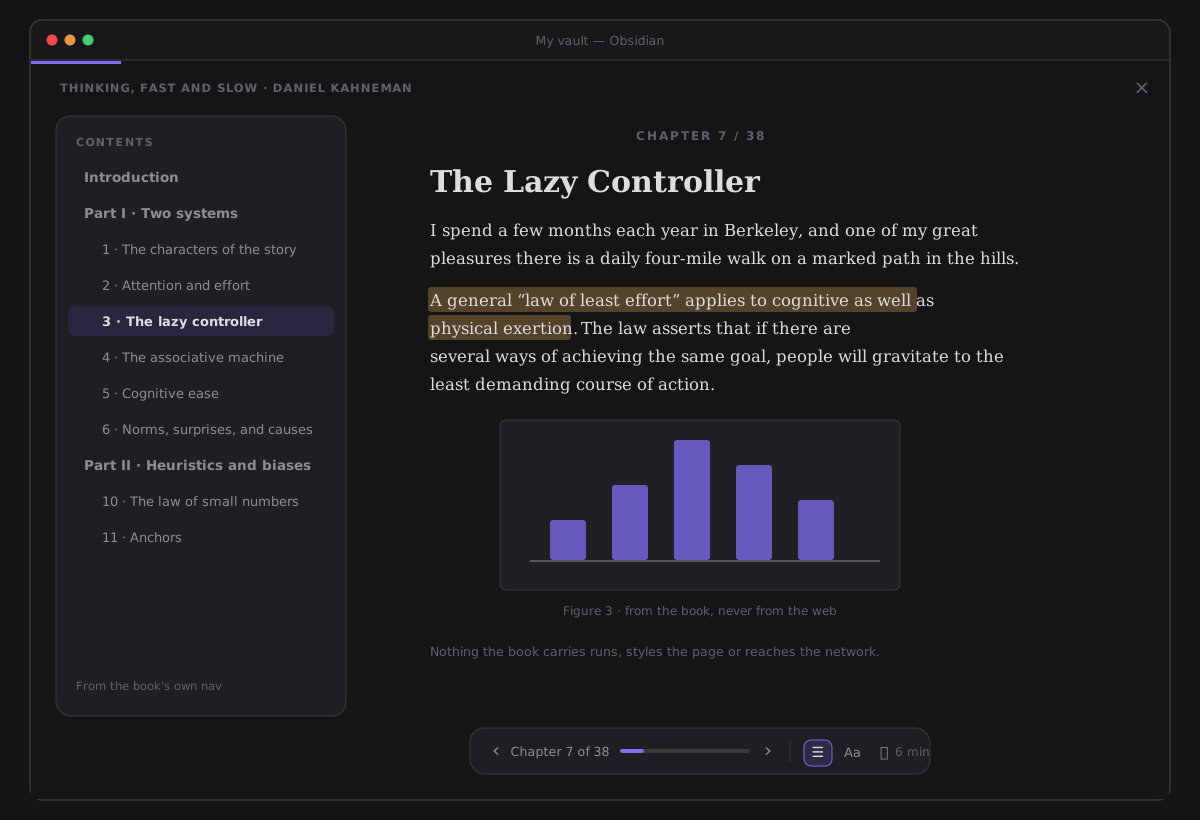
- It opens on its text. A book you have never opened starts where the book says its text begins — the EPUB 3 nav's
bodymatterlandmark, or thetextentry of an older book's<guide>— not on its cover, title page or credits. A book that says neither opens on its first chapter, as before. The cover and the front matter are still there: Contents and Home reach them, and a book you have read before always opens where you left it. - A cover is one page. A chapter that is only a picture — the cover — is shown as one page, the picture fitted to it and centred (alone across both pages in Spread). A heading with no words in it, which many covers carry, never takes a page of its own.
- An untitled chapter is named by its heading. A chapter the contents never name reads as Chapter n until it is drawn; from then on it goes by its first heading (Dedicatoria) wherever the Reader names it. A highlight's place keeps the chapter's own label, so it is always found again.
- In your type and your theme. Each chapter is rebuilt in the Reader's own column: the book's headings, paragraphs, lists, tables, quotes and figures — not its fonts, colours or layout.
- Safe by construction. A chapter is never inserted as HTML. It is parsed as data and rebuilt one allowed element at a time, so nothing the book carries can run: no scripts, no event handlers, no embedded frames or forms, no styles. Its images are read from the book itself; nothing is ever loaded from the web, and a link that leaves the book is shown as plain text.
- Footnotes are read in place. Click a footnote mark and the note floats over the page, at the mark. That works for a note in the chapter and for an endnote at the back of the book. The page does not move; Esc or a click elsewhere puts it away, and Go to note goes there.
- Search inside the book. Ctrl/Cmd+F (or the bar's search) opens it in the Reader's drawer, beside the page; its field keeps your words through every jump, and opening another panel there puts the search away, tints and all. It searches every chapter or page, ignoring case and accents, and says N results · in M chapters, each with its snippet and its page or chapter. Enter and Shift+Enter step through them; the matches are tinted in the page and the current one is outlined. A match in another chapter is a jump, with its way back. Esc closes the search and takes every tint away. A scan says it has no text to search.
- Every jump has a way back. A cross-reference, Go to note, a Contents entry, a search, a bookmark or a passage opened from Think moves you — the camera travels there, it never cuts — and a ← Back to … pill shows where you came from. Click it, or press Alt+← (two fingers swept right on a touch screen), to return to the very line. The pill fades by itself after a few seconds; the way back stays in Contents → Where you've been, through page turns, until you close the book. In a PDF the pill follows Contents jumps.
- Bookmarks. The ribbon at the pane's top-right corner, or B, keeps a place without highlighting anything; Contents → Bookmarks lists them. See Bookmarks and where you've been.
- Highlights, notes, resume and the end work as in a PDF. A highlight carries its chapter (Thinking, Fast and Slow.epub › 3 · The lazy controller) and is found again in that chapter.
Equations and drawings
An EPUB 3 may write its equations in MathML and its diagrams in inline SVG. Both are drawn by the platform itself (Chromium on the desktop, WebKit on an iPad), so they follow your reading size and stay sharp at any zoom.
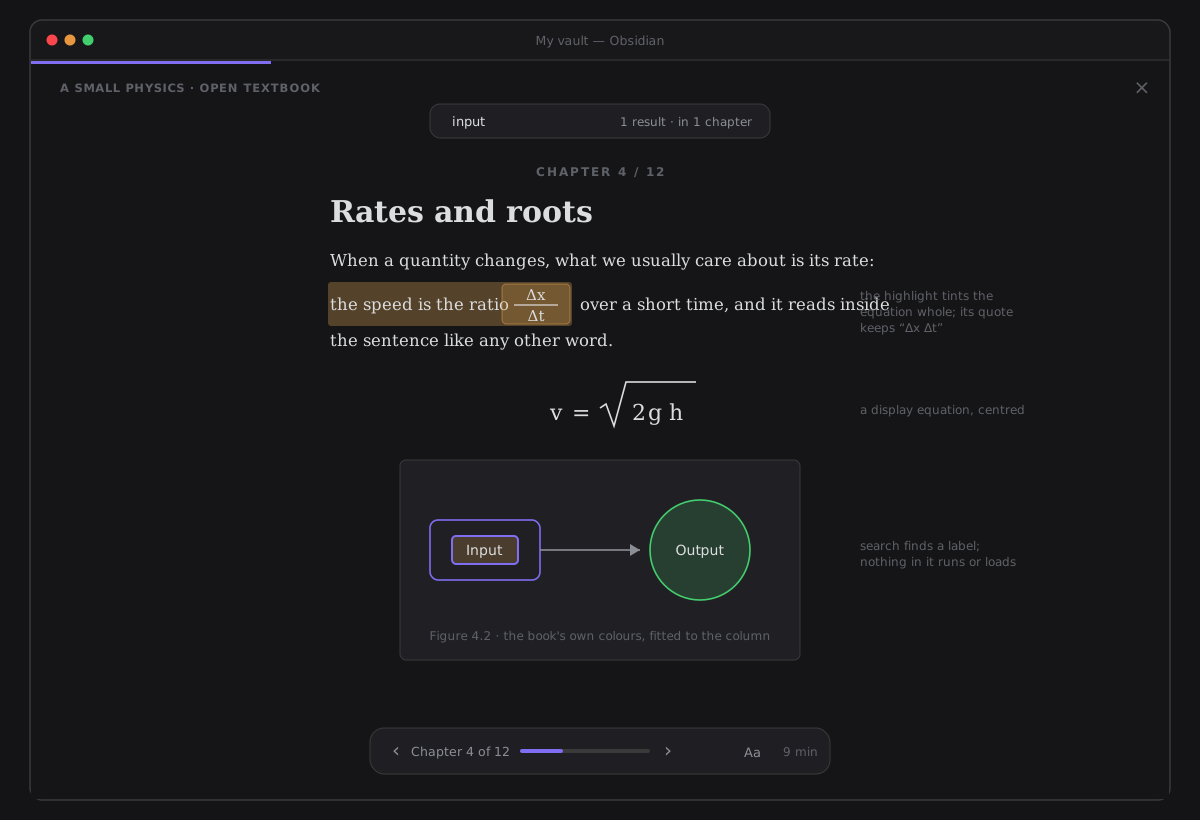
- An equation is an equation. Presentation MathML is kept — fractions, roots, scripts, under/over, tables, fences and spacing — inline in a sentence or as a display equation on its own line, centred, in your theme's text colour. Content MathML and every annotation (the TeX source a converter leaves behind) are dropped; an equation that is only Content MathML is shown as its alternative text, or else its words — never as an empty gap. The
alttextis kept for screen readers. - A drawing is there. Inline SVG is kept and scaled to the column, never wider than it, with its own proportions. Shapes, paths, labels, groups, gradients, patterns, clip paths, markers and pictures from inside the book are kept, with the drawing's own colours (a chart's legend means something); a drawing that uses the current colour takes your theme's text colour. Colours an editor wrote in a
styleattribute are kept as the drawing's colours; thestyleitself is not. - Nothing in it runs, moves or reaches the network. Scripts,
foreignObject, event handlers,styleelements, filters, masks and animation are dropped with everything inside them — the page is still, as a page should be. A reference may only name something inside the same drawing; ause, a picture or a paint that points anywhere else is dropped. A link to a place in the book is followed like any link in the book; one that leaves the book is its text and nothing else. - The cover keeps working. A cover drawn as
<svg><image/></svg>(with at most a title, a description or empty definitions beside it) is still shown as a plain picture. - Search and highlights see their words. Search finds a word in a diagram's label and tints the drawing. A highlight across an inline equation keeps the equation's characters in its quote and tints the whole equation — no mark is drawn inside one. Selecting part of a drawing, or part of an equation, is not supported. A highlight made before this release whose quote held an equation's TeX source may now be listed as detached: it is never drawn in the wrong place.
The book notebook
Everything you marked in one book, in one place. Open it from the book's detail (⋯ → Notebook) or from the Reader (Contents → Notebook). It takes the shelf's place: ← Library or Esc brings the shelf back.
- In reading order. Your highlights and margin notes, by chapter or page, each with its meaning's colour, the passage, your note and its place. Open in reader goes to that passage; To note makes a note of it, through the usual preview.
- Narrow it. Chips by meaning (Idea, Question, Quote, To discuss, with counts) and With notes only.
- Export as a reading note. A preview of exactly what will be written, for what the filter shows: a title,
Source:: [[the book]], and per chapter the quotes (with the page, in a paper) and your notes as bullets. Pages are written as text, never as block ids. Pick a folder (the last one is remembered) and Create note. Nothing is written before that. The note never goes over an existing file, and its creation can be undone.
From passage to note
What you mark in a book is where your own ideas start. Click a highlight in a PDF or an EPUB and choose Crystallize into a note: the same preview Think uses opens, with the note before it exists.
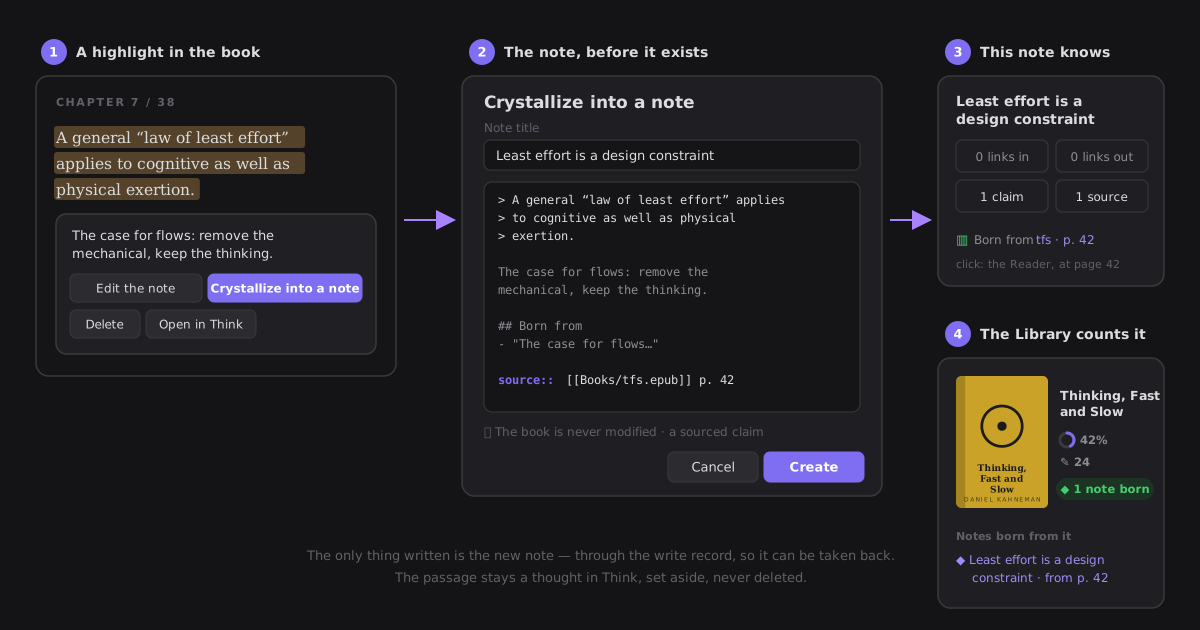
- It quotes the passage and cites the page. The proposed note carries the passage as a quote, your margin note under it, and a citation line the knowledge model reads —
source:: [[Books/Thinking, Fast and Slow.epub]] p. 42, or the chapter's name for a book without pages. Change the title and the text before you create it; Cancel writes nothing. - It is a sourced note. Because it cites the book, the note's claim counts as sourced in Health, Cultivate and This note — the same way a
source::you write by hand does. - This note knows where it came from — to the paragraph. Open the new note with This note beside it: under its counts, Born from names the book and the page; click it and the Reader opens on the passage itself. The note keeps a
sourceproperty with the chapter and the passage's opening words, so the way back survives the highlight leaving Think — see Every note goes back to its paragraph. - The Library counts it. The book's card says 1 note born, and its detail lists the notes born from it, each one a click away.
- The book is never written. The note is the only thing created — through the write record, so it can be taken back. A PDF or an EPUB is never offered as a place to append to. The highlight stays a thought in Think, set aside rather than deleted, so it does not wait on your bench for a note you already made.
You can also crystallize a book's highlights from Think and from the review of a few things you marked: they cite their page the same way.
With a canvas in the Crystallizes thoughts role, the note does not land at the vault root: the preview's button reads Continue in «flow» and that flow builds it, with the quote, the margin note and the source:: line already at the top, and the passage's source property added once the note exists — see Think → through your crystallize flow.
What it keeps, and where
Your book files are never changed. Not a byte of a PDF or an EPUB is written: no annotation layer, nothing next to it. When you say something about a book, it gets an ordinary note in your Book notes folder (A book's note) — the only thing the Library ever writes, and only then. What the Library remembers about a source is kept in the plugin's settings: the title, author and length the file declares, whether a PDF is only images, and where you are in it — each with the size and date of the file it was read from, so a replaced file is read again. An article's place is kept the same way, under the clipping's path; a status or a shelf you set on an article is the one thing written into it. The shelves you made, empty ones too, and Library shows books as are kept in the plugin's settings (libraryShelves, libraryBookView). Covers are kept for the session only, in memory: never in your vault, never in the settings. A book renamed or moved in the vault keeps all of it (#810): its place, bookmarks, layers, ink and highlights follow the new path, with the Library open or closed — see Where ink is kept.
What you mark — highlights and margin notes — is not kept by the Library at all: those are thoughts in Think, files you can open.
Designed pages: comics, picture books and cookbooks
Some books are not text that flows: a comic, a picture book, a cookbook or a magazine places every word and picture where its designer put it. EPUB 3 calls them fixed layout — the book (or one of its pages) says it is pre-paginated, and gives its page size. The Reader shows those pages as they were made: their positions, their pictures, their colours and their own fonts, at the size they declare.
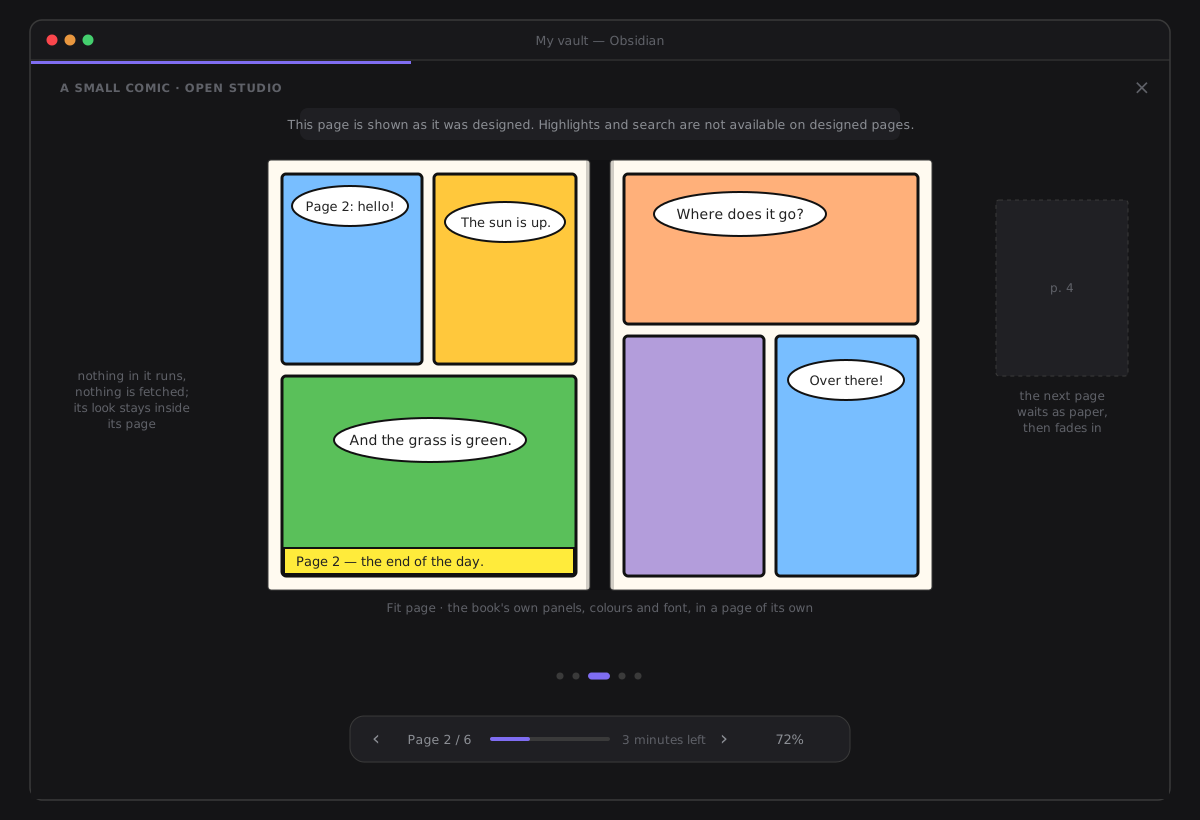
- Known by what the book says. A book declared fixed layout is read as its pages; a page declared on its own in a flowing book is shown as itself, fitted to the column, between chapters in your type. A book that declares nothing reads exactly as before.
- Fitted, then zoomed. A page opens whole (Fit page). It zooms as a PDF in Page view does — pinch, Ctrl/⌘ + wheel, Ctrl/⌘ + −, a double tap — about the point you look at; Ctrl/⌘ 0 is a camera move back to the whole page. A page is drawn once and only ever scaled, so it stays sharp.
- Page, Spread, Scroll — the Reader's own Layout. Spread pairs the pages the way the book says (
page-spread-left/-right, a first page alone when it says so, a centred page alone), and never pairs a book that saysrendition:spread none. If you never chose a layout, a designed book reads as a spread in landscape and a page in portrait; a layout you chose wins. - Right to left. A book whose spine says
page-progression-direction="rtl"(most manga) turns the other way: ← is next, the left edge and a swipe to the right turn on, and a spread's first page sits on the right of the spine. - Read-only, and said so once. Highlights and search are not available on a designed page, and the first one of a reading says so in one quiet line. Contents, bookmarks, the trail, resume and the end card work as in any book, and so does the overview: each designed page is its own small picture, drawn inside its own boundary as the page is; the time left is counted in pages, at this reading's own pace (half a minute a page until you have read three).
- Light on memory. Only the pages on screen and two either side are held; a page further away lets its pictures go. A page waits as a blank sheet of its size and fades in when it is drawn.
- A page that cannot be drawn says This page could not be drawn. in its place, and the next one still turns.
Nothing in it runs, and nothing is fetched. A designed page is rebuilt node by node, like every chapter, inside a shadow root of its own — so its look stays inside its page and reaches nothing of the Reader's or of your theme's. Its style sheets are read from the book and cleaned first: a closed list of CSS functions, no CSS escapes, no @import, and every url() only to a file inside the book, read from the archive and shown through a blob: URL the Reader made itself; then the sheet the platform parsed is checked a second time. Its fonts are read from the archive and loaded under a name of the Reader's own (zf-fxl-…), so a book's Inter can never replace the app's, and they are let go when the book closes. Its own animations never play; position: fixed stays inside its page. No <style>, <link> or <script> element is ever made. A book's !important rule can beat what a page wrote inline — rare in fixed layout, and the designer's own choice.
What a note made from a passage writes is in the note: its source property — a list of citations, each the book's link with the chapter in its subpath, the print page when there is one, the chapter's name and the passage's opening words — and the source:: line under its text, as before. See Every note goes back to its paragraph.
How to verify
| Command | Proves |
|---|---|
npx jest test/application/library/shelf test/application/library/shelves test/application/library/spine | the shelf (kinds, filters, accent-blind search, orders); where every book stands — the desk (two, most recent, never Want to read or Finished, none once a shelf is chosen), the status shelves in order, On the shelf for a book nothing is said of, your shelves A→Z with the empty ones while nothing narrows the view, every book in one place for every combination; what each move writes (your shelf first, a status shelf taking every shelf of yours away, On the shelf only for a book never opened, nothing where it already stands); rename and delete across notes; a shelf's name refused when empty, taken or the Library's own in English or Spanish; a spine's thickness from the book's length, clamped, and its height the same every time; the detail's one sentence, never a zero |
npx jest test/application/library/bookNote | a book's note read (string or list, an unknown status ignored), its status read from the reading, its first write and file name, found by its link, never born from its book; which details show and which fold; Want to read becoming Reading once, never on a shelf of yours |
npx jest test/architecture/components/core/library/libraryBar test/architecture/components/core/library/libraryView | the bar that stays: one bar, one row of chips, All once, no counts on shelf chips, / to the search and never while typing, a saved collection opening on every shelf, Covers | Spines writing the setting; the desk's cards, nothing under a cover, one card that rises outside every shelf, labels on the planks, every book once in the DOM, a shelf's sideways scroll kept through a redraw, spines for every shelf book while the desk keeps cards |
npx jest test/architecture/components/core/library/libraryYourShelves | + New shelf named in place, refused with its reason, Esc keeping nothing, nothing written to the vault; Move to shelf… listing where a book can go with its shelf checked and On the shelf only for a book never opened; one write, the book carried, the line with Undo, a failure said there; a drag lighting only the shelf that takes it, refused over On the shelf for an opened book, no drop while one shelf is chosen; rename and delete from the label's menu across notes, Undo; a path never moved; Want to read becoming Reading on opening, nothing for a book on your shelf |
npx jest test/architecture/components/core/library/bookNoteWriter test/architecture/components/core/library/libraryDetails test/architecture/components/core/library/libraryBookNotes | a book's note created at a free path in the Book notes folder with what the file declares, edited key by key, adopted with only its link (body to the byte), each one undone; Details saving on leaving a field or Enter, the empty fields folded behind Add details… and brought out at once with the cursor in the first, a field Cite sends you to shown; the status and shelves; a book carried to its new shelf, nothing written by opening |
npx jest test/application/library/article test/application/library/passageToNote test/architecture/components/core/library/libraryArticles test/architecture/components/core/reader/readerArticle | what an article is, its fields and sections, its kind and count; the Articles chip and Change writing the same setting as Settings → Reading; an article opened with the shot from its drawn cover; a clipping in the Reader, the note never written; its status written alone into its own frontmatter; a book that arrives settling onto its shelf, nothing at the first draw, reduced motion |
npx jest test/config/readingSettingsGroup test/config/settings/bookNotesFolder | Library shows books as — Covers until you choose, the same value as the bar's switch; the Book notes folder and Articles folder rows |
npx jest test/application/library/produced test/architecture/components/core/library/libraryProduced | what a book produced: the six lists, each item opening what it names, nothing written; the section unseen until it has something, the rise in turn, reduced motion |
npx jest test/architecture/plugin/library/sourceRenameFollow | a renamed book keeps its place, bookmarks, layers, ink and thoughts (#810); an archived thing's record follows a rename inside the archive and is forgotten when it leaves (#865) |
npx jest test/application/library/archive test/architecture/plugin/library/archiveWrites test/architecture/components/core/library/libraryArchive test/architecture/components/core/library/libraryDrag test/config/settings/archiveFolder | the archive (#865): which folders clash; where a file goes and comes back, never over another; the book note's link rewritten only when it no longer finds the book, in the same batch; the cabinet, its drawers and cards, its three doors, 1 more in the archive; the edge scroll while a book is carried; the Archive folder row, its refusals and the move offer |
npx jest test/styles | every colour of the shelves, planks, cloth, ribbon and drop light is the theme's; the grid; only transform and opacity move, nothing under reduced motion |
npx jest test/application/library/pdfText test/architecture/components/core/reader/readerSource test/application/library/epubSanitize test/architecture/components/core/reader/readerEpub test/architecture/components/core/reader/readerHighlights test/architecture/components/core/library/sources/pdfPageView test/architecture/components/core/reader/readerPageView test/application/library/pdfCrop test/architecture/components/core/reader/readerCrop test/application/library/epubPackage test/application/library/epubFixedLayout test/architecture/components/core/reader/readerDesigned | reading a PDF (reflow, Page view, crop, a scan) and an EPUB (the sanitizer, equations and drawings, designed pages) — see the sections above |
npm run test:perf -- library | the shelf of 500 sources and 200 articles builds, lays out its desk and shelves, filters and searches in budget; the PDF and EPUB budgets |
In a vault (a test vault with a PDF paper, a scanned PDF, an EPUB you have opened and a few you have not):
- Empty state. In a vault with no PDF, no EPUB and no saved path, open ribbon menu → Library. Expect Your shelf is empty, for now and, with a note open, Read a path across your notes — and no bar: nothing to search.
- The desk and the shelves. Add the files. Expect the book you opened on the desk with Resume reading and a thread, no percentage anywhere; the books you never opened on a plank labelled On the shelf — not started yet; nothing written under any cover. Each cover is drawn cloth-bound, then replaced by the real one as it comes into view.
- The card that rises. Point at a book (or Tab to it): a small card rises over it with its title, author and Not started (or where you are). Scroll the shelf sideways: the card goes.
- The bar stays. Scroll down: the bar stays, with a fine line under it. Press /: the cursor is in the search. Type an author without accents: found. Click Papers: only PDFs, the result starting under the bar.
- Spines. Press Spines: every book on the shelves turns spine-out, thicker the longer it is; the desk keeps its cards. Open Settings → Reading: Library shows books as says Spines. Set it back to Covers there: the Library follows.
- A shelf of yours. + New shelf → Clásicos → Enter: an empty shelf stands with Drag books here to shelve them, and a Clásicos chip with a bookmark. Try Leyendo: refused, saying why; nothing is made.
- Drag. Drag a book from On the shelf onto Clásicos: only Clásicos lights; drop it. It is carried there, and the bar says Moved to Clásicos · Undo. Its note (in
Library) hascollections: [Clásicos]. Undo: the book is back and the note is gone. Drag a book you have opened over On the shelf: it does not light, and letting go there writes nothing. - On an iPad. Swipe along a shelf: it scrolls. Press and hold a book: it lifts; drag it onto Clásicos and let go: the same as step 7.
- Move to shelf…. ⋯ on a book → Move to shelf…: its shelf is checked; On the shelf is offered only for a book never opened. Pick Finished: it stands on Finished with a folded corner, and its note has
status: finishedand nocollections. - Rename and delete. ⋯ on Clásicos's label → Rename shelf → Clásicos españoles: the label, the chip and every note on it follow, in one write. Delete shelf: its books stay, on their status shelves; Undo brings it back.
- A calm detail. ⋯ → Details on a book you never opened and never marked: no sentence, the title and author, Add details…, and one line — Nothing marked or made from it yet. No boxed counts, no empty headings. Add details…: the other fields come out, the cursor in Series.
- Want to read, then opened. Set a book on On the shelf to Want to read: it moves to that shelf. Click it: the Reader opens, and back in the Library it stands on Reading, with Moved to Reading · Undo in the bar; its note says
status: reading. Put a book on Clásicos, set it to Want to read, open it: it stays Want to read. - A paper, a book, an article, a comic. As before: a paper reflowed with Page view and crop, a scan's banner, an EPUB with its contents, equations and drawings, a clipping read in the Reader, a fixed-layout comic's spreads — see the sections above. Closing each plays the camera back onto its place on its shelf, even far along a shelf that scrolls.
- The archive. At the end of the stacks: a cabinet, Books — empty, Papers — empty, Articles — empty, Nothing put away yet. Drag a paper onto it: the cabinet lights, the cue reads Drop it in the cabinet to archive it; drop it. The paper flies in, Papers reads 1 item, Archived “…” · Undo beside the cabinet, and the file is in
Library archive/. Undo: it is back on its shelf and in its folder. ⋯ → Archive on a book, then search its title: no book on the shelves, 1 more in the archive · Look in the archive, which opens the Books drawer holding one card — was in …/. Return to shelf: it stands where it stood, its ribbon unchanged. In Settings → Reading → Archive folder typeLibrary: refused, saying it is the Book notes folder; leave the field —Library archiveis kept. Empty it: the cabinet is gone. - Reduced motion. With reduced motion on, every move above happens at once: no lift, no glide, no rising card motion, no flight into the cabinet — the same result.
- Negative. Compare each source file before and after (size and modification date): unchanged — archiving only moved one. Opening, reading and highlighting created no note; only a move, a status or a field you changed did, each listed in What ZettelFlow changed. No toast appeared for any of it.