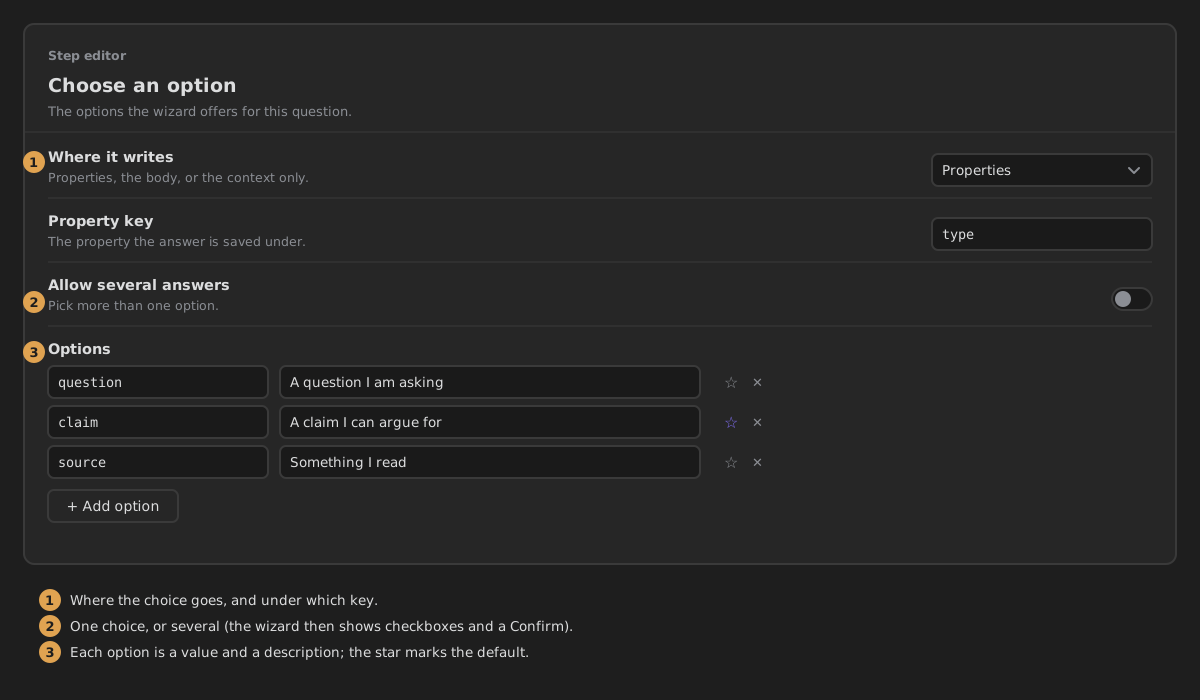
Choose an option
The options the wizard offers for this question.
Called selector in the step's YAML.
Settings
- Where it writes — Properties (a property on the note), Body (replaces
{{key}}in the step's note body) or Context only (not written to the note; the next steps can use it as{{key}}). Default: Properties. - Property key — the property the choice is saved under, e.g.
type. - Question — what the wizard asks, above the options. Empty by default.
- Allow several answers — let the wizard pick more than one option; they are written as a list. Off by default.
- Then the list of options, under its own Choose an option heading. Add a row with the + button (Add option). Each row has:
- Written to the note — the value saved, e.g.
claim. - Shown in the wizard — the label the person picking reads, e.g.
A claim I can argue for. - Default — the option the wizard starts on. One option at most.
- Written to the note — the value saved, e.g.
Reorder a row with its Drag to reorder handle, or remove it with Delete (the bin).
What it writes
With Property key type and Properties:
With Allow several answers on, the property is a list:
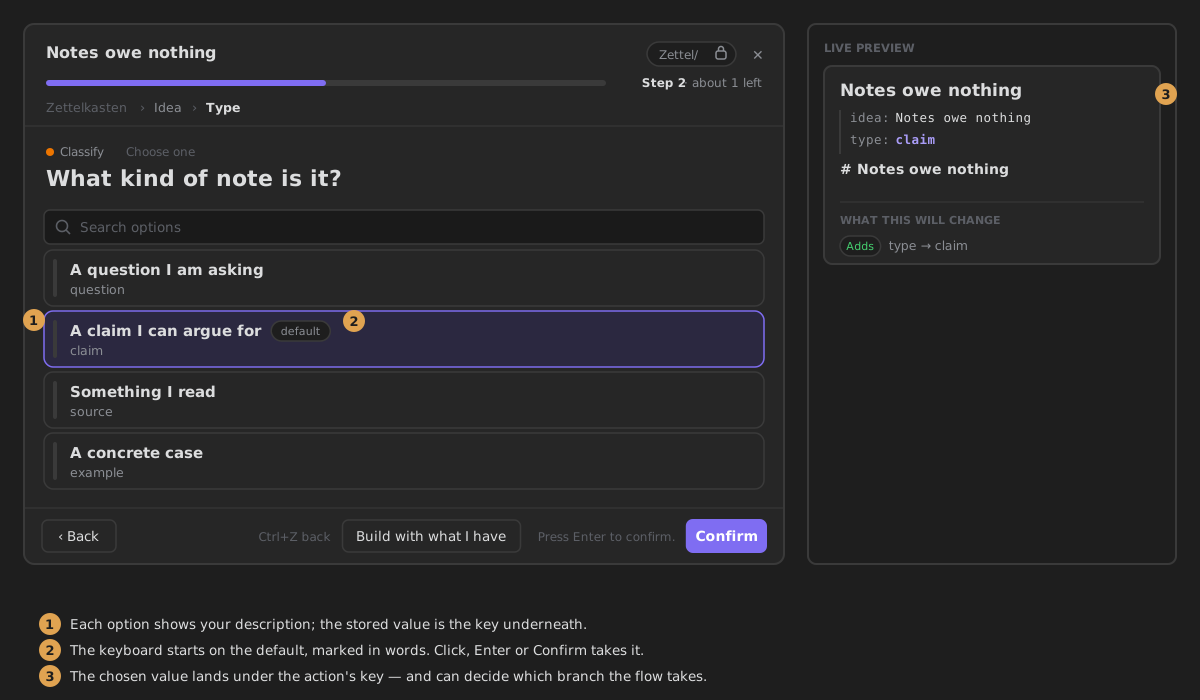
In the wizard
The wizard lists the options you defined. Click one, or move with the arrow keys and press Enter or Confirm, to choose it and continue. The keyboard starts on the default option, which is marked default. With Allow several answers, pick several and press Confirm.