Pick a date
A date, and a time if you want one, written to the note.
Called calendar in the step's YAML.
Settings
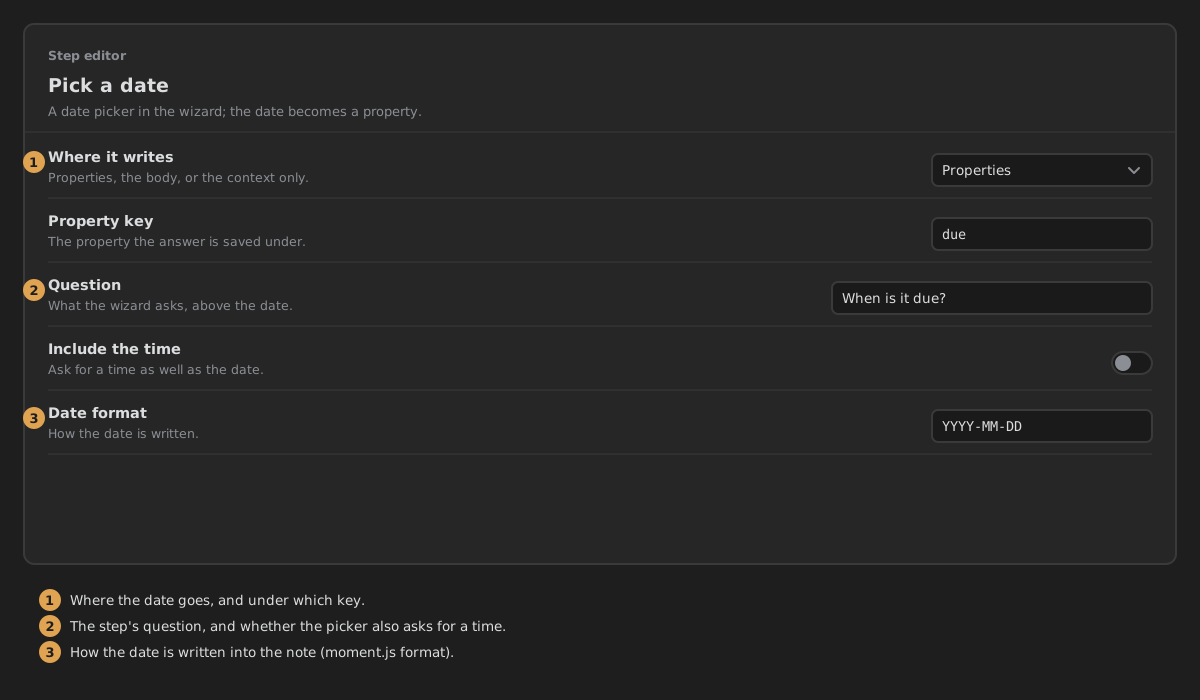
- Where it writes — Properties (a property on the note), Body (replaces
{{key}}in the step's note body) or Context only (not written to the note; the next steps can use it as{{key}}). Default: Properties. - Property key — the property the date is saved under, e.g.
due. - Question — what the wizard asks, above the date. Empty by default.
- Include the time — ask for a time as well as a date. Off by default.
- Date format — how the date is written, in Moment.js tokens. Empty uses
YYYY-MM-DD, orYYYY-MM-DDTHH:mm:sswhen Include the time is on. Turning Include the time on or off resets the saved format, so set it after the toggle. - Always the same answer — skip the question and write a fixed value. Off by default.
- Fixed value — the date (and time) written every time. Shown only when Always the same answer is on.
What it writes
With Property key due, Properties and an empty Date format:
With Include the time on: due: 2026-10-13T09:30:00.
In the wizard
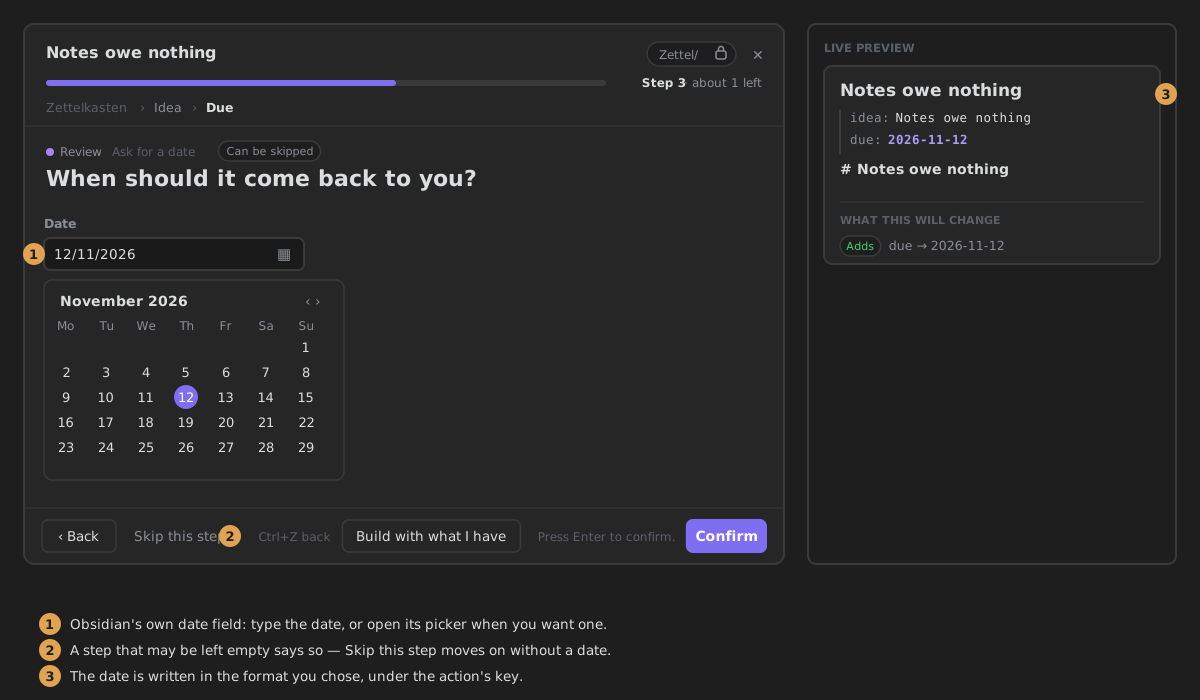
Obsidian's own date field, with your question above it. Type the date, or open the field's picker when you want one. Press Enter or Confirm to continue. A date that is not a date is refused. When the step can be skipped, Skip this step moves on without one.